How to Use Shrewd LMS as Teacher
Step-by-step instructions for installing the app, setting up courses, adding and managing activities, and accessing reports — all within Microsoft Teams.
Important Note: Shrewd LMS works natively within Microsoft Teams and does not require Azure Active Directory (Azure AD) configuration. We strongly recommend not using Azure AD groups or custom restrictions to control access, as this may cause unexpected access issues. Manage access using Microsoft Teams settings and policies only.
Sections
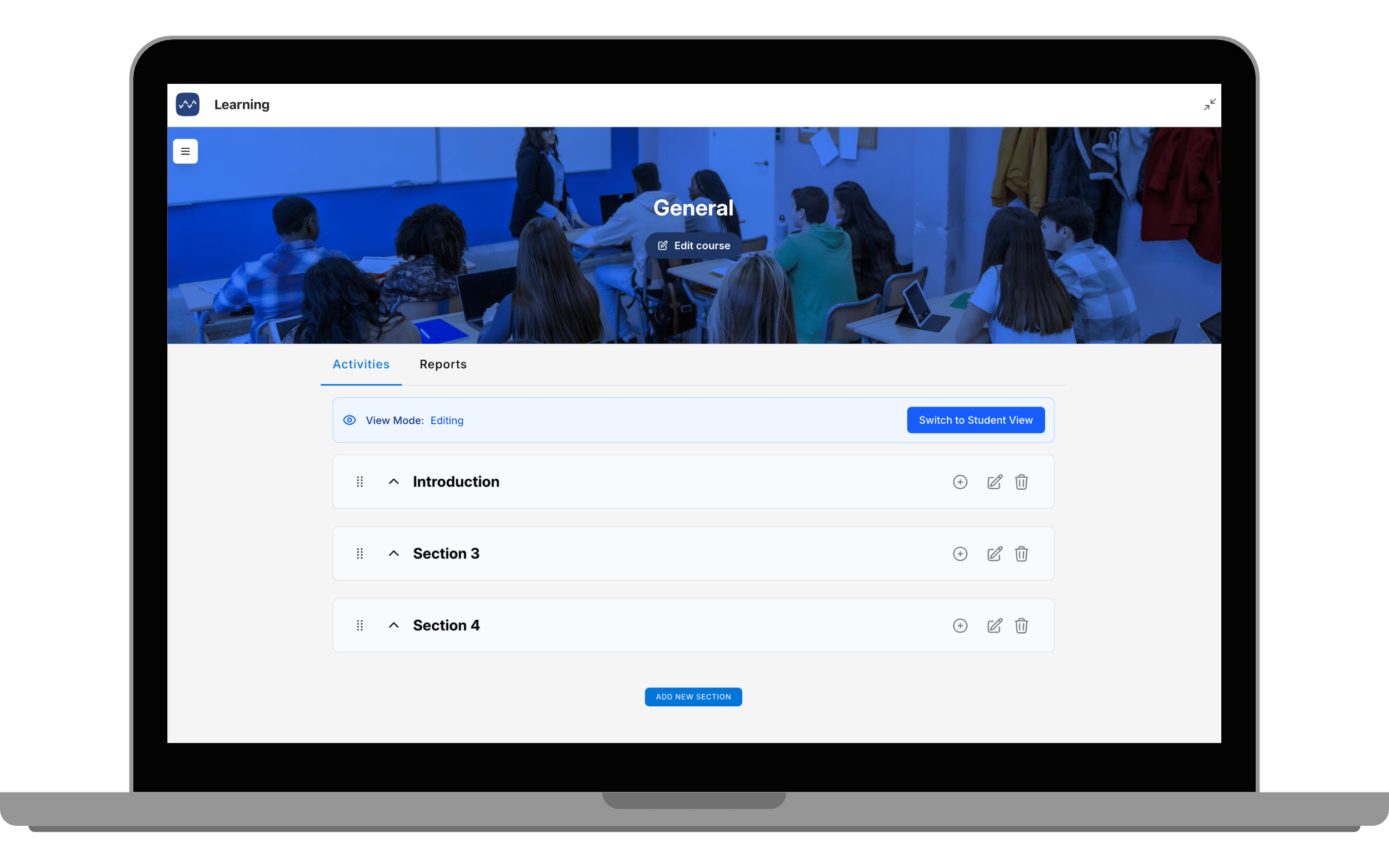
Sections divide your course into parts, such as weeks, topics or modules. Each section holds its own activities, so learners see your content in the order and grouping you choose. Every section has a title and an optional description.
Add a section
Organise your course content by adding sections.
Add a new section
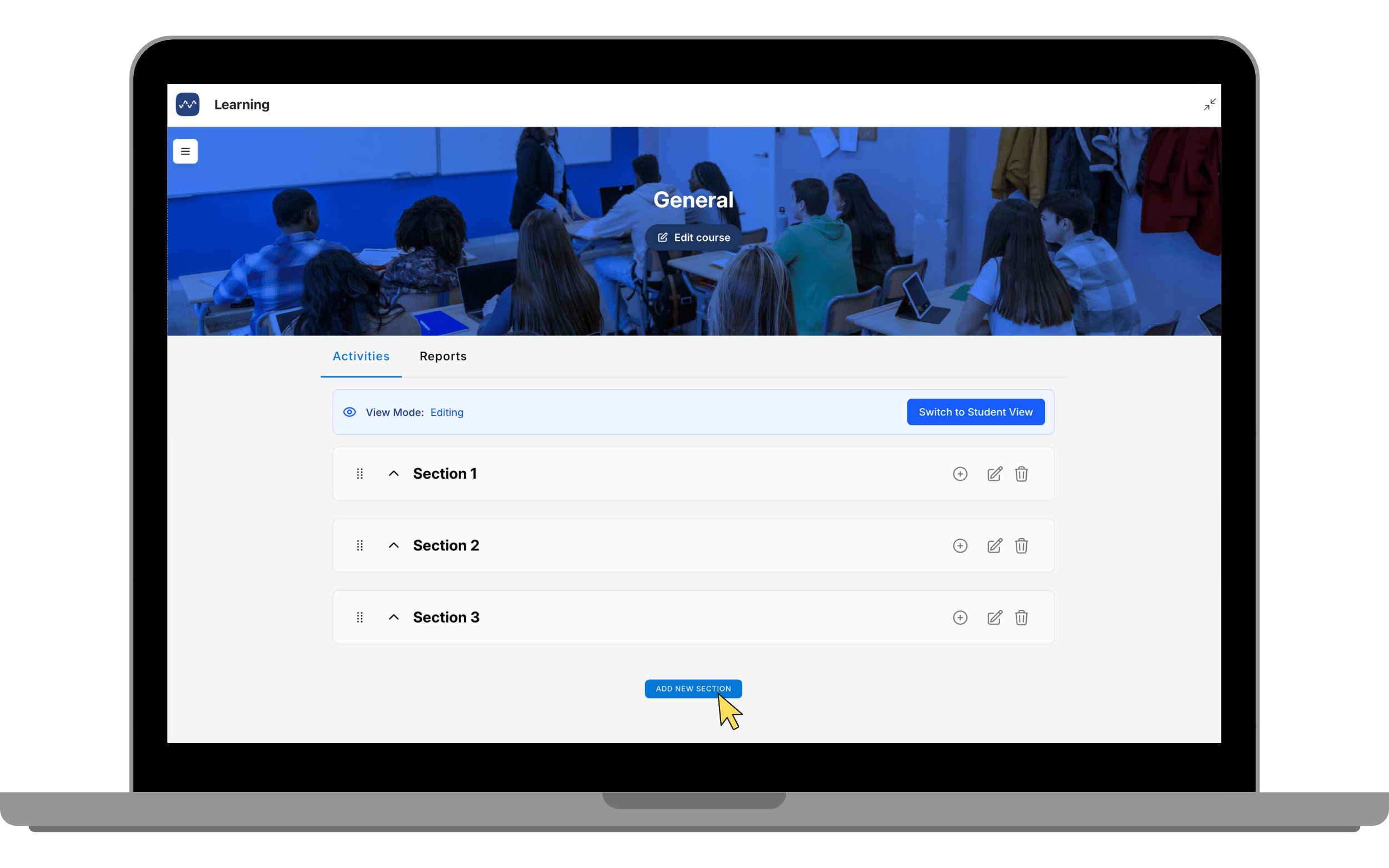
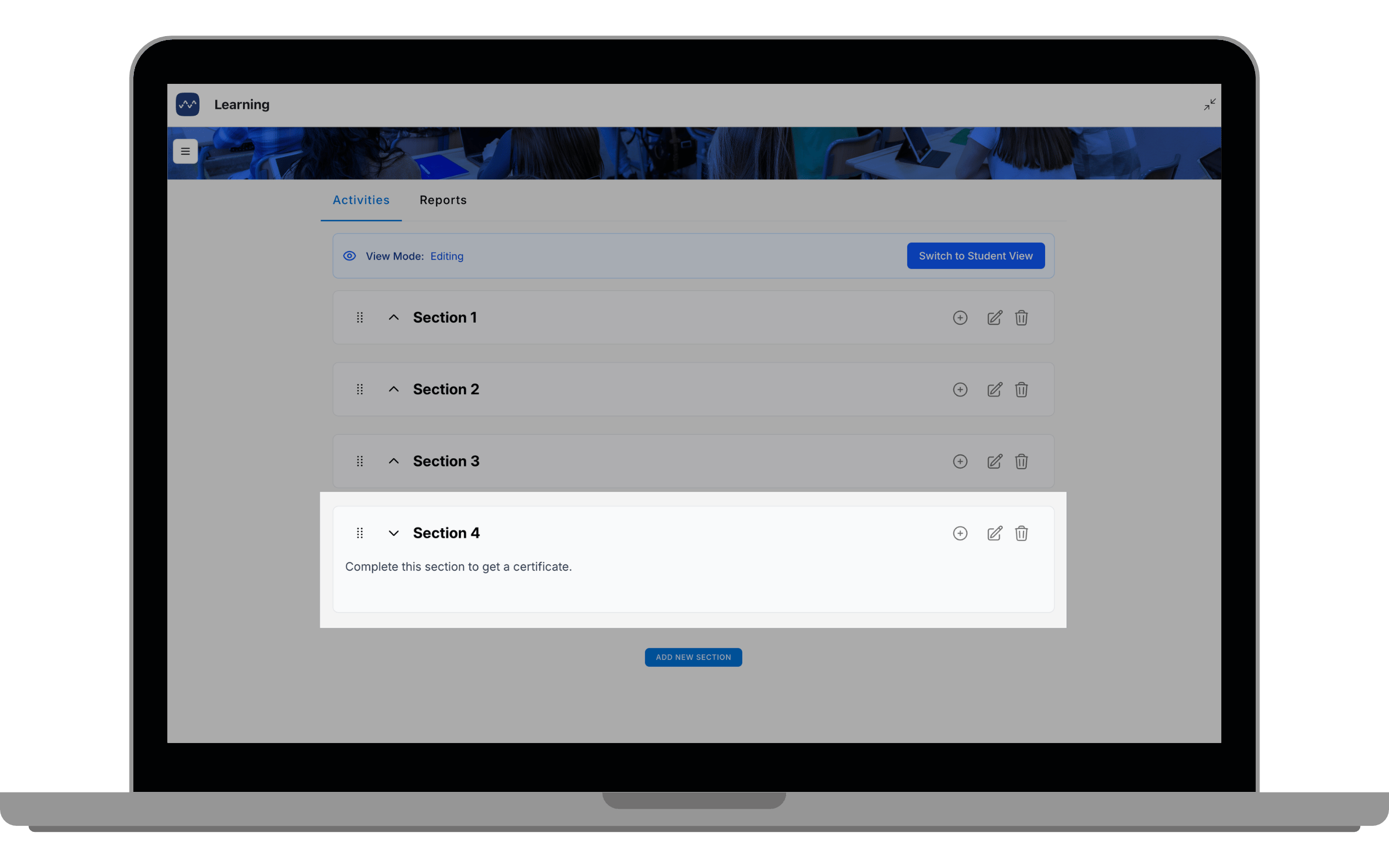
Open the Activities tab and select Add New Section.
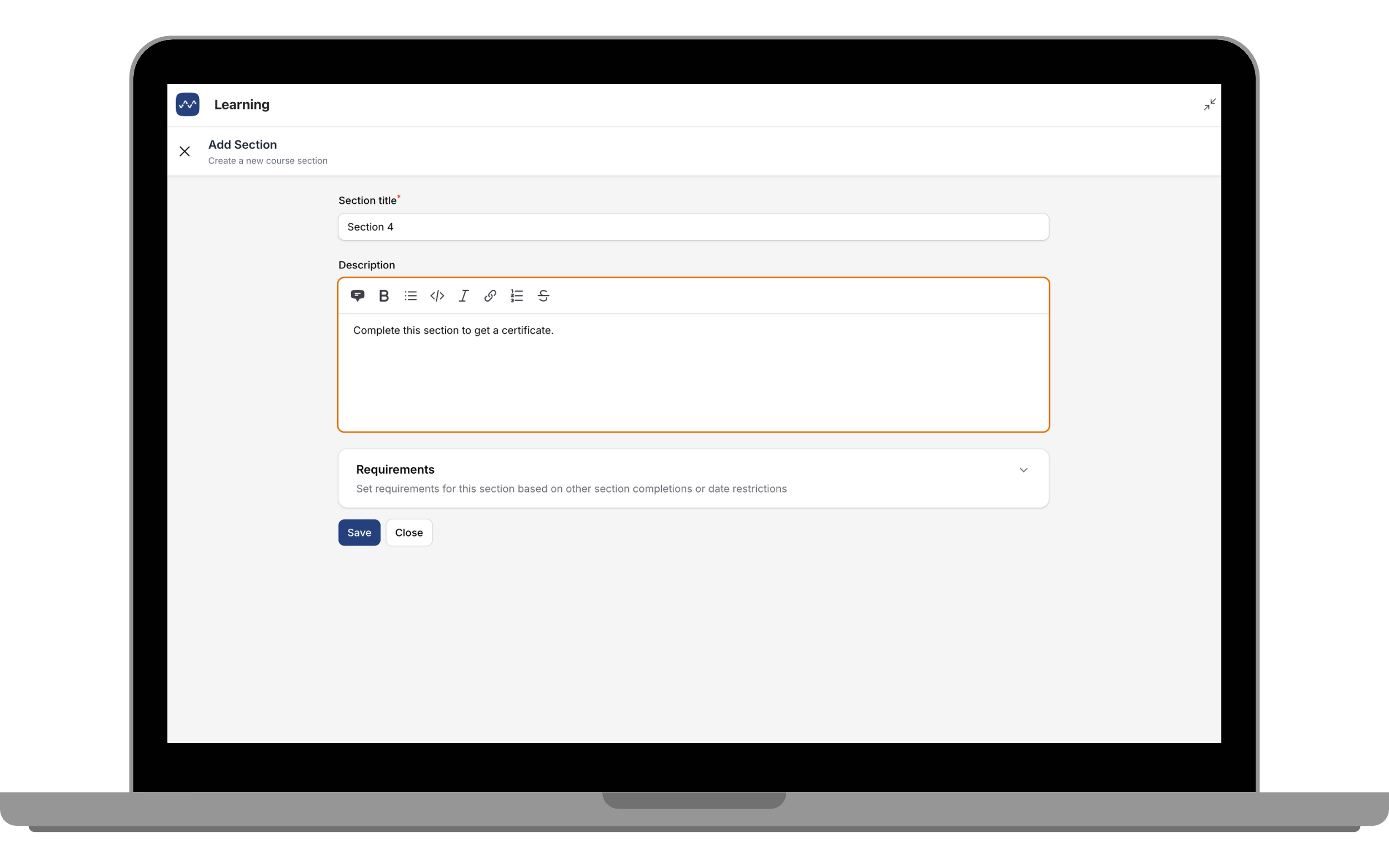
Enter a title and a description
Enter a title. You can also add a description to tell learners what the section covers.
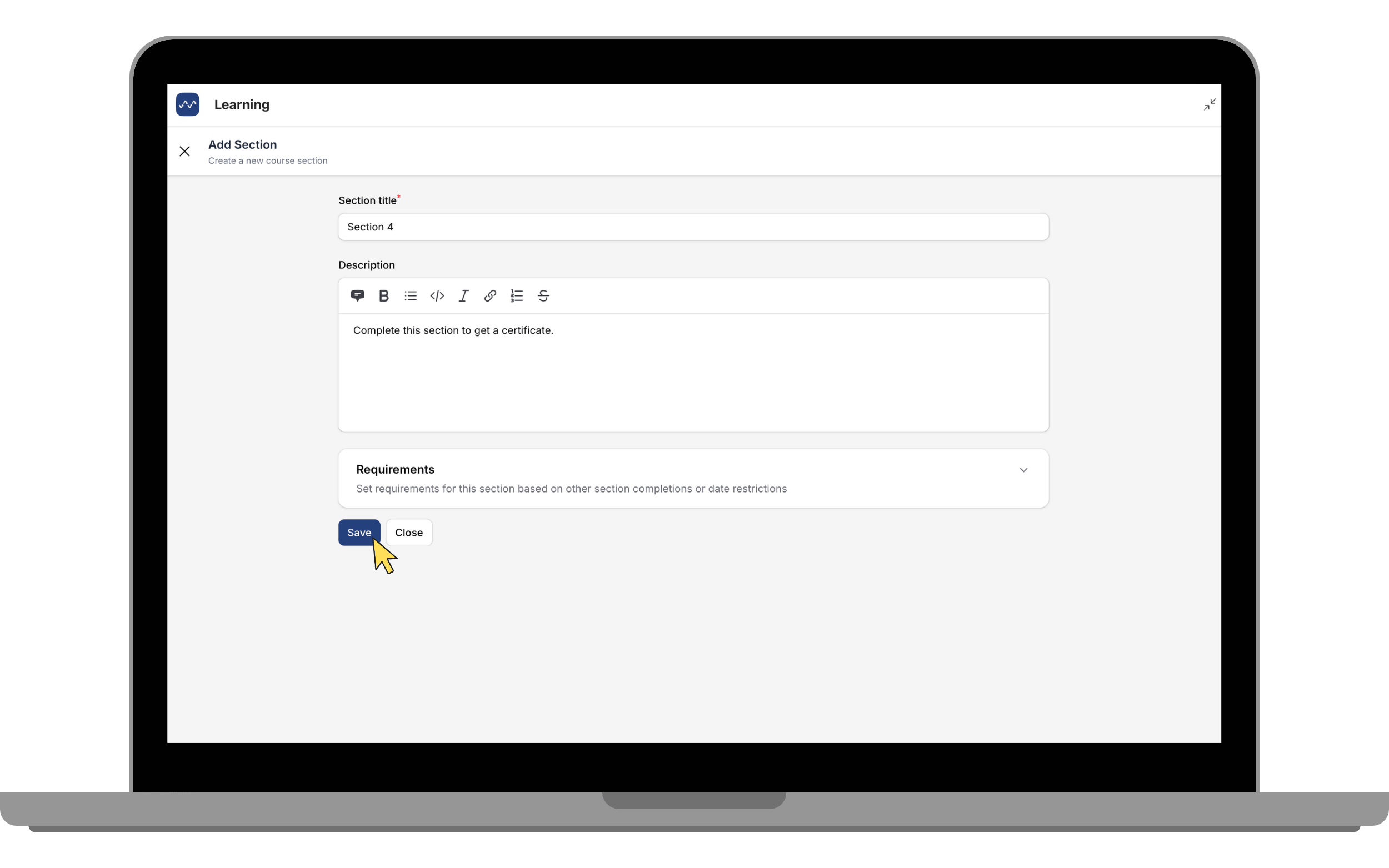
Save the new section
Save the section. It appears at the bottom of your course, ready for activities.
The new section will appear on the course page
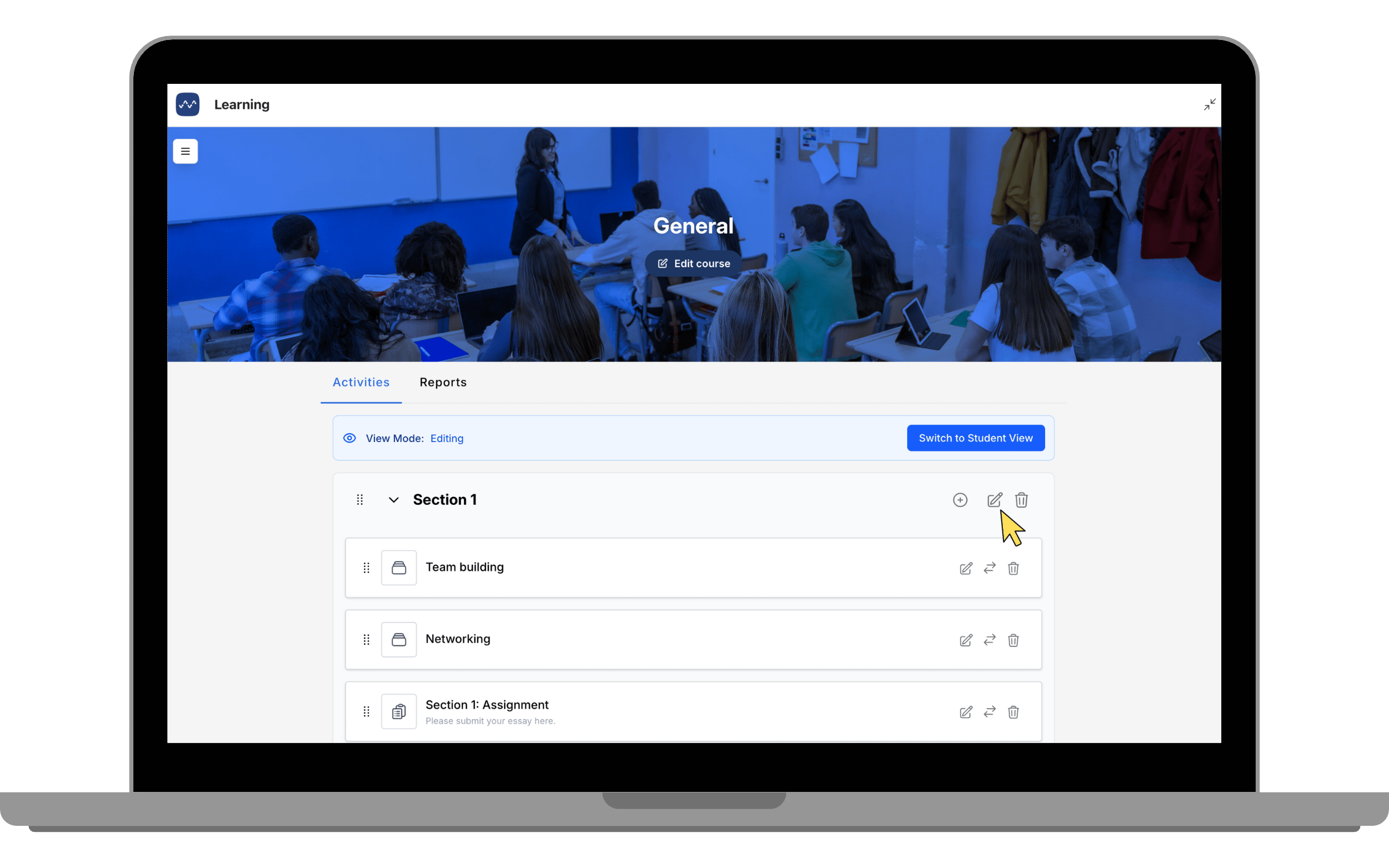
Edit a section
Select the pencil icon on the section header.
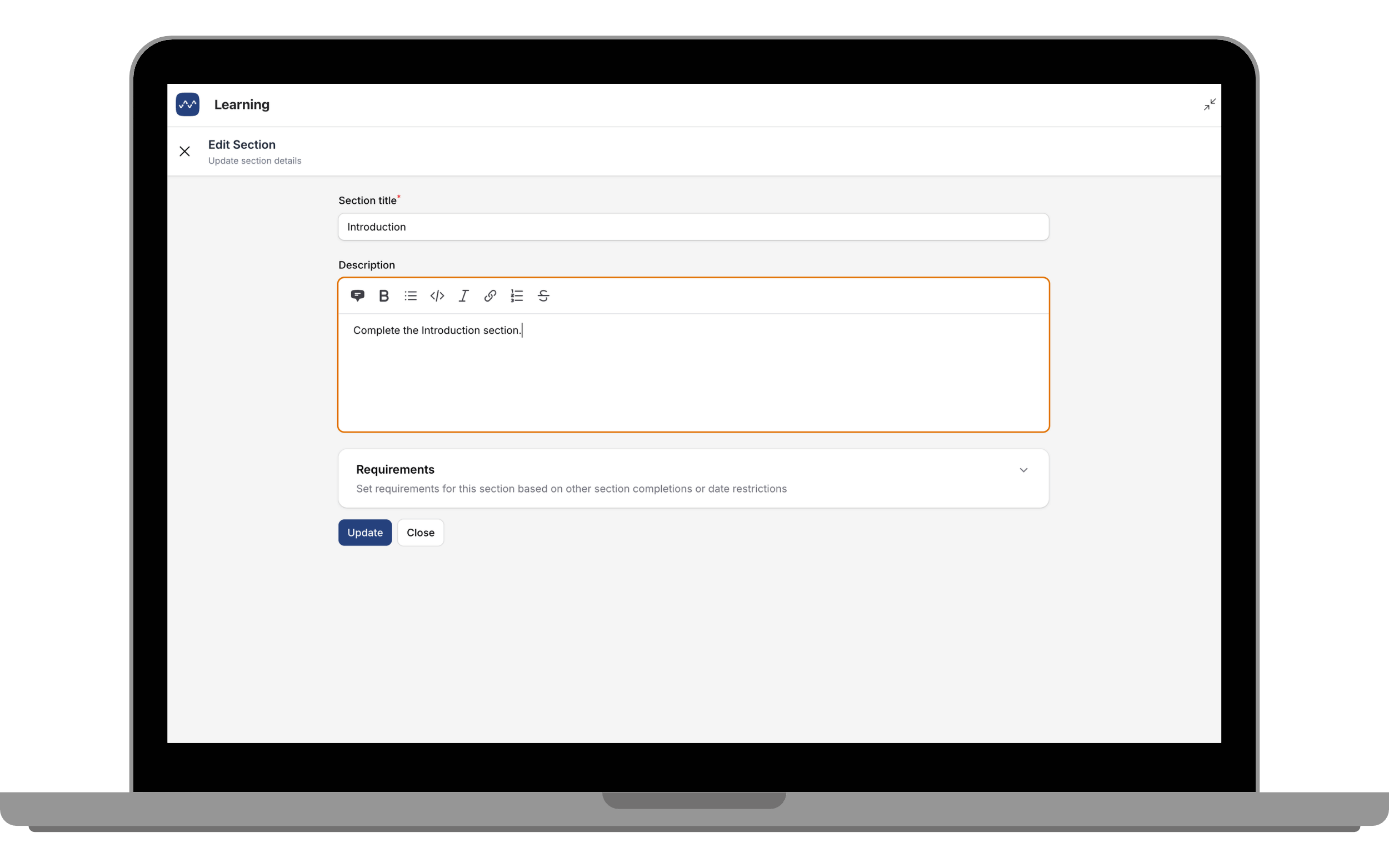
Change the title or description.
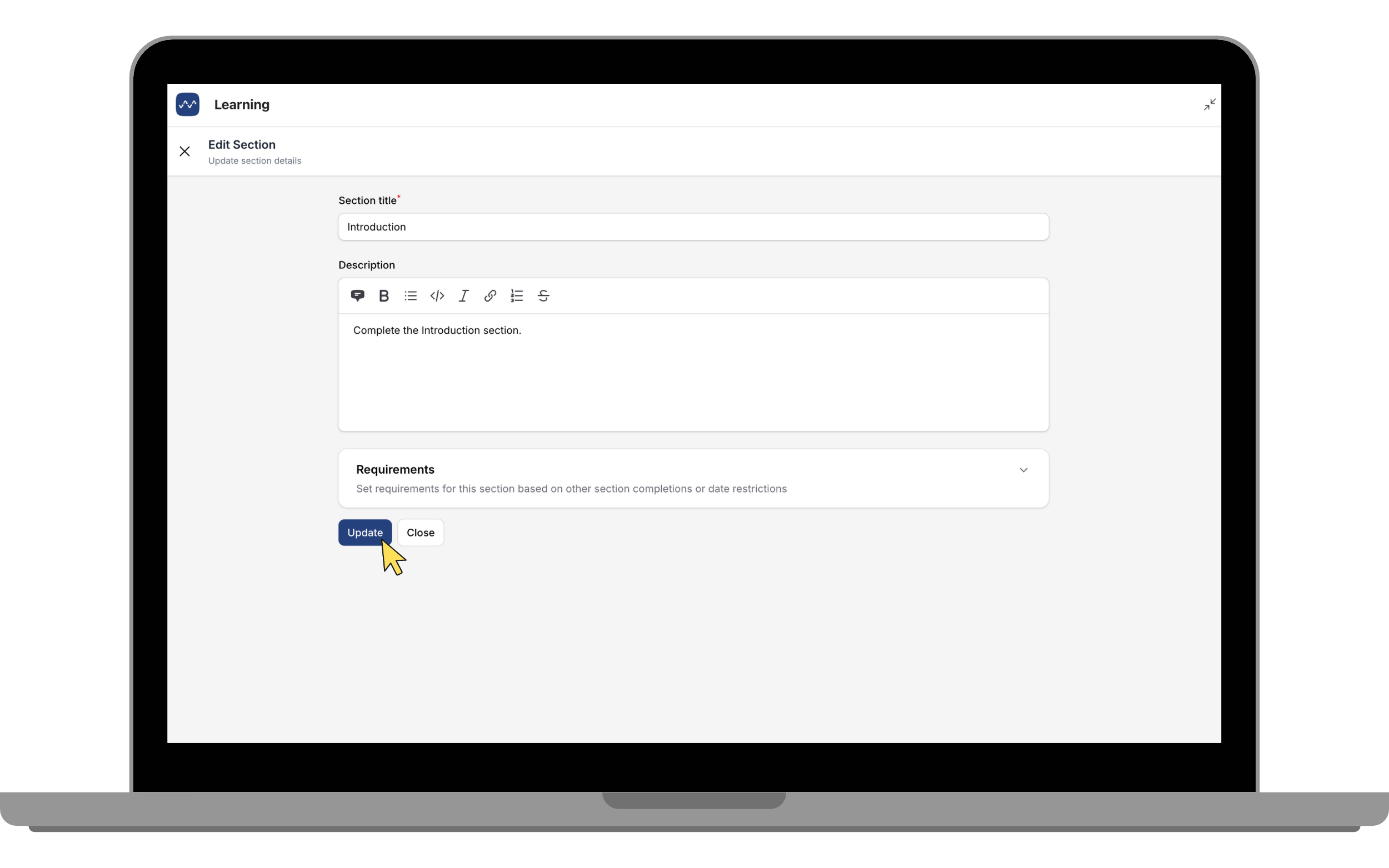
Click update to save the changes.
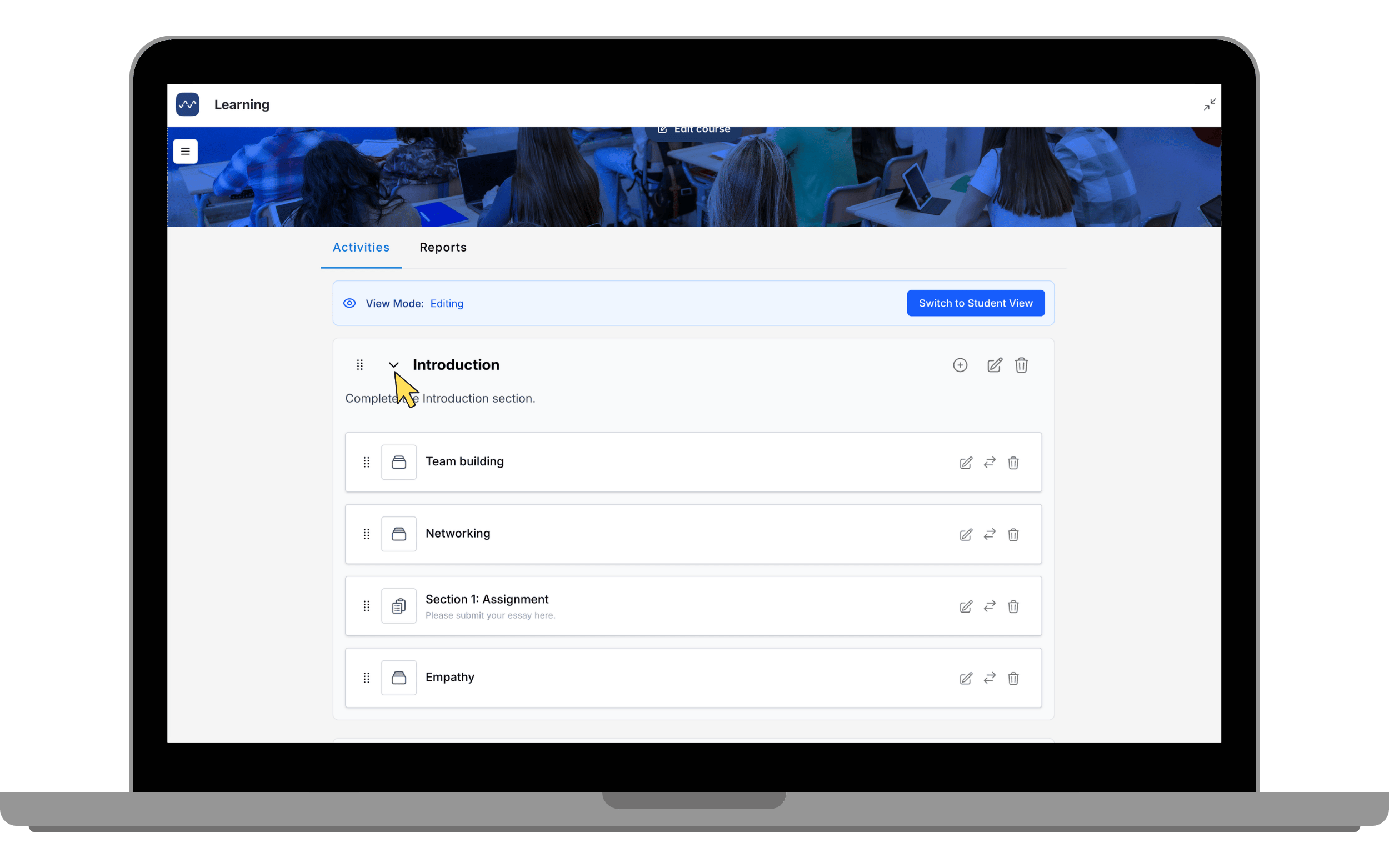
Collapse and expand a section
Sections can be collapsed to hide their content or expanded to show it again. Click the chevron icon to toggle between the two states.
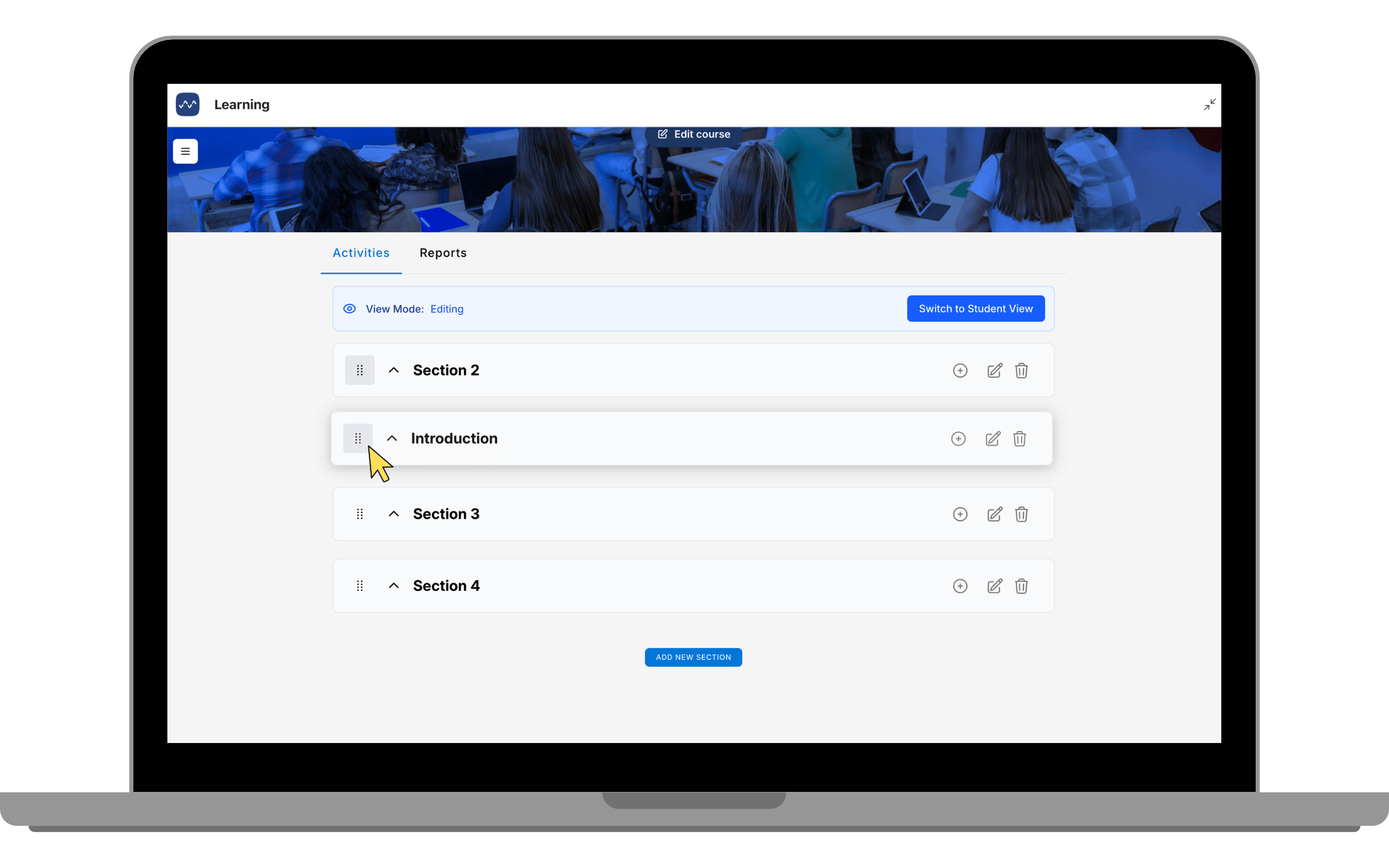
Move a section
Drag the section by its drag handle and drop it where you want it. The other sections shift to make room.
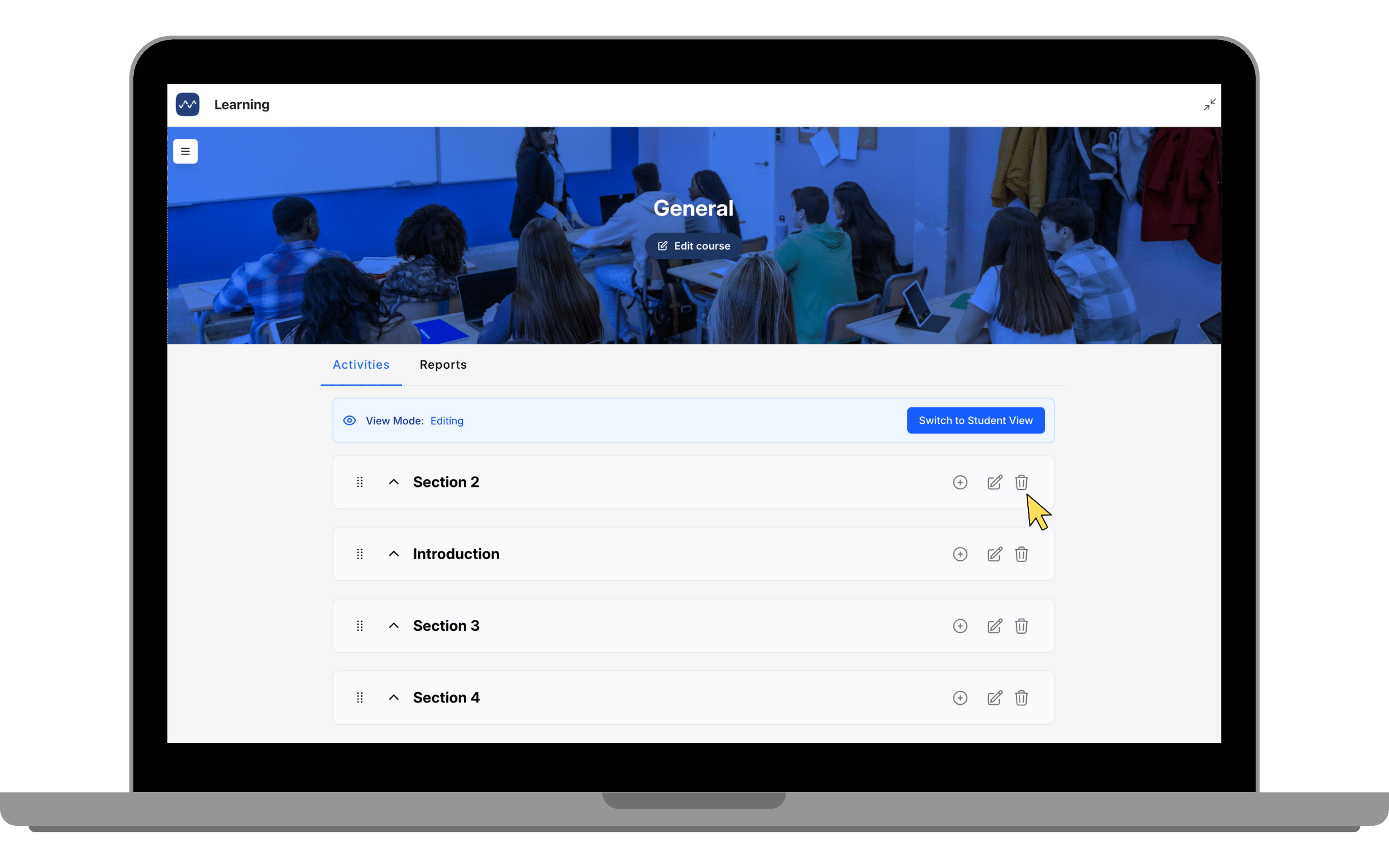
Delete a section
Select the bin icon on the section header.
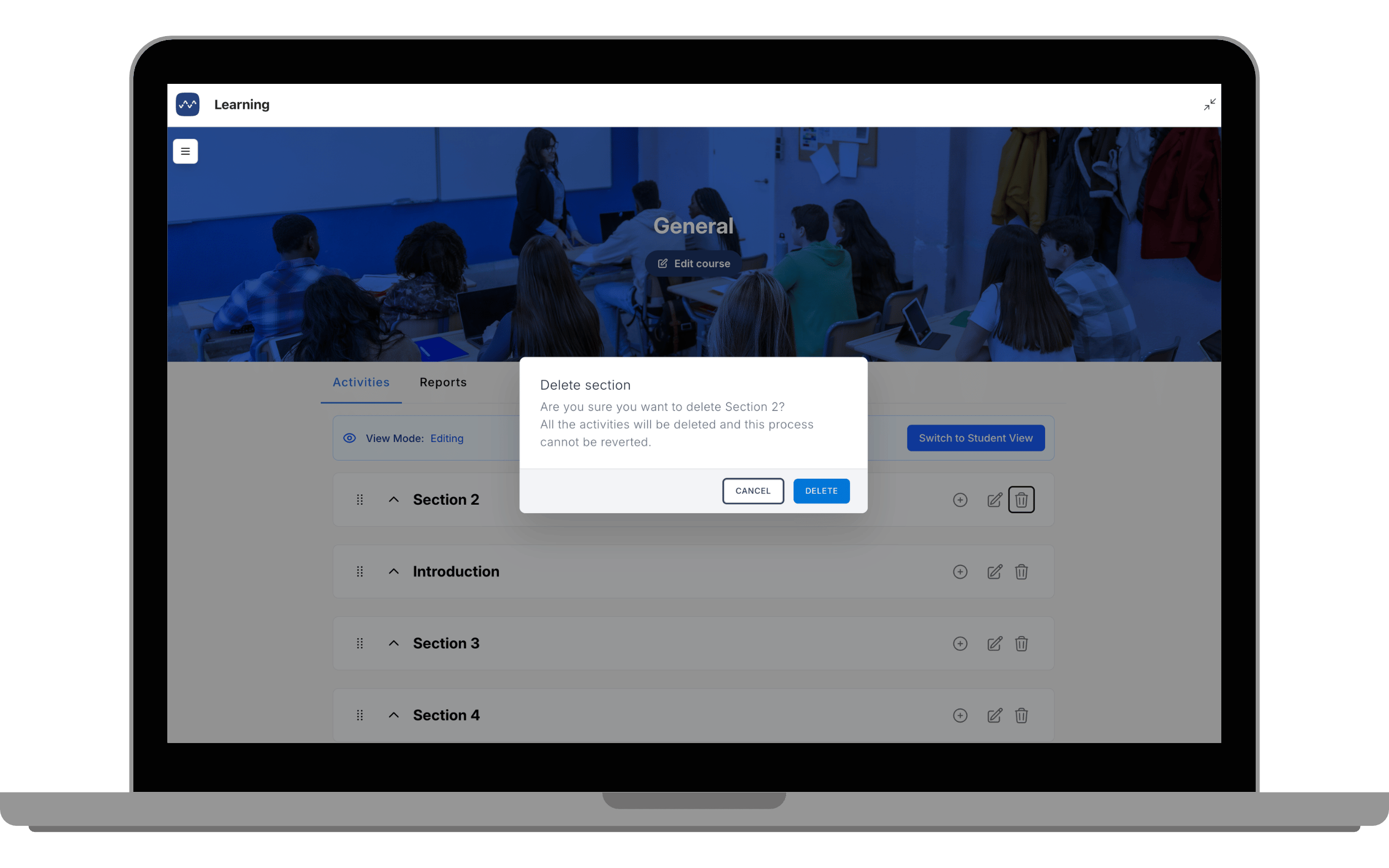
A confirmation message will appear
The section has been deleted from your course