How to Use Shrewd LMS as Teacher
Step-by-step instructions for installing the app, setting up courses, adding and managing activities, and accessing reports — all within Microsoft Teams.
Important Note: Shrewd LMS works natively within Microsoft Teams and does not require Azure Active Directory (Azure AD) configuration. We strongly recommend not using Azure AD groups or custom restrictions to control access, as this may cause unexpected access issues. Manage access using Microsoft Teams settings and policies only.
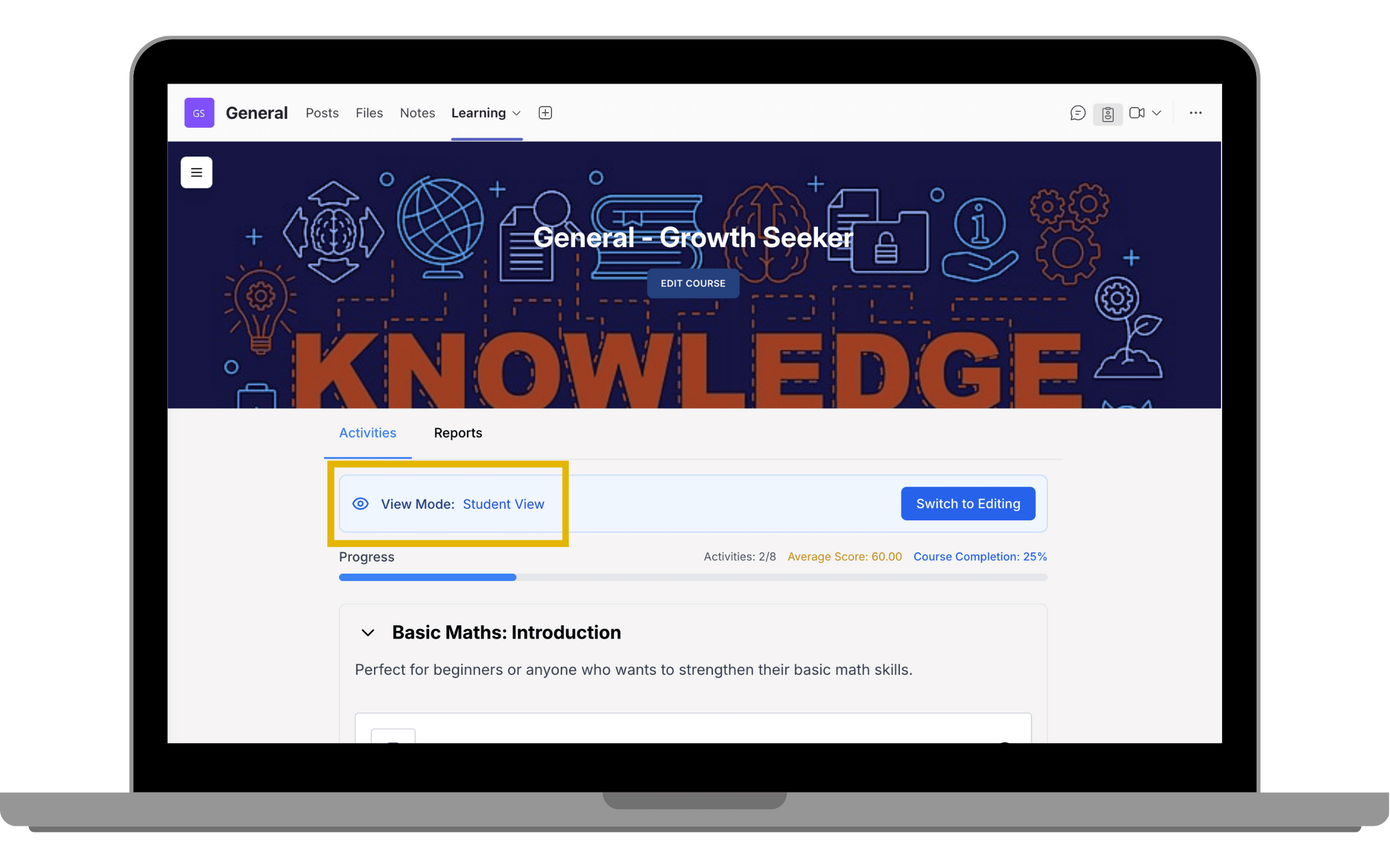
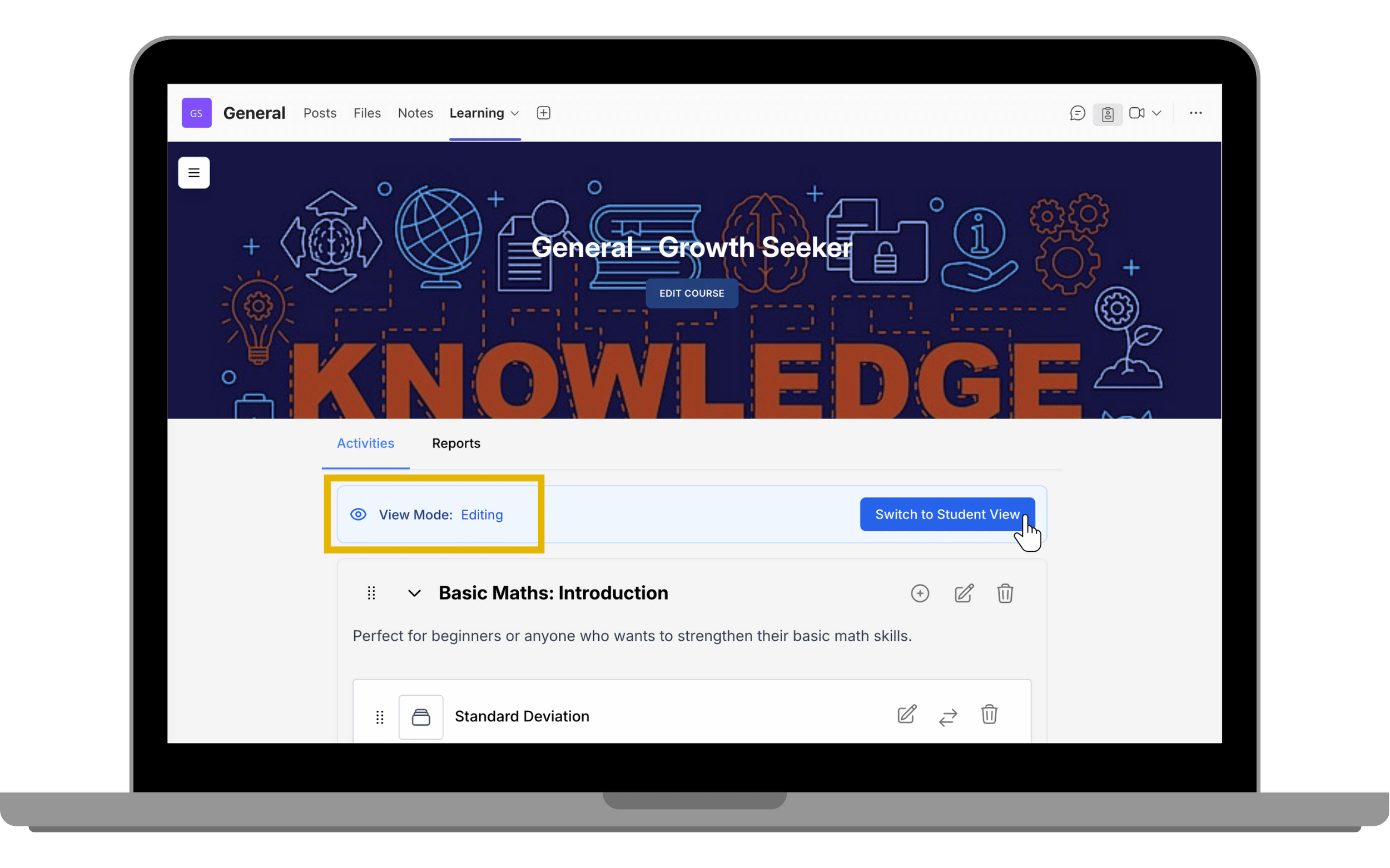
View Mode
Switch between Editing mode and Student View
Switching Views
Editing Mode
In Editing Mode, you can add, edit, reorder, and delete sections and activities. Access course settings, reports, and all management tools. This is the default view for course owners and teachers.
Student View
Toggle to Student View to see exactly what your students see. This is useful for previewing content layout, checking prerequisite locking behaviour, and verifying that activities display correctly.