
How to Use Shrewd LMS as Teacher
Step-by-step instructions for installing the app, setting up courses, adding and managing activities, and accessing reports — all within Microsoft Teams.
Important Note: Shrewd LMS works natively within Microsoft Teams and does not require Azure Active Directory (Azure AD) configuration. We strongly recommend not using Azure AD groups or custom restrictions to control access, as this may cause unexpected access issues. Manage access using Microsoft Teams settings and policies only.
Activities Overview and Settings
Activities are the items of content inside your sections. Each activity is one thing for learners to read, watch, complete or submit, such as a document, a video, a quiz or an assignment. This page shows how to add an activity, lists the activity types, and explains the settings that several types share.
How to add an activity
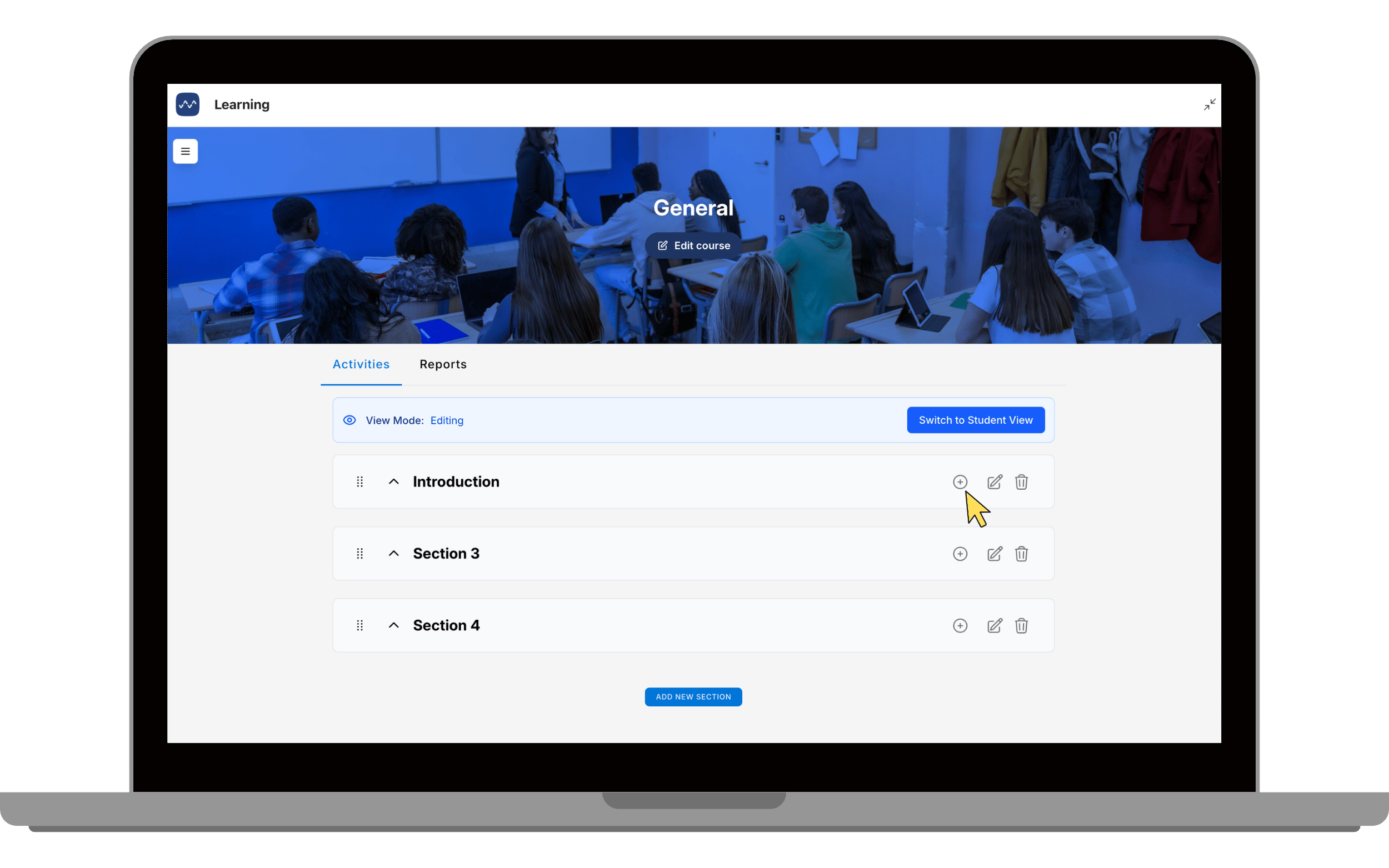
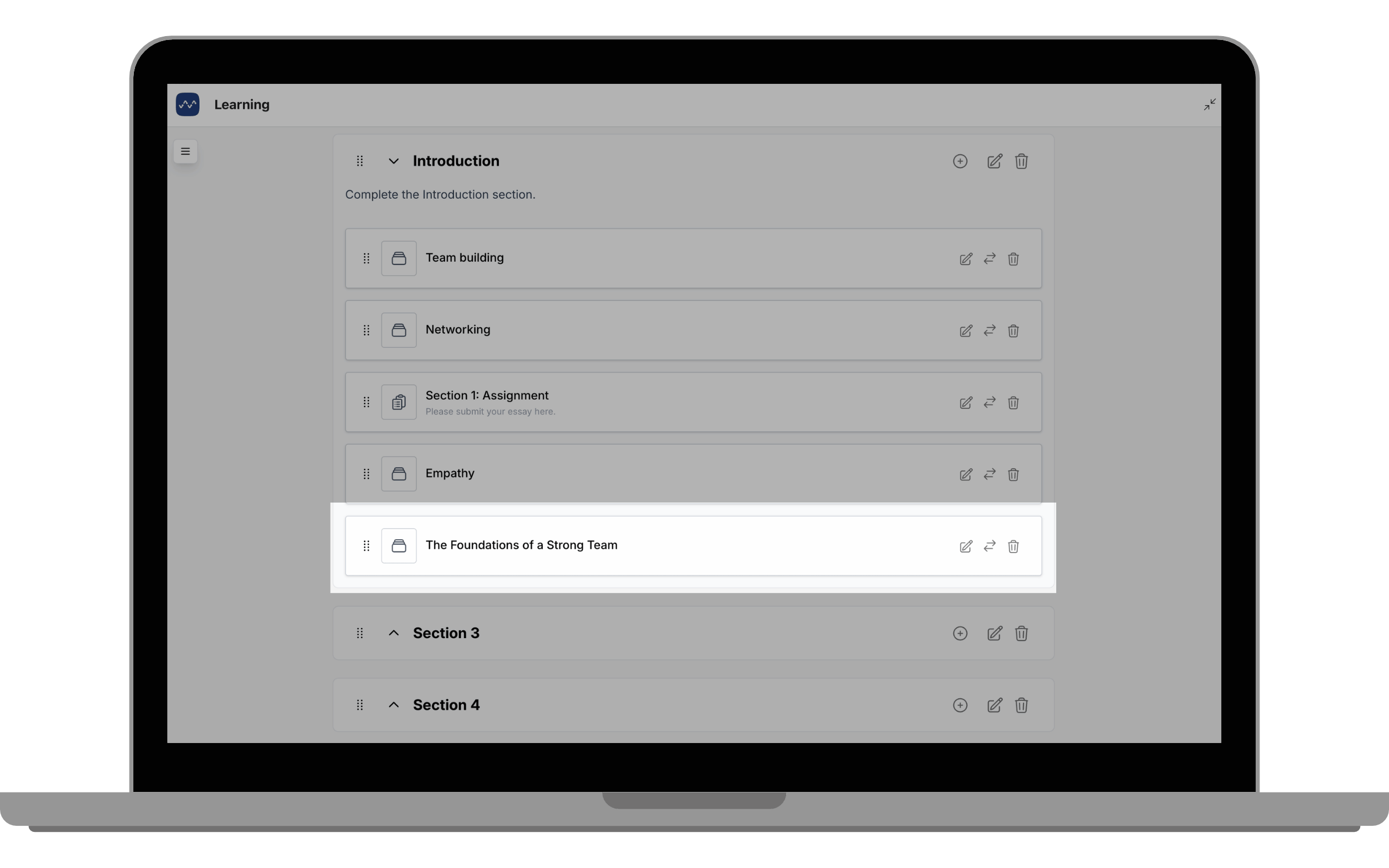
Click plus (+) icon to add an activity
Open the Activities tab, find the section you want, and select the plus icon on its header.
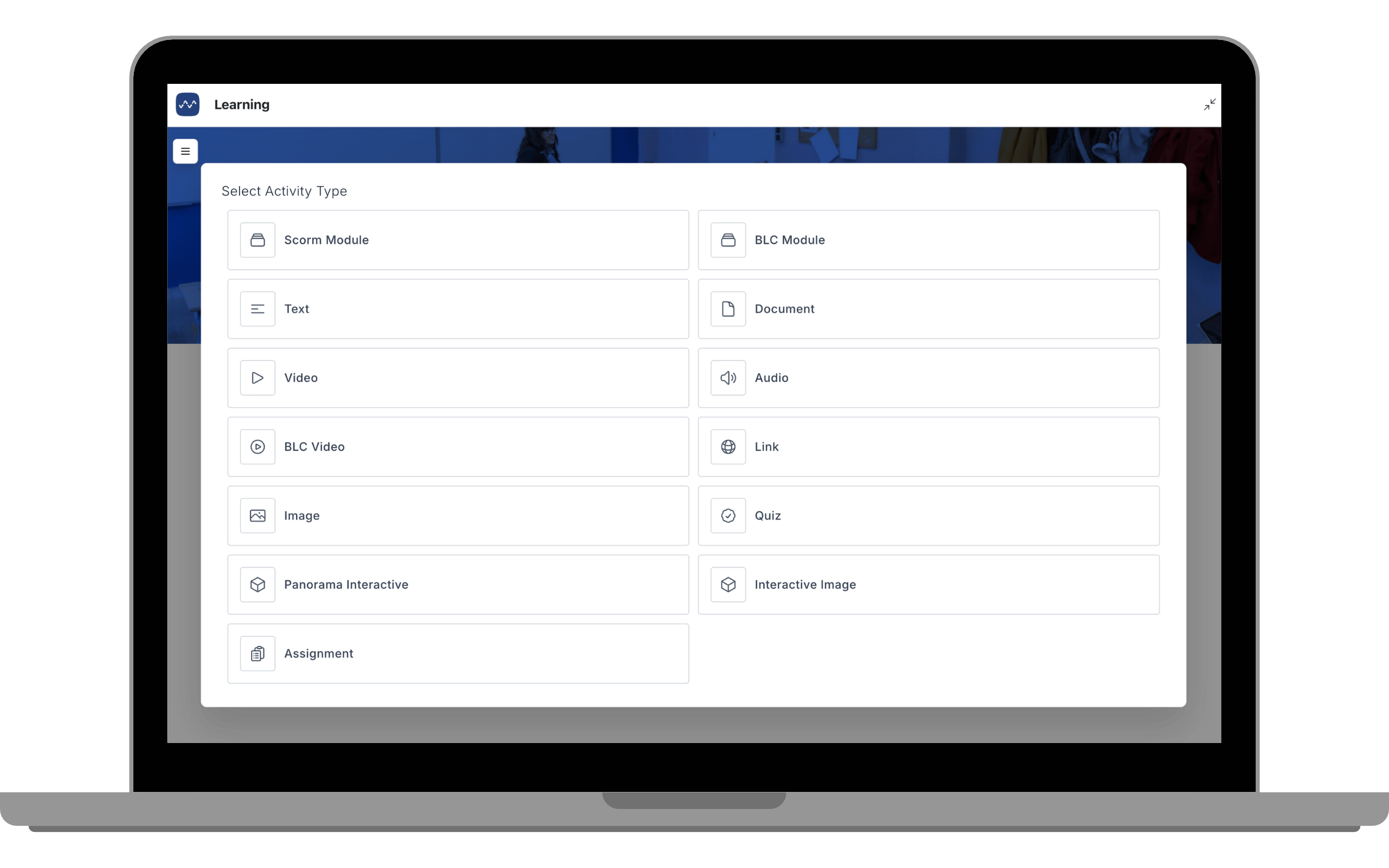
Choose the content type you want.
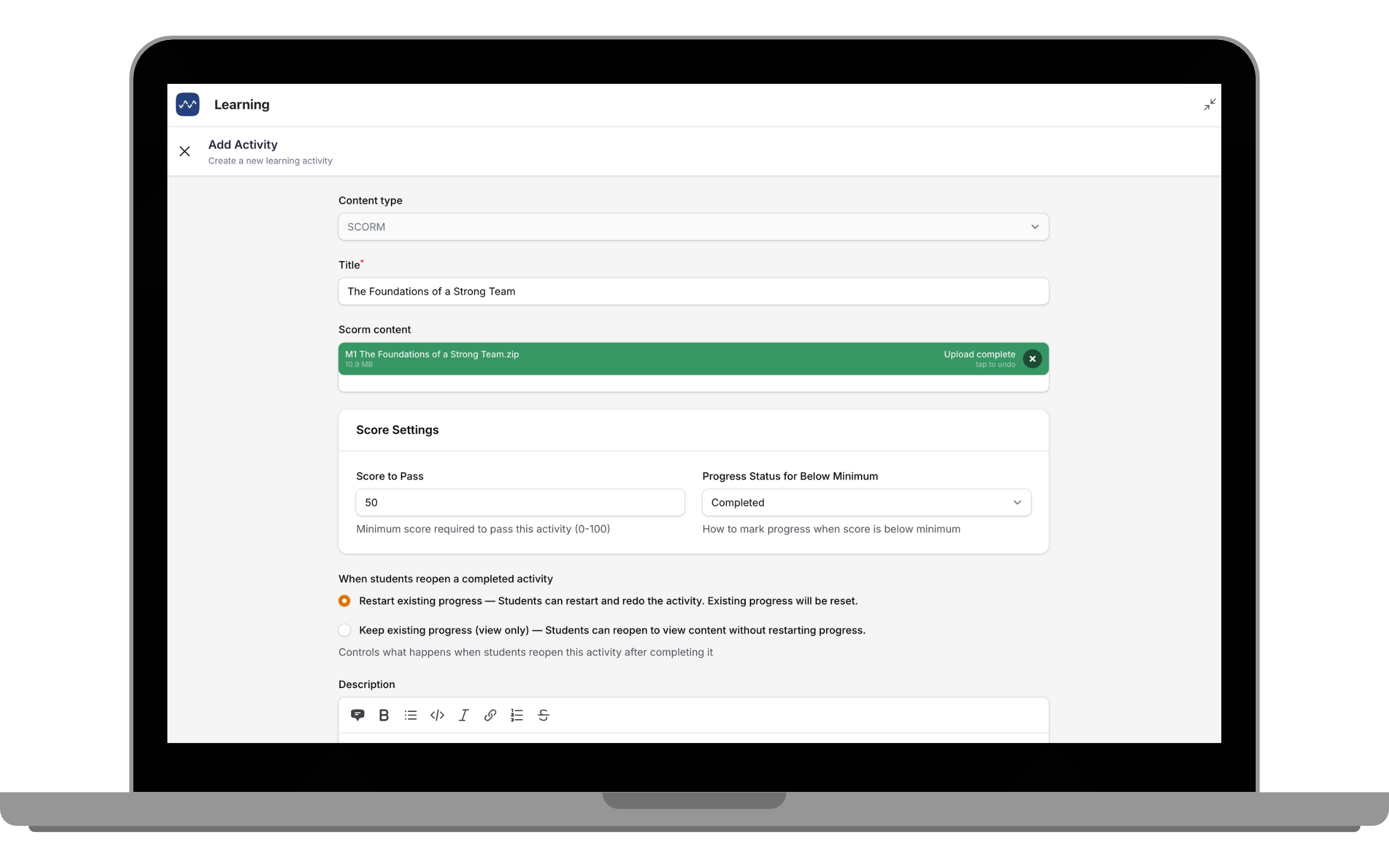
Enter a title, then upload the file if the selected content type requires one
Fill in the activity configurations.
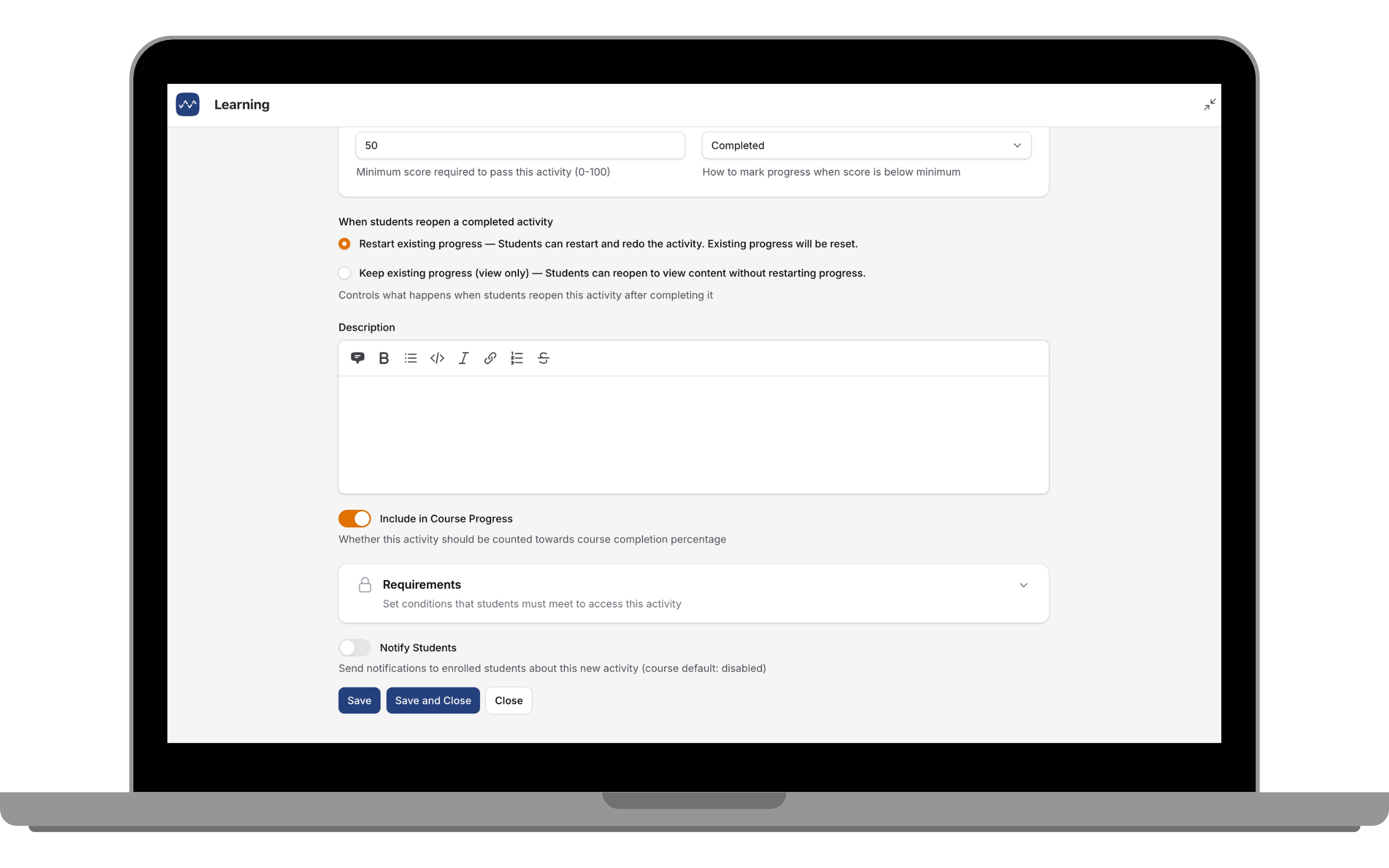
Save the activity.
Activity Settings
When you edit an activity, you see the Edit Activity page.
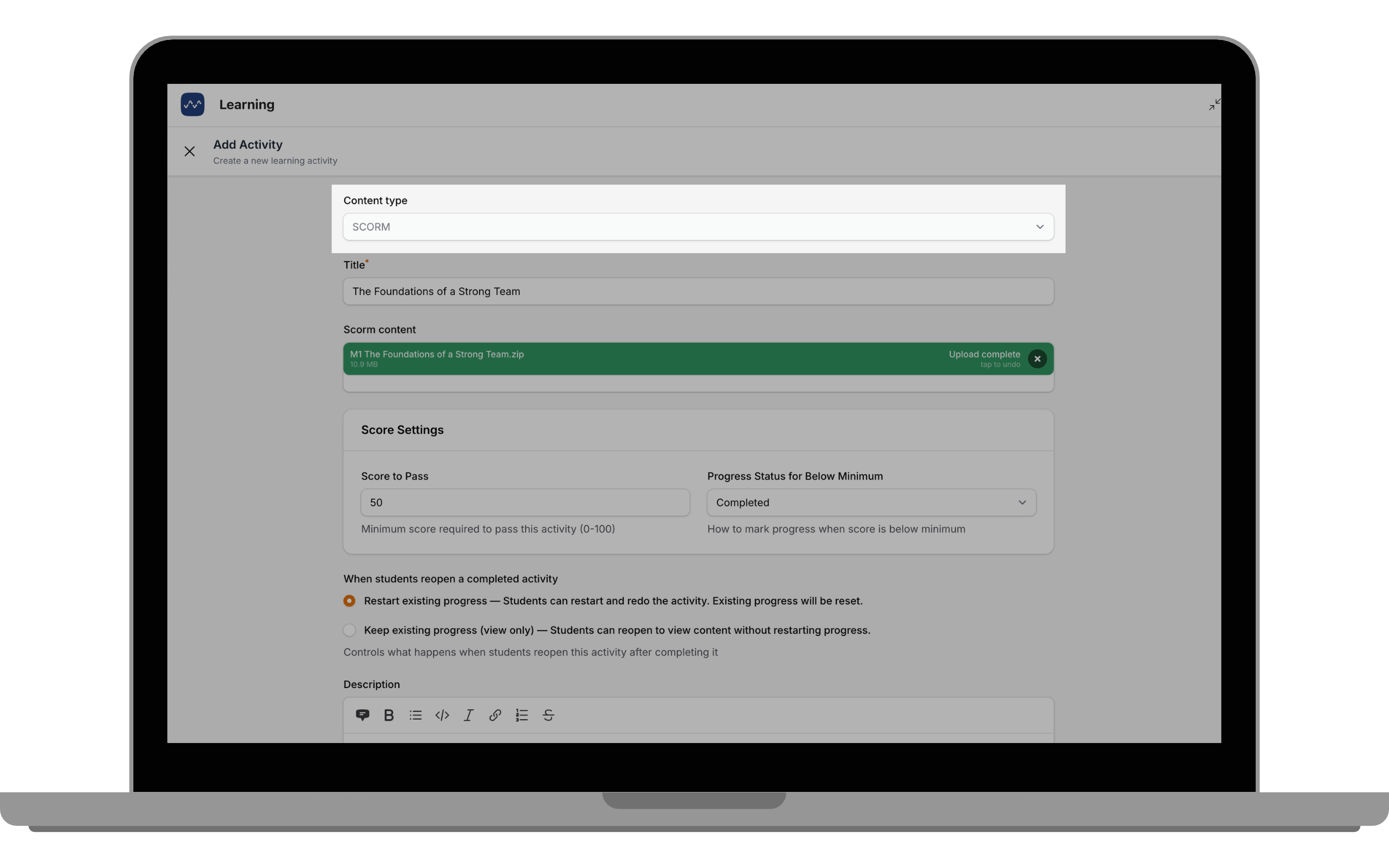
Content type
Shows the type of the activity, such as SCORM. When you edit an existing activity, this field appears greyed out.
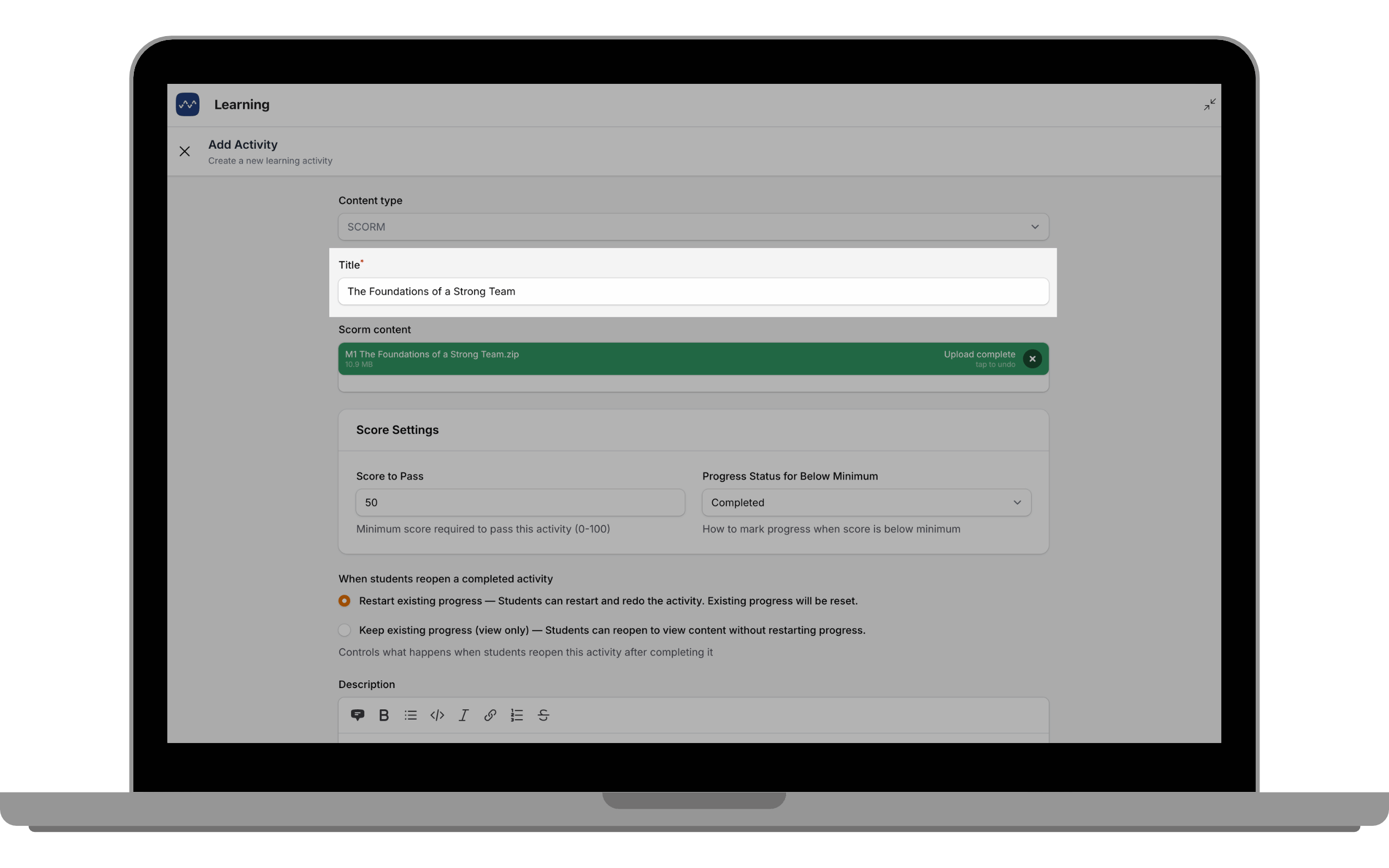
Title
The activity name displayed in the course. This field is required for most activity types.
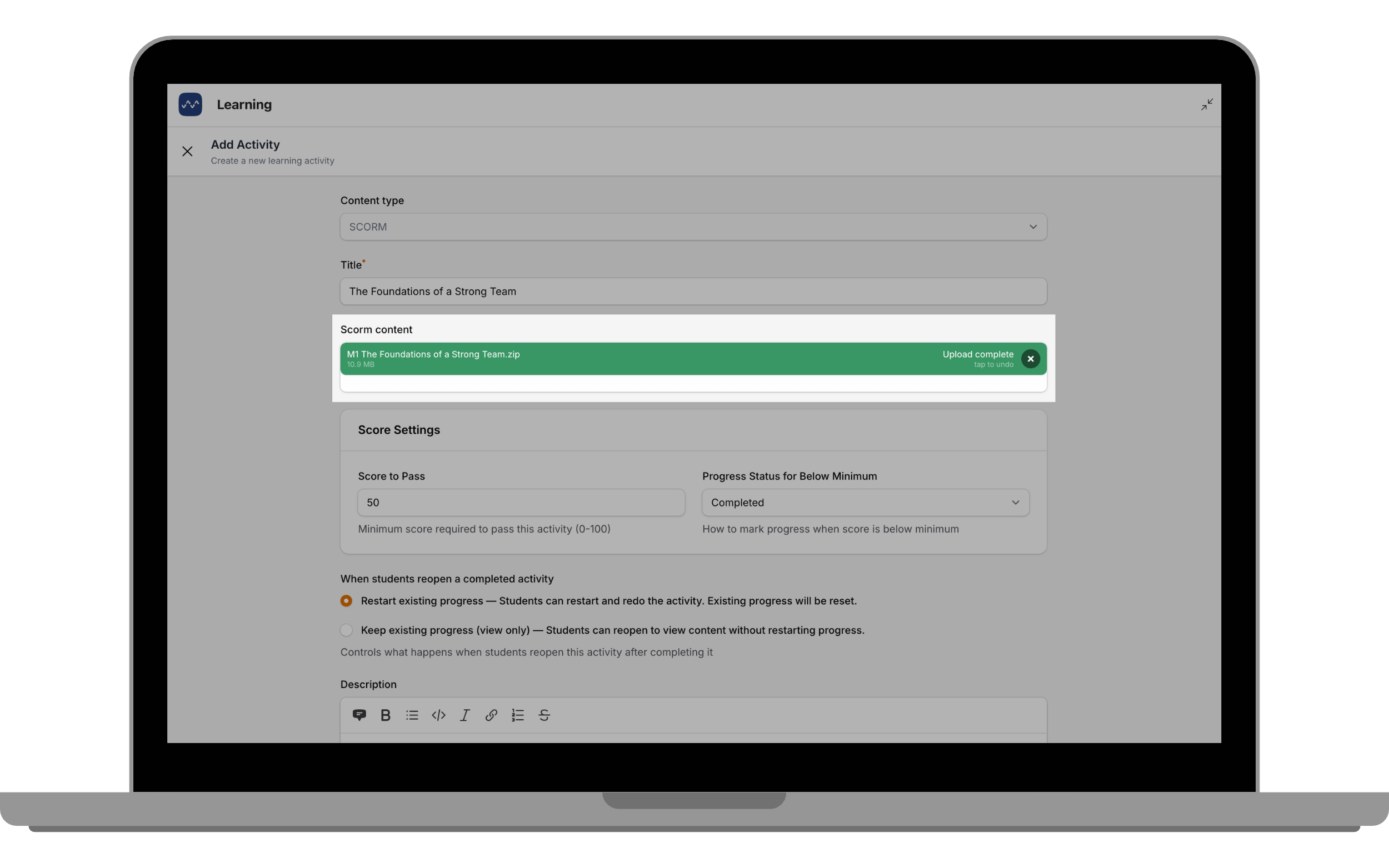
File upload
Some activity types require a file, such as SCORM packages and document activities.
Score settings
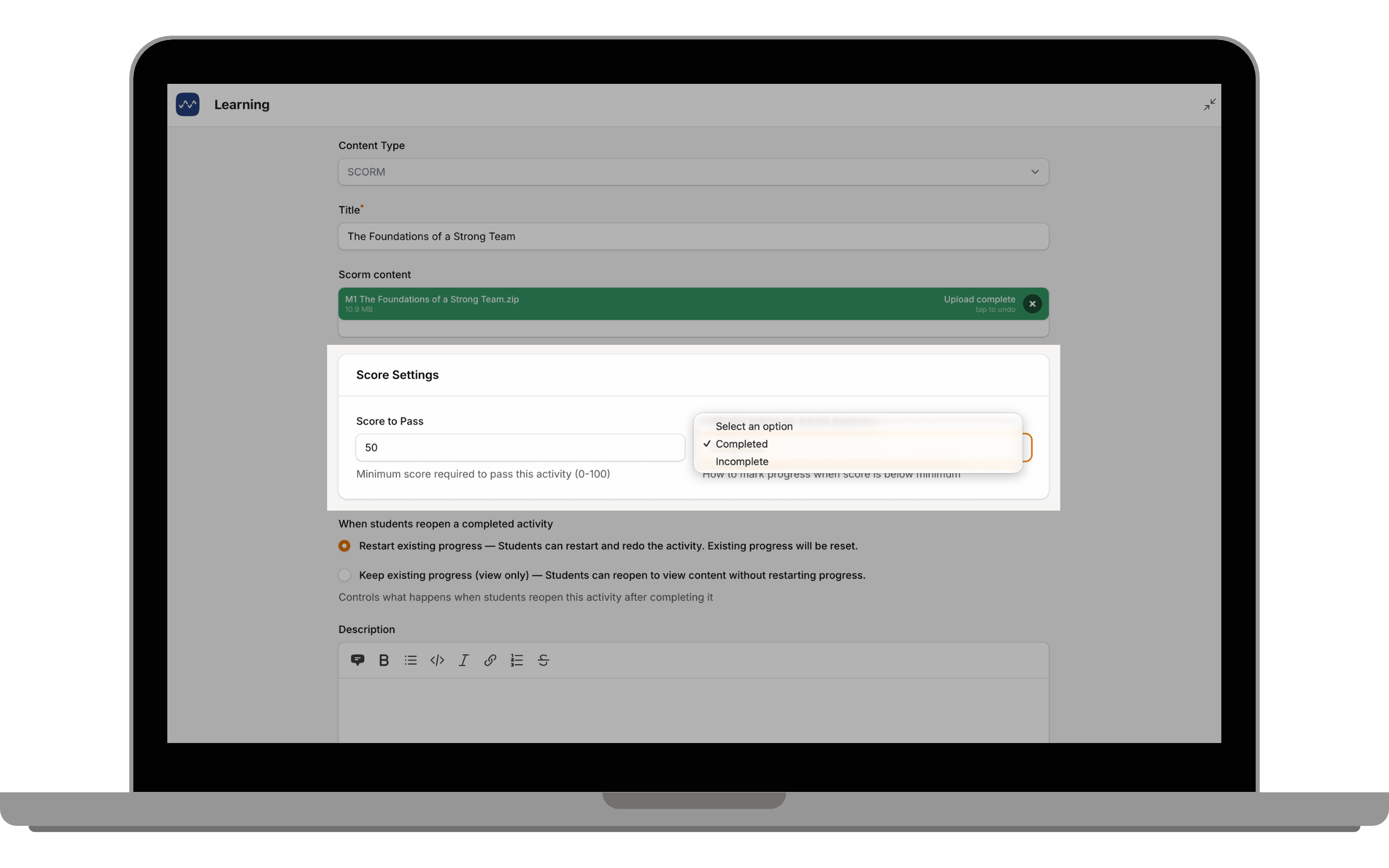
Score to Pass: The lowest score a learner needs to pass the activity, from 0 to 100. For example, with a score to pass of 50, a learner who scores 40 is below the minimum.
Progress status for below minimum (for SCORM, Quiz, Assignment and BLC activities): Decides how progress is recorded when a learner's score is below the score to pass. For example, you can mark the activity as Completed even though the learner did not reach the pass mark, so they can move on.
Restart or review an activity upon completing it
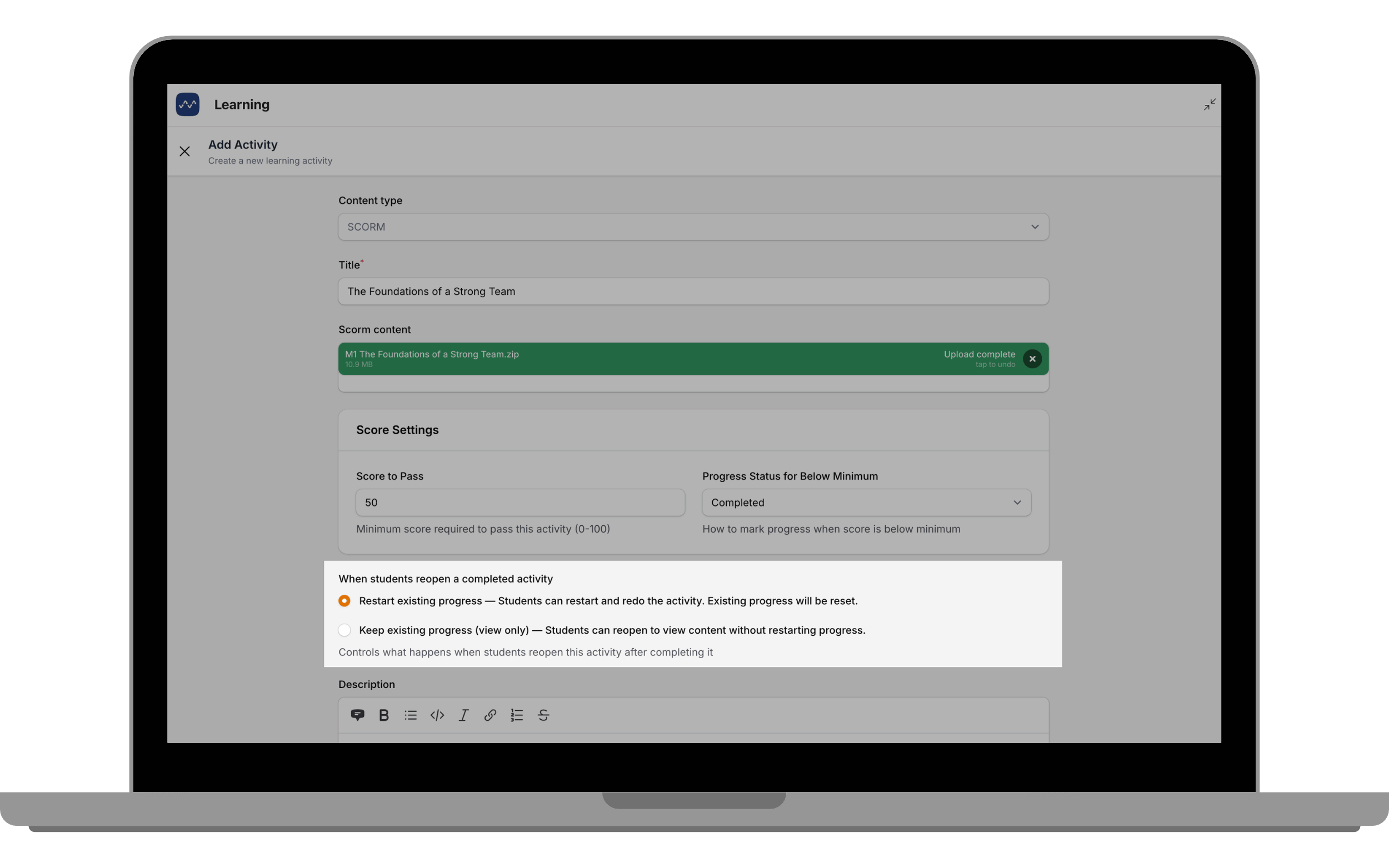
When students reopen a completed activity (SCORM and BLC activities): Choose what happens when a learner opens an activity they’ve already completed:
Restart existing progress: The learner can redo the activity, and their previous progress is reset.
Keep existing progress (view only): The learner can review the activity, but their progress remains unchanged.
Description
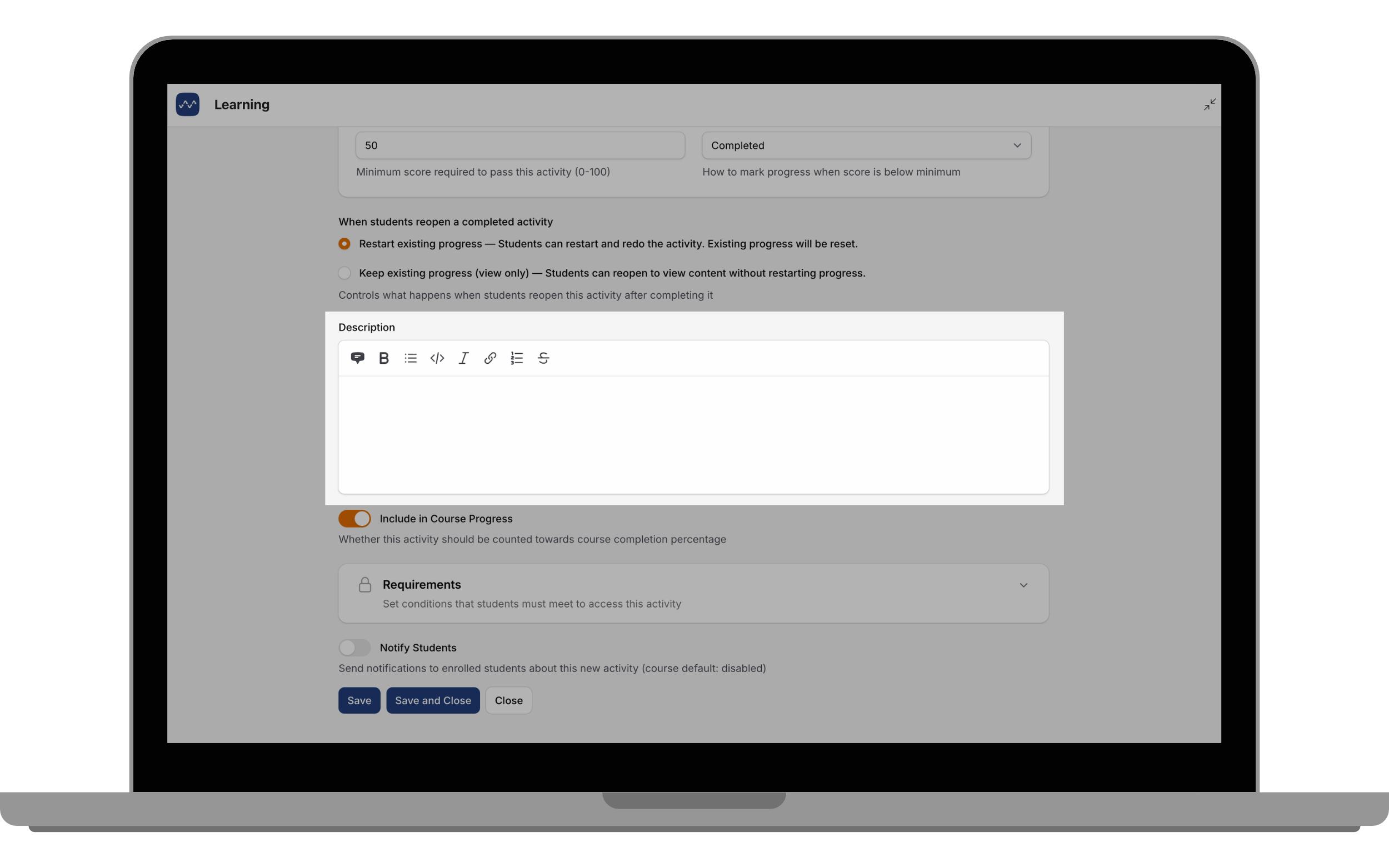
An optional note shown with the activity in the course. Use the editor toolbar to format it with bold, italics, bullet or numbered lists, links and strikethrough.
Include the activity in course progress
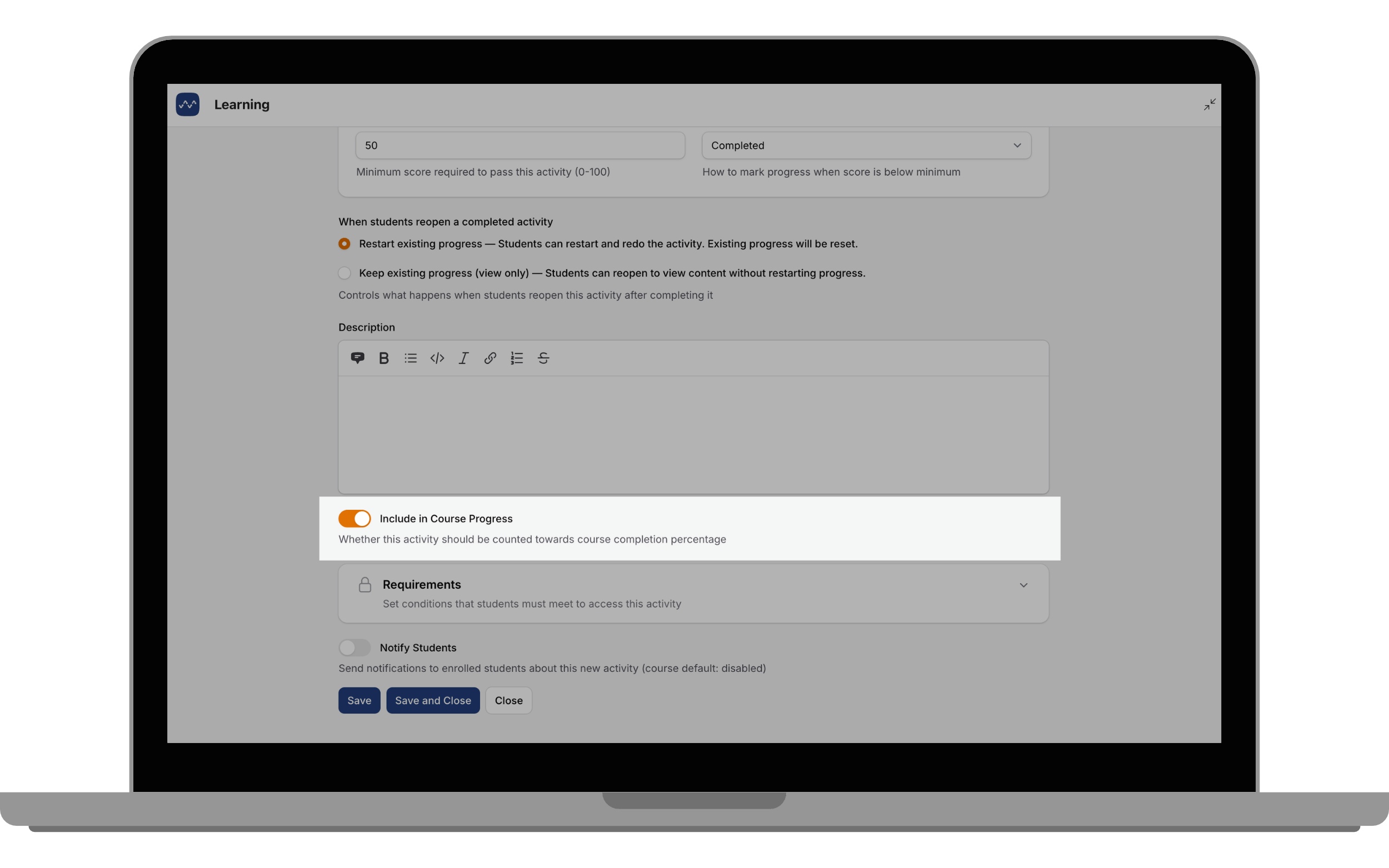
Decide whether this activity should be counted towards course completion percentage.
Edit and delete an activity
To change an activity, select the pencil icon next to it.
To remove it, select the bin icon.
To move it to another section, or to reorder it, see Organising Course Content.