
How to Use Shrewd LMS as Teacher
Step-by-step instructions for installing the app, setting up courses, adding and managing activities, and accessing reports — all within Microsoft Teams.
Important Note: Shrewd LMS works natively within Microsoft Teams and does not require Azure Active Directory (Azure AD) configuration. We strongly recommend not using Azure AD groups or custom restrictions to control access, as this may cause unexpected access issues. Manage access using Microsoft Teams settings and policies only.
Activities: Assignments
File Submission and Teams-Integrated Assignments
Shrewd LMS supports two types of assignments. Standard assignments let learners submit files in a variety of formats. Teams-integrated assignments connect with the Assignments tab in Microsoft Teams, so learners can complete them in the environment they already use.
Assignment Activity: File Submission
Allow learners to submit files for evaluation. Instructors can provide feedback and grades.
Configure assignment
Choose Assignment activity. Enter a title and define submission requirements: allow text responses, file uploads, or both. For file uploads, specify permitted file types, max file size, and attempts.
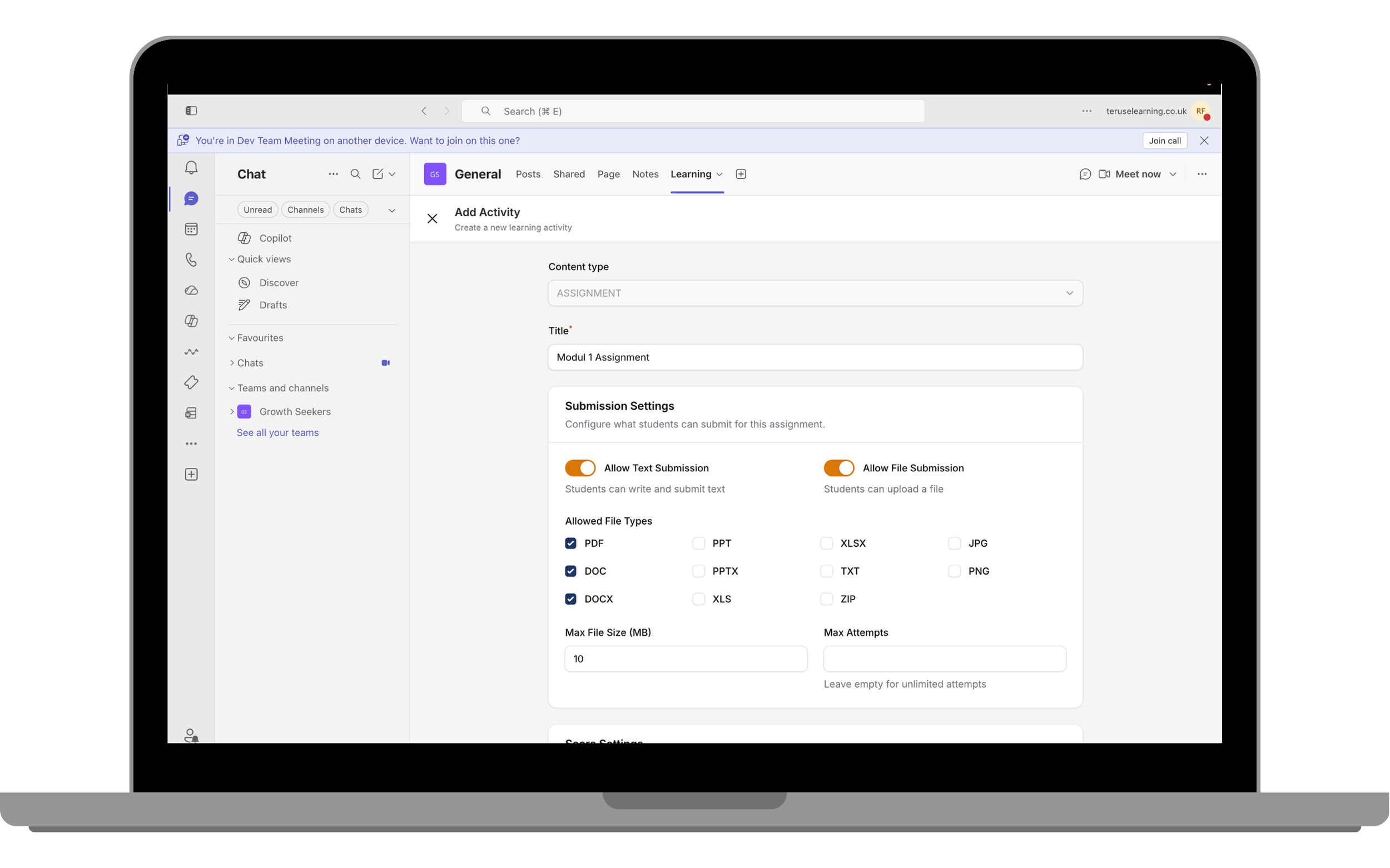
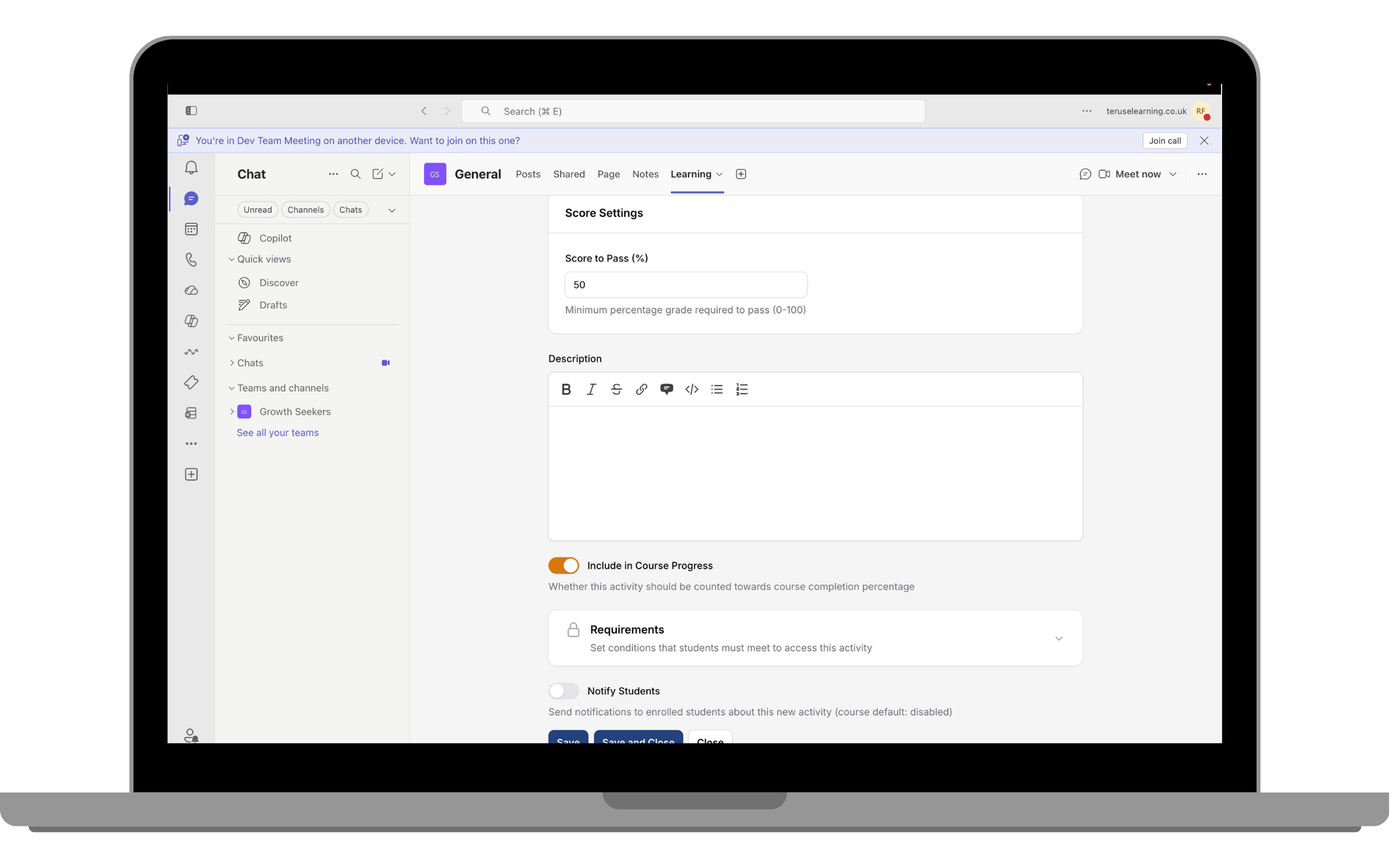
Enter details and save
Enter passing score and description, then save.
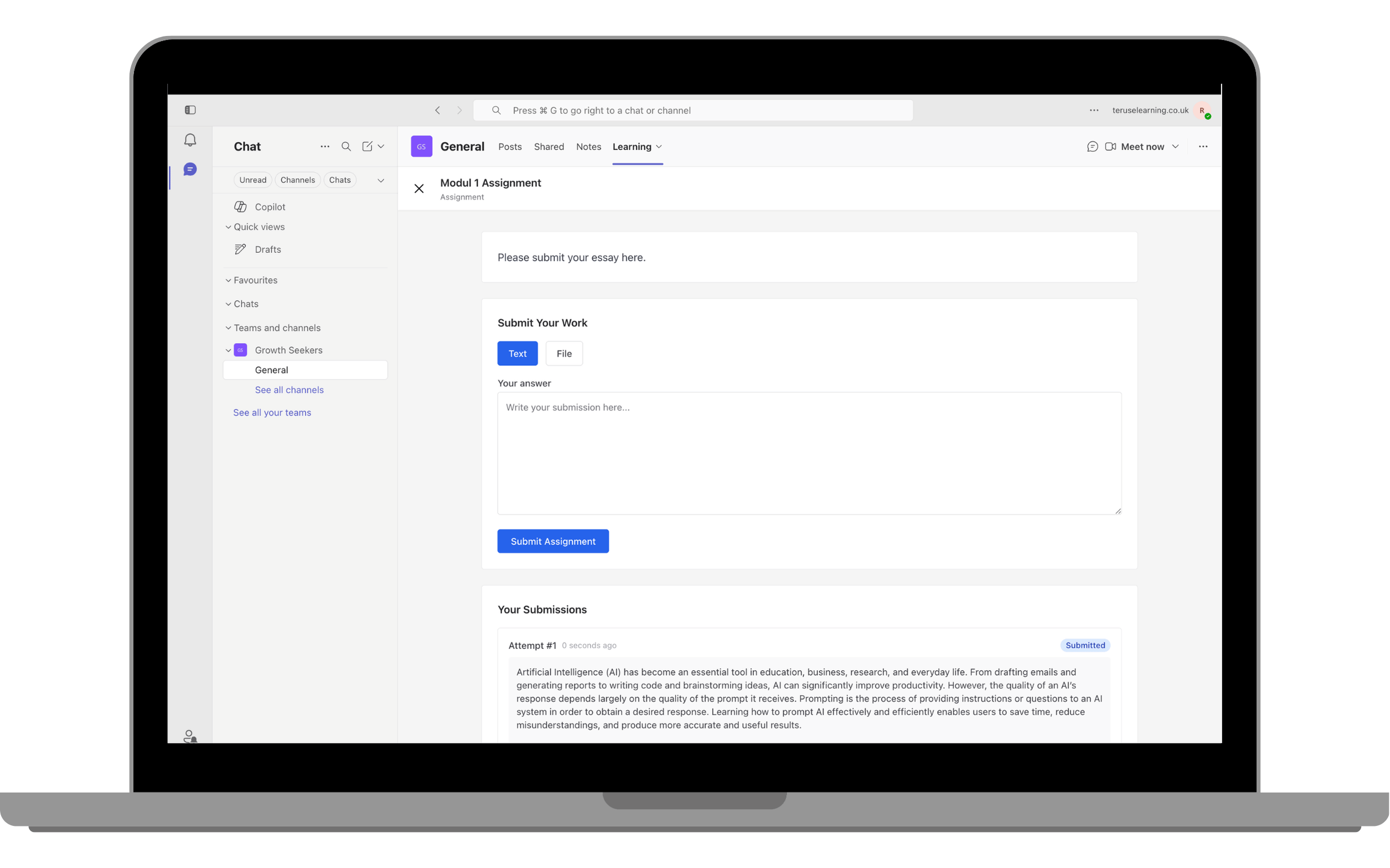
Learners submit work
Learners submit by uploading files, entering text, or both.
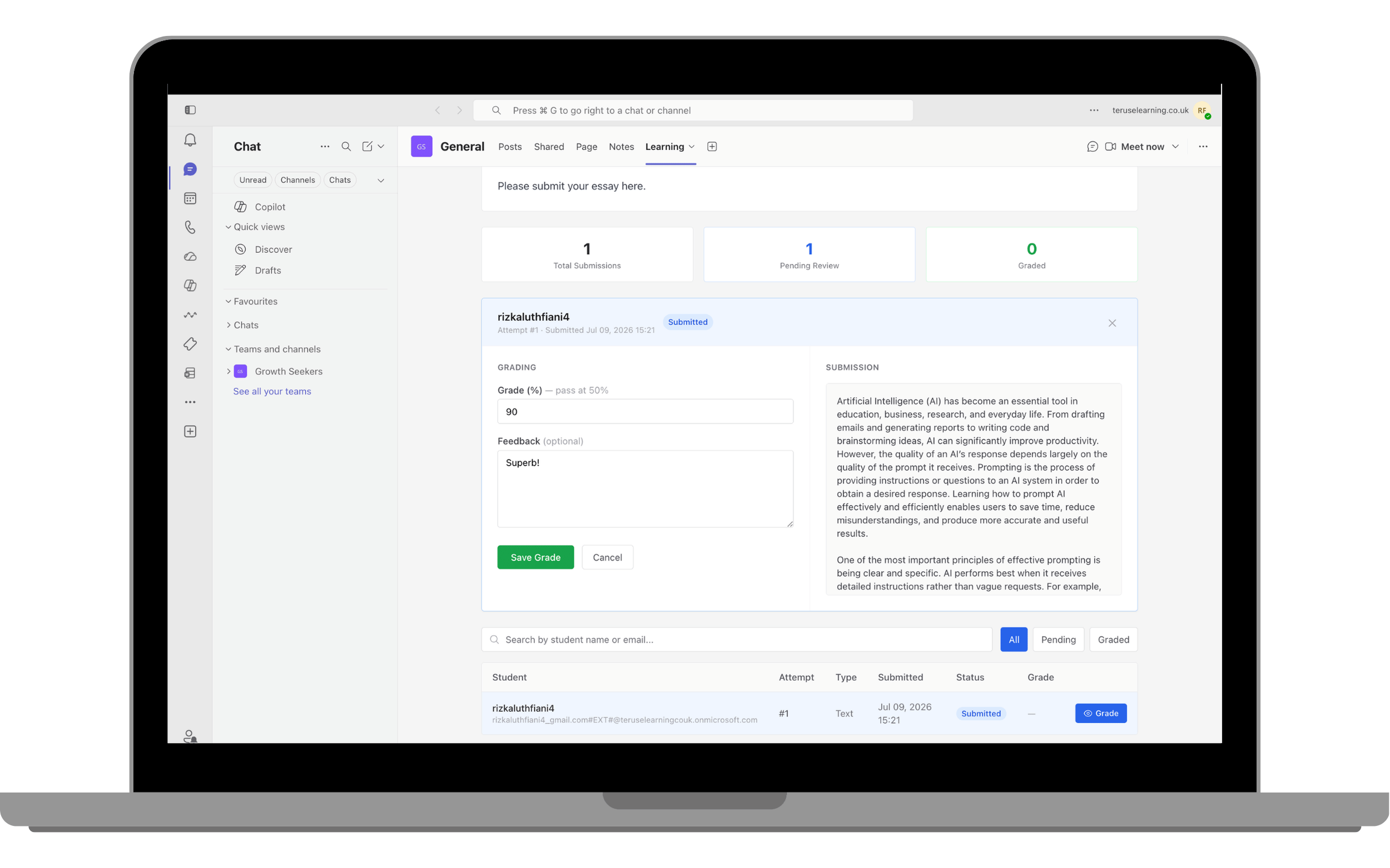
Review and grade
Teachers review submissions, assign grades, and provide feedback.
Teams-integrated Assignments
For Microsoft Teams for Education Only