How to Use Shrewd LMS as Teacher
Step-by-step instructions for installing the app, setting up courses, adding and managing activities, and accessing reports — all within Microsoft Teams.
Important Note: Shrewd LMS works natively within Microsoft Teams and does not require Azure Active Directory (Azure AD) configuration. We strongly recommend not using Azure AD groups or custom restrictions to control access, as this may cause unexpected access issues. Manage access using Microsoft Teams settings and policies only.
Organising Course Content
Drag to reorder, move between sections, delete
Rearrange your course content by dragging and dropping sections and activities into the desired order.
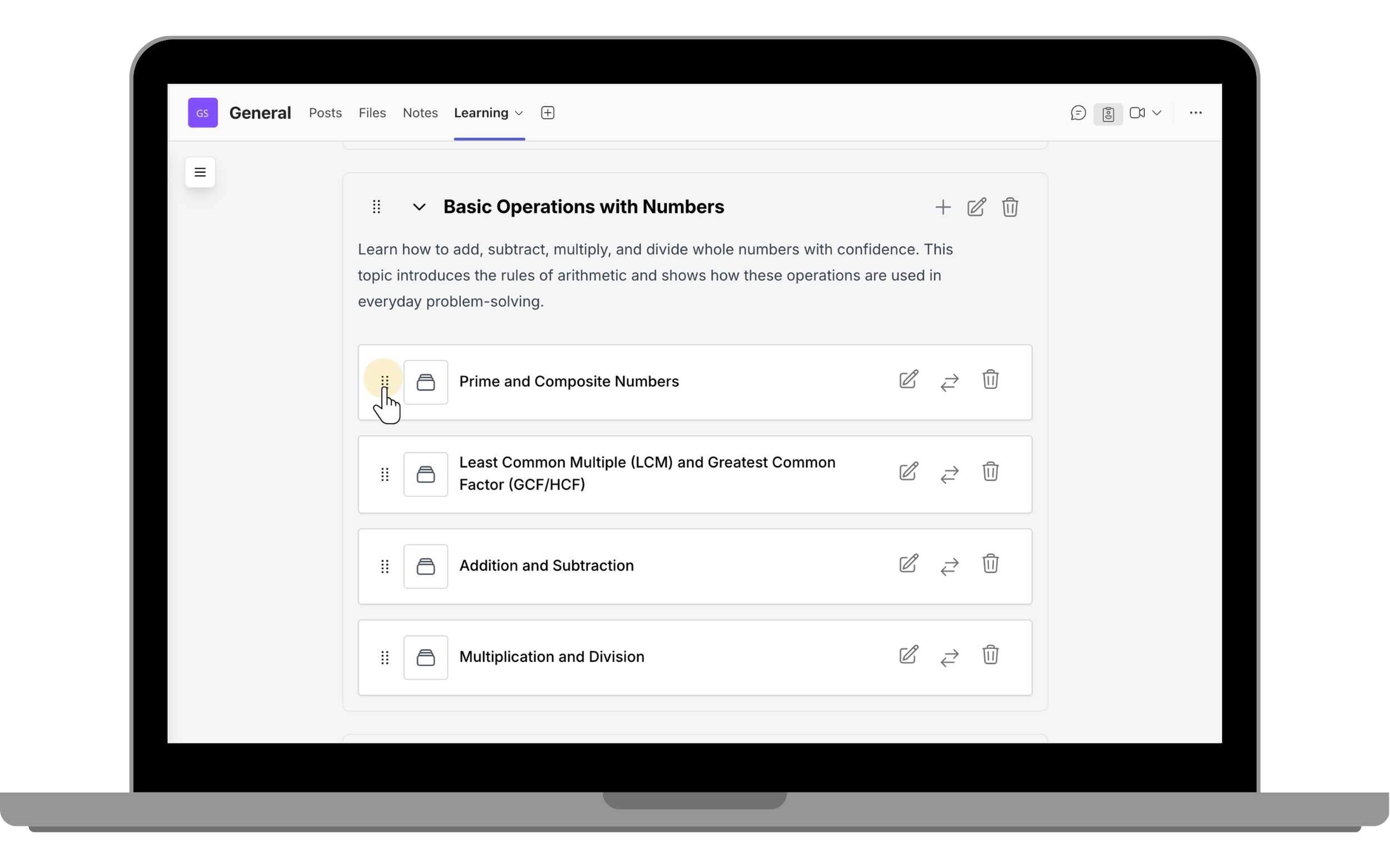
Drag-and-drop to rearrange activities
Drag an activity to the position you want within the same section.
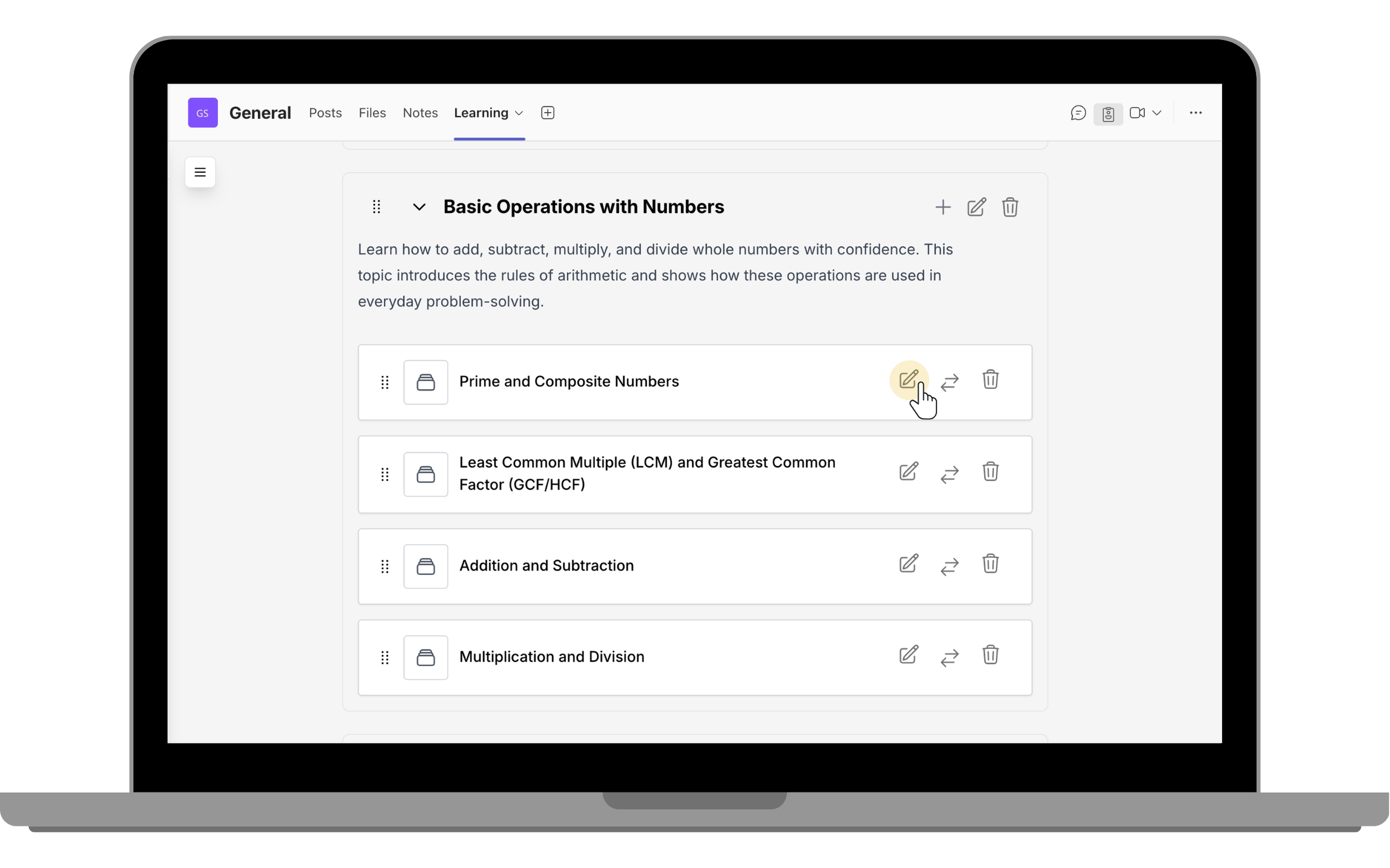
Edit an activity
Use the edit menu to modify an activity.
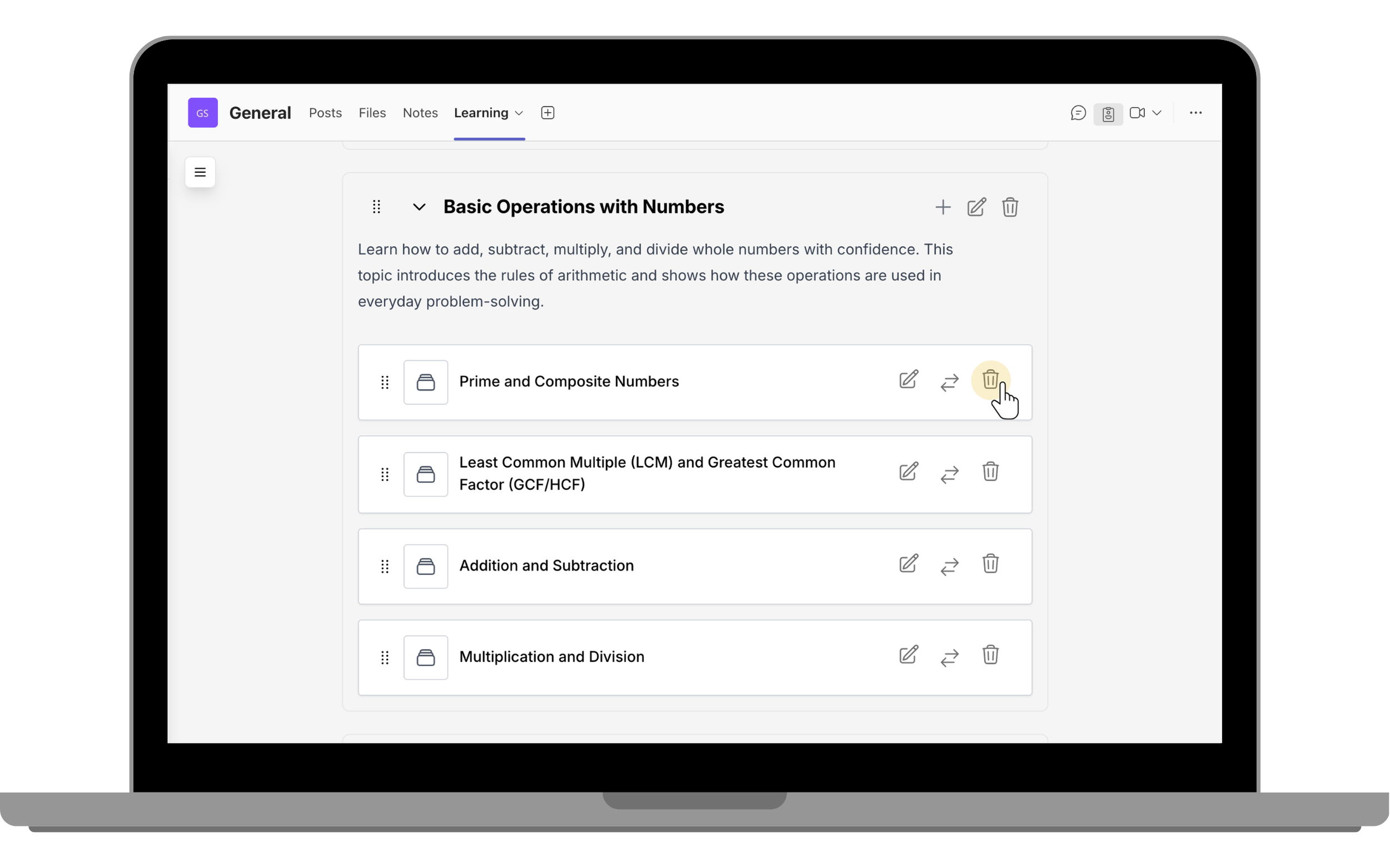
Delete an activity
Use the delete menu to remove an activity.
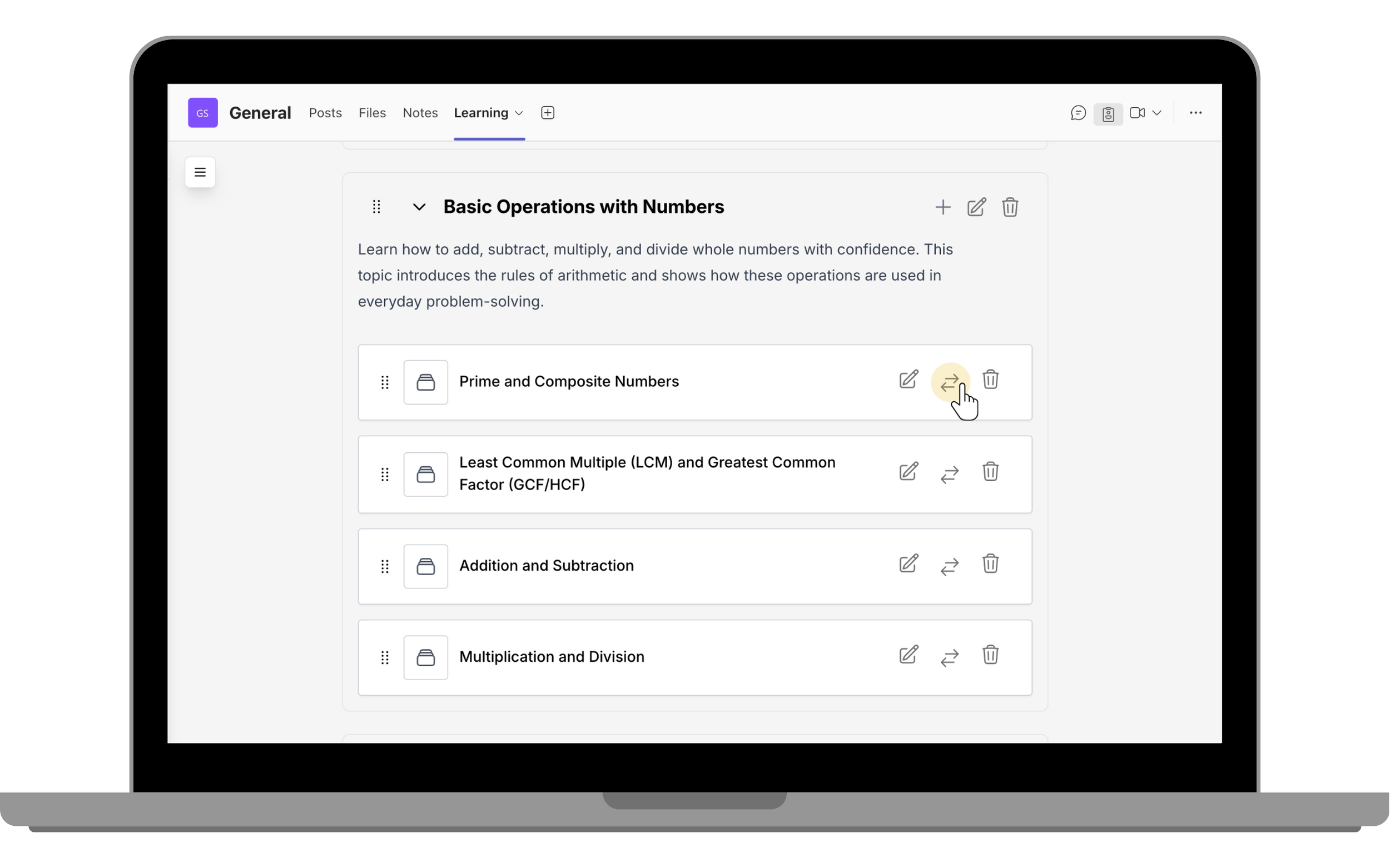
Move an activity to another section.
Select the move icon, then choose the section where you want to place the activity.