
How to Use Shrewd LMS as Teacher
Step-by-step instructions for installing the app, setting up courses, adding and managing activities, and accessing reports — all within Microsoft Teams.
Important Note: Shrewd LMS works natively within Microsoft Teams and does not require Azure Active Directory (Azure AD) configuration. We strongly recommend not using Azure AD groups or custom restrictions to control access, as this may cause unexpected access issues. Manage access using Microsoft Teams settings and policies only.
Activities: SCORM and BLC
SCORM, BLC Modules and BLC Videos
SCORM Activity
Upload SCORM-compliant e-learning packages (SCORM 1.2 or 2004). Shrewd LMS tracks completion status and scores.
SCORM packages configured to open in a new window do not work reliably inside Teams tabs (iframe restrictions). Publish SCORM to open in the same window.
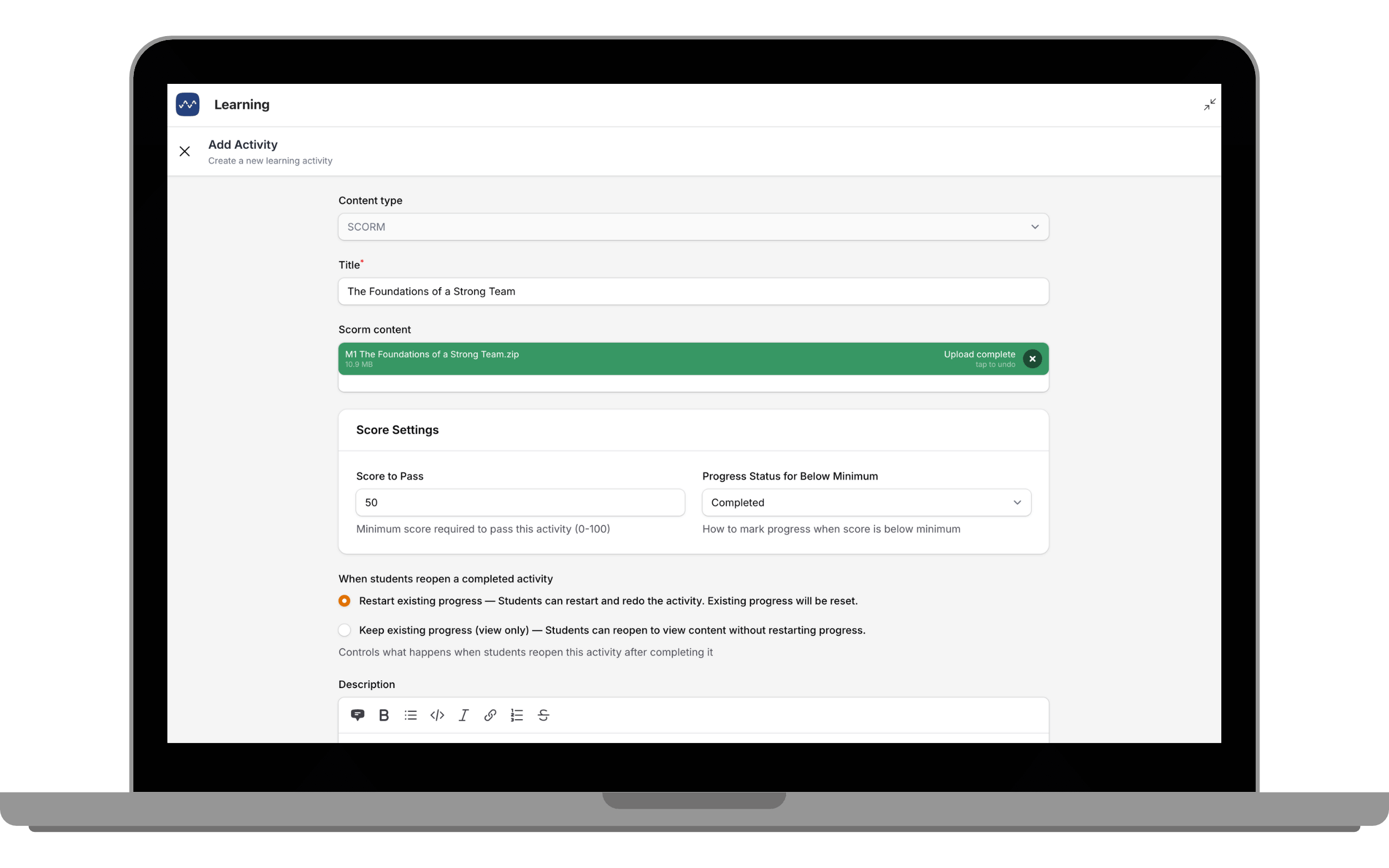
Input activity Title
Enter the title for your SCORM activity.
Upload SCORM File
Upload your .zip SCORM package by clicking Browse or drag-and-drop.
Set passing score
Set the passing score for students (optional).
Set completion behaviour
Specify whether a score below the passing threshold will mark the activity progress as Completed or Incomplete (optional).
Choose what happens when a learner opens an activity they’ve already completed
Restart existing progress: The learner can redo the activity, and their previous progress is reset.
Keep existing progress (view only): The learner can review the activity, but their progress remains unchanged.
Add description
Add a description for your SCORM activity (optional).
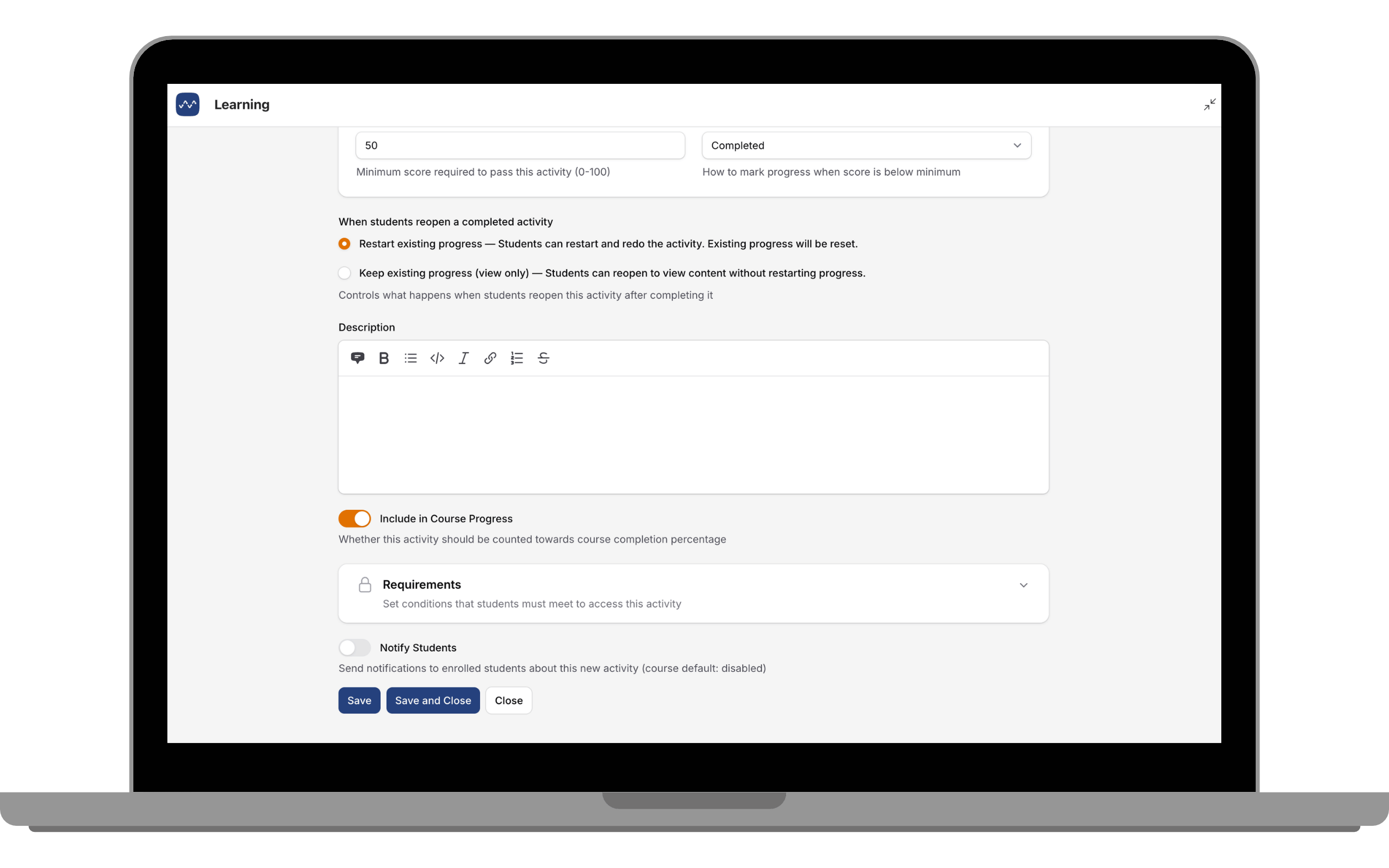
Click Save
Click Save or Update to finalize the SCORM activity.
BLC Modules
Shrewd LMS supports BLC modules and tracks students’ progress as they work through them.
A BLC membership is required to access BLC resources.
BLC Videos
Share BLC videos with your students through Shrewd LMS to help them explore key topics at their own pace.
A BLC membership is required to access BLC resources.