
How to Use Shrewd LMS as Teacher
Step-by-step instructions for installing the app, setting up courses, adding and managing activities, and accessing reports — all within Microsoft Teams.
Important Note: Shrewd LMS works natively within Microsoft Teams and does not require Azure Active Directory (Azure AD) configuration. We strongly recommend not using Azure AD groups or custom restrictions to control access, as this may cause unexpected access issues. Manage access using Microsoft Teams settings and policies only.
Activities: Quiz
Settings, randomisation, feedback, question bank, create or import questions
Create assessments directly in Shrewd LMS with multiple question types, randomization, time limits, and automatic grading.
To create a Quiz, follow these steps:
Add Quiz activity
Open your course, click Add Activity, and choose Quiz.
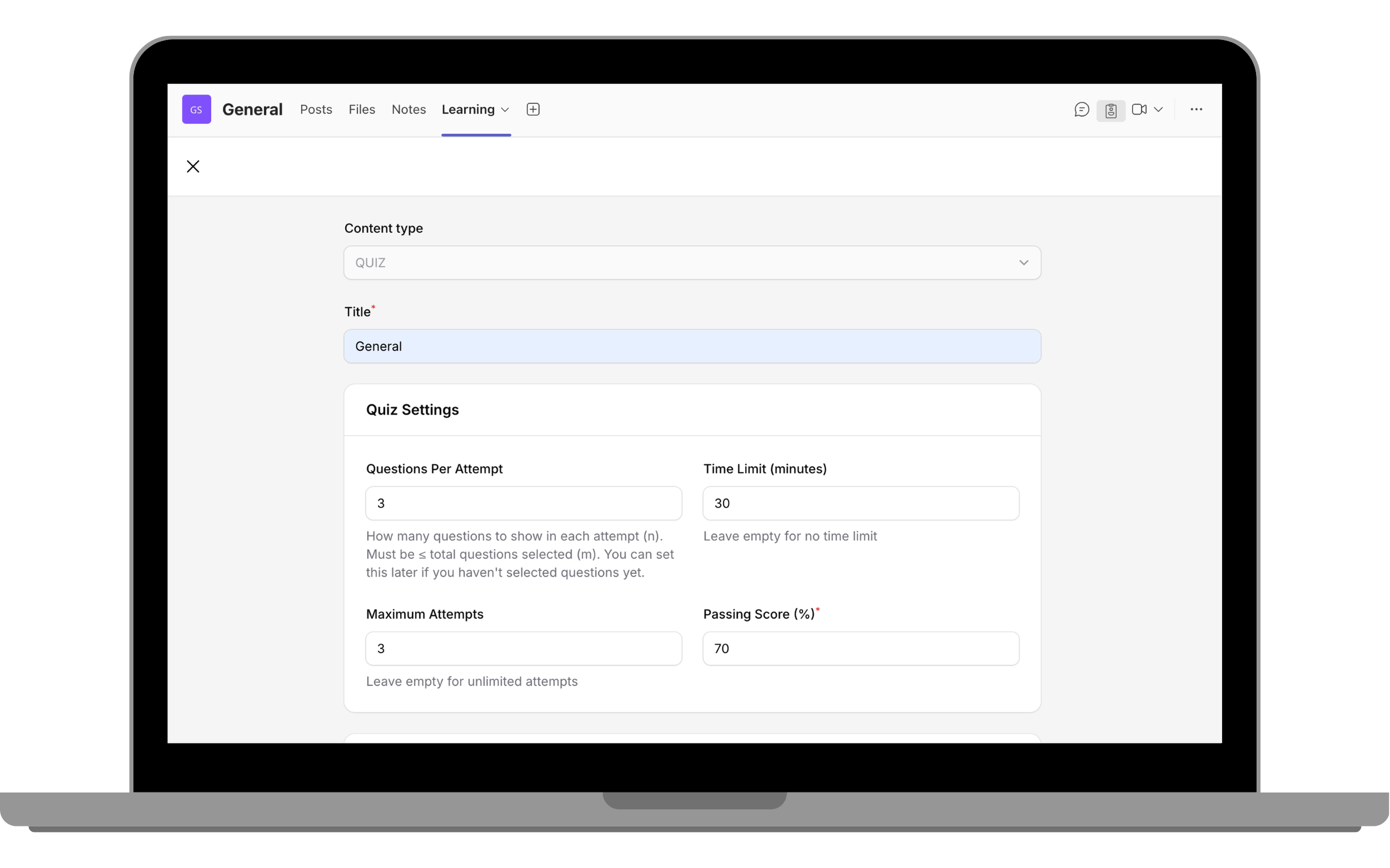
Set title and settings
Enter the Quiz Title. Configure settings: questions per attempt, time limit, maximum attempts, and passing score.
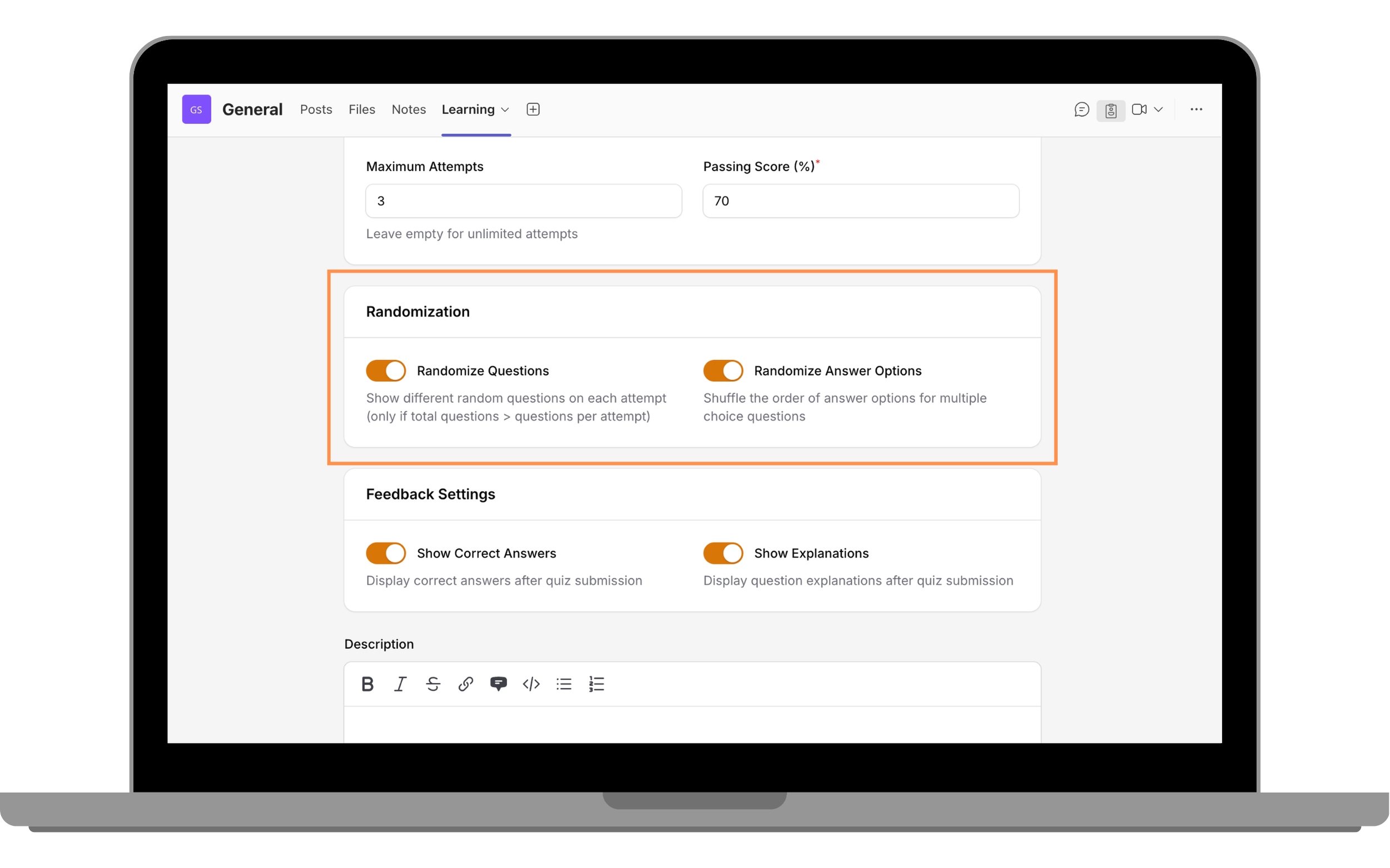
Set Randomization Options
Choose whether to randomize questions and randomize answer option order.
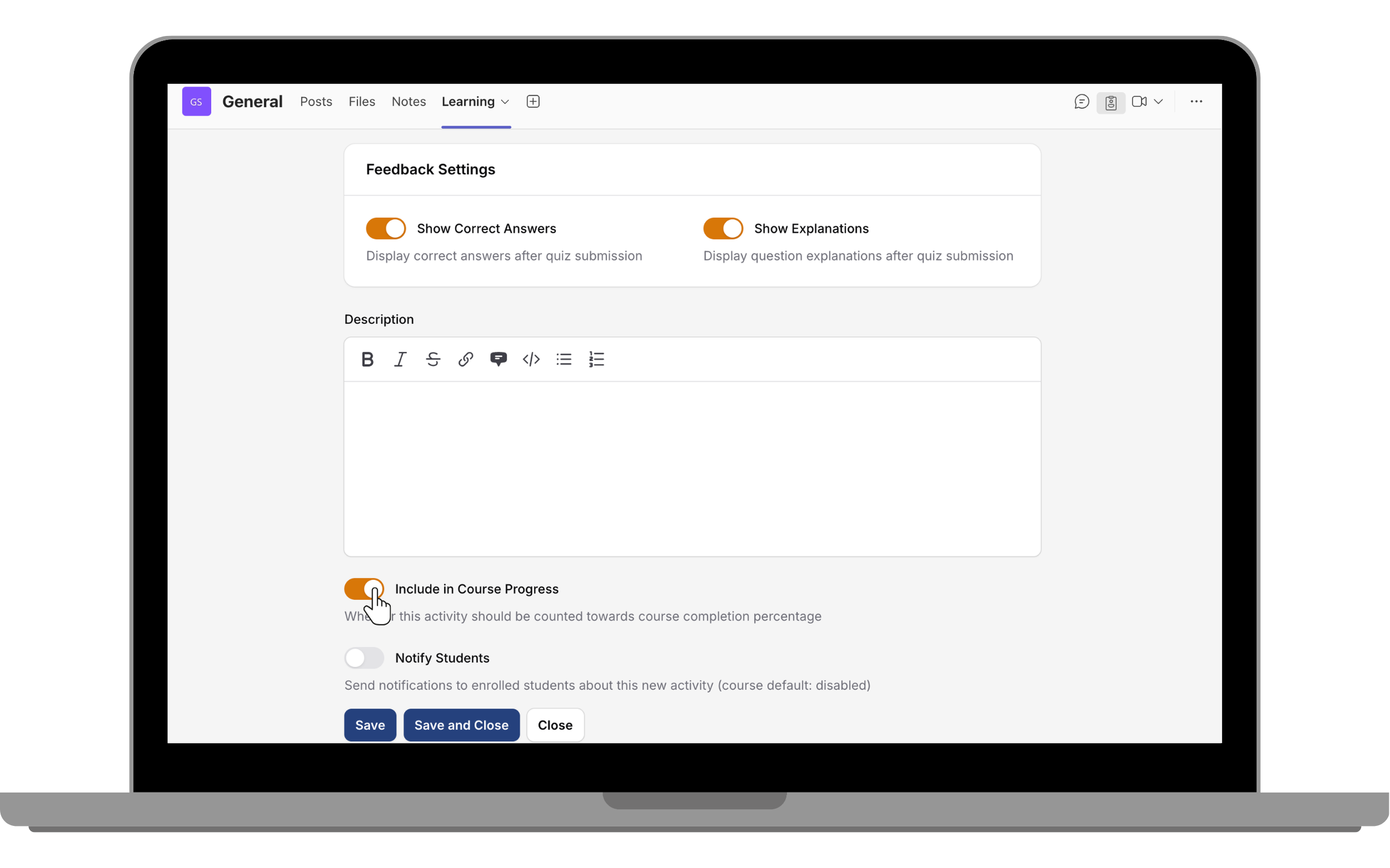
Configure Feedback Settings
Choose whether to show correct answers and explanations after submission. Turn on Include in course progress.
Click Save
Click Save to create the quiz.
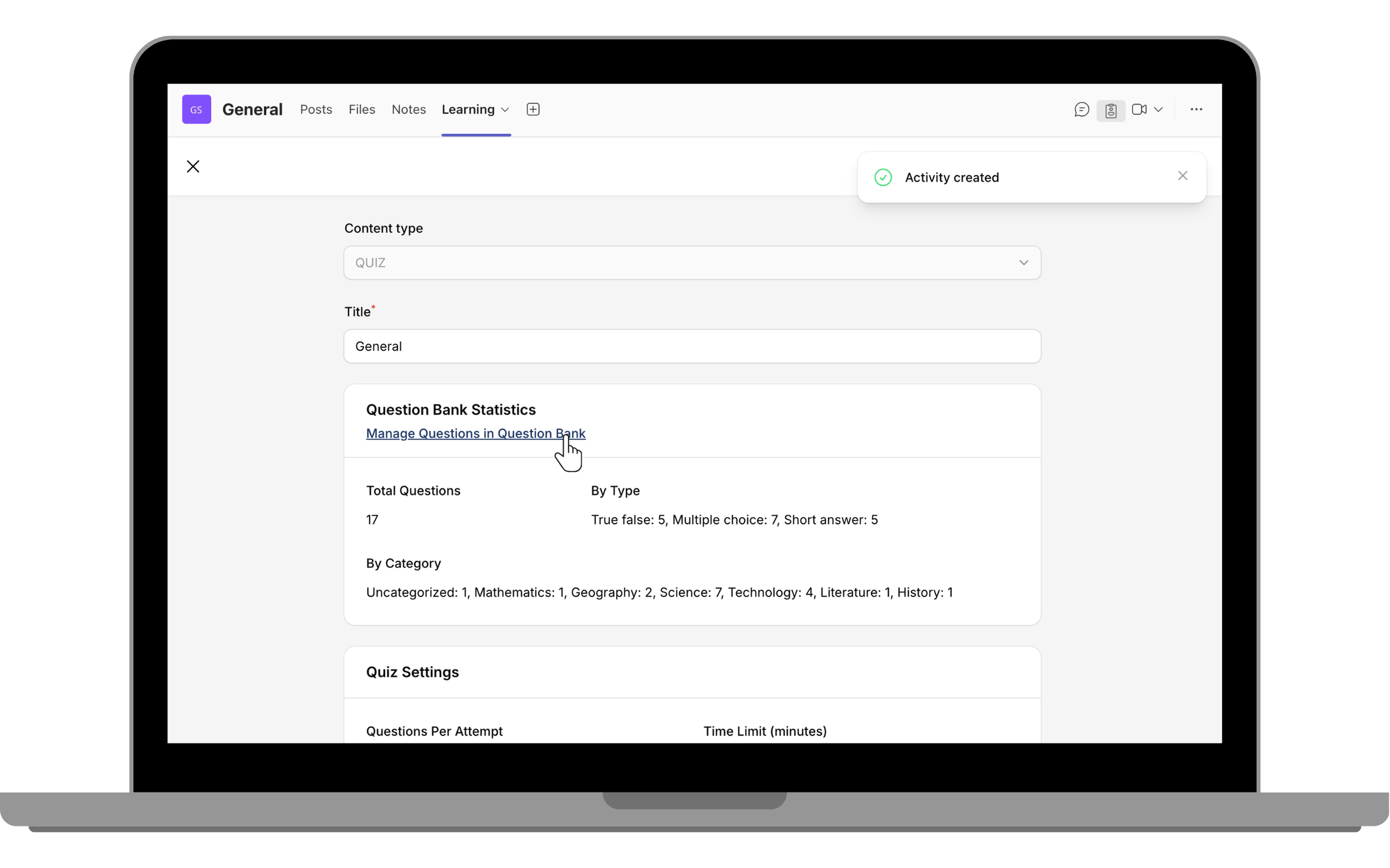
Manage question bank
Scroll to Question Bank Statistics and click Manage questions in question bank.
Create or import questions
Create new questions (multiple choice, true/false, short answer) or import from a file (CSV/GIFT) or other activities.
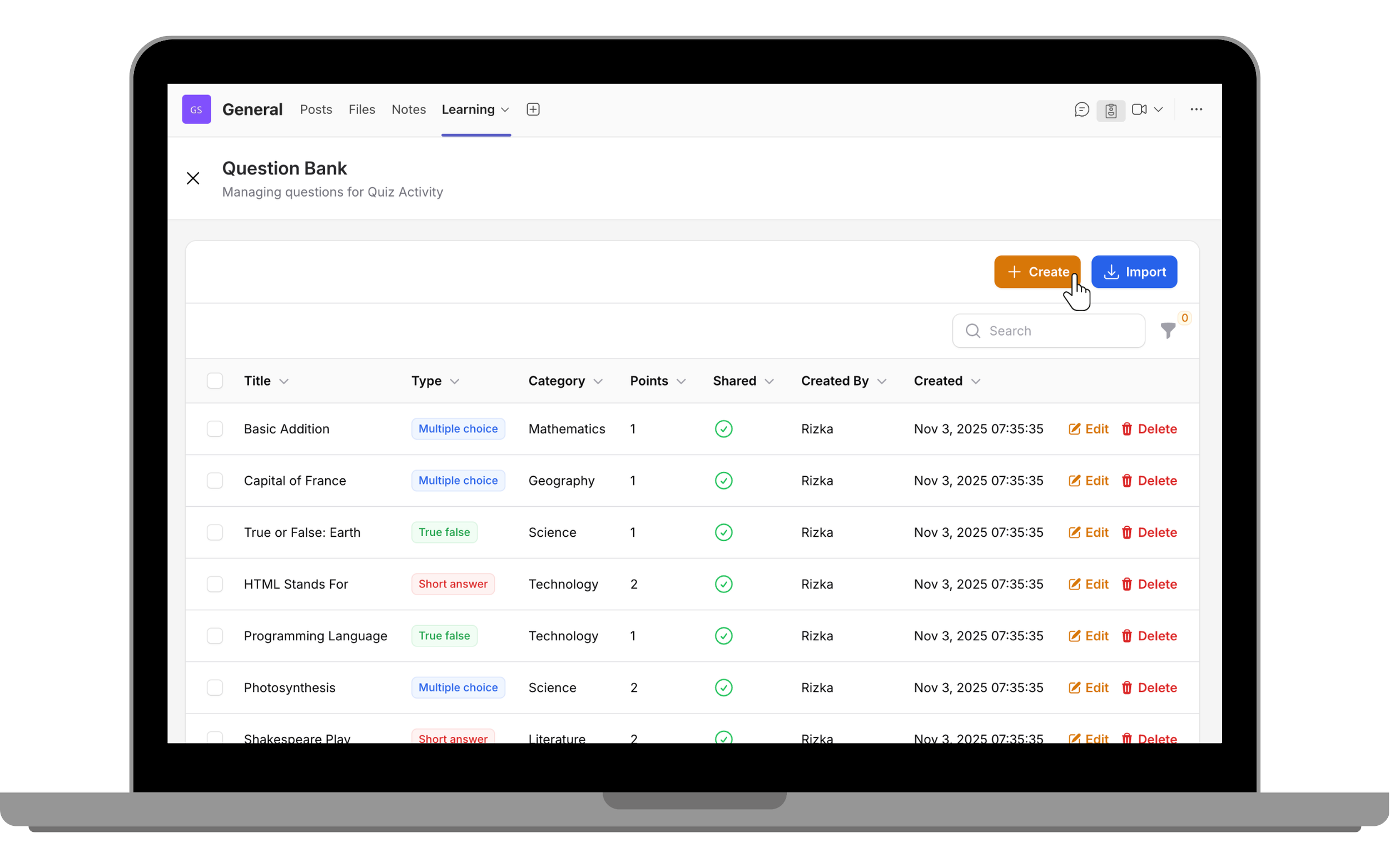
Create a question
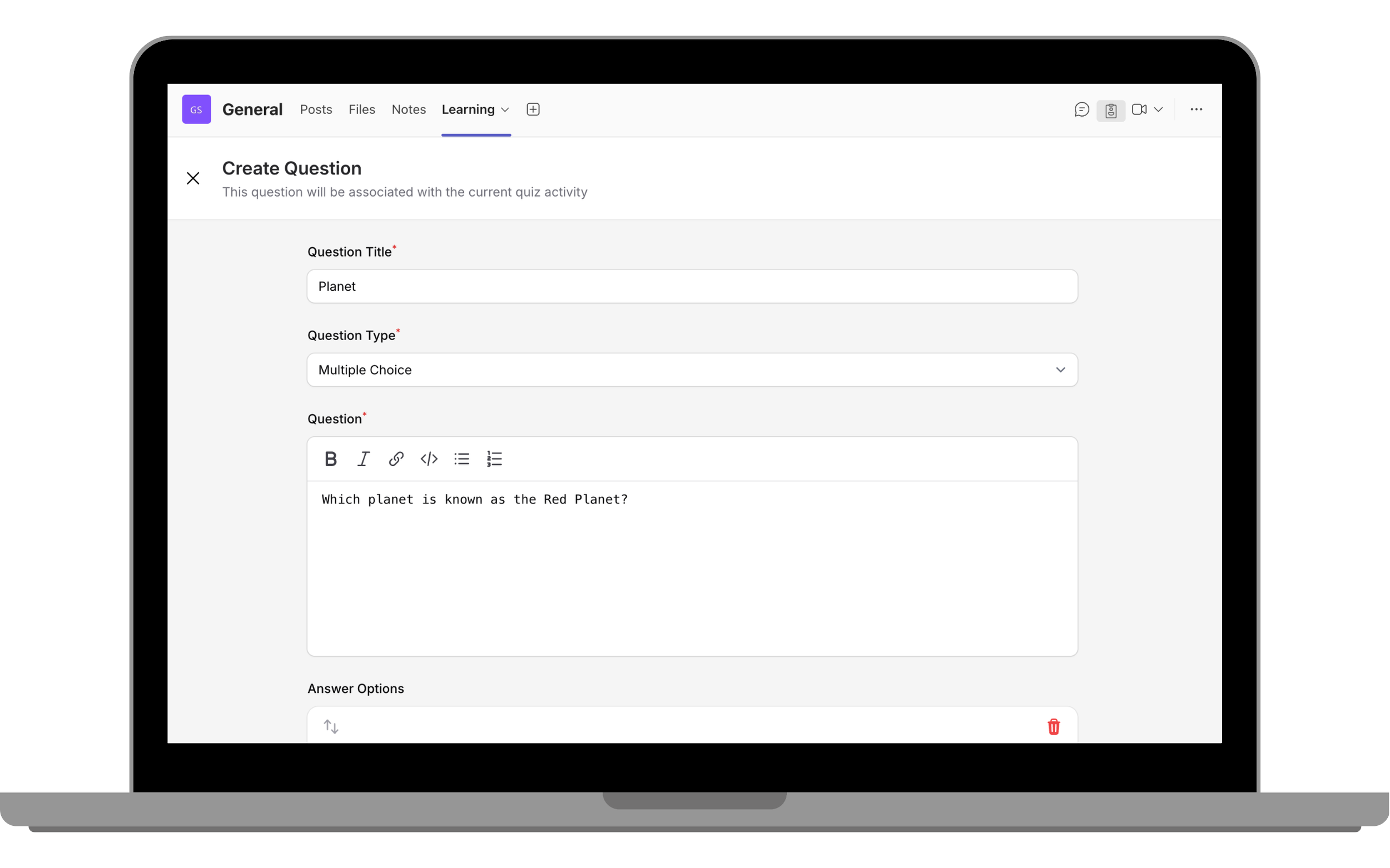
To create a question, enter a title, write the question, and select a question type: Multiple Choice, True/False, or Short Answer.
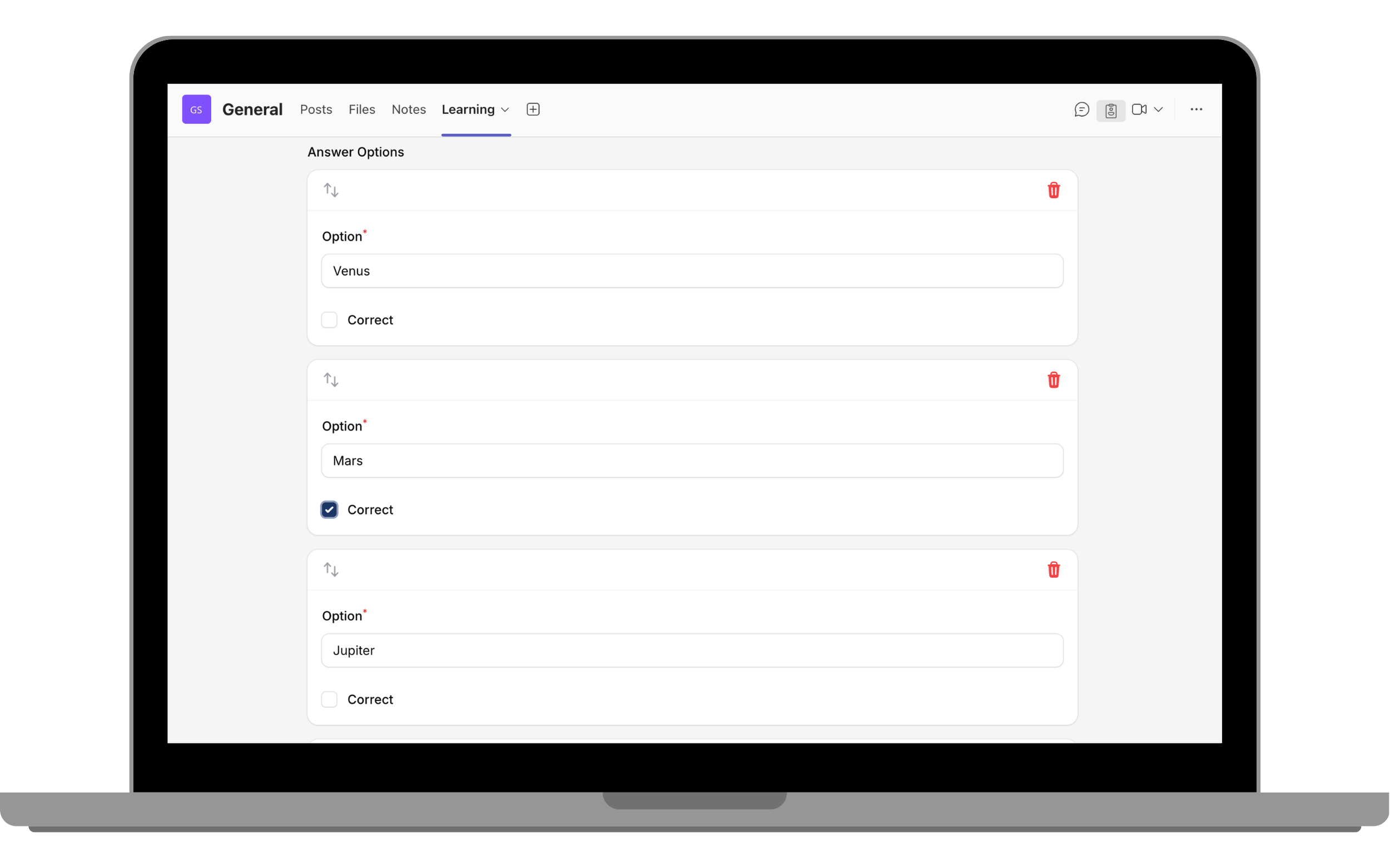
Create options and choose the right answer
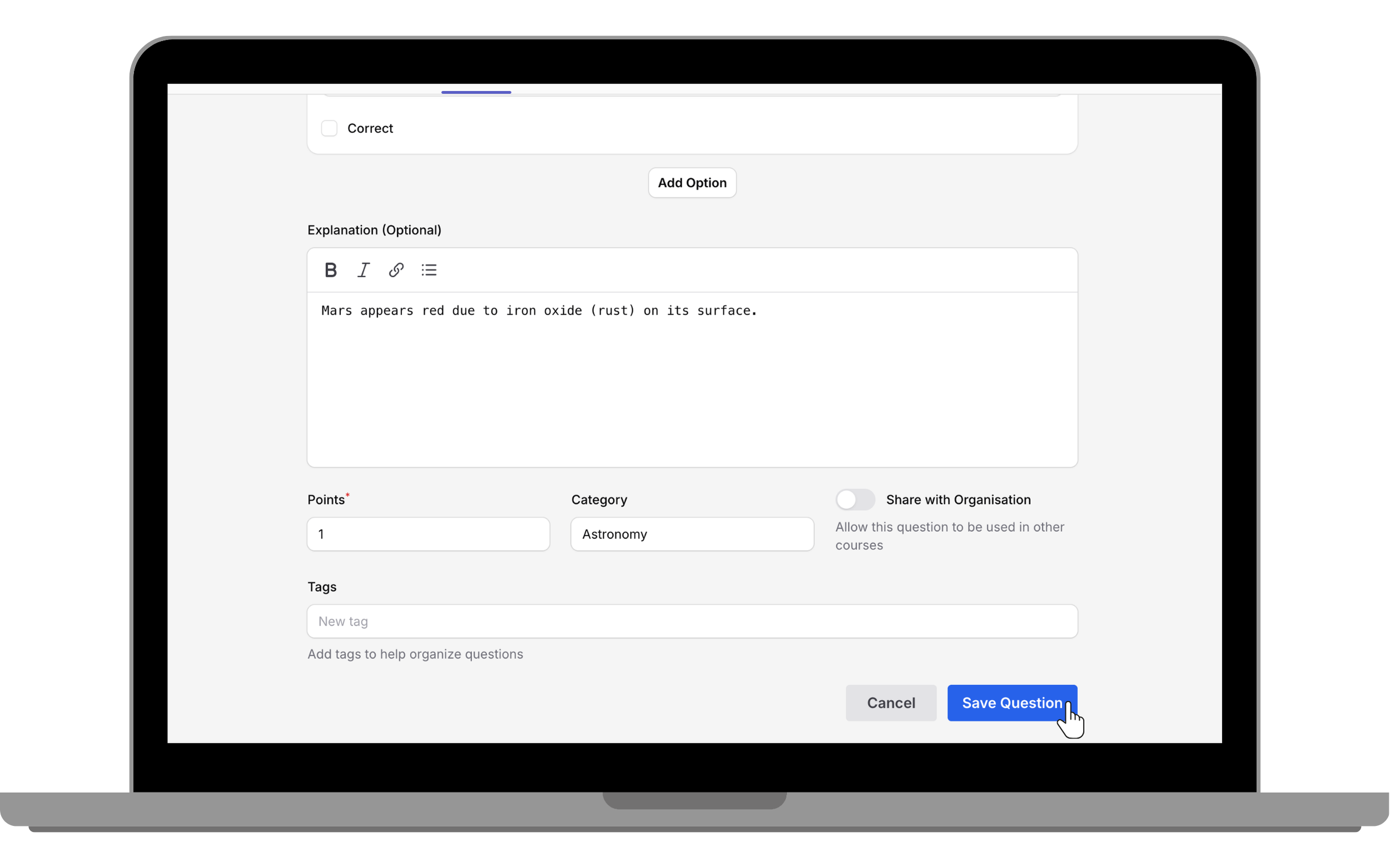
Save the qeustion
Add an explanation (optional). Then set the question’s point value and select a category. Finally, save the question.
Import Questions
Alternatively, you can import questions from file or from other activities.
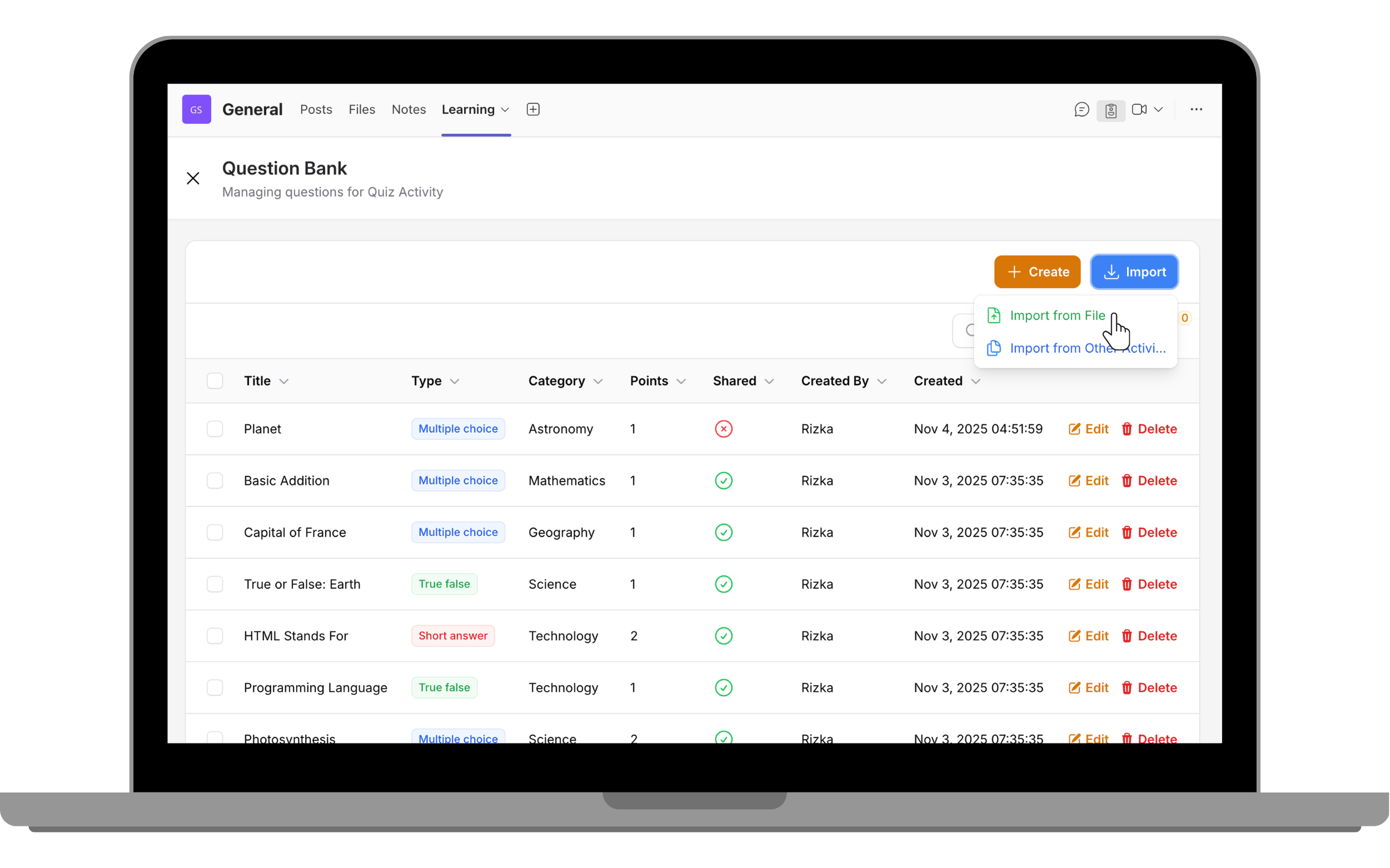
Import from file
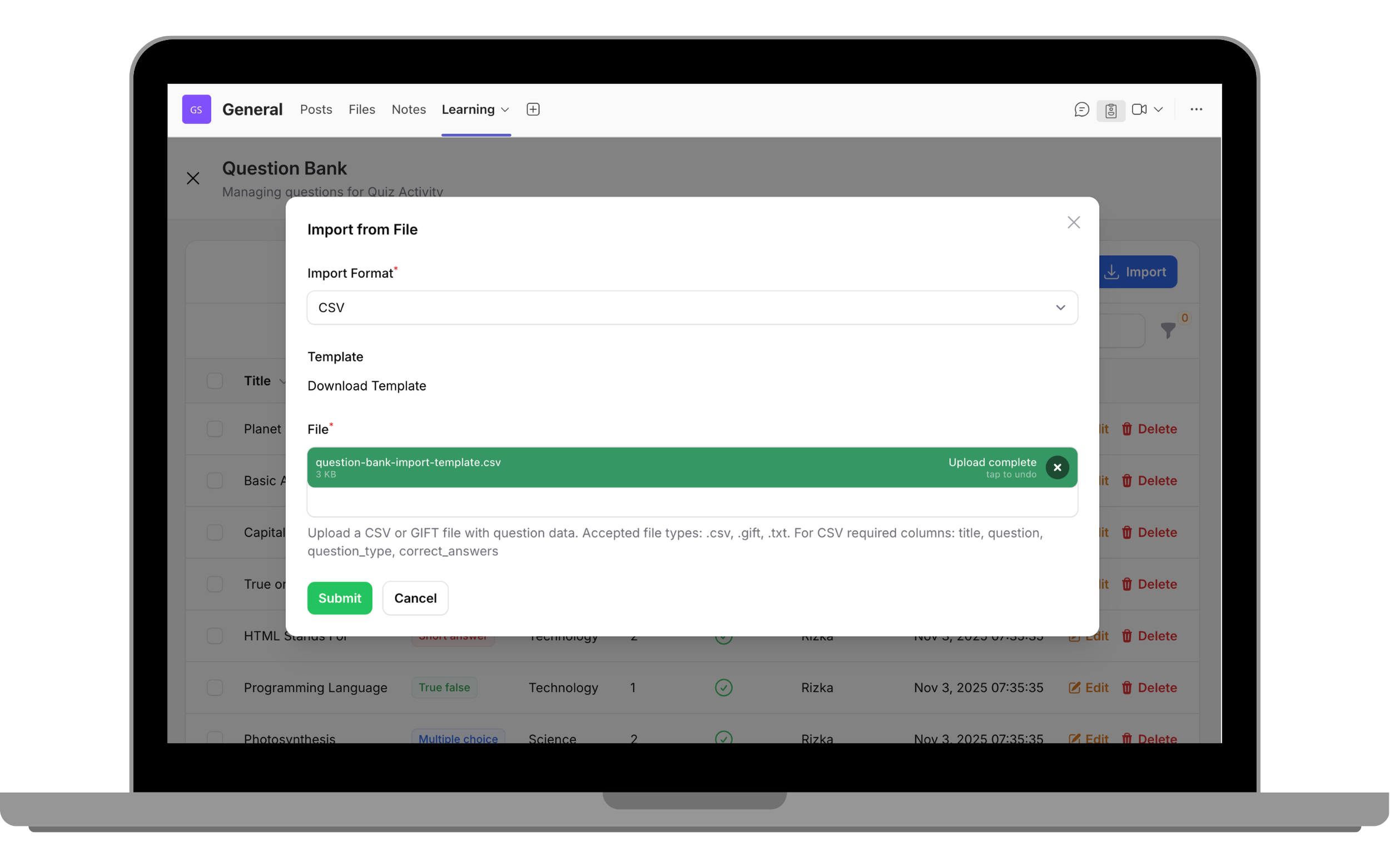
To import questions from a file, select CSV or GIFT as the file type, upload the file, then click Save.
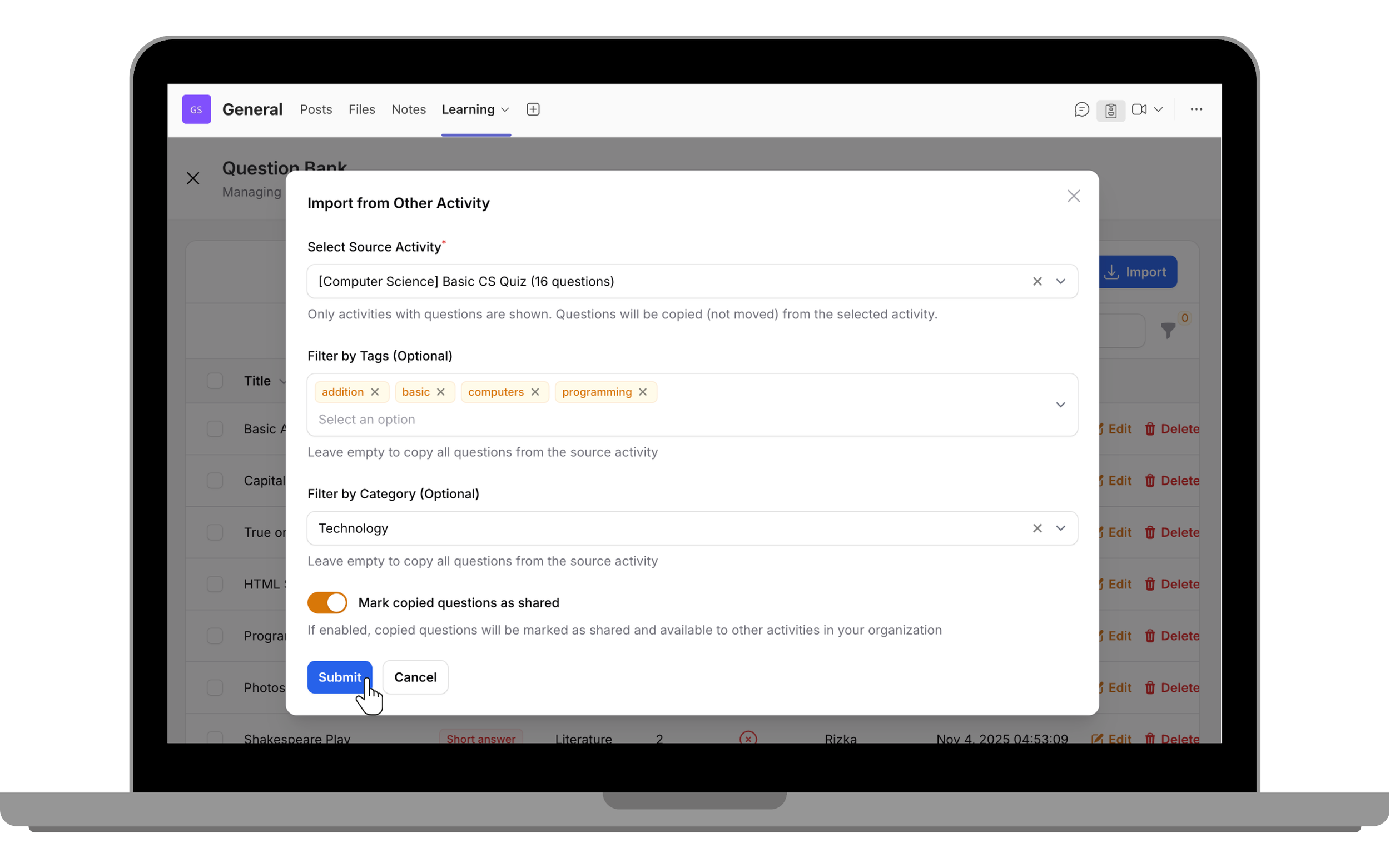
Import from another activity
Select the source activity whose questions you want to share with your organization. You can filter the questions by tag or category. Enable Mark copied questions as shared if you want the copied questions to be reusable in other activities across your organisation.
Update quiz to save
Return to the quiz activity page and click Update to save your question bank changes.