How to Use Shrewd LMS as Student
Everything you need to access your learning, complete activities, monitor your progress, and download course certificates in Microsoft Teams.
Do not share your account credentials. Report any suspicious activity to your course administrator.
Using a Course
Access learning materials and complete your activities
Mini Dashboard
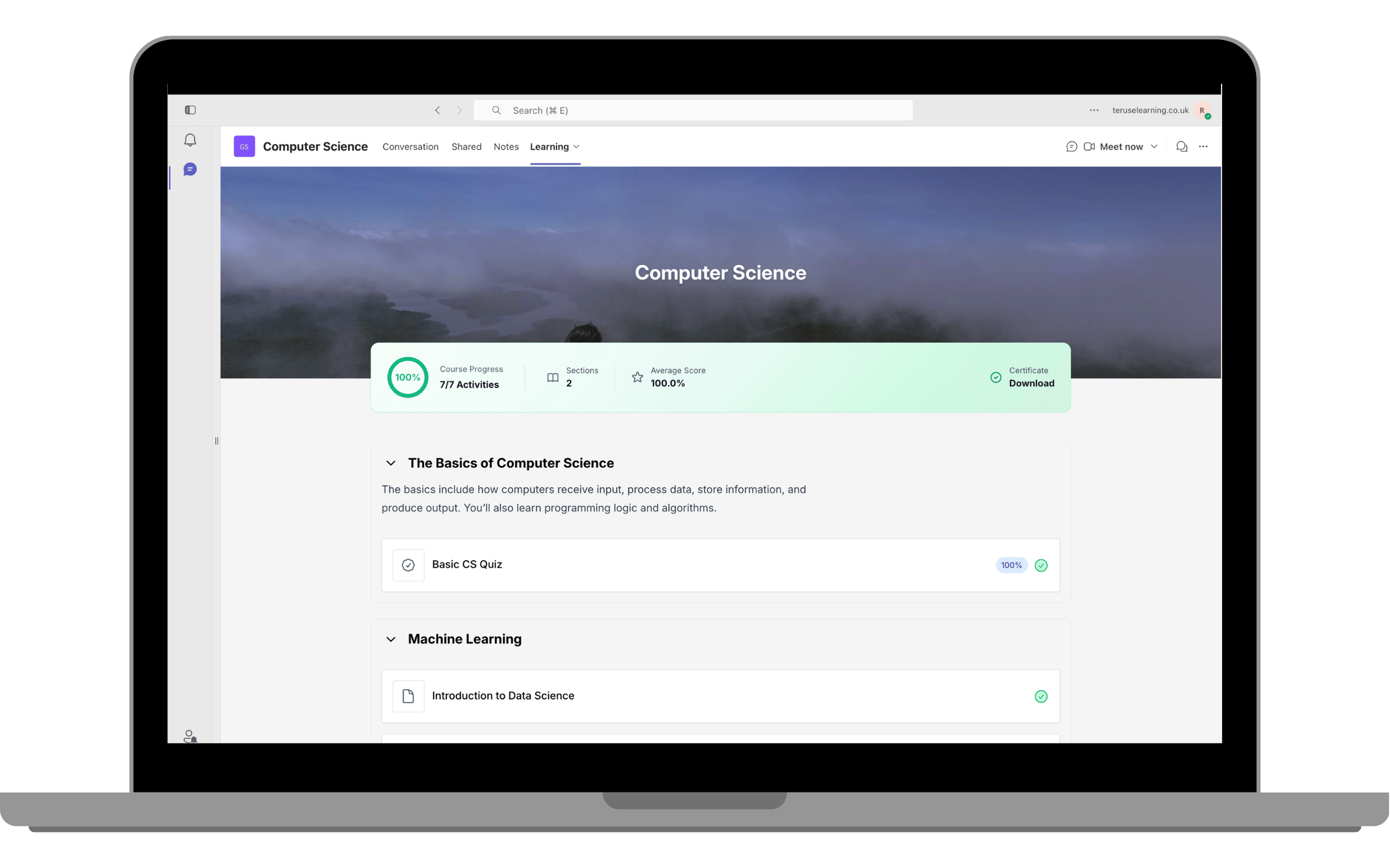
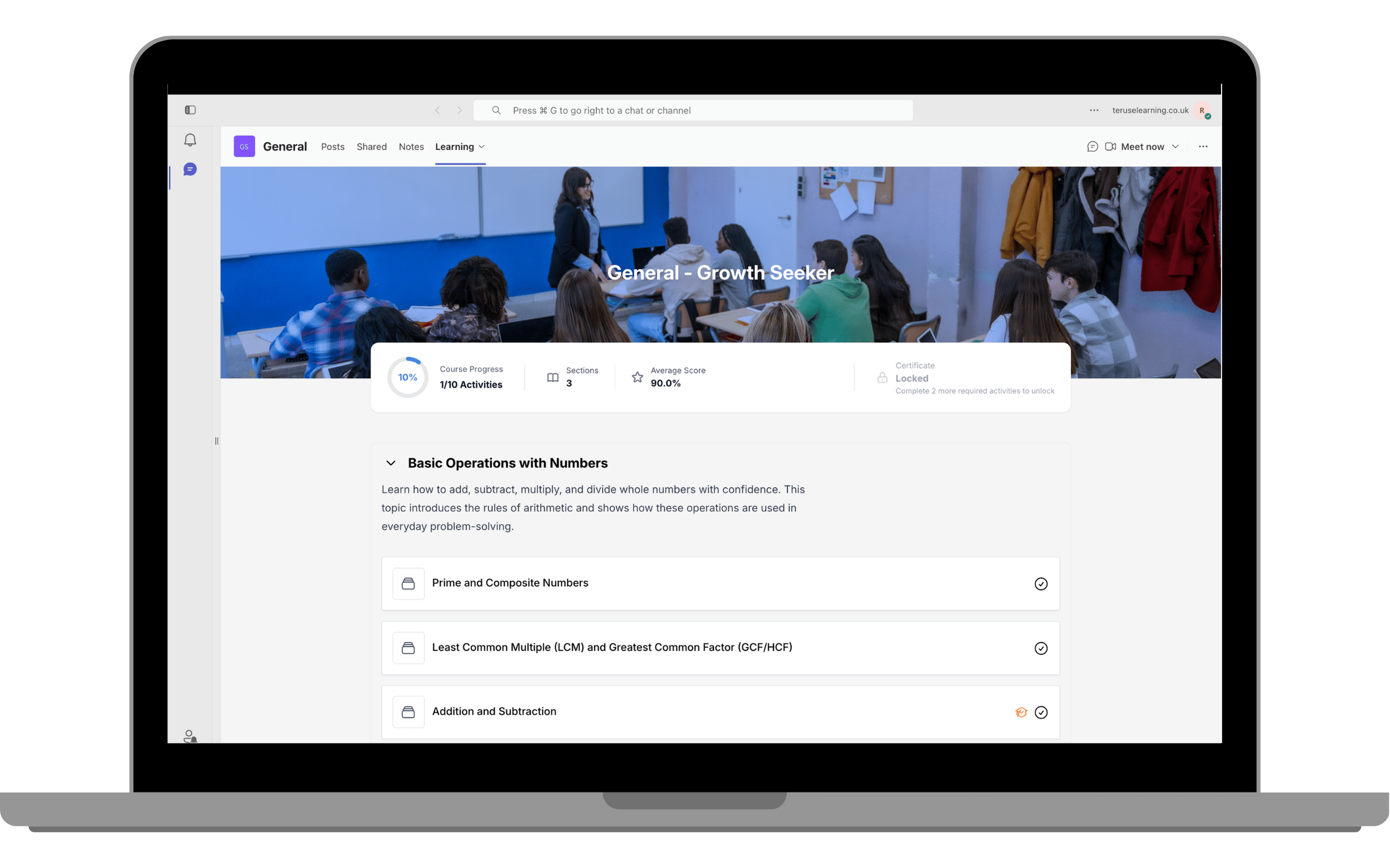
The Mini Dashboard gives you a quick overview of your course progress. It displays your course progress, completed activities, number of sections, average score, and certificate status. These values update automatically as you complete activities.
Course Content
Course content is organised into sections which group related learning activities under a topic or module. A section may include an introduction or instructions from the course owner.
Activities
Each activity appears as a card showing type, name, completion status, and requirements. Select the activity name to begin. Activity types include Text, Document, Video, Audio, Link, Image, SCORM, Quiz, Assignment, Interactive Image, and Panorama.
Activity type icons help you identify BLC, SCORM, Quiz, Assignment, Interactive Image, Panorama, Document, Video, Audio, Link, or Text activities.
Required activities have a graduation-cap icon and must be completed to meet course requirements.
Locked activities have a lock icon and become available after prerequisites are completed.
Activity score, where applicable, appears after completion.