How to Use Shrewd LMS as Admin
Comprehensive guide for administrators setting up and managing Shrewd LMS within Microsoft Teams.
Important Note: Shrewd LMS works natively within Microsoft Teams and does not require configuration via Azure Active Directory (Azure AD). We strongly recommend not using Azure AD groups or custom restrictions to control access, as this may cause unexpected access issues. Manage access using Microsoft Teams settings and policies only. The same Shrewd LMS app cannot be added twice in the same Team or Chat scope.
Global Certificate Template
Create a standard certificate design across all courses
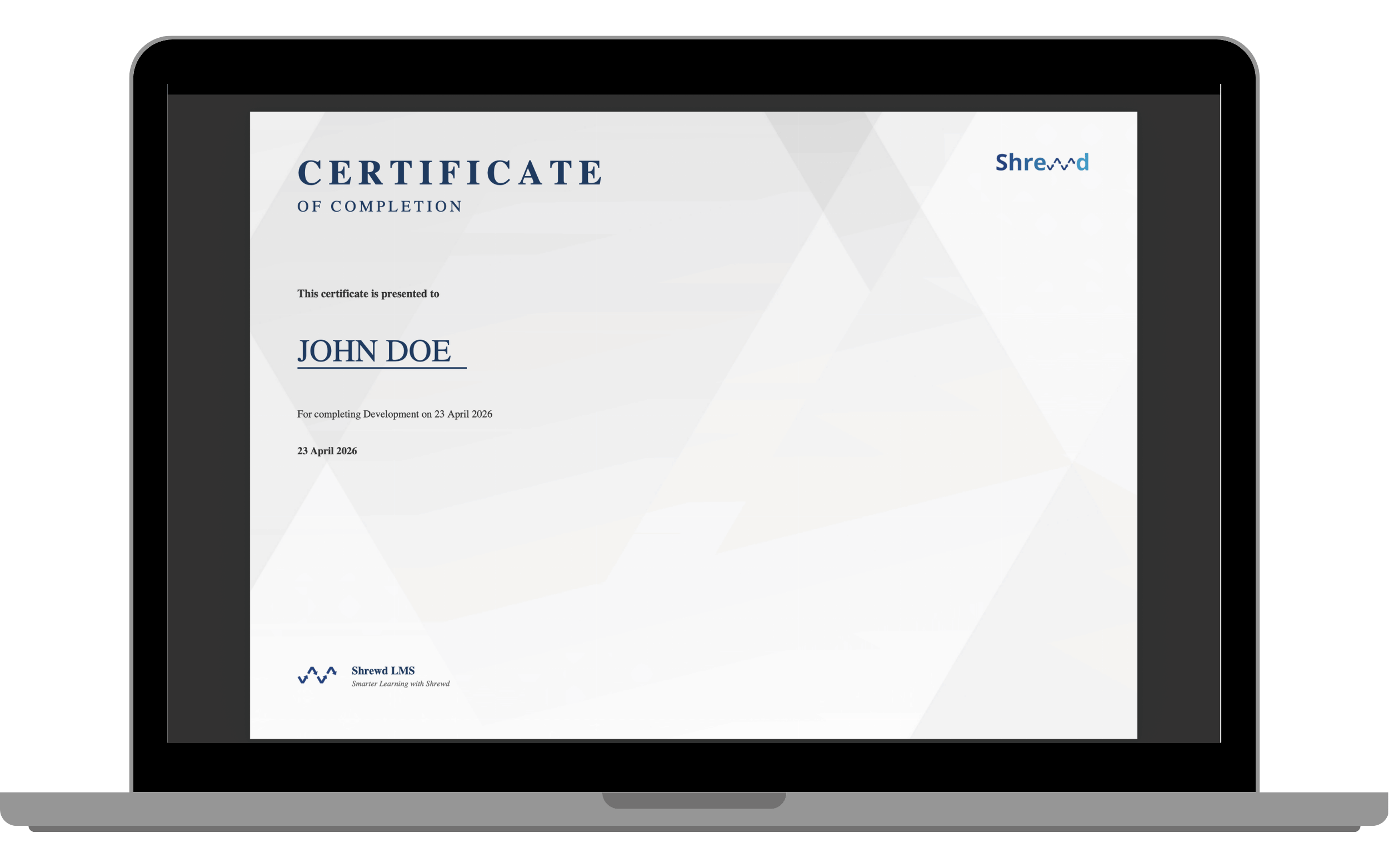
The Global Certificate Template allows admins to create and manage a standard certificate design that can be applied across all courses. Course managers can still customise certificates at the course level.
Note: Only a designated Certificate Manager can manage the Global Certificate. Please contact us and let us know who in your organisation should be assigned to this role.
Steps
Open Shrewd Global Dashboard within Microsoft Teams.
Navigate to Certificate Settings. Go to the Certificate tab.
Edit Certificate Content. Update the available fields to define the certificate text, such as learner name, course name, and completion message.
Set Override Option if needed. Tick Override Course-level settings if you want the global template to apply to all courses.
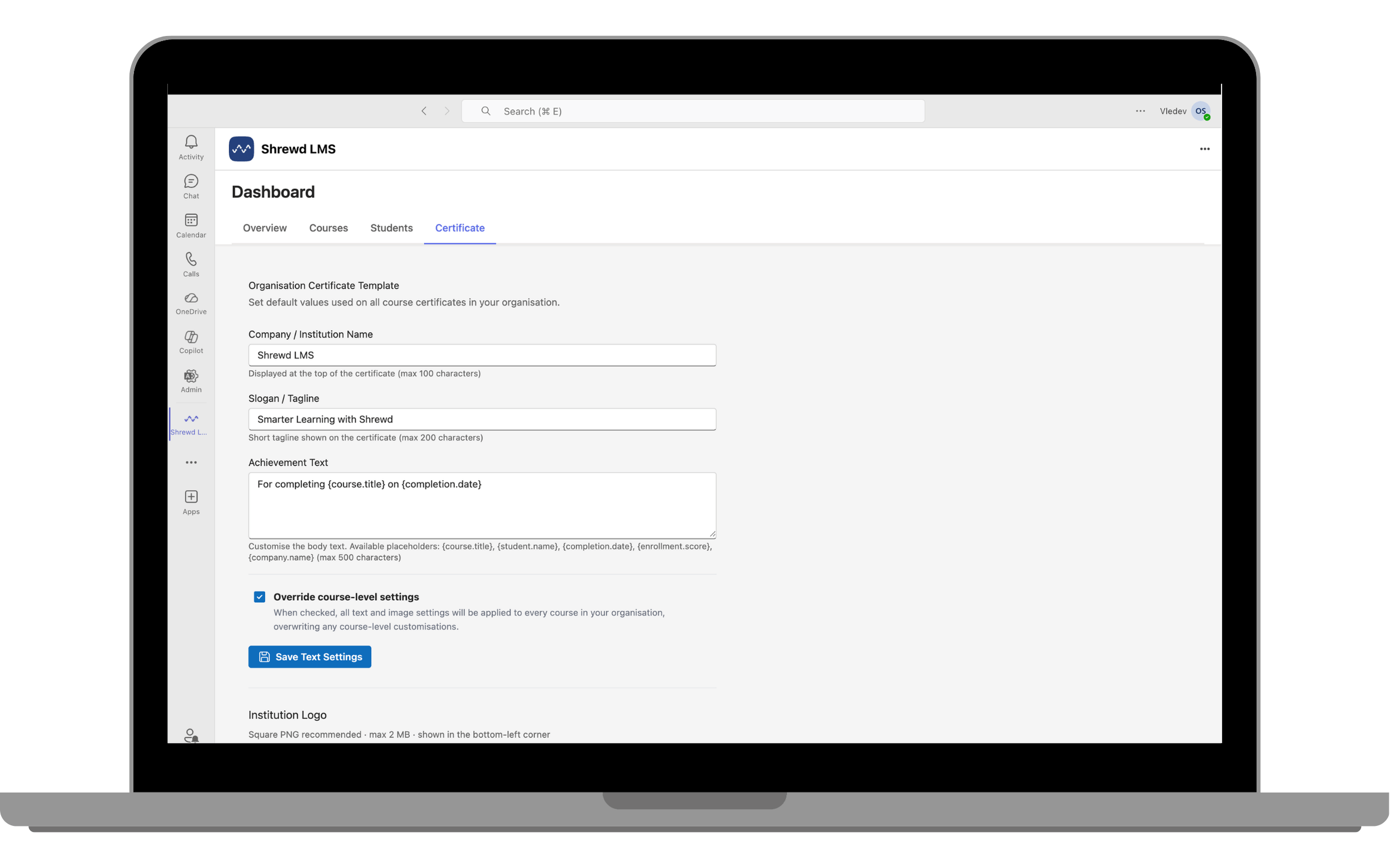
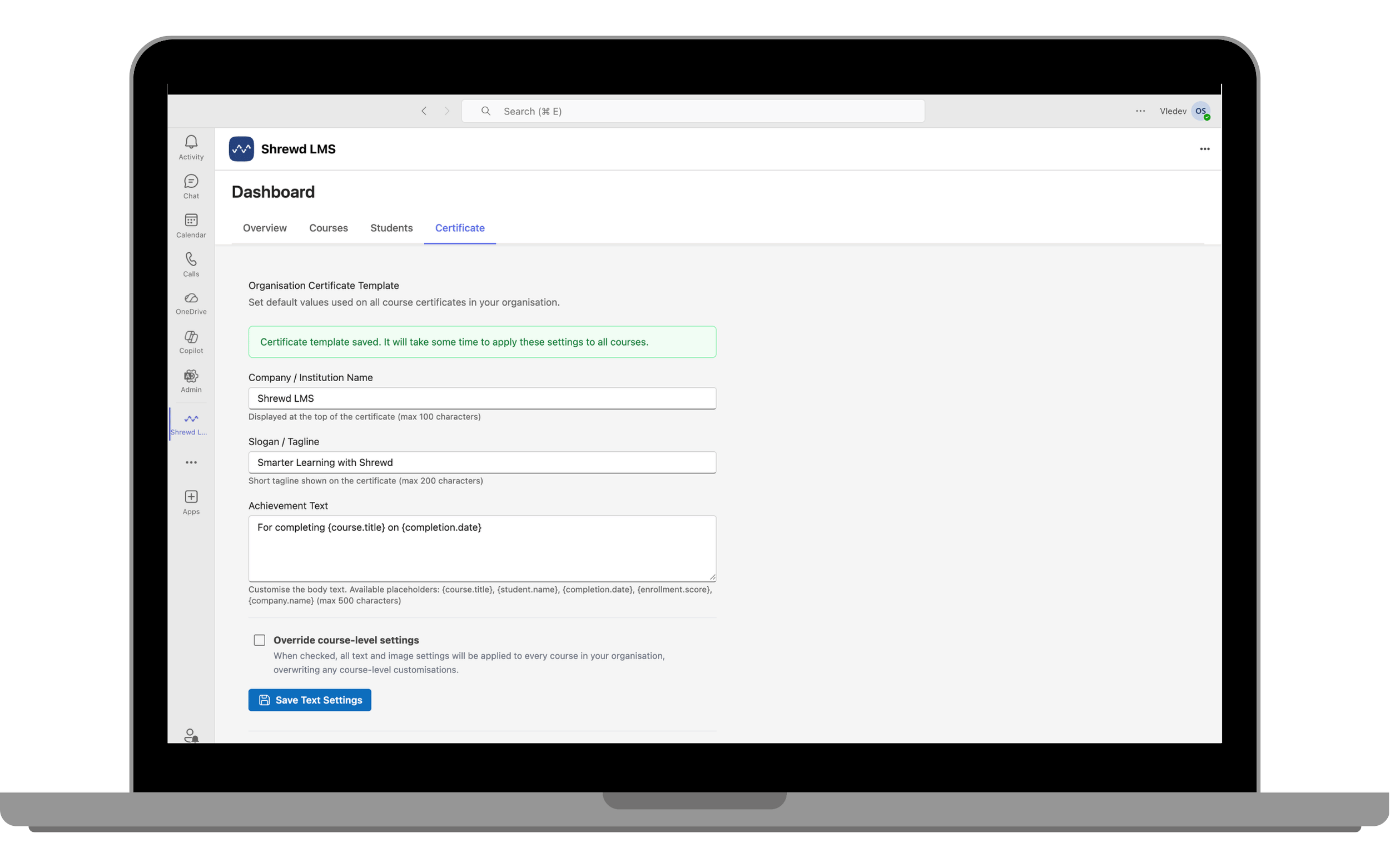
Save the settings.
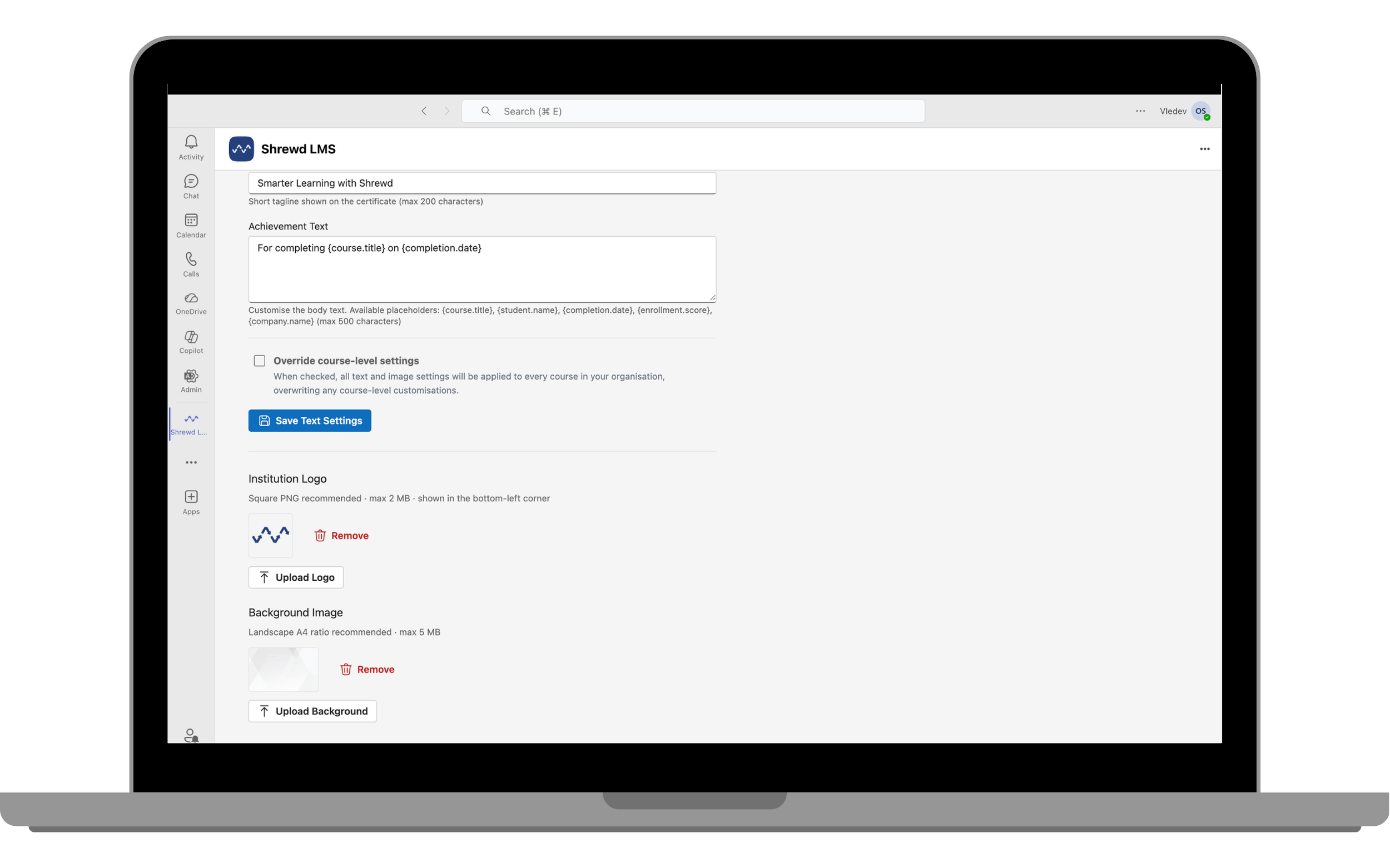
Upload Branding Assets. Add your organisation's logo and certificate background image.
Preview the Certificate. Go to any course's Course Settings to preview how the certificate will appear with the applied global template.
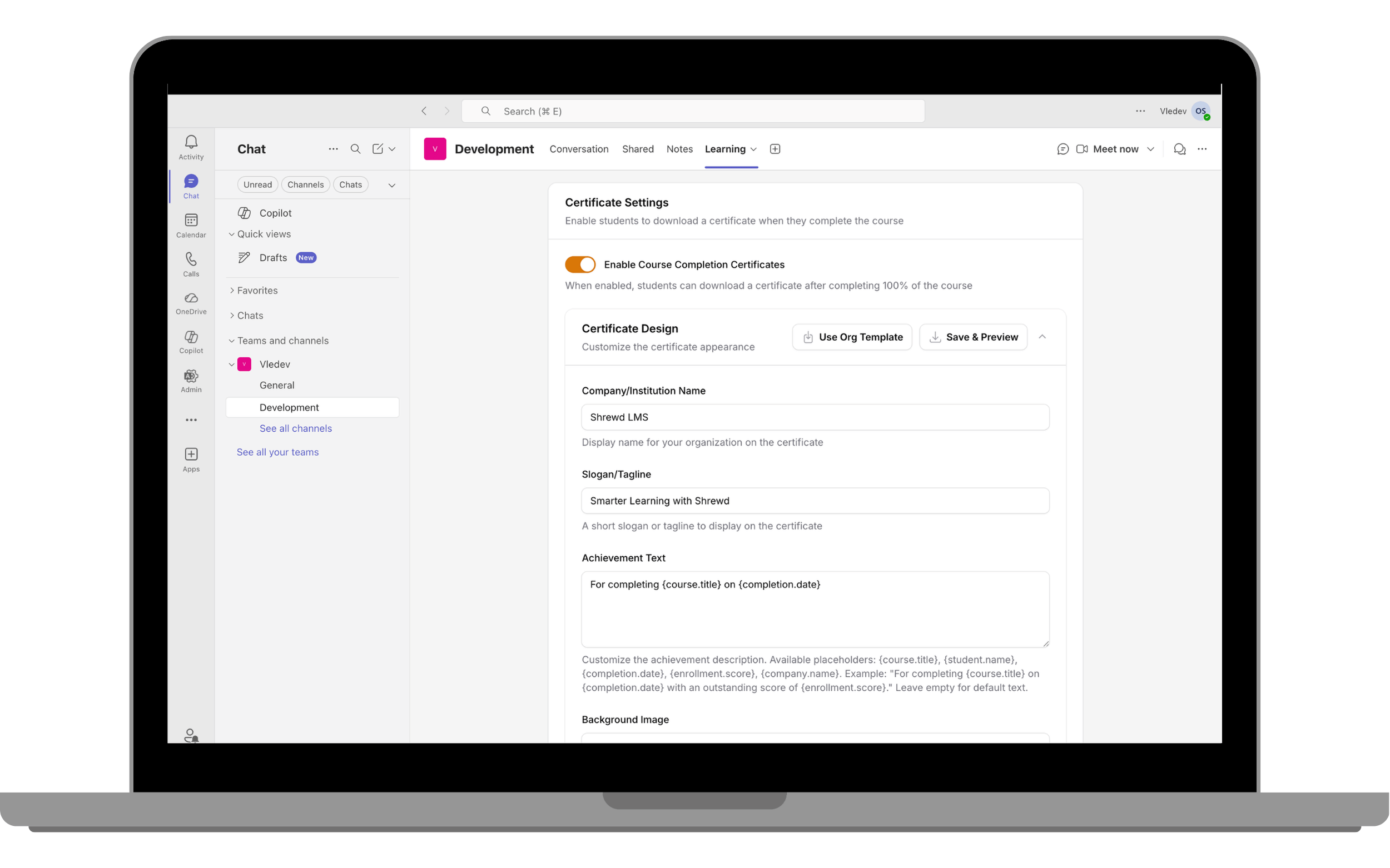
Your certificate is now ready to use across all courses!