How to Use Shrewd LMS: Student Guide
Everything you need to access your learning, complete activities, monitor your progress, and download course certificates in Microsoft Teams.
Introduction
Learn what Shrewd LMS is and who this guide is forAbout Shrewd LMS
Shrewd LMS is a learning management system integrated with Microsoft Teams. It enables you to access courses, complete learning activities, monitor progress, and earn certificates—all within Teams.
Purpose of this Guide
This guide explains the core student features and common tasks, helping you navigate courses and track your learning progress with confidence.
Intended Audience
This guide is intended for students and learners using Shrewd LMS through Microsoft Teams who have already been enrolled in one or more courses.
Getting Started
Set up access to start learningPrerequisites
Before using Shrewd LMS, make sure that:
- You have a Microsoft 365 account provided by your organisation.
- You have access to Microsoft Teams.
- You have been invited to a Team or channel where Shrewd LMS has been added.
- You have been enrolled in at least one Shrewd LMS course.
System Requirements
For the best experience, use the Microsoft Teams desktop app or a browser and a stable internet connection.
Accessing Shrewd LMS
- Open Microsoft Teams.
- Select Apps from the left-hand navigation.
- Search for Shrewd LMS.
- Select the Shrewd LMS app to open it.
- Your Global Dashboard opens automatically.
Global Dashboard
Find your courses and review learning activityThe Global Dashboard is your main landing page. It gives you a central place to view course information and access your enrolled courses.
Overview Page
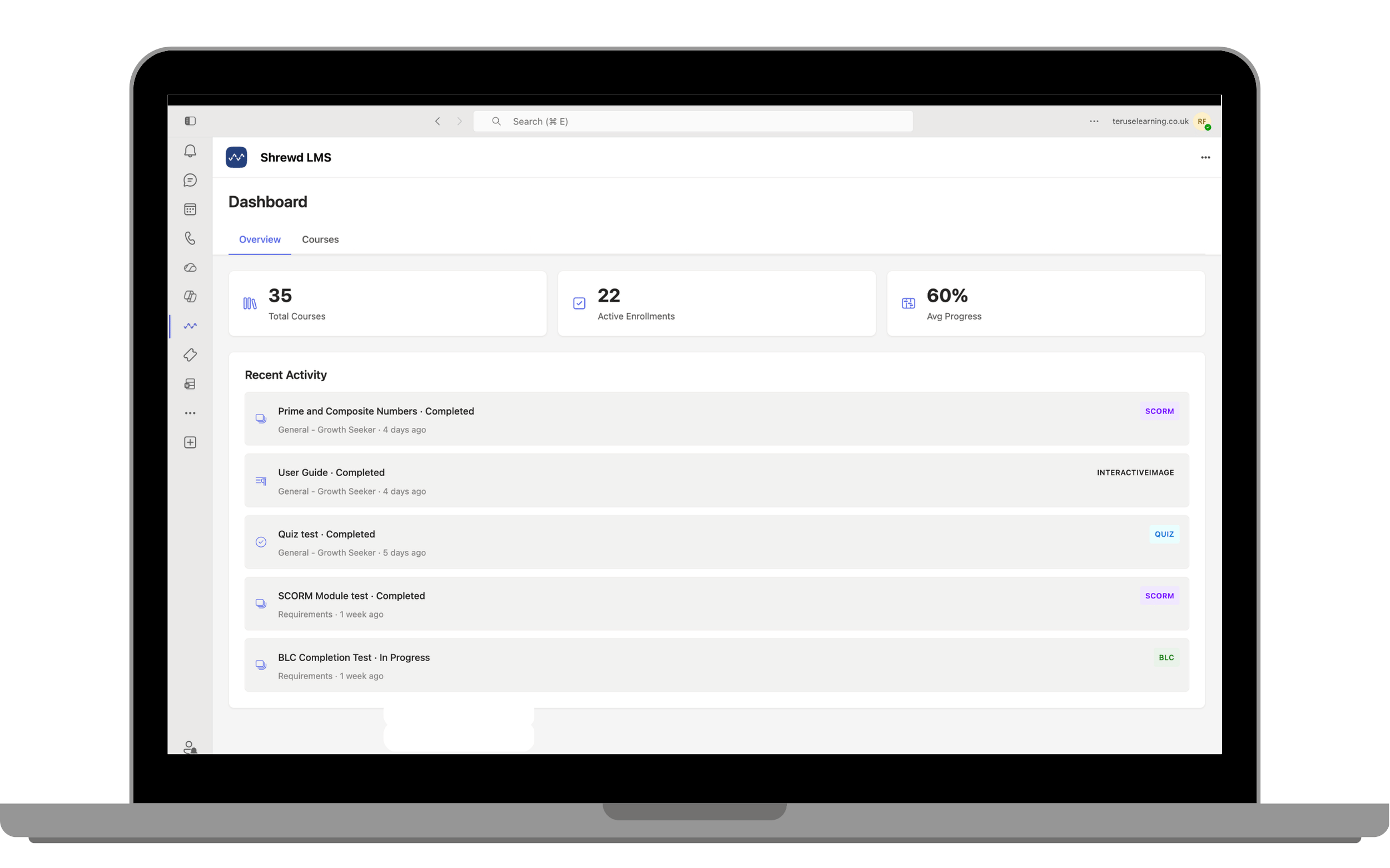
The Overview page provides a quick summary of your learning activity without needing to open individual courses.
- Learning Summary shows your total courses, active enrolments, and average progress.
- Recent Activity shows activity name, completion status, channel, date, and activity type for work you have recently completed or are currently working on.
Courses Page
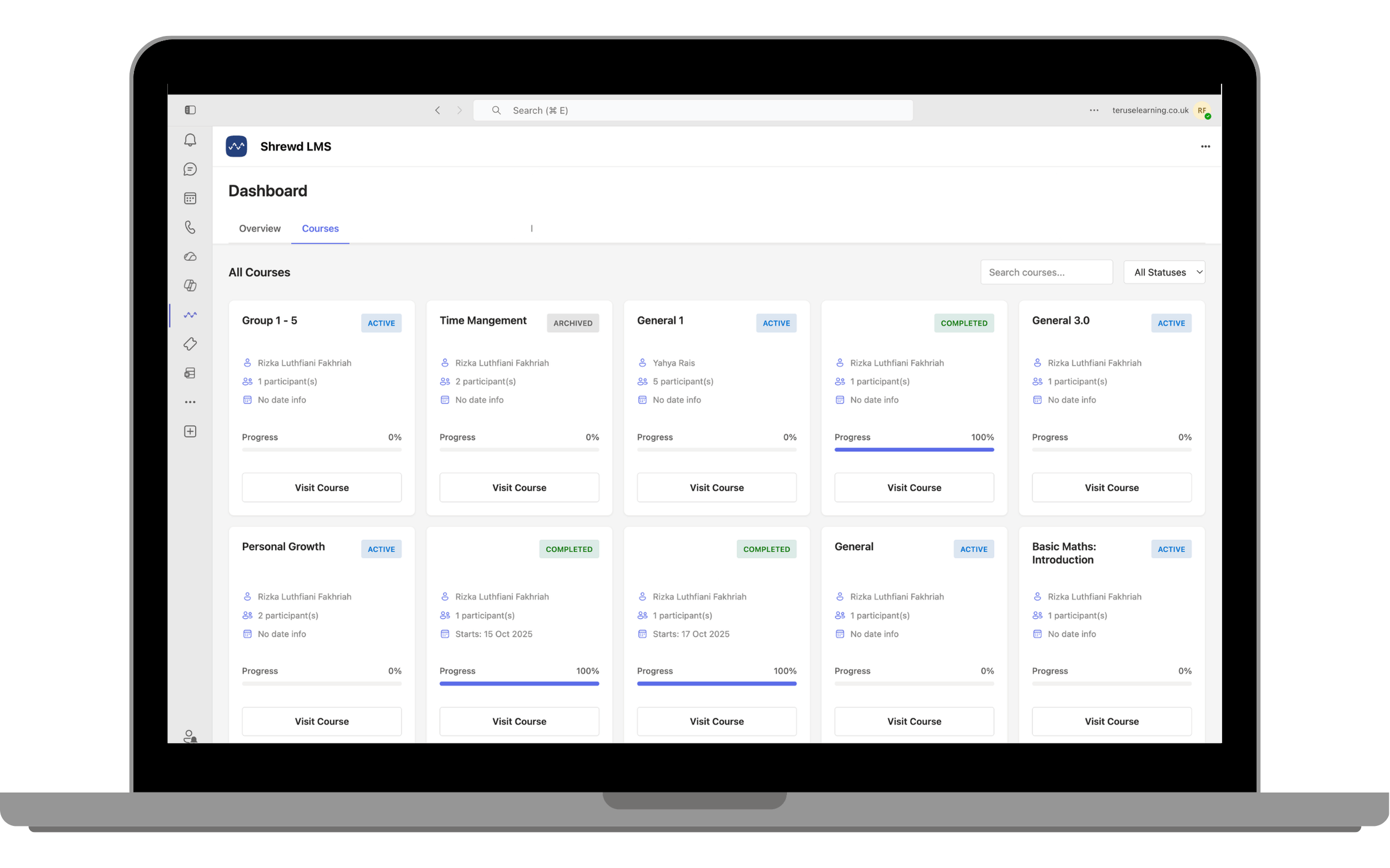
The Courses page displays all courses available to you. Use Search courses to find a course by name, and use the Status filter to show Active, Completed, or Archived courses.
Each course card shows its name, status, course owner, number of participants, dates, and your current progress. Select Visit Course to open it.
Using a Course
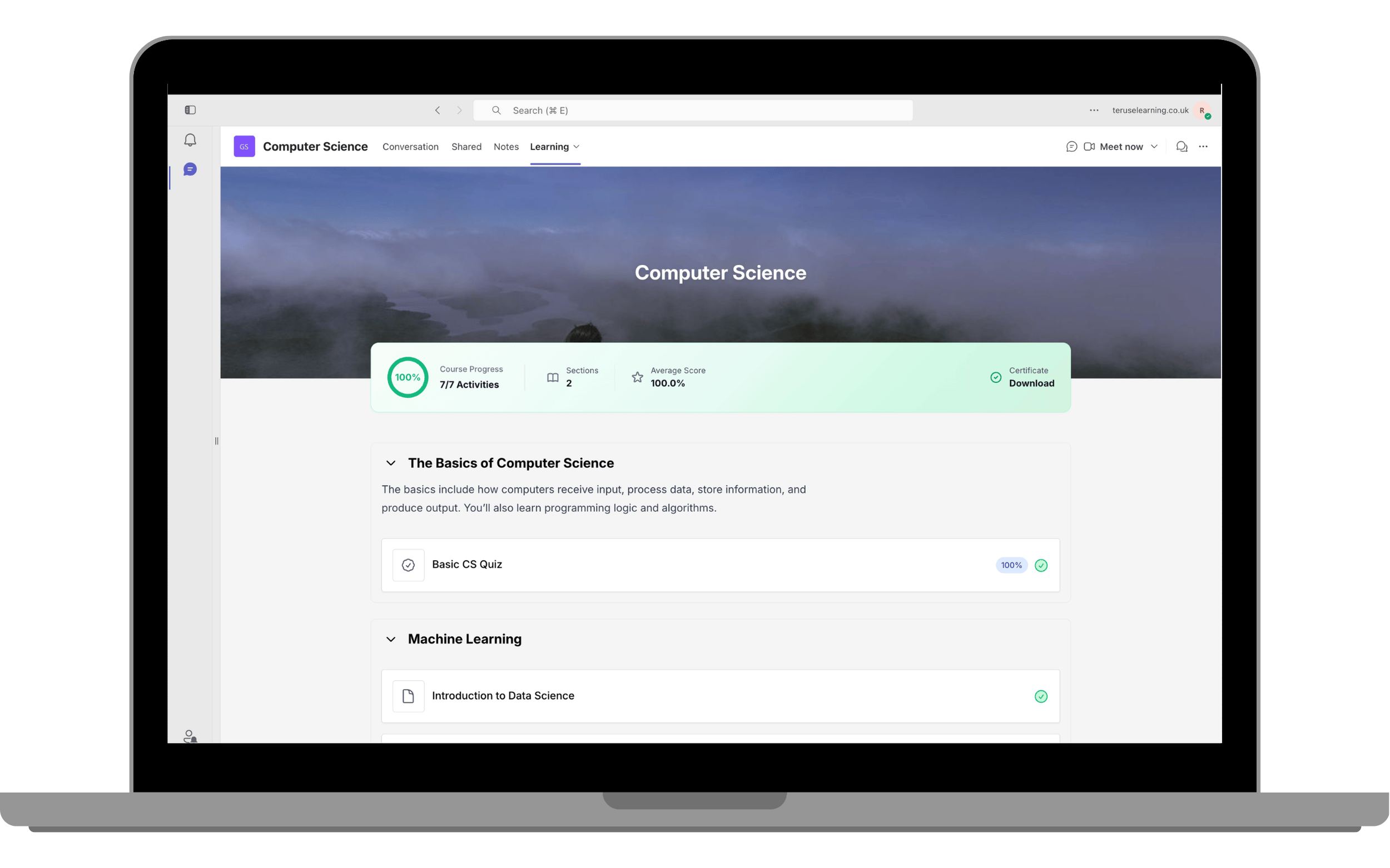
Access learning materials and complete your activitiesSelect Visit Course on the Courses page to open a Course Page. You can also open a course from the Learning tab in the Microsoft Teams channel where you were invited.
Mini Dashboard
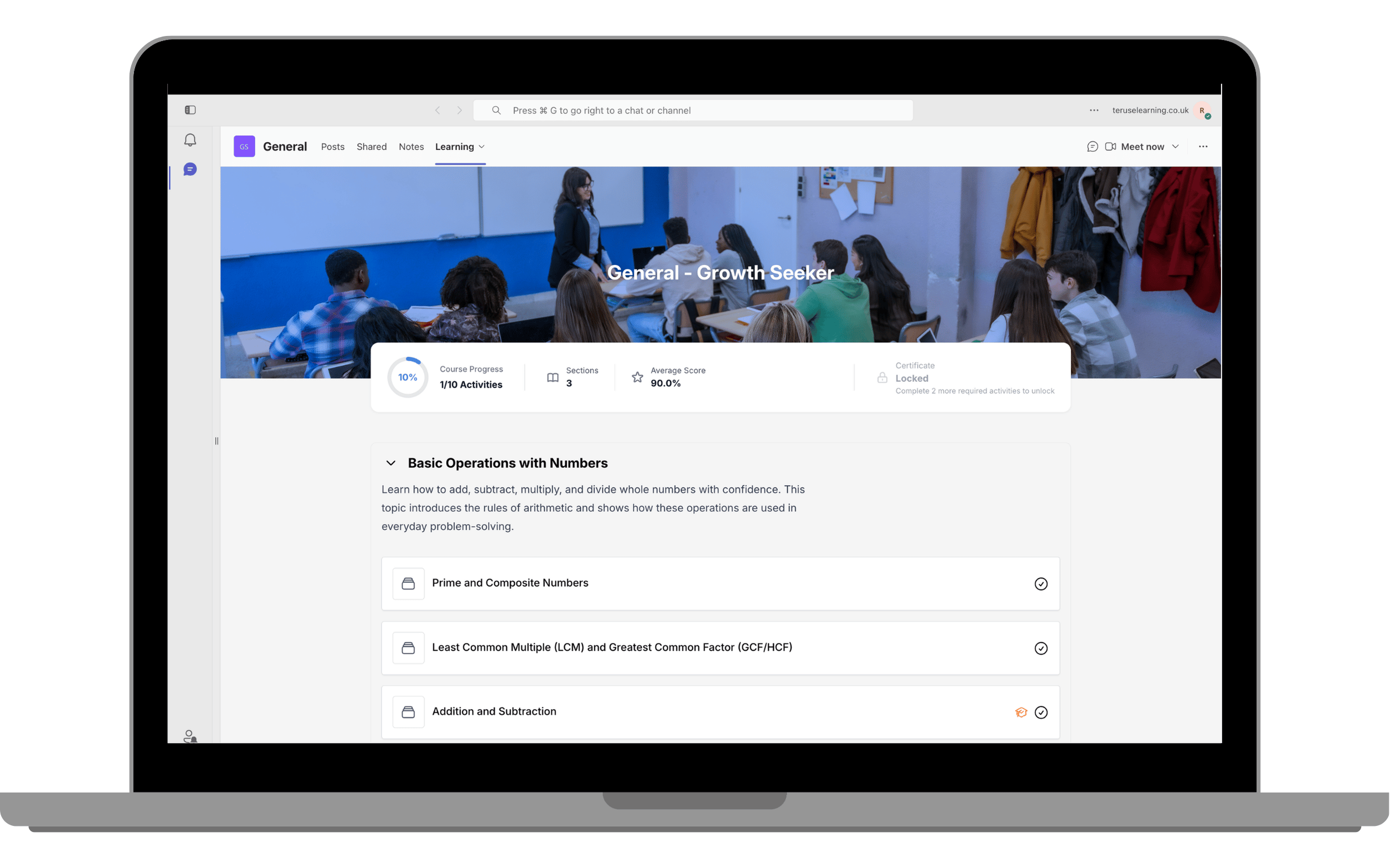
The Mini Dashboard gives you a quick overview of your course progress. It displays your course progress, completed activities, number of sections, average score, and certificate status. These values update automatically as you complete activities.
Course Content
Course content is organised into sections, which group related learning activities under a topic or module. A section may also include an introduction or instructions from the course owner.
Activities
Each activity appears as a card that shows its type, name, completion status, and any requirements. Select the activity name to open and begin it.
- Activity type icons help you identify BLC, SCORM, Quiz, Assignment, Interactive Image, Panorama, Document, Video, Audio, Link, or Text activities.
- Required activities have a graduation-cap icon and must be completed to meet course requirements.
- Locked activities have a lock icon and become available after prerequisites are completed.
- Activity score, where applicable, appears after completion.
Certificates
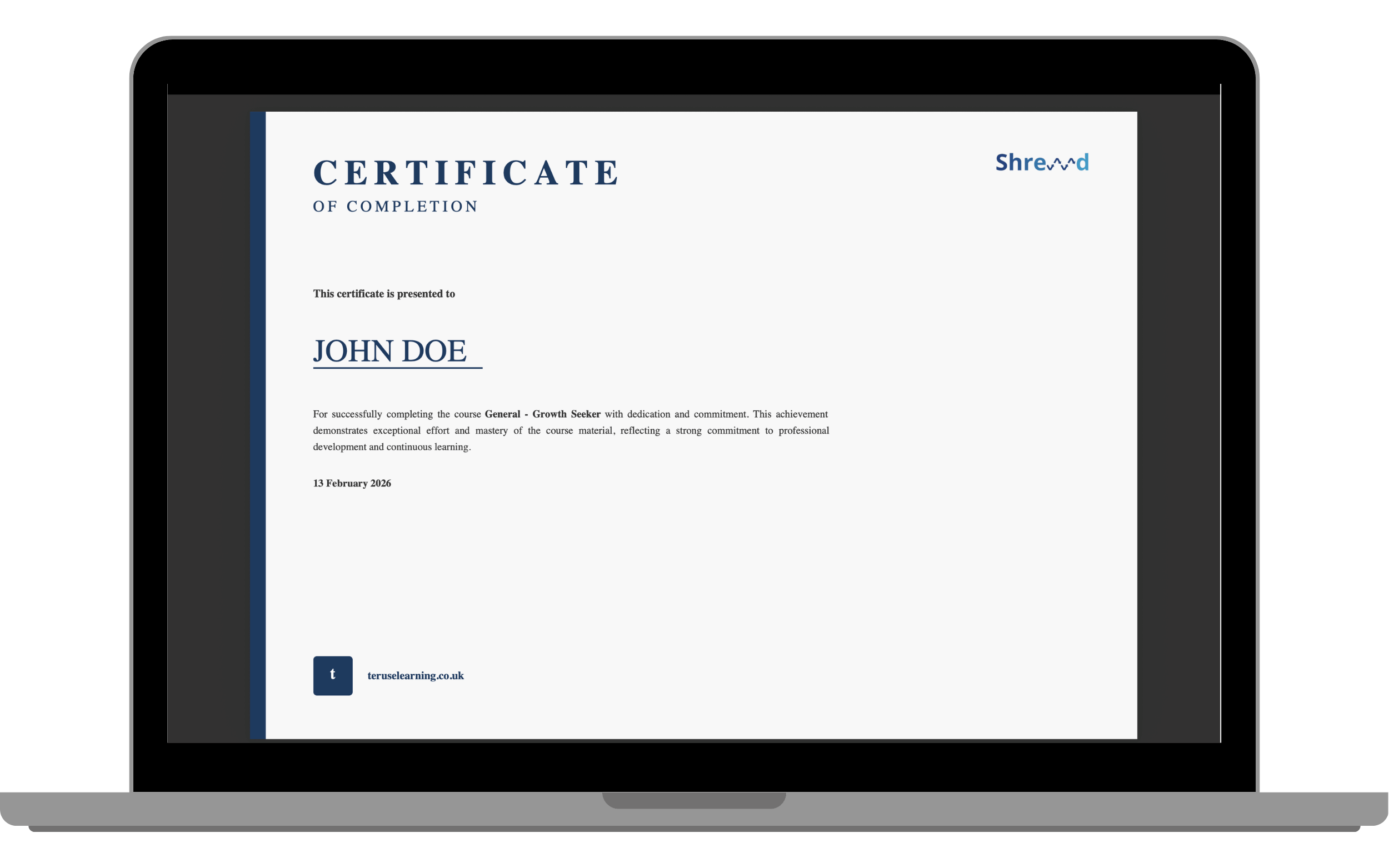
Unlock and download proof of course completionA certificate is awarded once you meet a course’s completion requirements, provided certificates have been enabled by your course owner. Certificate status appears in the Mini Dashboard.
- Locked: you still have required activities to complete. The certificate panel tells you how many remain.
- Available: you have met all requirements and can view and download your certificate.
Download your certificate
- Open the course.
- Complete all required activities.
- Select Download.