
How to Use Shrewd LMS as an Admin
This guide is designed for administrators and course owners to effectively use Shrewd LMS within Microsoft Teams, from installation and course setup to reporting and notifications.
Installing Shrewd LMS in Microsoft Teams
Install and launch the appThis section guides you through the process of installing Shrewd LMS within Microsoft Teams. By completing these steps, you will be able to access the app and begin setting up and managing your learning environment directly inside Teams.
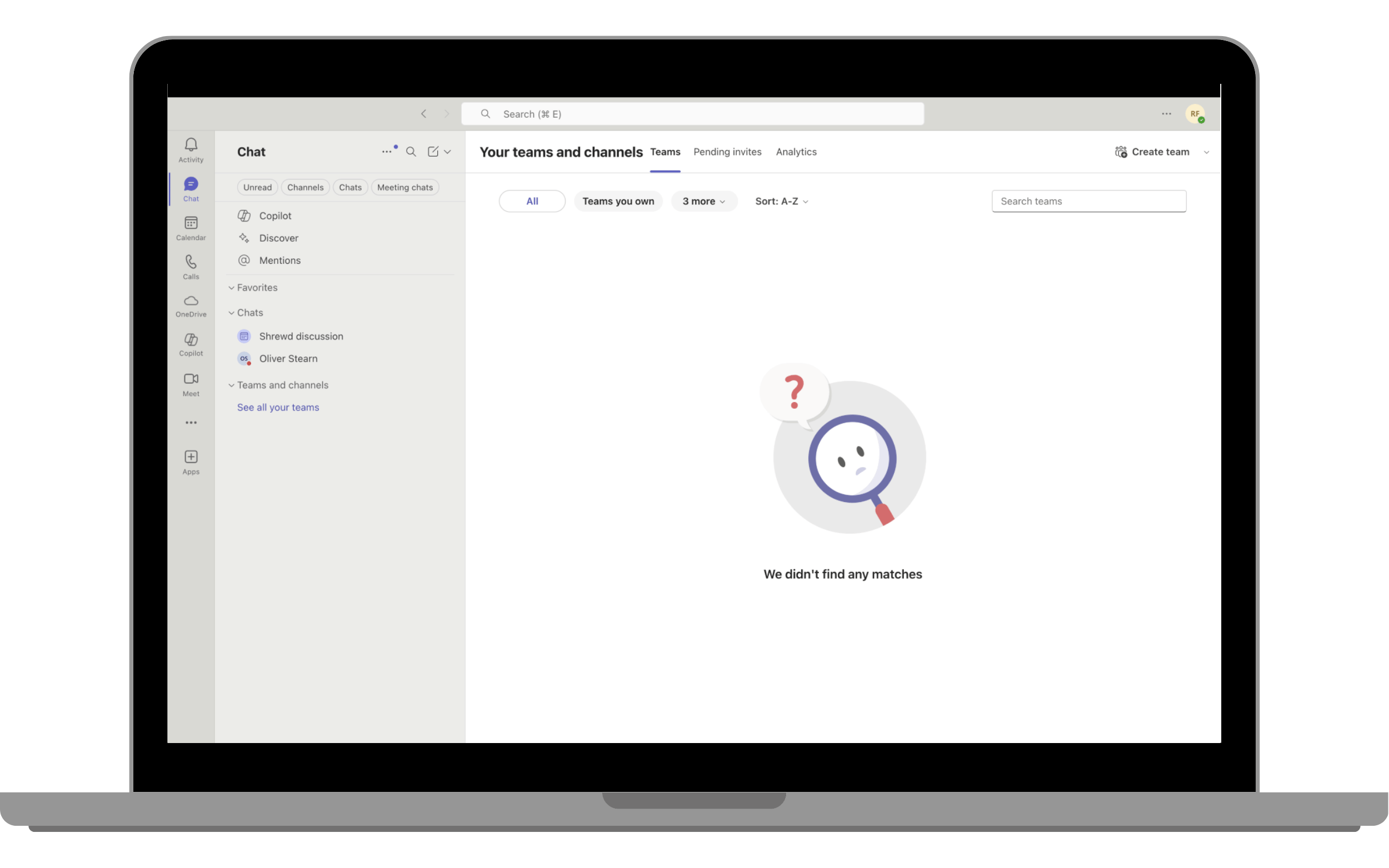
Step 1: Open Microsoft Teams
- Desktop App
- Web App: https://teams.microsoft.com
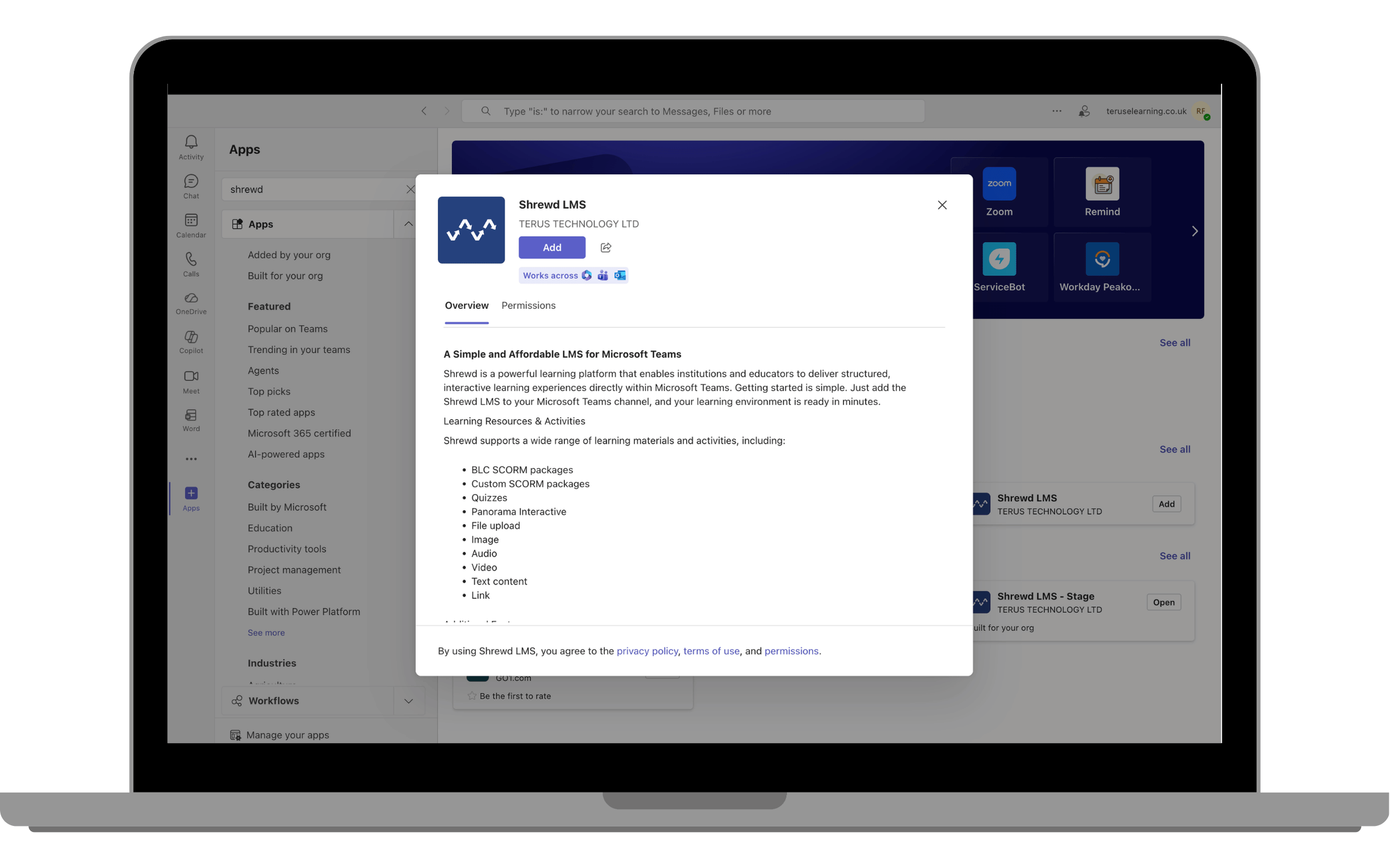
Step 2: Add the App
- Click Apps on the left sidebar.
- Search for Shrewd LMS.
- Click Add.
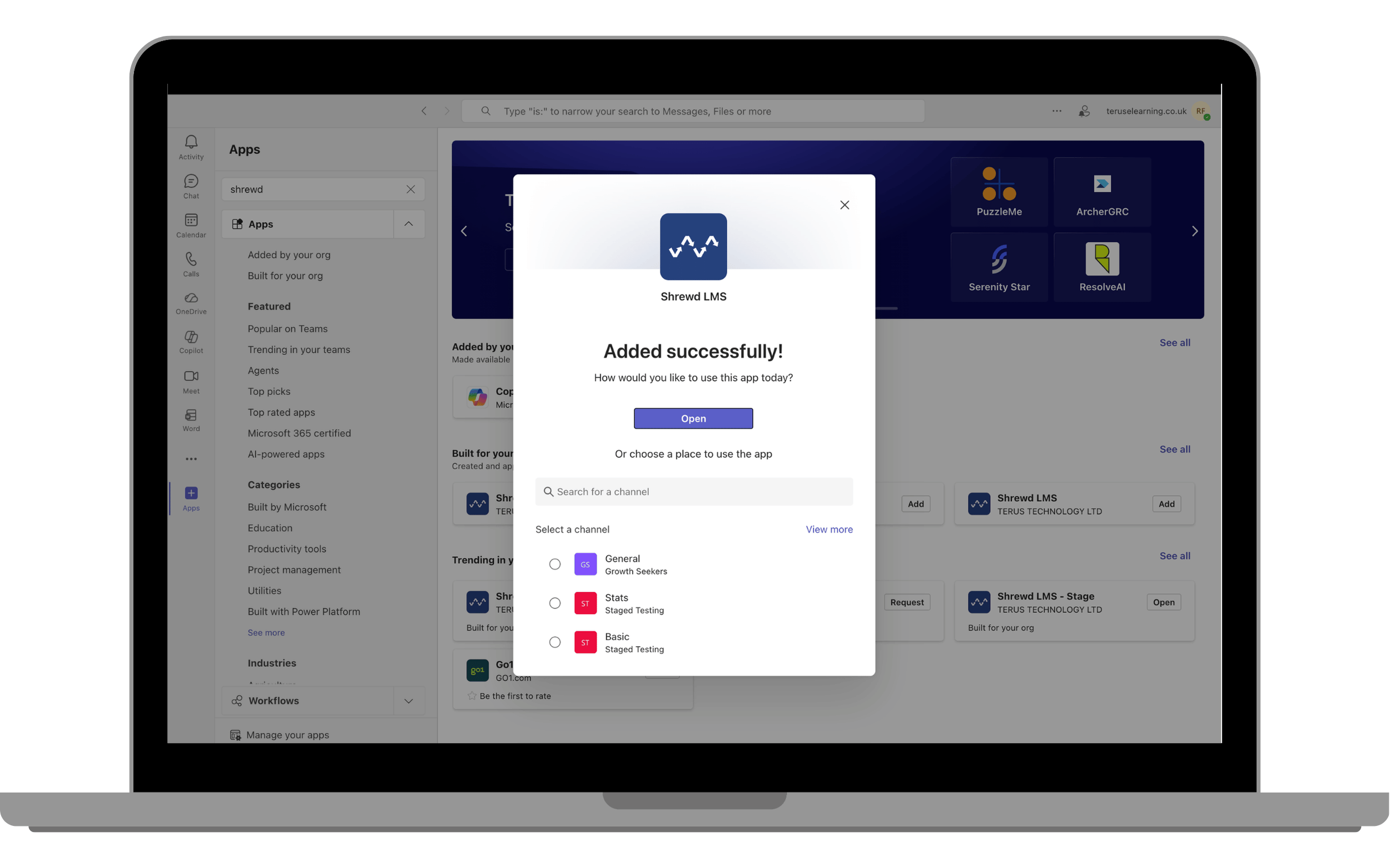
Step 3: Open the App
- Click Open to launch the app.
Accessing the Global Report Dashboard
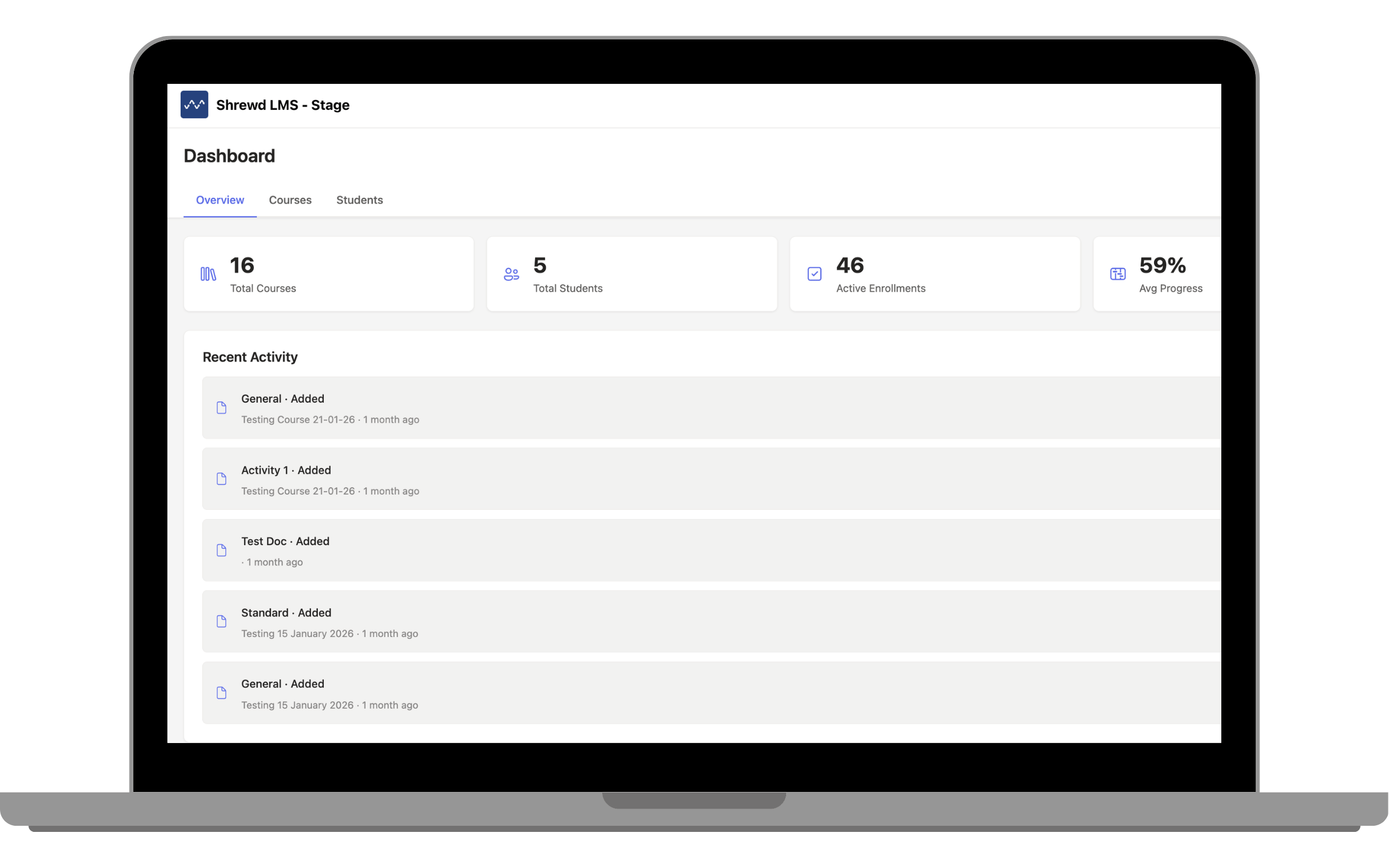
Centralised visibility into learning activityWhat is Global Report?
- Overall course activity
- Enrolment figures
- Overall and individual learner progress
The Global Report Dashboard provides a centralised overview of learning activity across your organisation, allowing admins to monitor performance without leaving Microsoft Teams.
How to Access
- Open Shrewd LMS from the sidebar.
- The Global Report Dashboard will load automatically.
Creating a Course in a Team (Learning Tab)
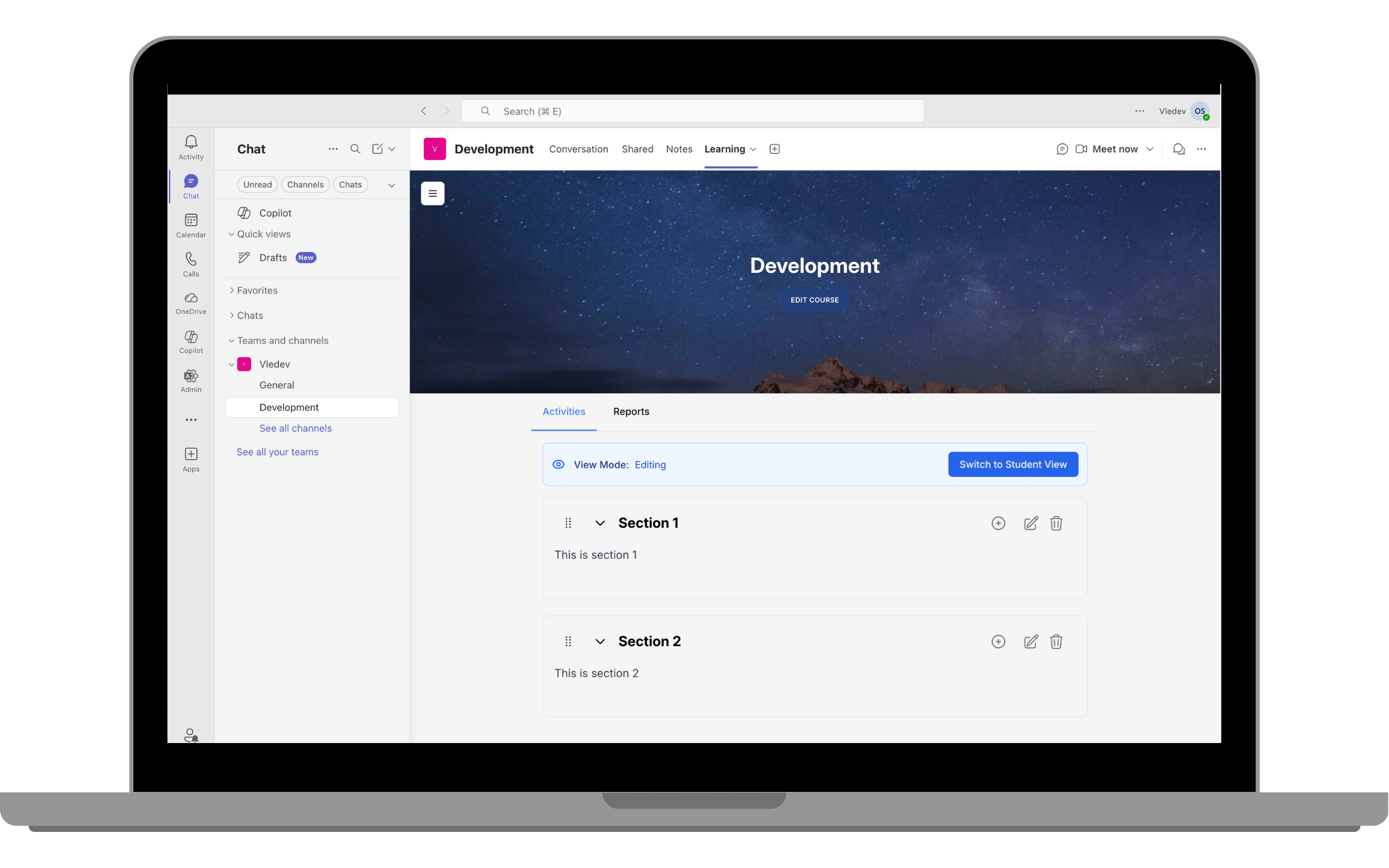
Add a learning tab to a Team and ChannelThis section explains how to create a course by adding a Shrewd LMS Learning Tab within a Microsoft Teams channel. Once added, the tab serves as the central space for managing course content and learner activities.
Steps
-
Go to your desired Team and Channel.
-
Click the “+” (Add Tab) button.
-
Select Shrewd LMS.
-
Click Save.
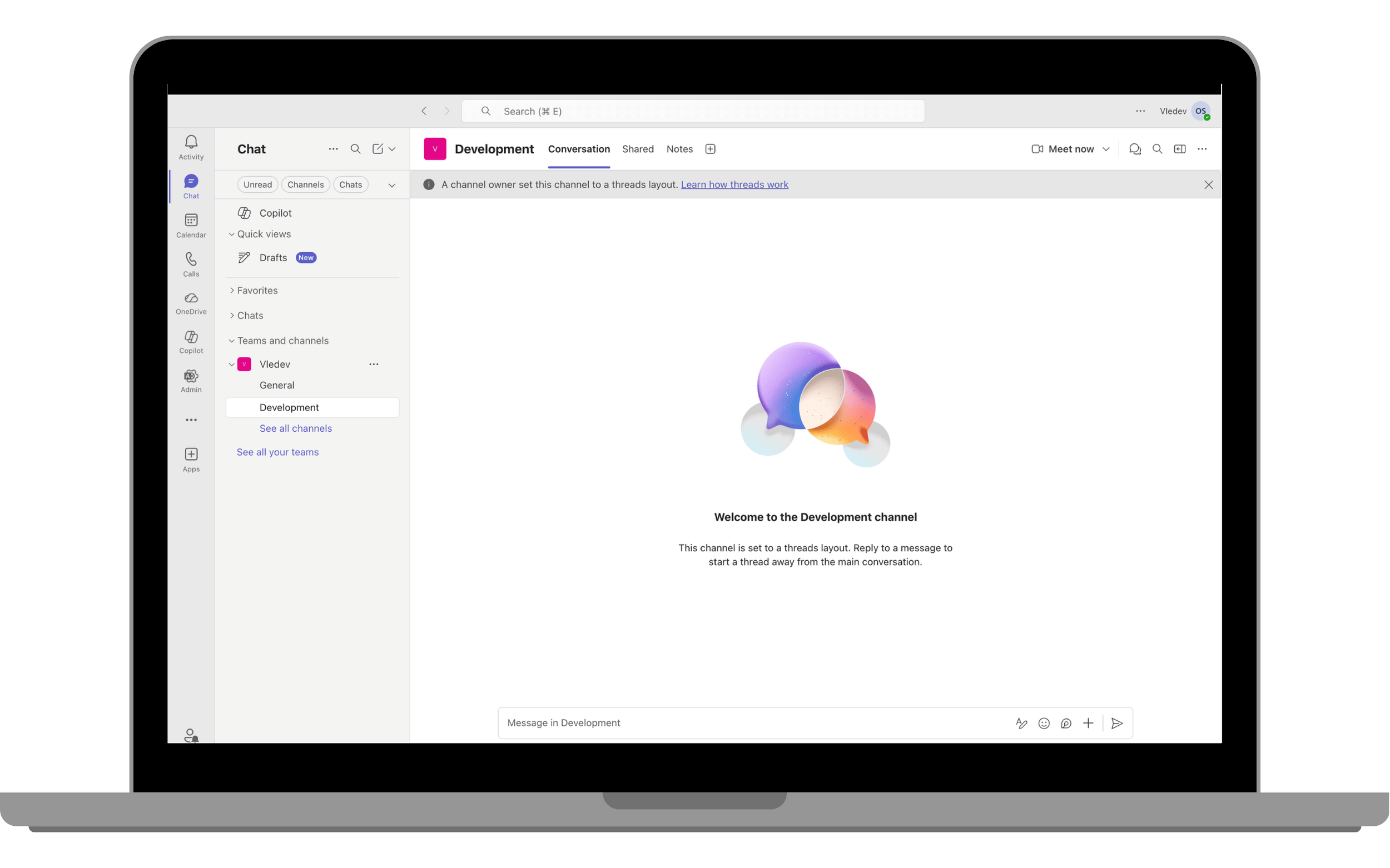
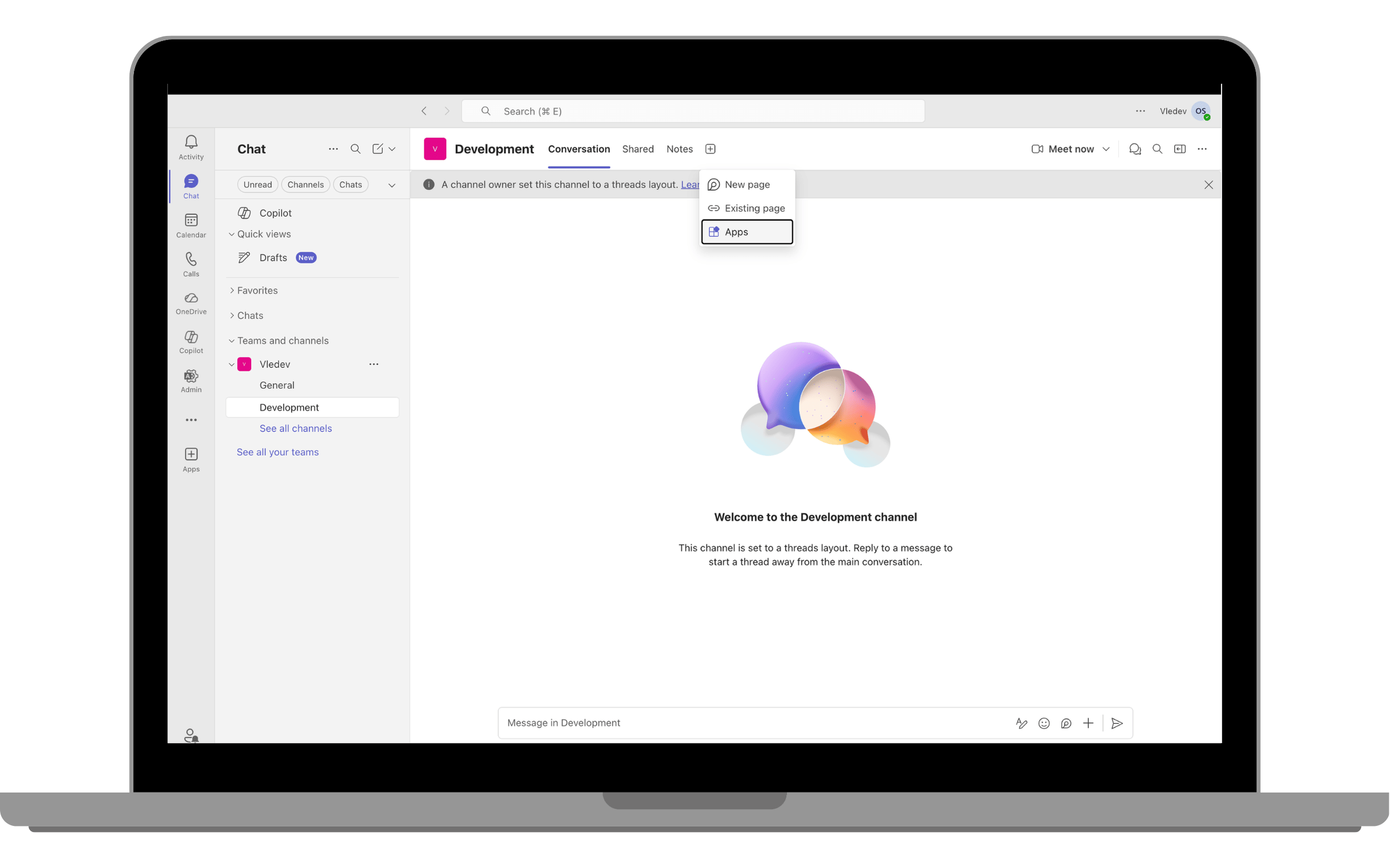
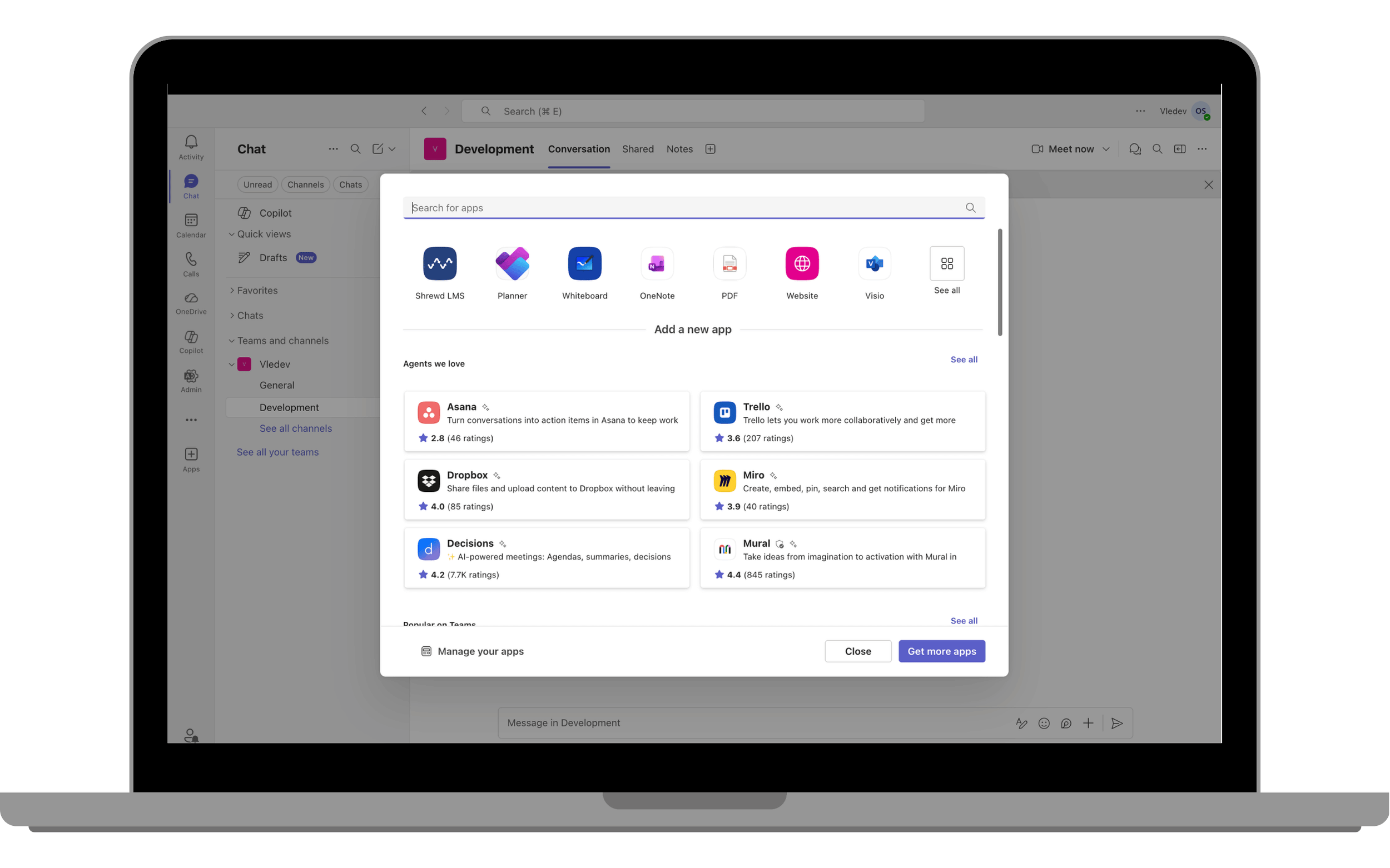
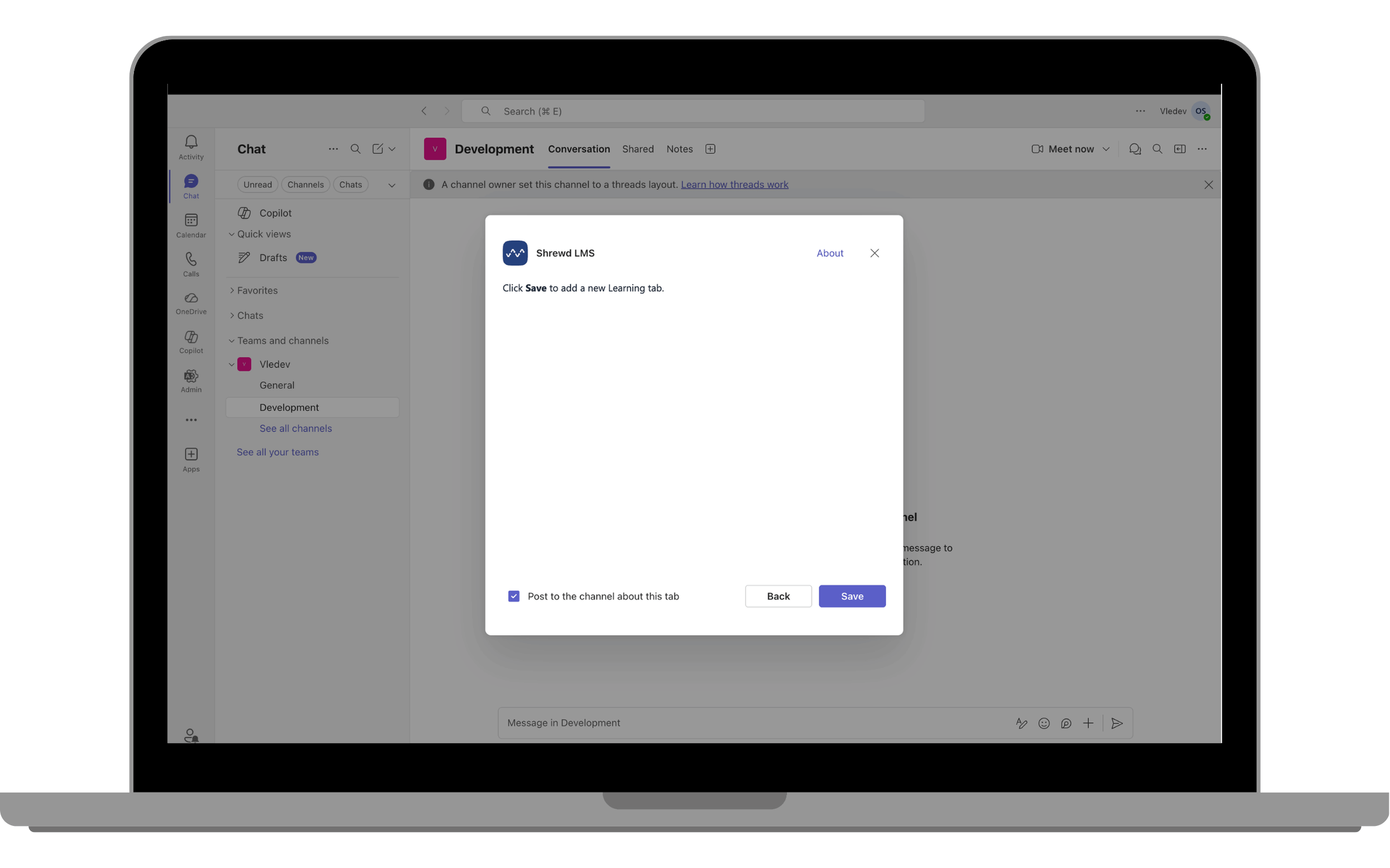
Result
- A Learning Tab will be created.
- The tab will appear in the channel and be accessible to members.
Reports API
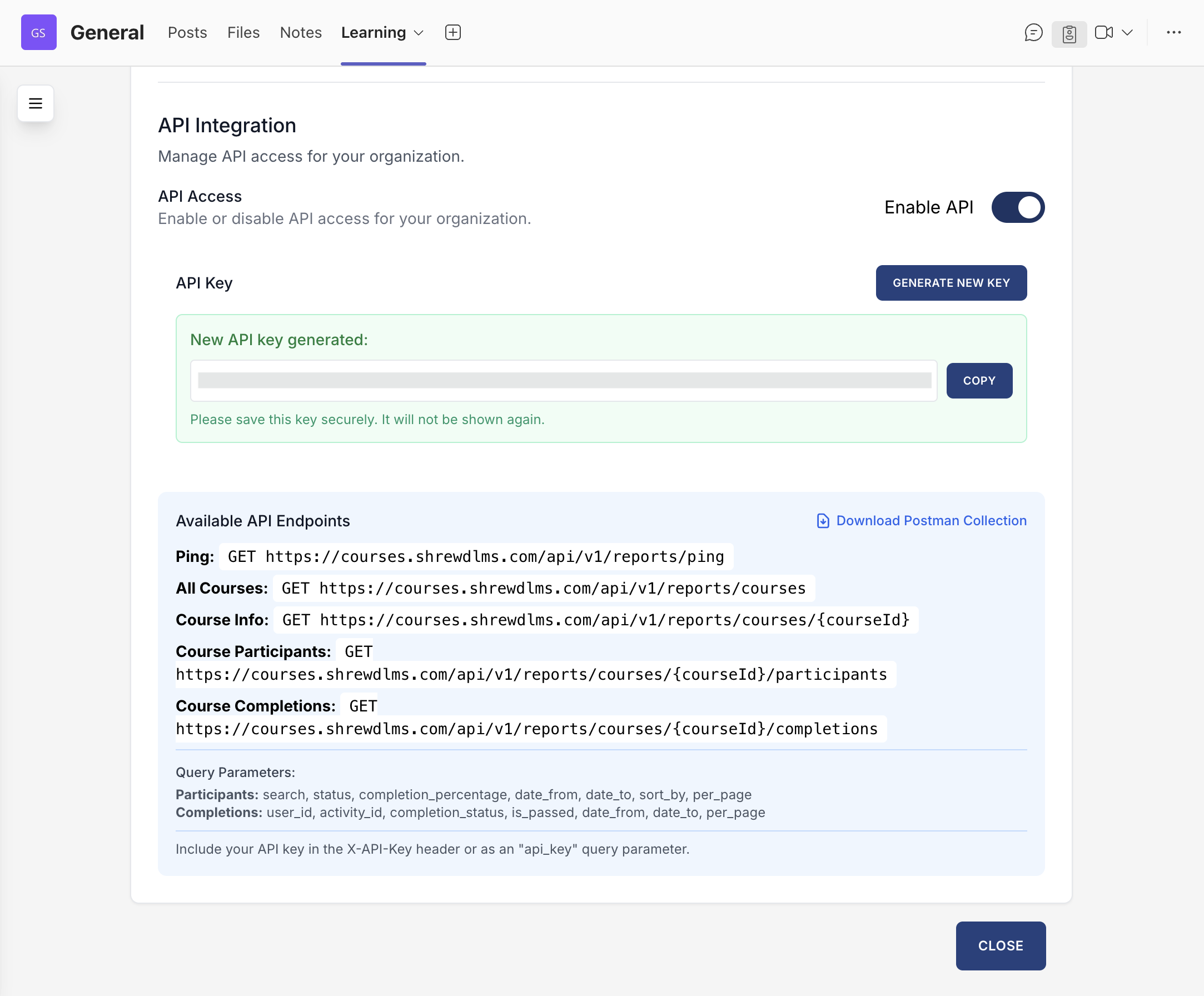
Integrate reporting into your own systemsShrewd LMS provides a Reports API for integrating report data into your organisation’s systems.
Steps to Generate API Key
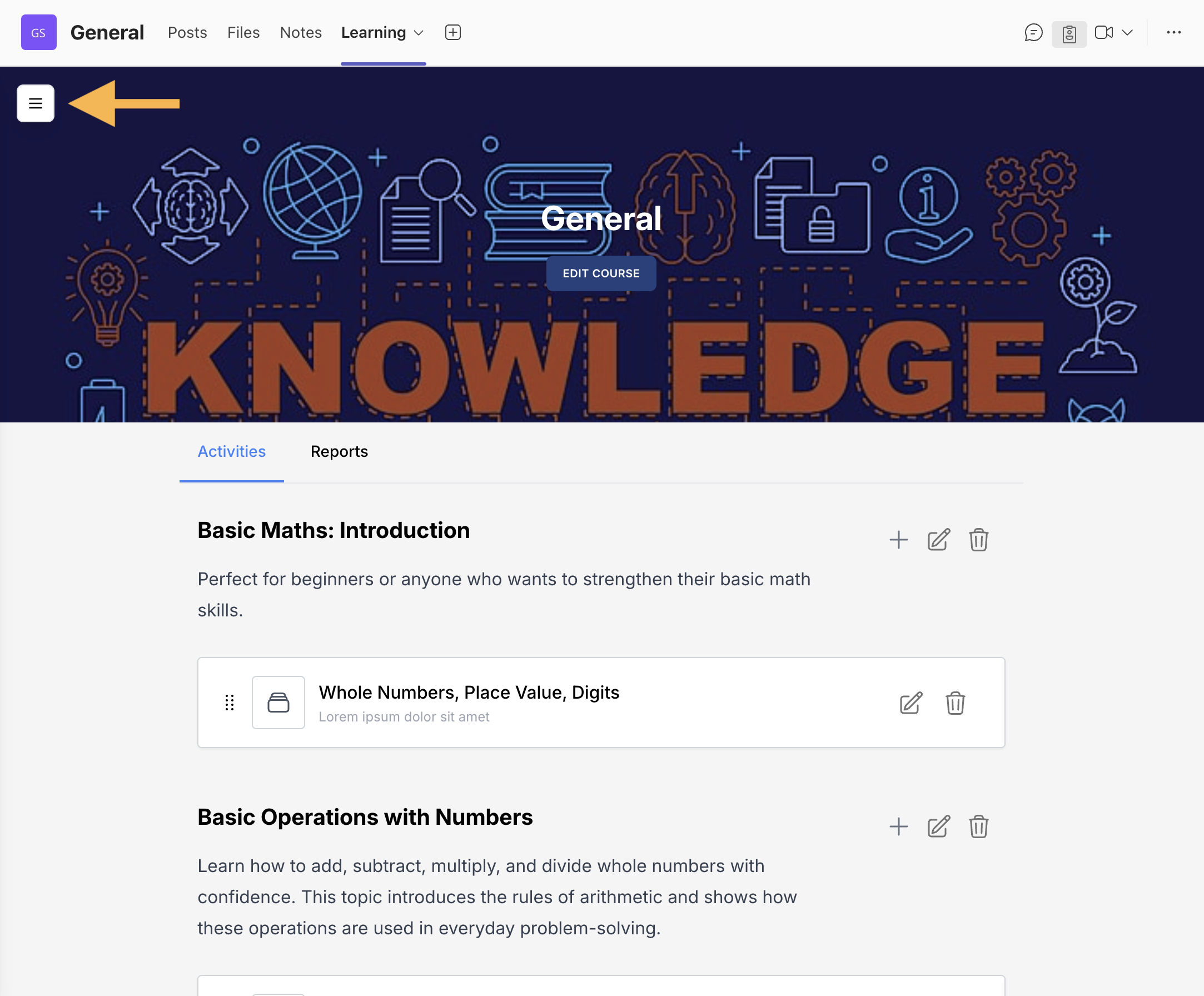
- Click the floating button (top-left corner).
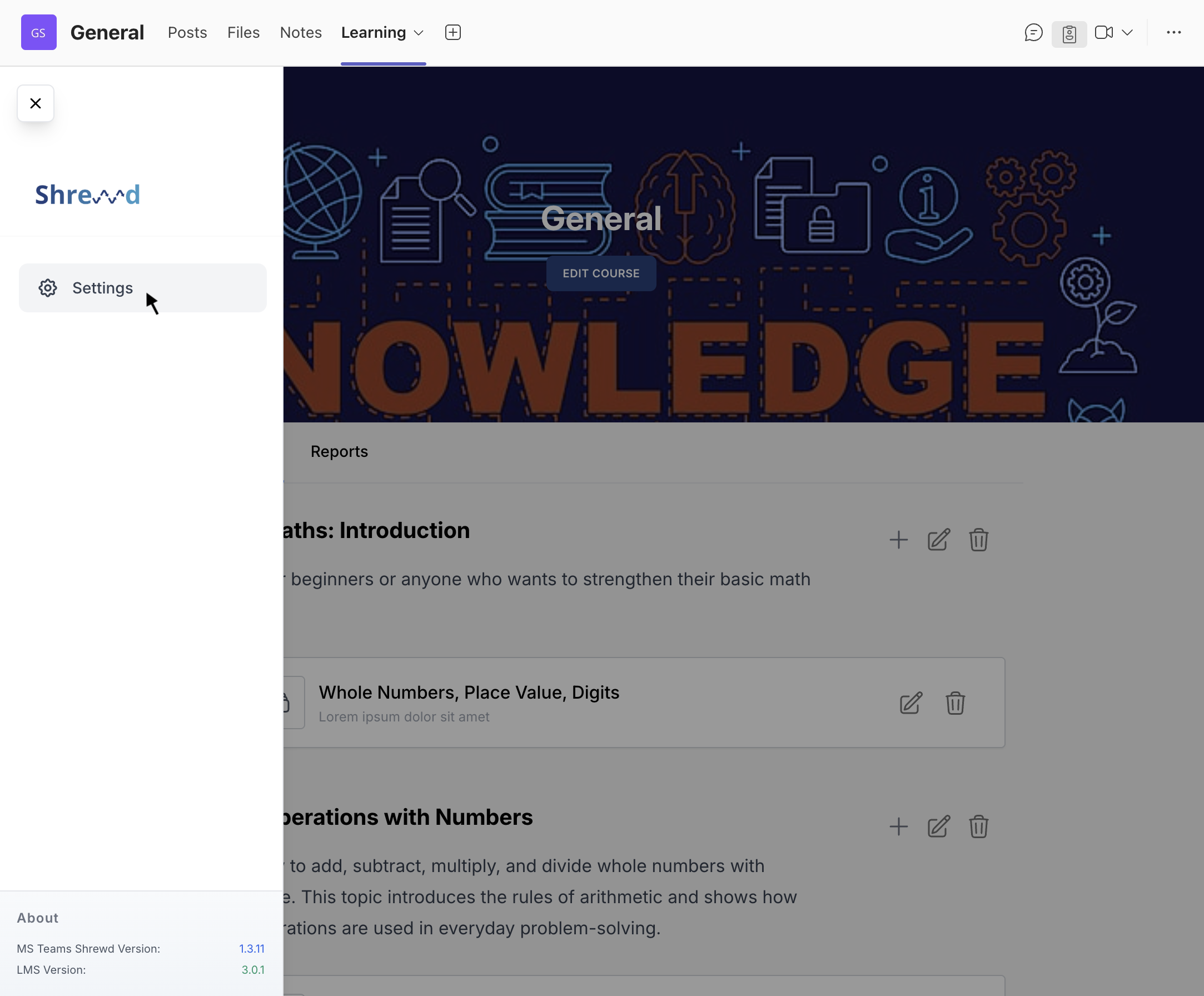
- Select Settings.
- Find API Integration.
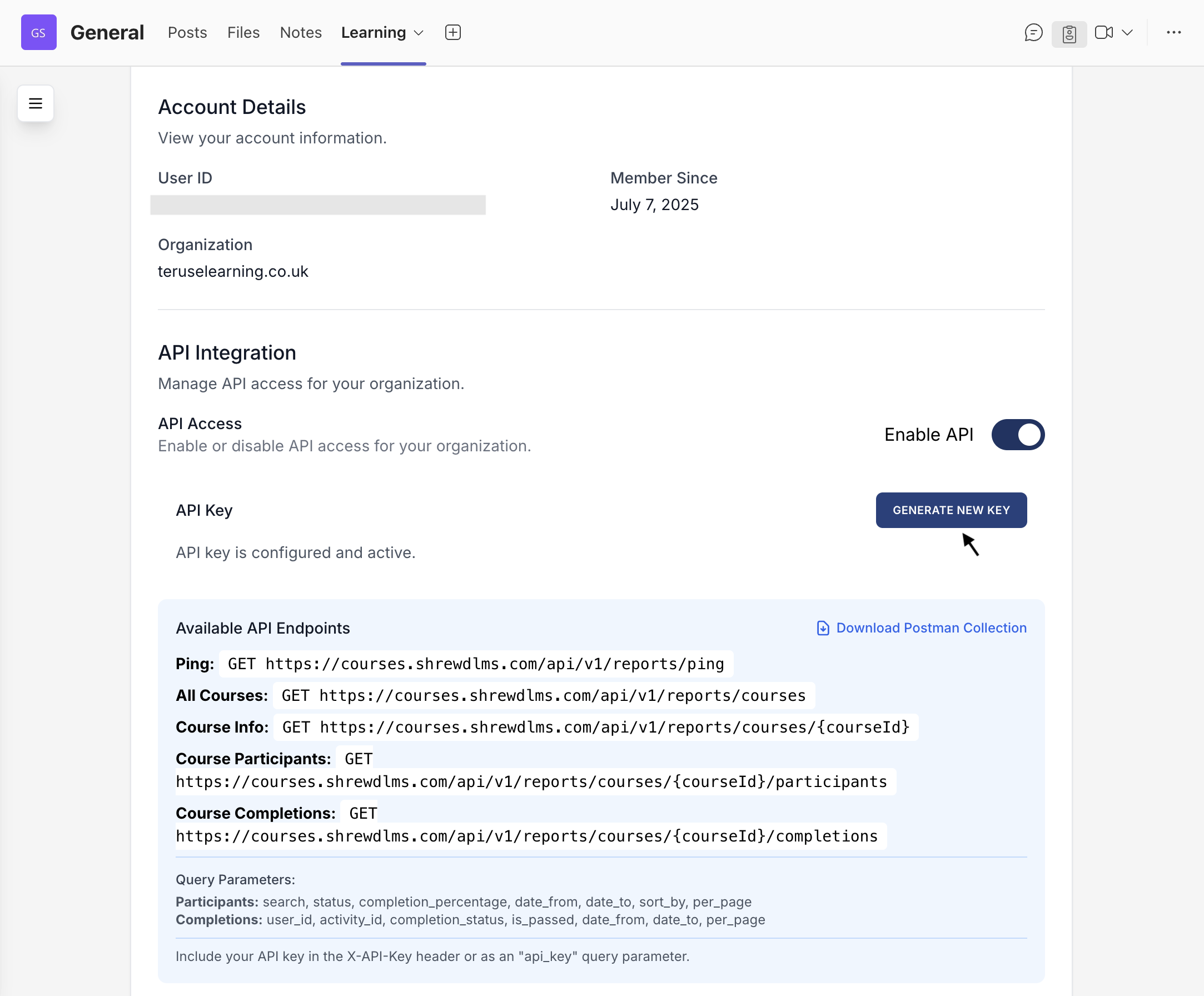
- Click Generate New Key.
Use Cases
- Connect reports to dashboards.
- Integrate with analytics tools.
- Export learning data programmatically.
Notification Settings
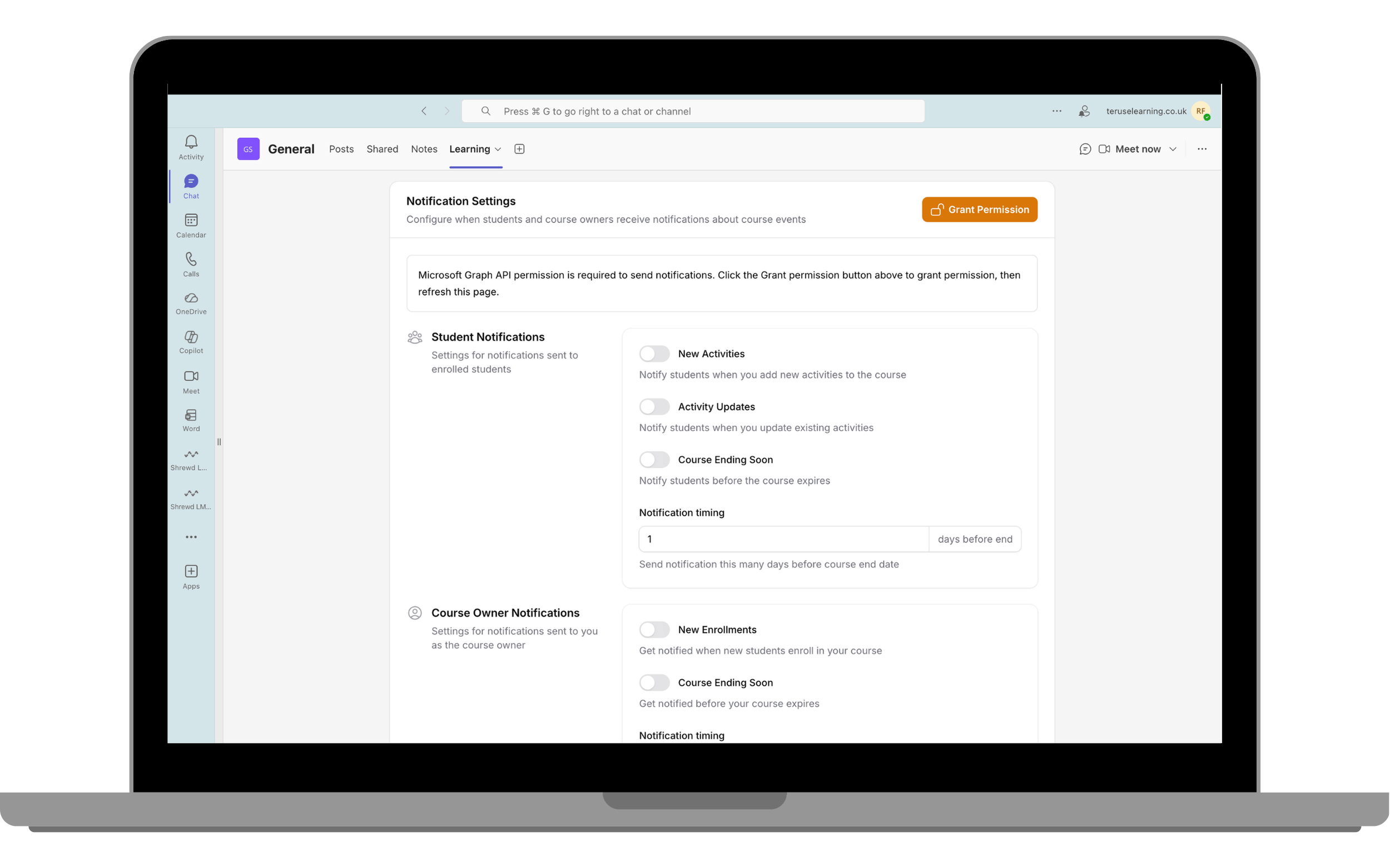
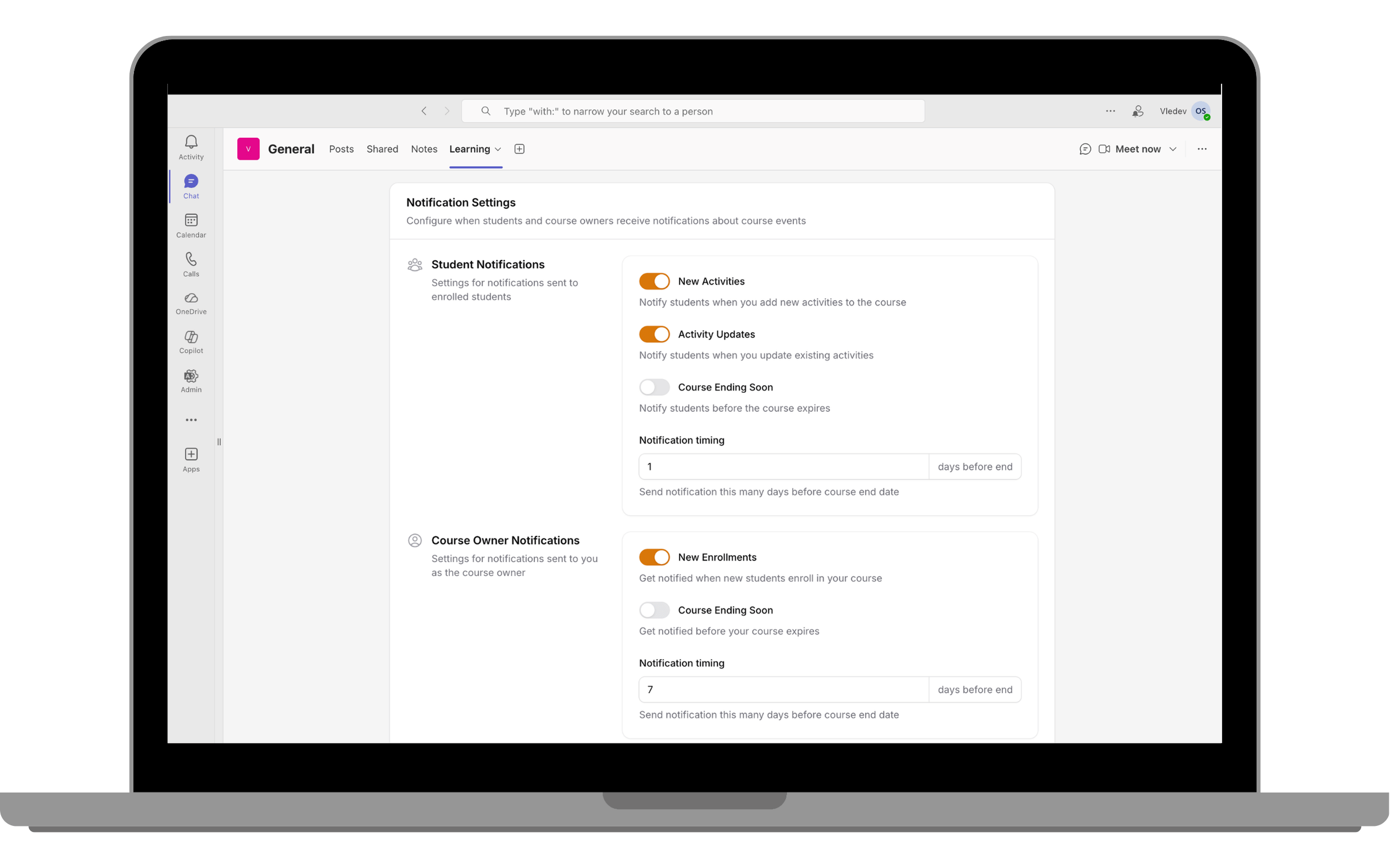
Configure when users receive course notificationsThis feature allows admins to configure when notifications are sent to users regarding course activities.
Initial Setup
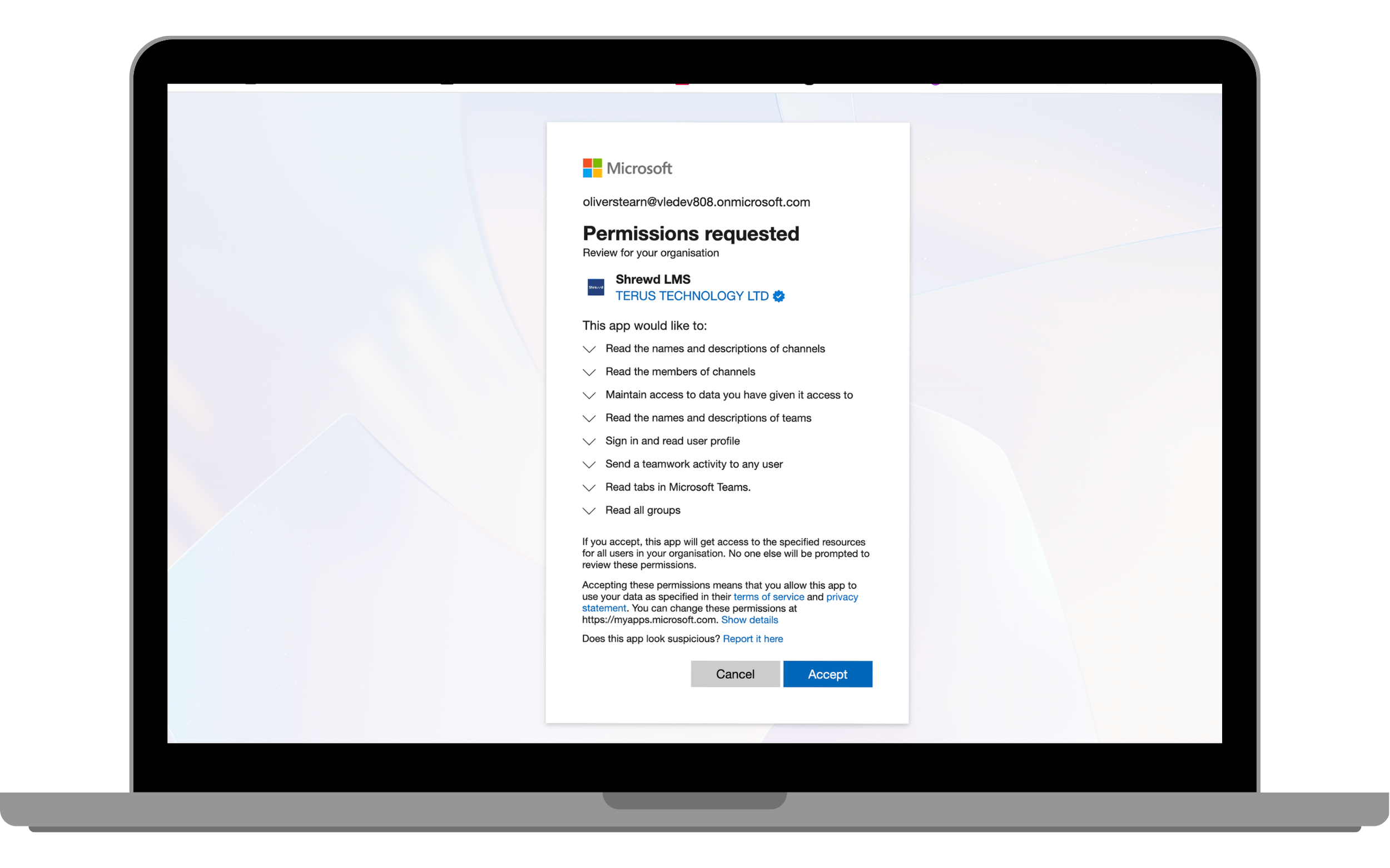
- Click Grant Permission.
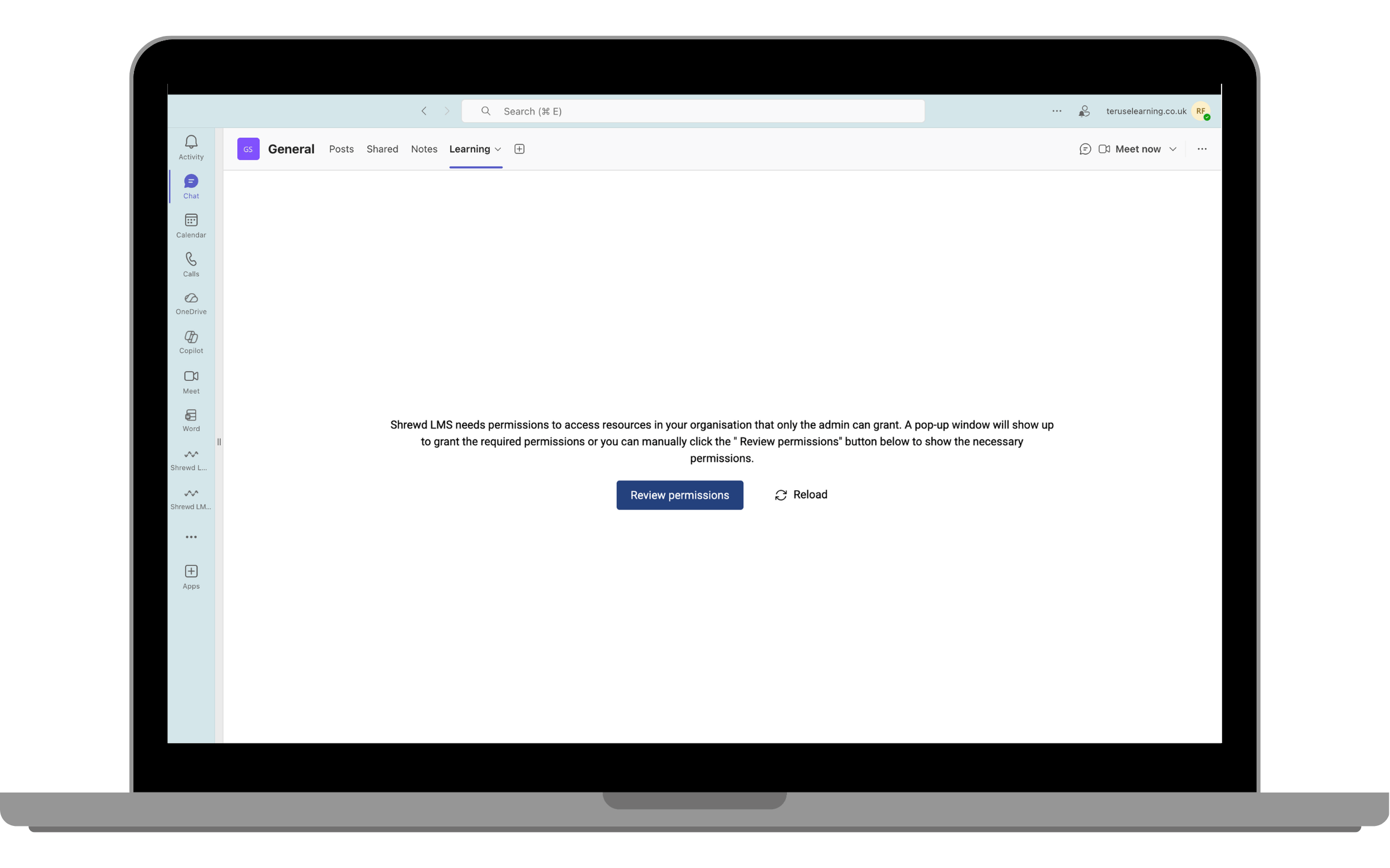
- Complete the Microsoft permission approval (admin required).
- Reload the app.
- Ensure the Grant Permission button is no longer visible.
After Setup
Once permissions are granted, admins and course owners can enable the following notifications:
Student Notifications
- New Activities: Notify students when new activities are added to the course.
⚠️ Note: This notification is triggered only if the student has completed all activities in the course and the course owner adds a new activity. -
Activity Updates: Notify students when existing activities are updated.
⚠️ Note: This is triggered only if the student has already completed the activity that is being edited. - Course Ending Soon: Notify students before the course expires. You can customise how many days in advance the notification is sent before the course end date.
Course Owner Notifications
- New Enrollments: Get notified when new students enroll in your course.
- Course Ending Soon: Get notified before your course expires. You can customise how many days in advance the notification is sent before the course end date.
Global Certificate Template
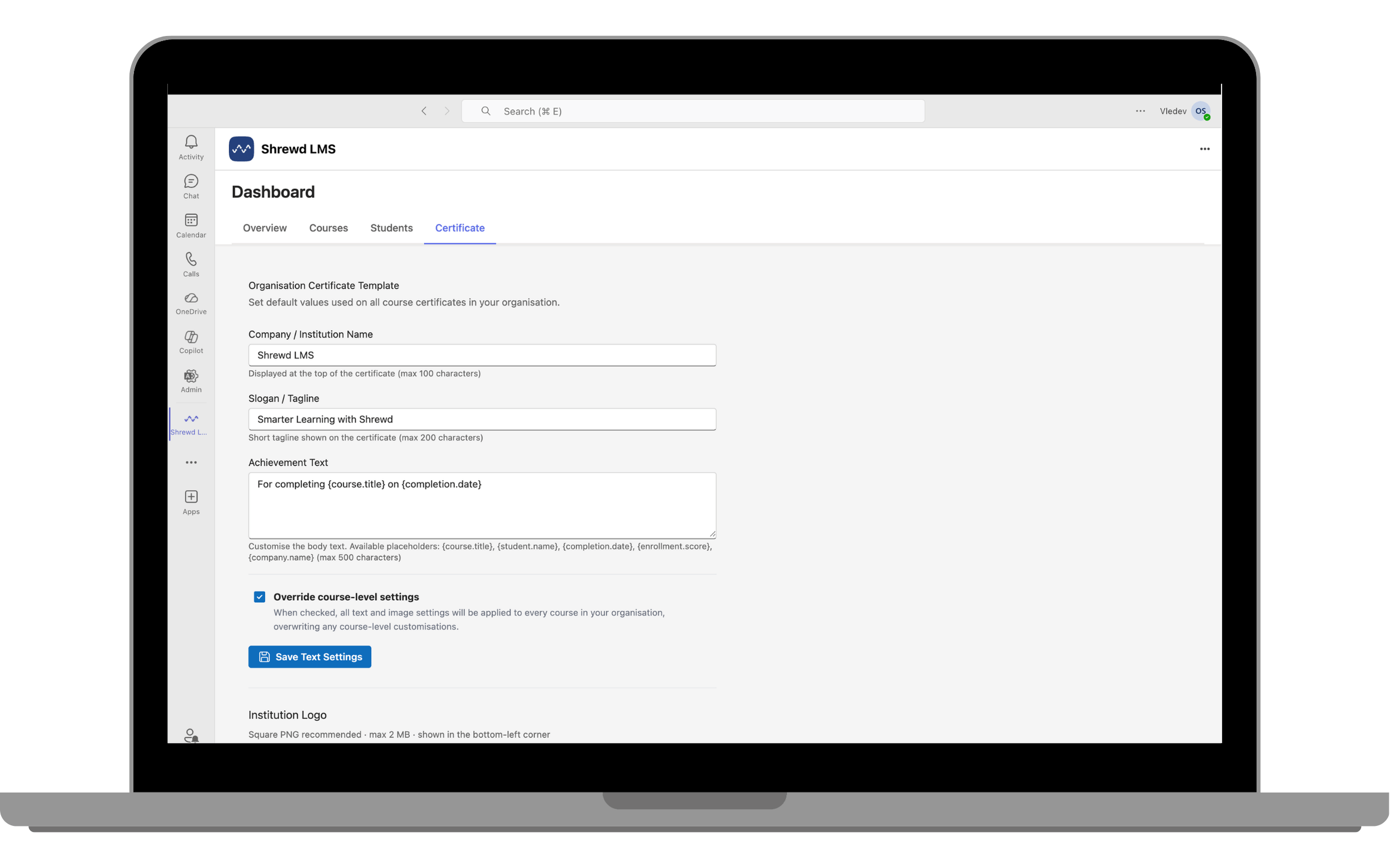
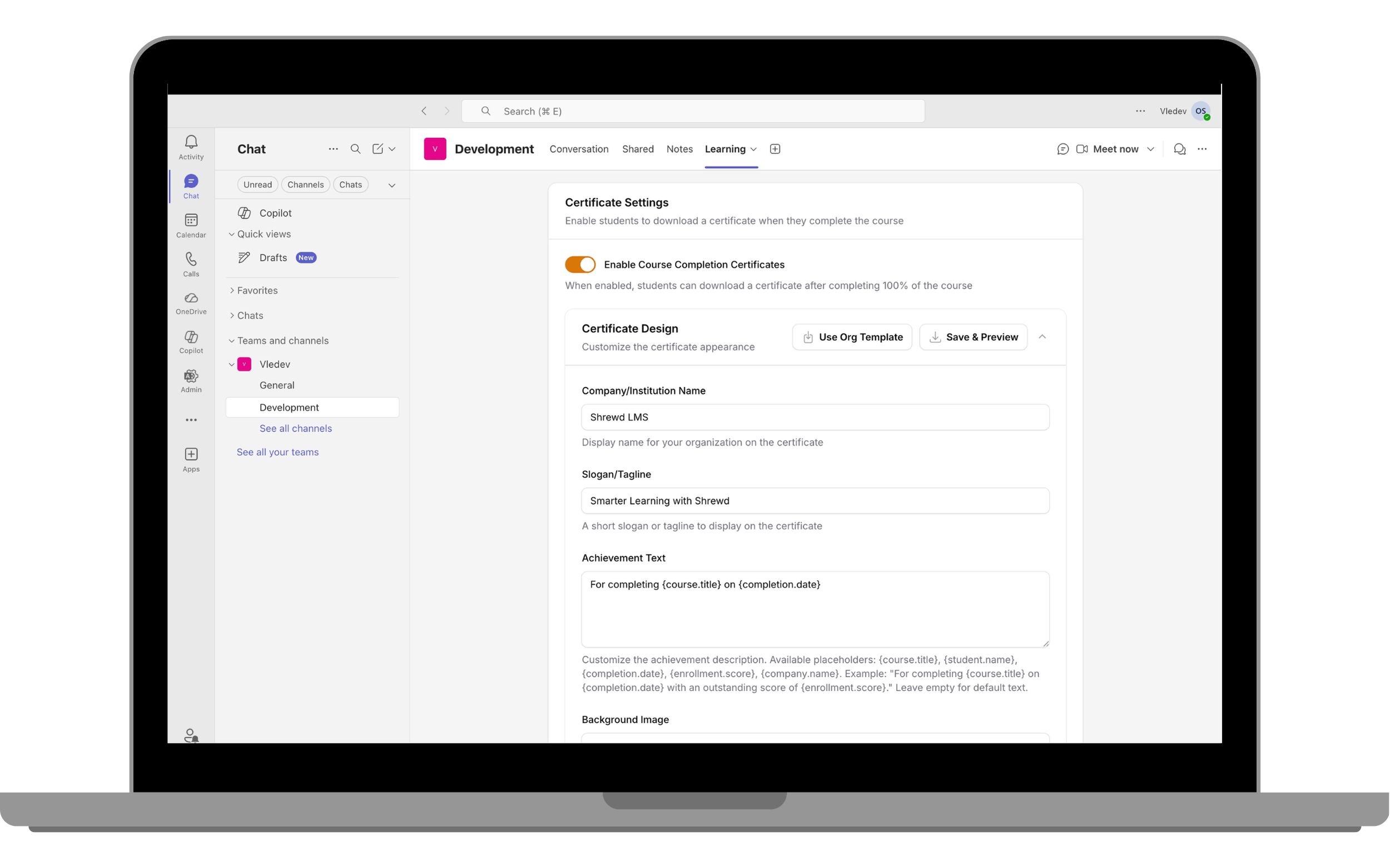
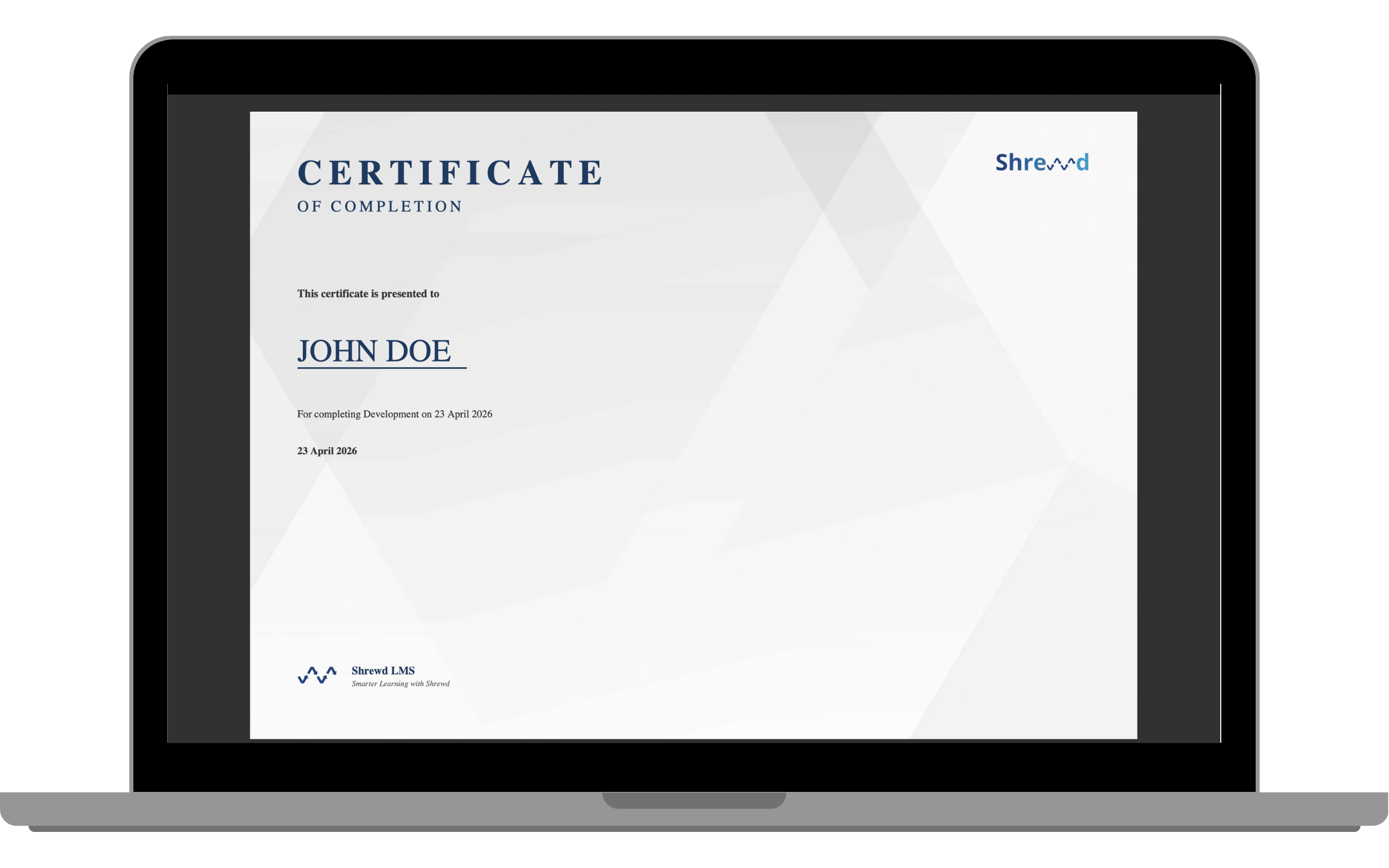
Create a standard certificate design across all coursesThe Global Certificate Template allows admins to create and manage a standard certificate design that can be applied across all courses. Course managers can still customise certificates at the course level.
Steps
- Open Shrewd Global Dashboard within Microsoft Teams.
- Navigate to Certificate Settings. Go to the Certificate tab.
- Edit Certificate Content. Update the available fields to define the certificate text, such as learner name, course name, and completion message.
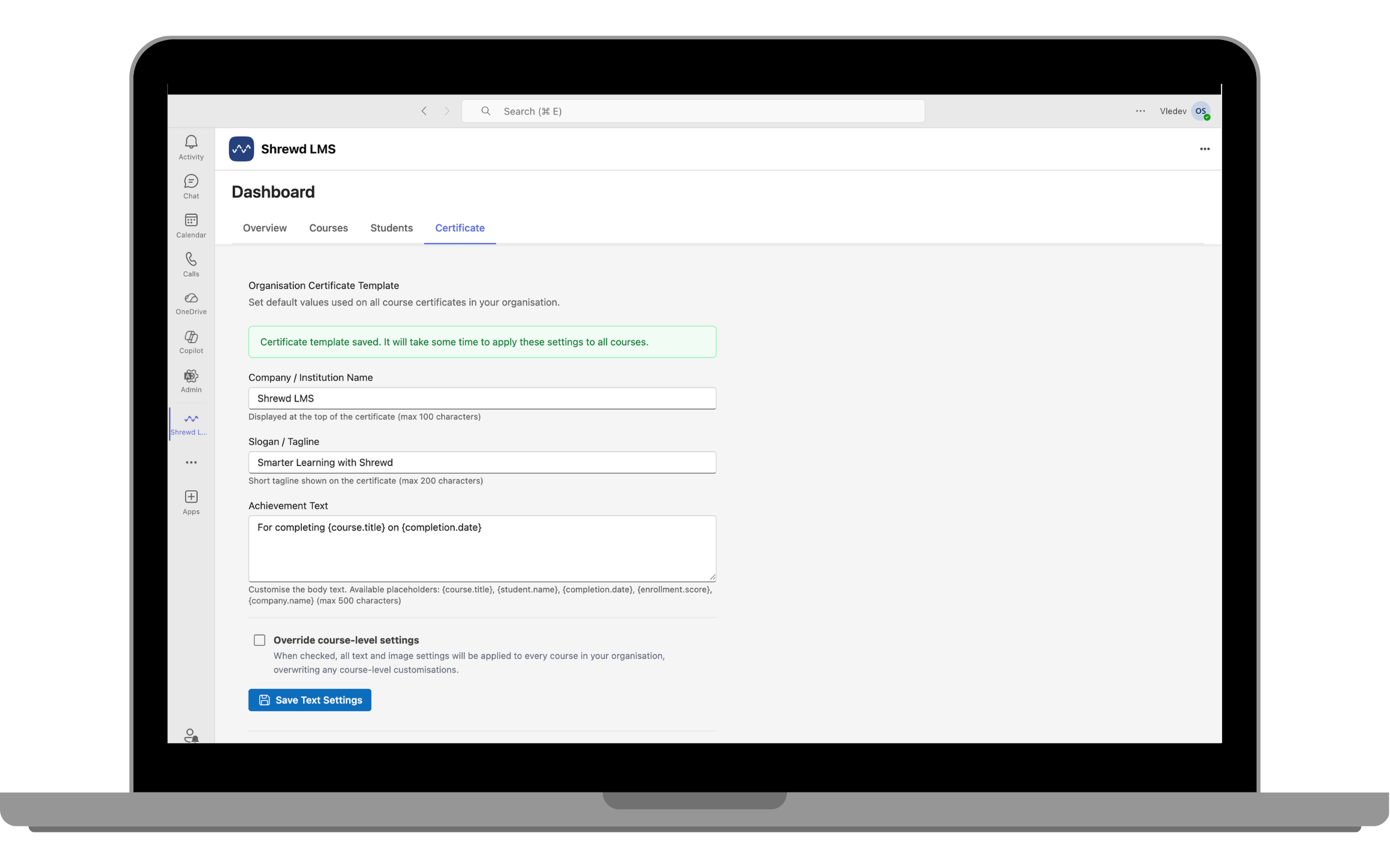
- Set Override Option if needed. Tick Override Course-level settings if you want the global template to apply to all courses.
- Save the settings.
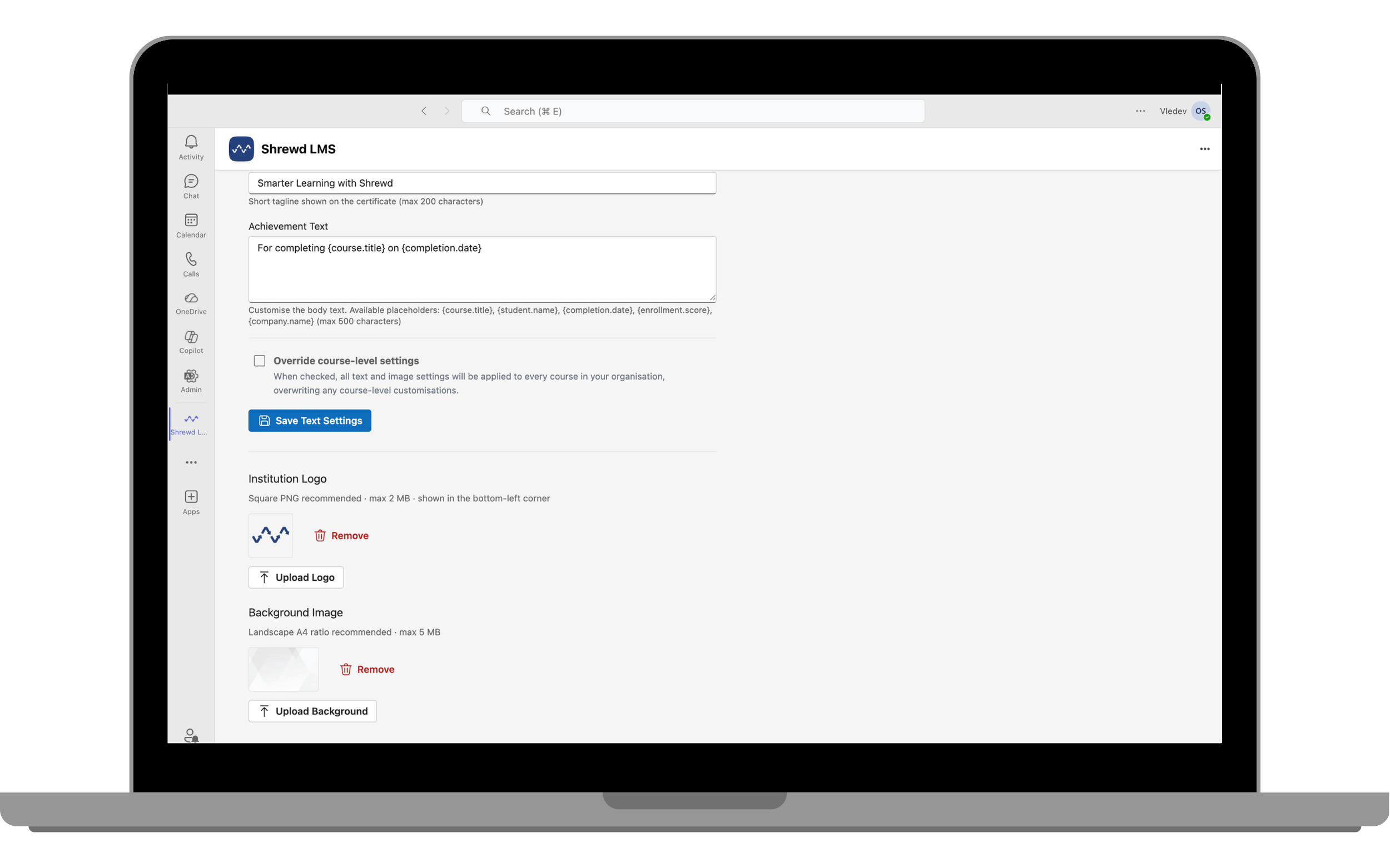
- Upload Branding Assets. Add your organisation's logo and certificate background image.
- Preview the Certificate. Go to any course's Course Settings to preview how the certificate will appear with the applied global template.
- Your certificate is now ready to use across all courses!
Summary of Admin Workflow
High-level admin journey- Install Shrewd LMS in Microsoft Teams.
- Access the Global Report Dashboard.
- Create courses via Learning Tabs.
- Monitor learner progress.
- (Optional) Integrate reports via API.
- Configure notifications.
- Apply the Global Certificate Template when a standard certificate design is required across courses.