How to Use Shrewd LMS as An Admin

The User Guide is designed to help users navigate and utilize Shrewd LMS within Microsoft Teams. It provides step-by-step instructions for installing the app, setting up courses, adding and managing activities, and accessing reports.
 
Important Note: Shrewd LMS is designed to work natively within Microsoft Teams and does not require any additional configuration via Azure Active Directory (Azure AD). We strongly recommend not using Azure AD groups or custom Azure AD restrictions to control access to Shrewd LMS, as this may lead to unexpected access issues within Teams. Access to Shrewd LMS should be managed using Microsoft Teams settings and policies only.

Adding Shrewd LMS App within Microsoft Teams

This guide is for regular users who want to use Shrewd LMS within Microsoft Teams.

Adding the Shrewd LMS Global Report Tab to the Microsoft Teams Sidebar

Shrewd LMS Global Report is a global reporting dashboard for Shrewd, designed to function seamlessly within Microsoft Teams. It provides course owners with a clear, centralised overview of the courses they manage, and the students enrolled across their organisation. 

Through this personal tab, course owners can view a consolidated report that includes: 

  • Overall course activity 
  • Enrolment figures 
  • Overall and individual learning progress 

The app is designed to give owners straightforward, actionable visibility into learner engagement and course performance. By functioning directly within Microsoft Teams, it ensures that reporting and oversight remain part of the everyday teaching workflow, without the need to switch between platforms.

Adding this tab is straightforward.

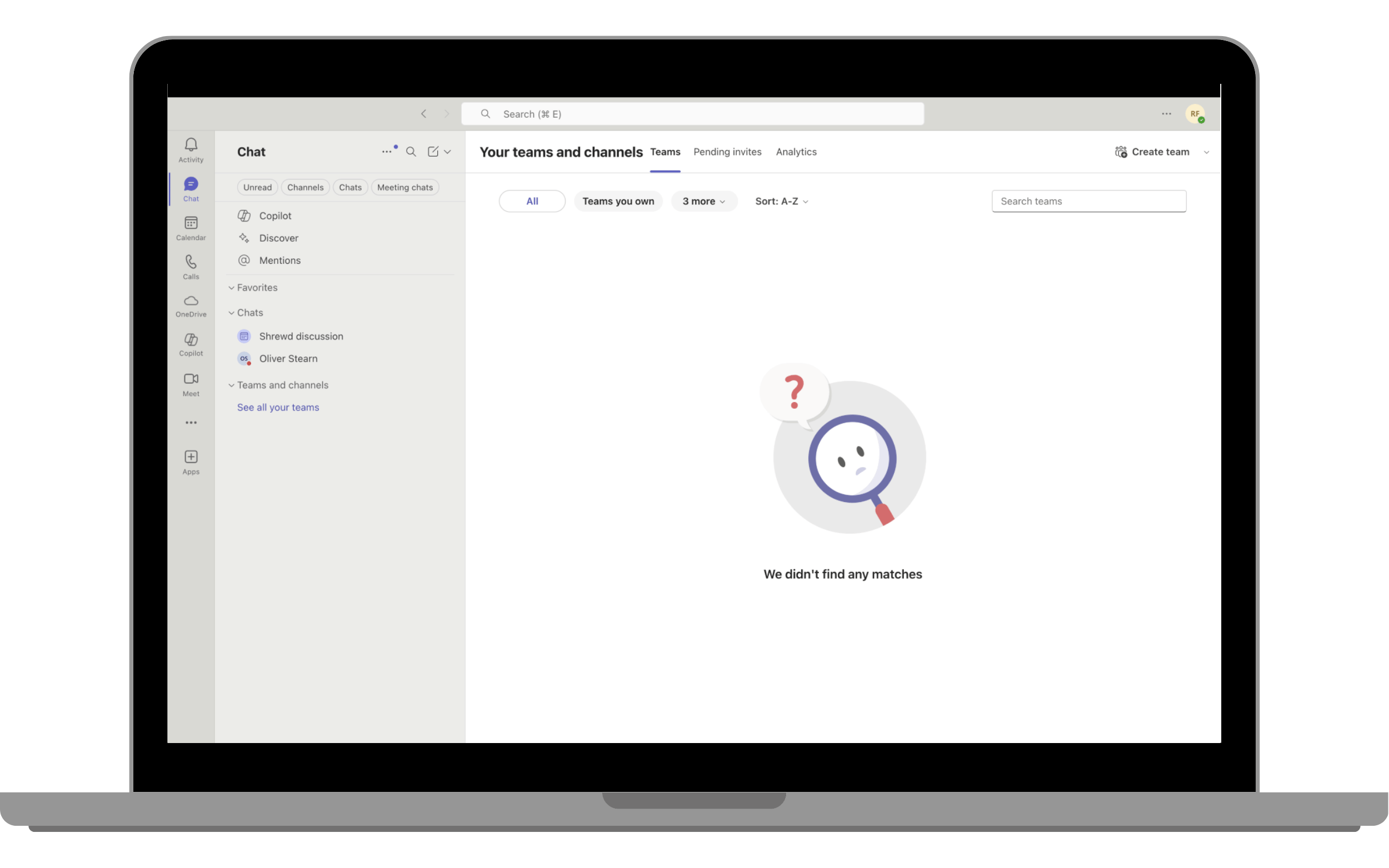
Step 1: Open Microsoft Teams 

You can use either:


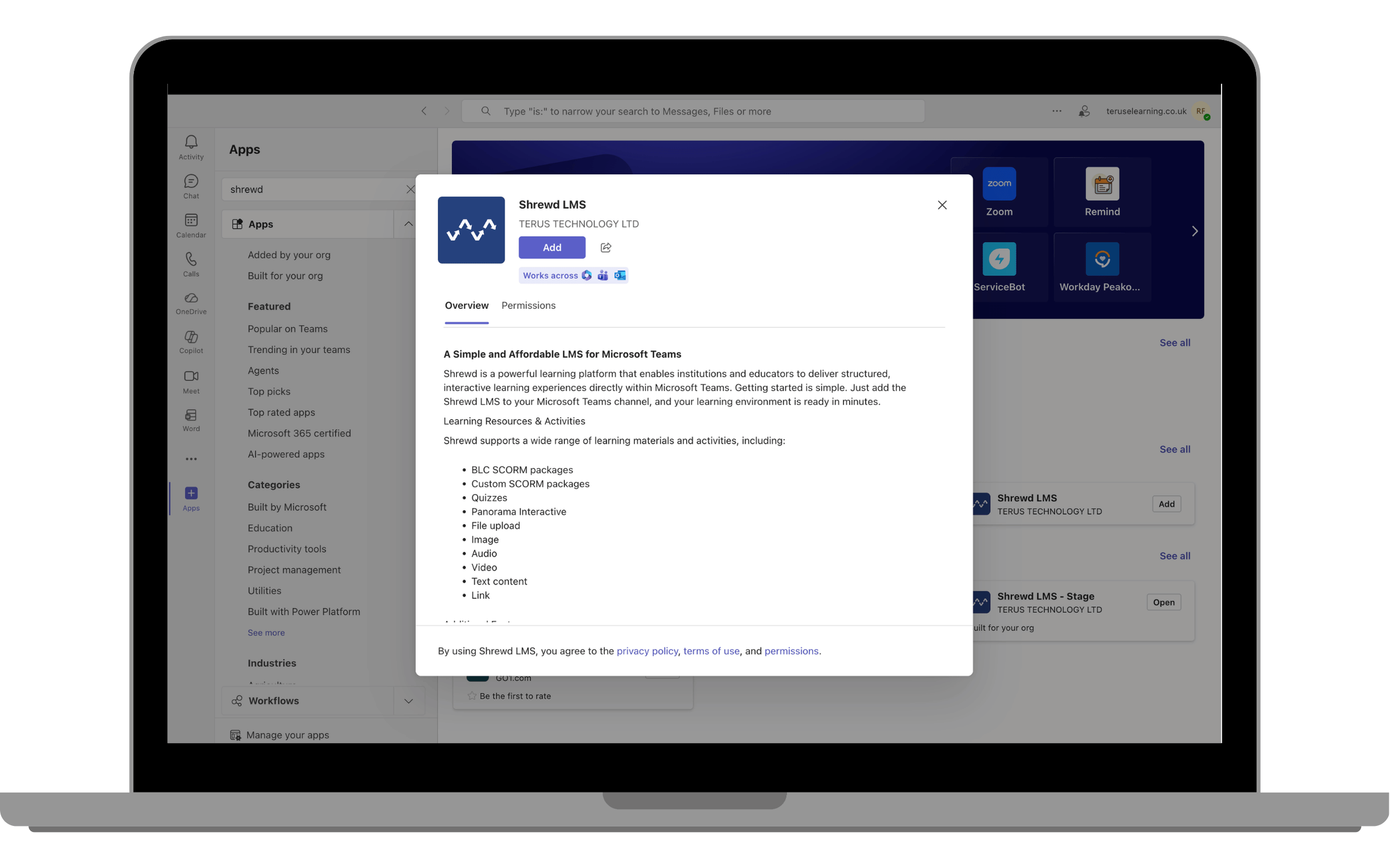
Step 2: Find and add the App

  • On the left sidebar, click on “Apps”.
  • In the search bar, type “Shrewd LMS”.
  • Click on the “Add” button to add the app.

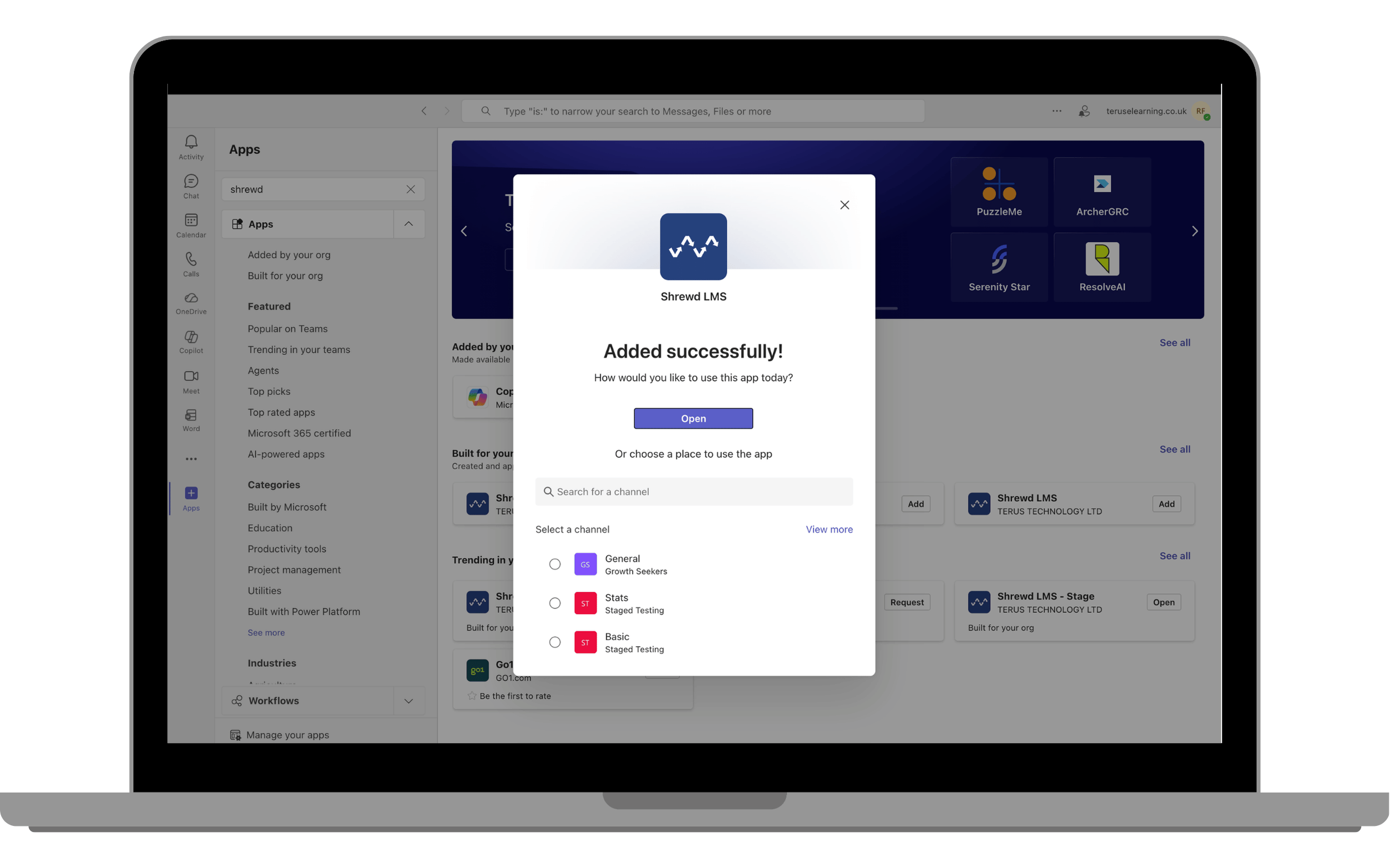
Student scores report 1Step 3: Open and access the App

  • Click “Open” to proceed to the Global Report Dashboard page.

Student scores report 2 1

  • The Global Report Dashboard will open shortly, displaying an overview that provides a high-level summary of learning activity across the organisation.
    Global report dashboard

Adding a Shrewd Course to Your Team and Channel

To get started with Shrewd LMS for your team, follow these steps:

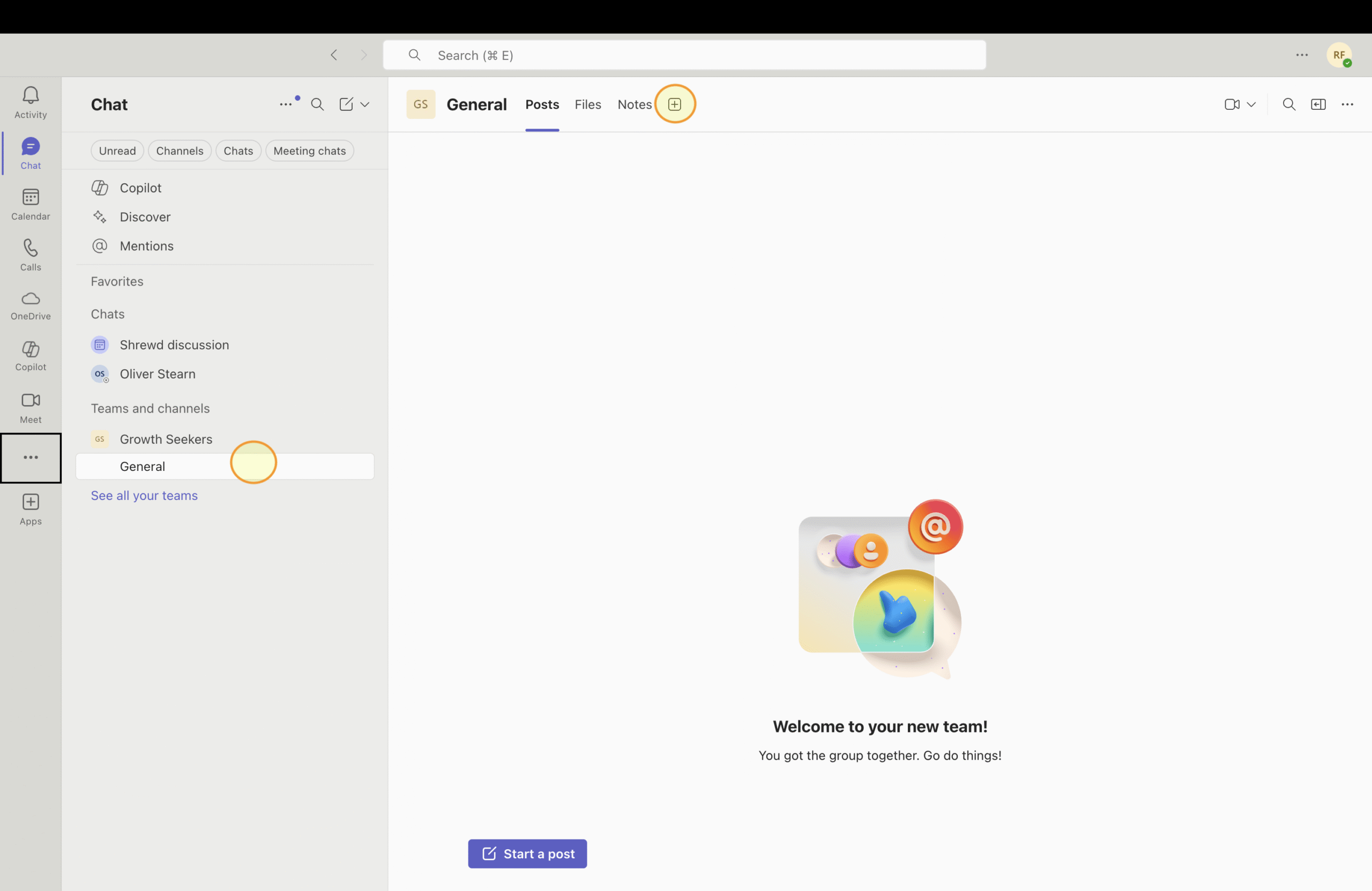
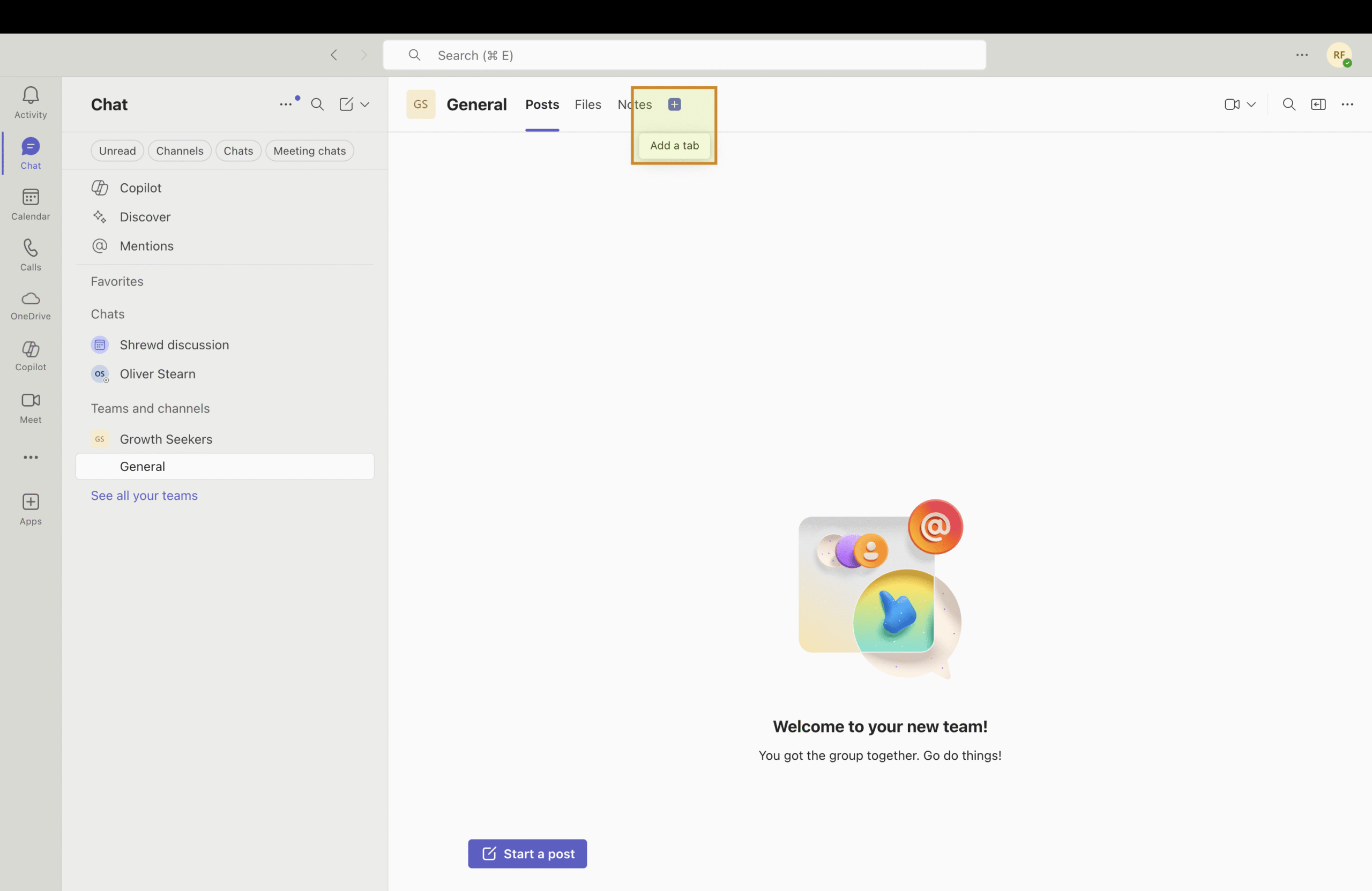
  1. Choose your desired Team and ChannelScreenshot 2025 07 09 at 15.18.59 copy scaled
  2. Inside channel page, add tab by click on “+” buttonScreenshot 2025 07 09 at 15.19.25 scaled
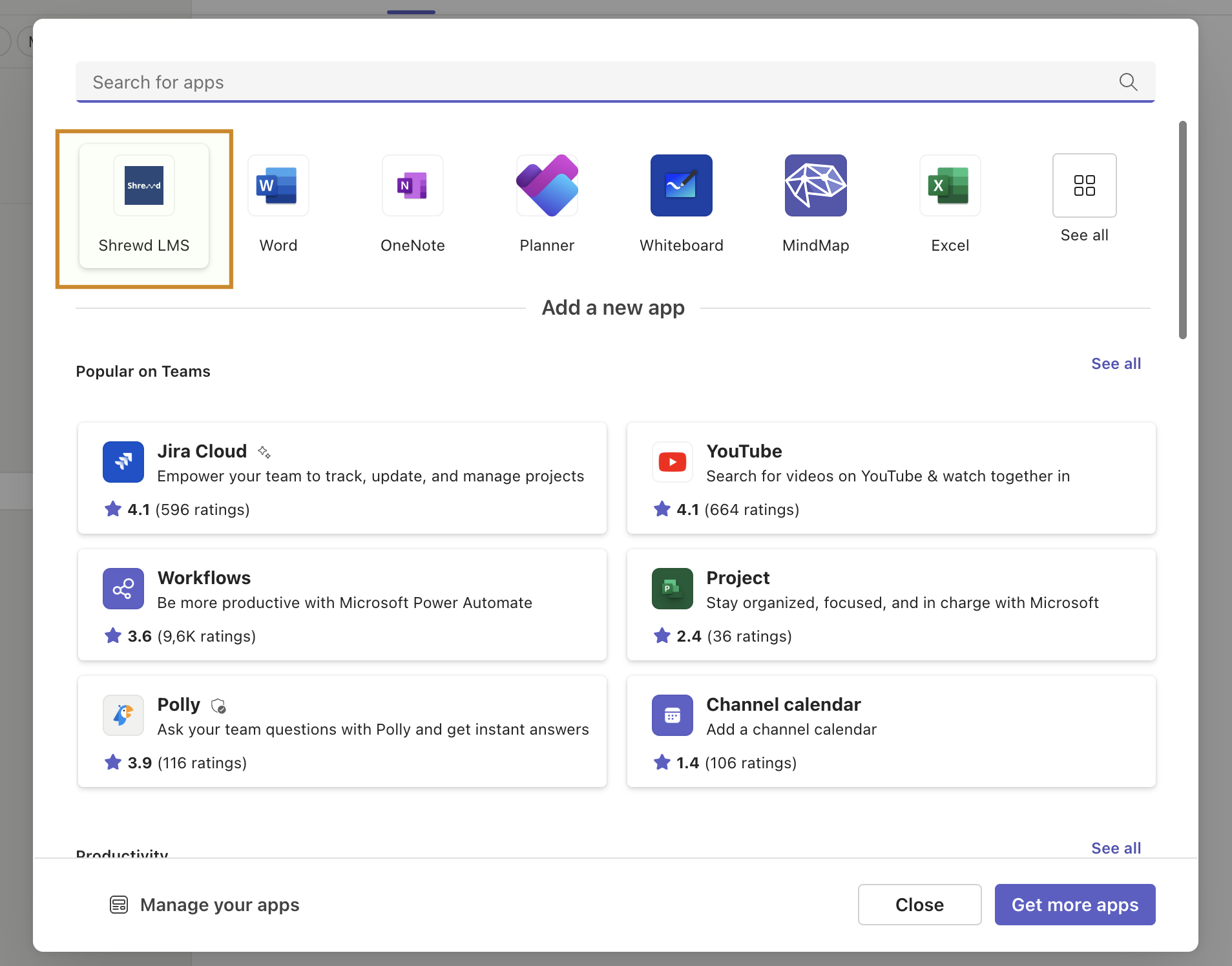
  3. Click on Shrewd LMS appScreenshot 2025 07 09 at 15.19.33
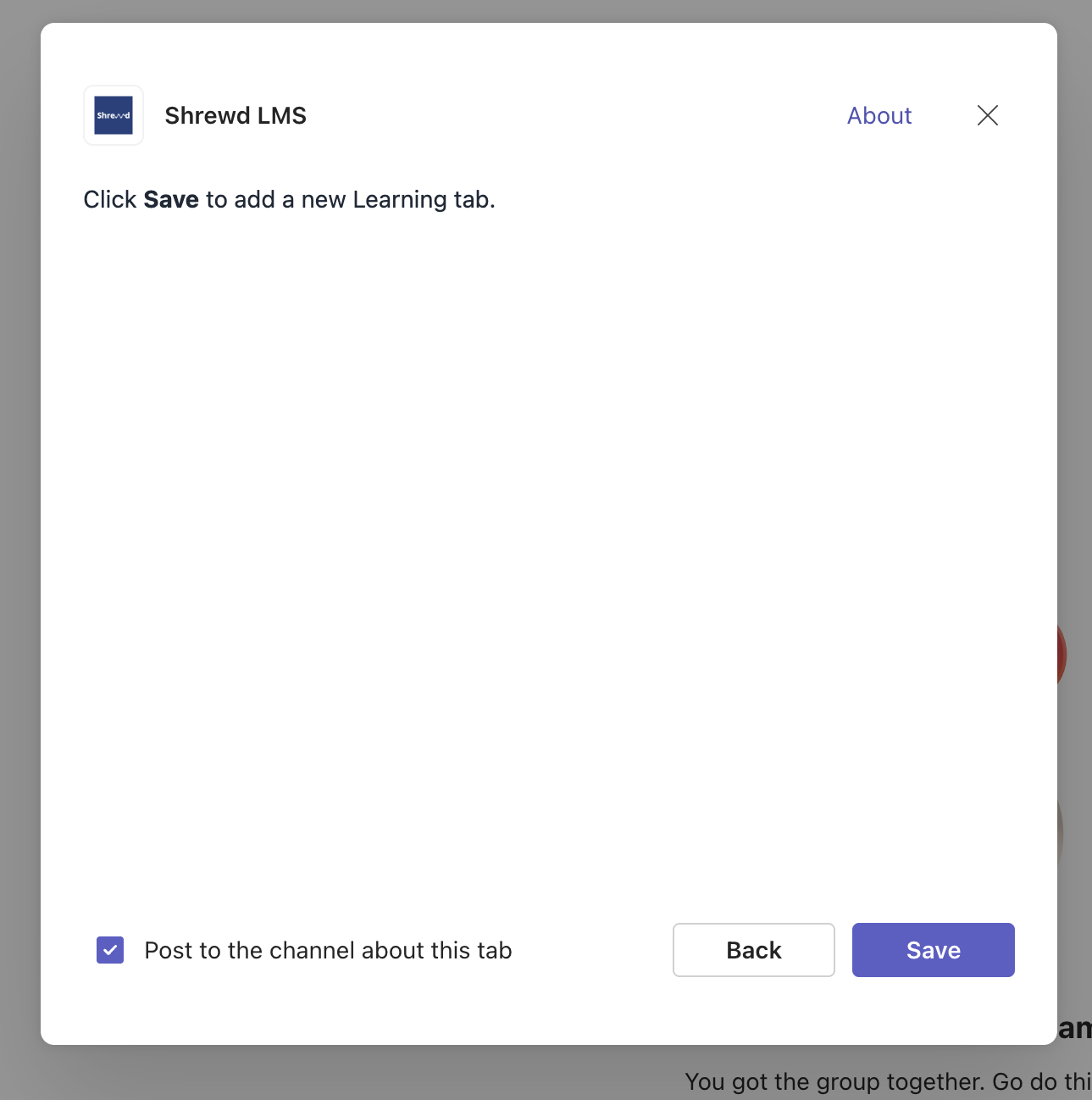
  4. Click “Save” to add a Learning tab Screenshot 2025 07 09 at 15.19.41
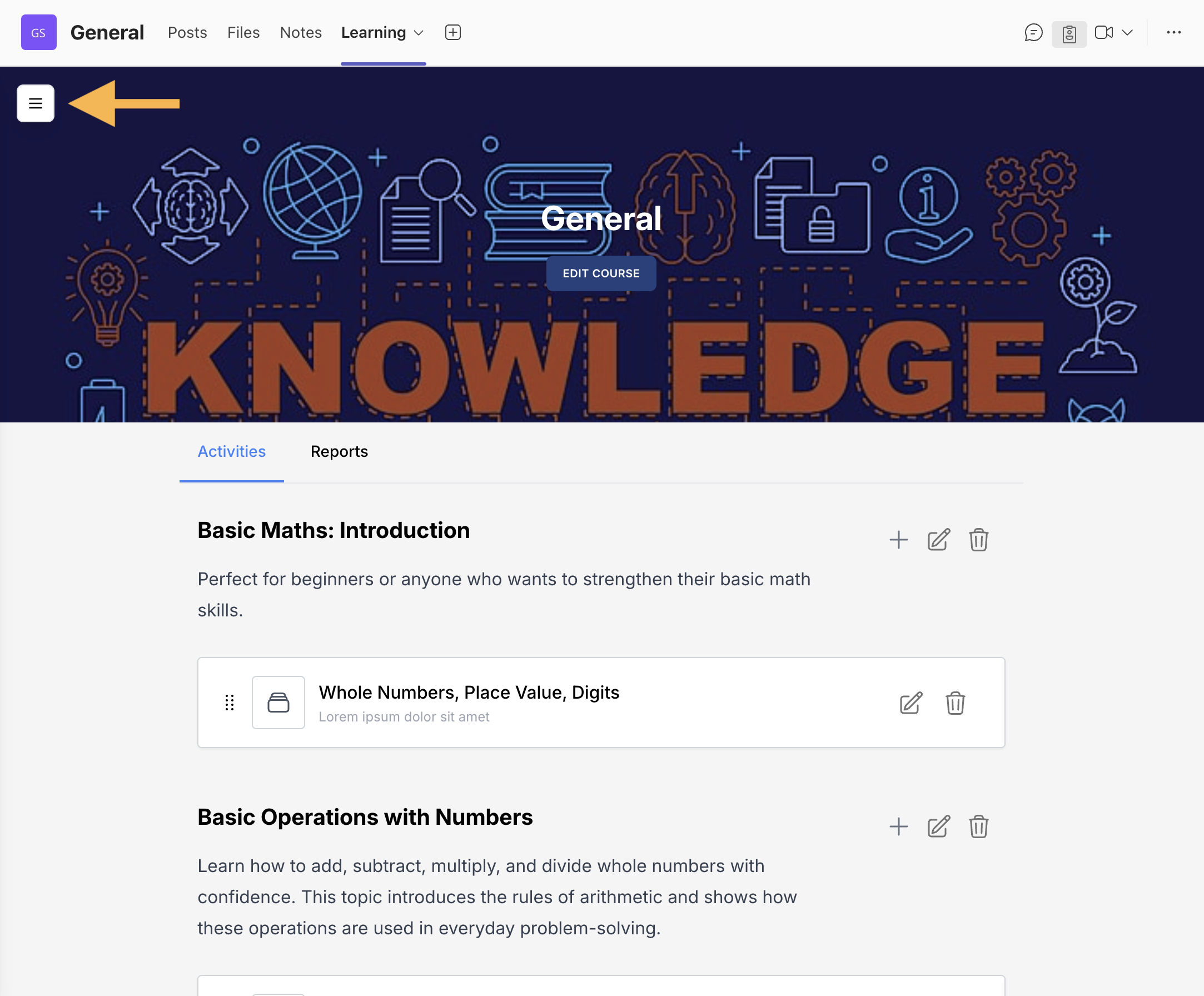
  5. If successful, your page will look like this: Screenshot 2025 07 09 at 15.20.00 scaled
  6. The Learning tab will automatically appear on your Posts page once created.

Important Note: The Course Owner/Admin MUST NOT add the Shrewd LMS app in the same scope — for example, if the app has already been added to a particular Teams or Chat, it cannot be added again in that same Teams or Chat.

Reports API (Premium Plan)

We provide a Reports API for course owners who wish to integrate report data with their own systems within their organisation.

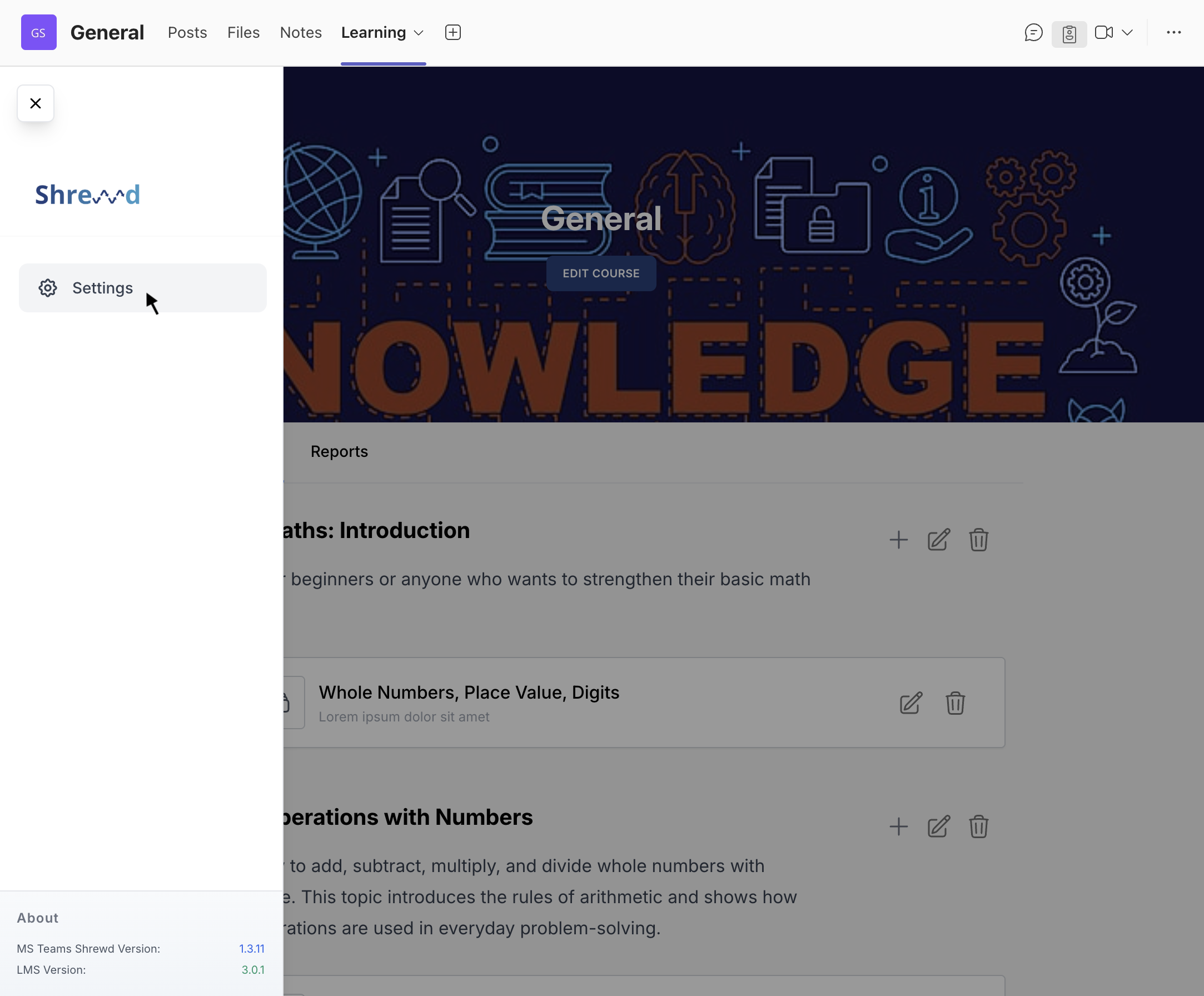
  1. Click the floating button in the upper-left corner of the page.
    Floating button to access Reports API
  2. Select Settings.
    Settings Button 1
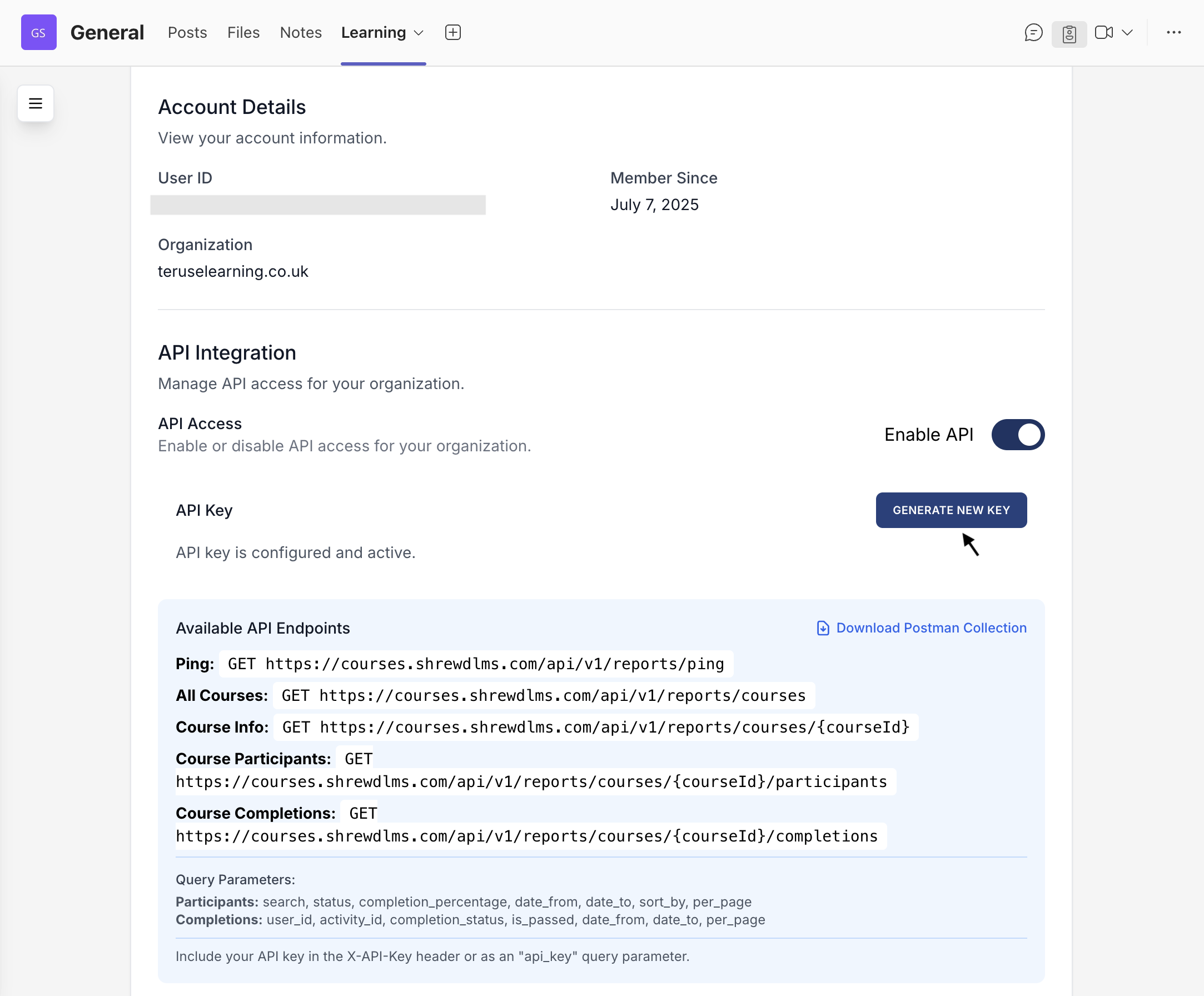
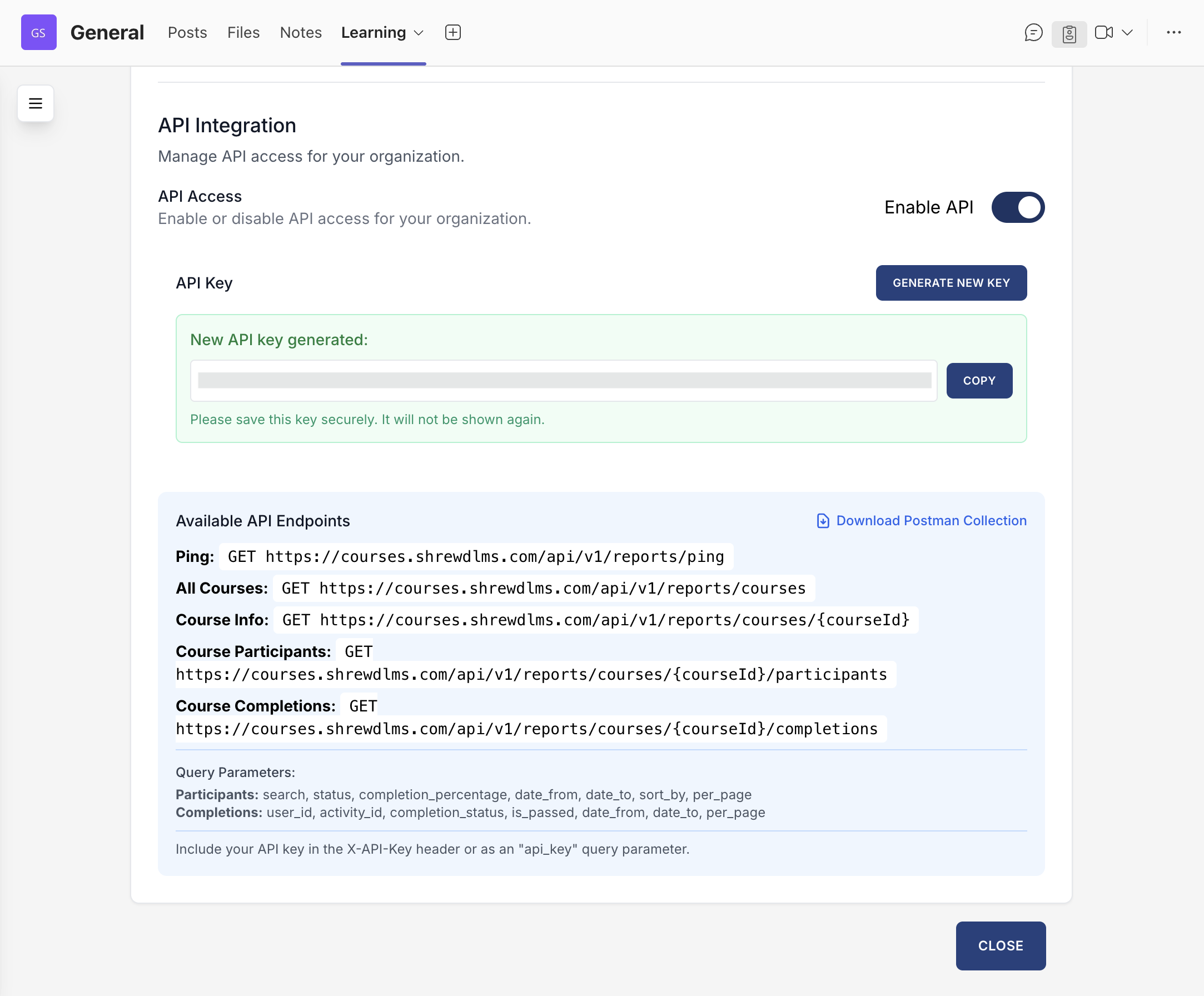
  3. Find the API Integration section and click Generate New Key to create your access token. Reports API access configuration page in LMS showing API key, endpoint, and authentication details for report integration.

Once the key is generated, you can seamlessly integrate Shrewd LMS reporting with your existing systems, dashboards, or analytics tools. Generate new API key button in LMS used to create a new access key for Reports API integration

Notification Settings

This functionality is used to configure when students and course owners receive notifications about course events.

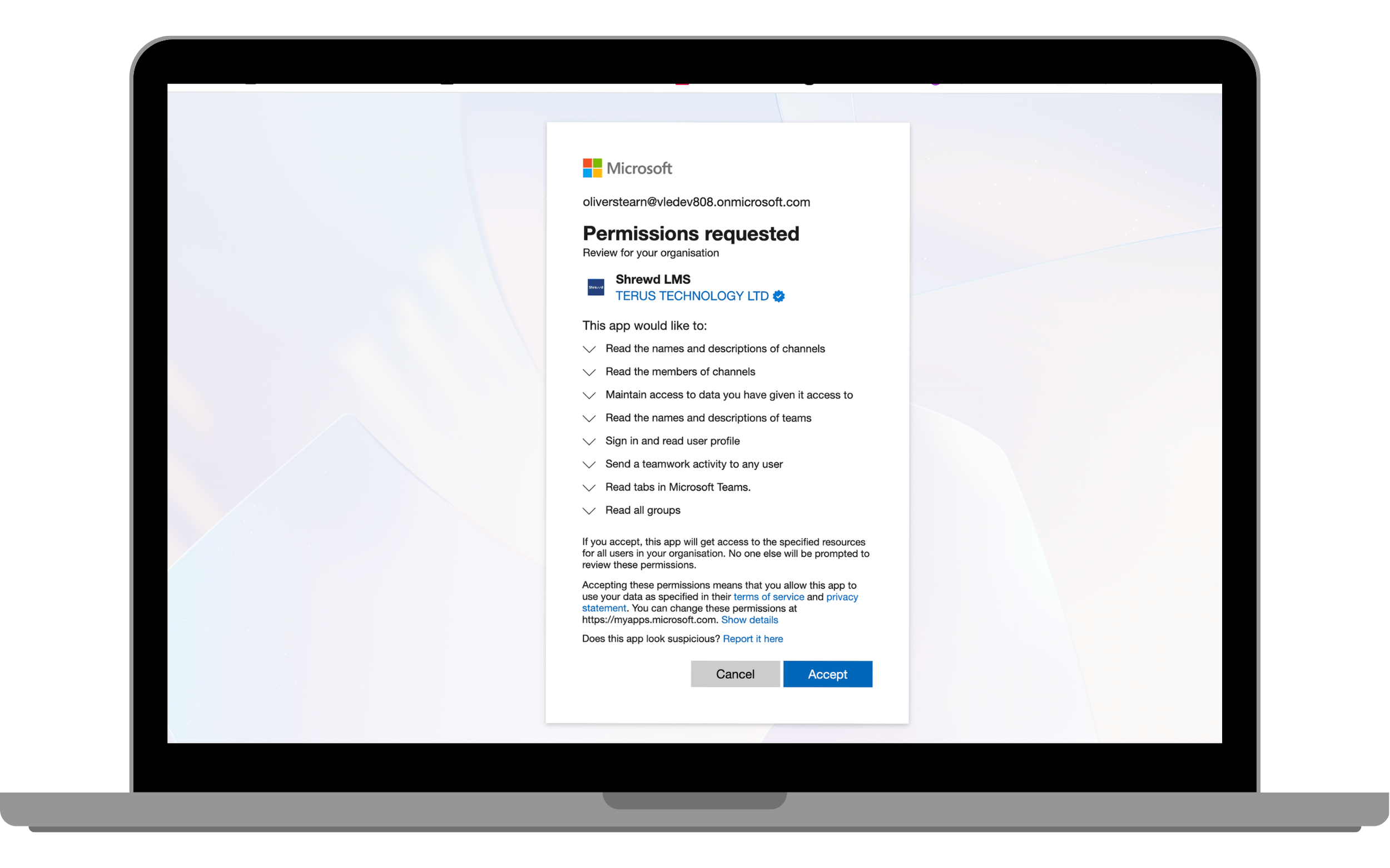
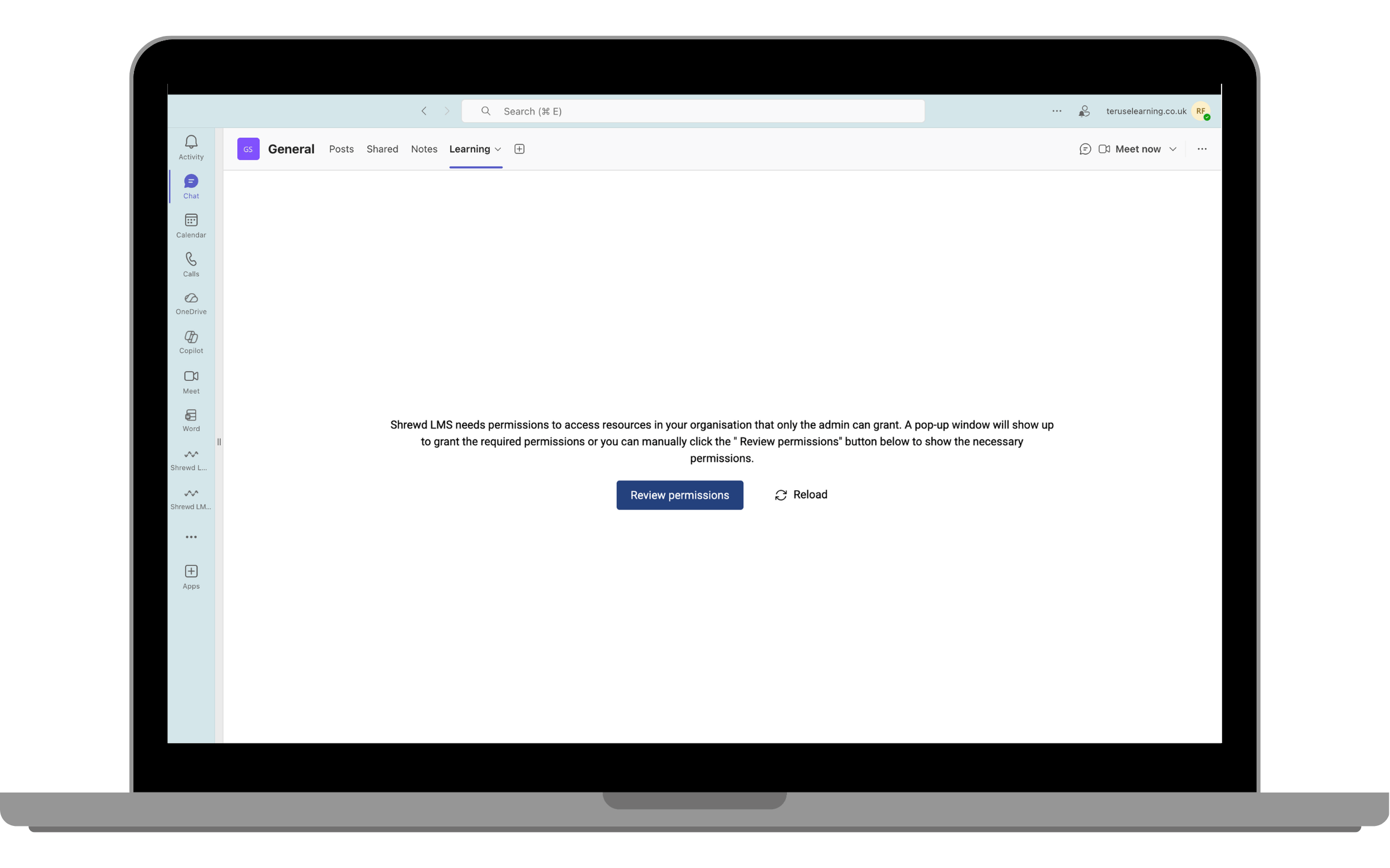
To enable notifications, your organisation must first grant Microsoft permissions. This is required so the system can securely send notifications on behalf of your organisation. Follow the steps below to complete the setup:

  1. Click the “Grant Permission” button.Student scores report

  2. Complete the Microsoft permission approval process (admin access required).Student scores report 2

  3. Once approval is successful, reload the app.Student scores report 3

  4. Verify that the “Grant Permission” button is no longer visible.

  5. Proceed to enable notifications.Student scores report 4

Shrewd LMS Admin Guide

How to Use Shrewd LMS as an Admin

This guide is designed for administrators and course owners to effectively use Shrewd LMS within Microsoft Teams, from installation and course setup to reporting and notifications.

Microsoft Teams Admin Guide Reports & Notifications
⚠️
Important Note: Shrewd LMS works natively within Microsoft Teams and does not require configuration via Azure Active Directory (Azure AD). We strongly recommend not using Azure AD groups or custom restrictions to control access, as this may cause unexpected access issues. Manage access using Microsoft Teams settings and policies only. The same Shrewd LMS app cannot be added twice in the same Team or Chat scope.
🔍
No results found. Try a different keyword.
1

Installing Shrewd LMS in Microsoft Teams

Install and launch the app

This section guides you through the process of installing Shrewd LMS within Microsoft Teams. By completing these steps, you will be able to access the app and begin setting up and managing your learning environment directly inside Teams.

Step 1: Open Microsoft Teams

Open Microsoft Teams using desktop or web app

Step 2: Add the App

  1. Click Apps on the left sidebar.
  2. Search for Shrewd LMS.
  3. Click Add.
Find and add the Shrewd LMS app in Microsoft Teams

Step 3: Open the App

  • Click Open to launch the app.
Open the Shrewd LMS app
2

Accessing the Global Report Dashboard

Centralised visibility into learning activity

What is Global Report?

  • Overall course activity
  • Enrolment figures
  • Overall and individual learner progress

The Global Report Dashboard provides a centralised overview of learning activity across your organisation, allowing admins to monitor performance without leaving Microsoft Teams.

How to Access

  1. Open Shrewd LMS from the sidebar.
  2. The Global Report Dashboard will load automatically.
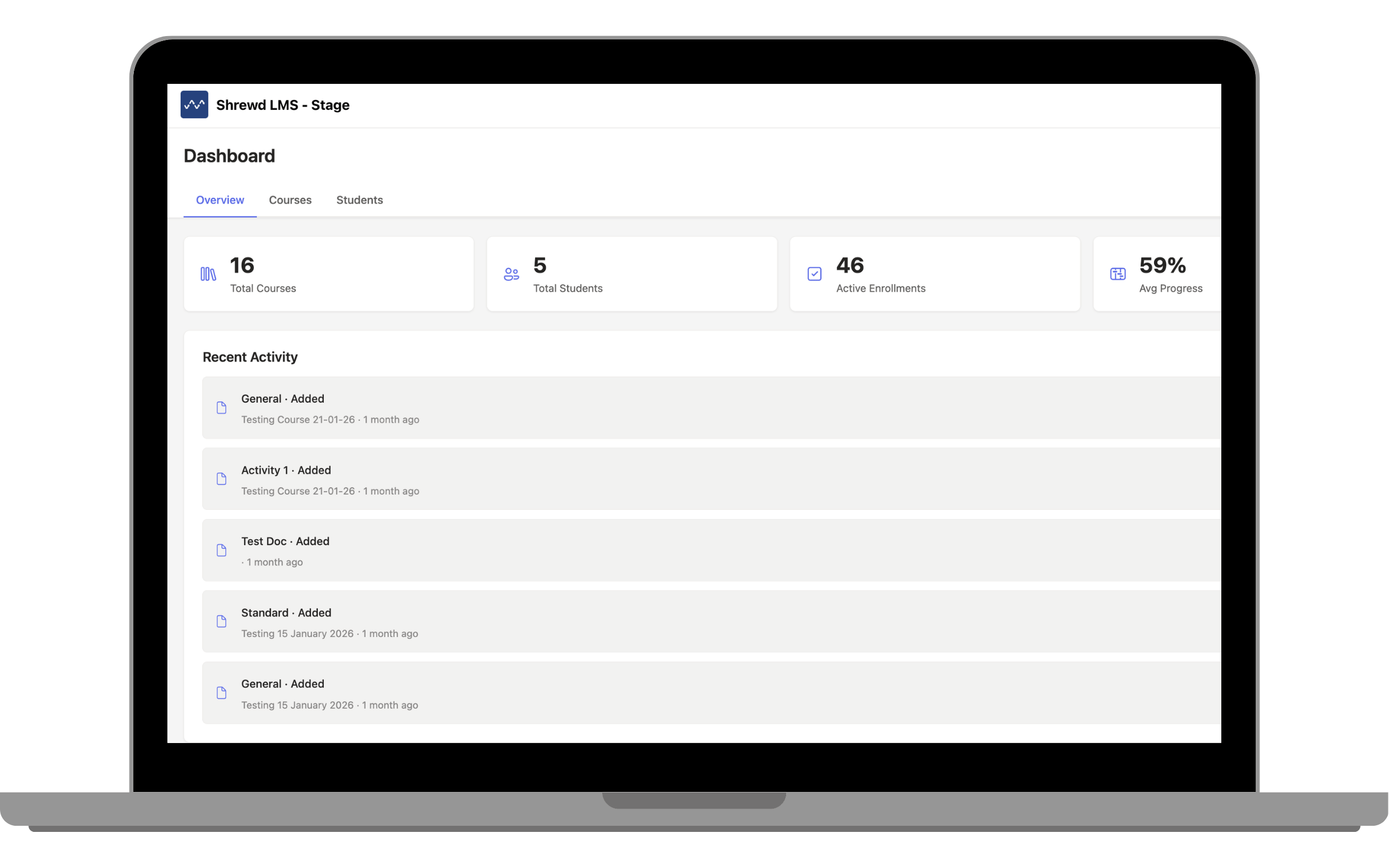
Global report dashboard overview
3

Creating a Course in a Team (Learning Tab)

Add a learning tab to a Team and Channel

This section explains how to create a course by adding a Shrewd LMS Learning Tab within a Microsoft Teams channel. Once added, the tab serves as the central space for managing course content and learner activities.

Steps

  1. Go to your desired Team and Channel.Choose your desired team and channel
  2. Click the “+” (Add Tab) button.Add a tab inside the channel page
  3. Select Shrewd LMS.Select the Shrewd LMS app
  4. Click Save.Save the learning tab

Result

  • A Learning Tab will be created.
  • The tab will appear in the channel and be accessible to members.
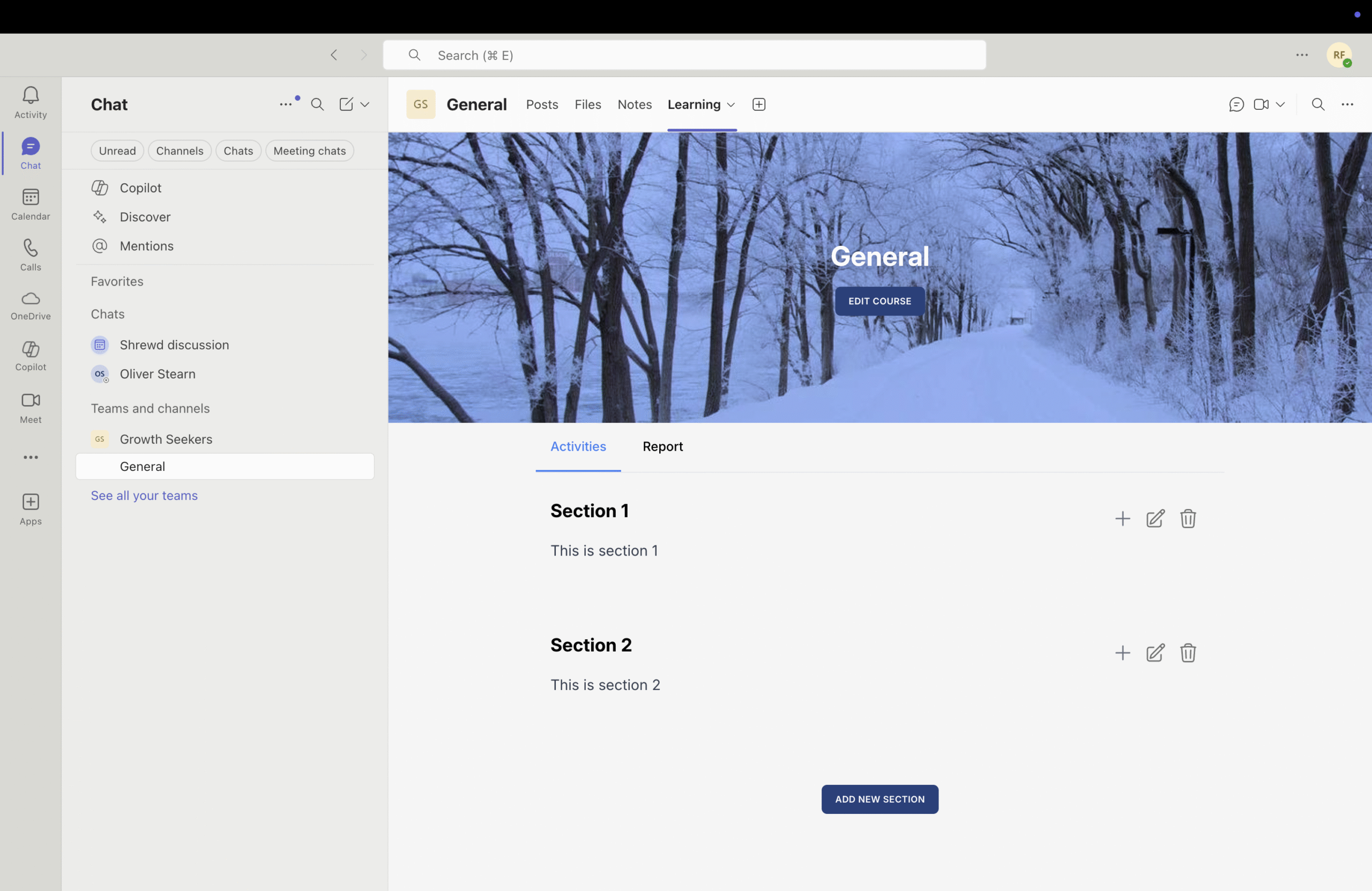
Successful Shrewd LMS learning tab view
4

Reports API (Premium Feature)

Integrate reporting into your own systems

Shrewd LMS provides a Reports API for integrating report data into your organisation’s systems.

Steps to Generate API Key

  1. Click the floating button (top-left corner).Floating button to access Reports API
  2. Select Settings.Settings button in Shrewd LMS
  3. Find API Integration.Reports API configuration page
  4. Click Generate New Key.Generate new API key button

Use Cases

  • Connect reports to dashboards.
  • Integrate with analytics tools.
  • Export learning data programmatically.
5

Notification Settings

Configure when users receive course notifications

This feature allows admins to configure when notifications are sent to users regarding course activities.

Initial Setup

  1. Click Grant Permission.
  2. Grant permission button for notifications
  3. Complete the Microsoft permission approval (admin required).
  4. Microsoft permission approval process
  5. Reload the app.
  6. Reload the app after approval
  7. Ensure the Grant Permission button is no longer visible.
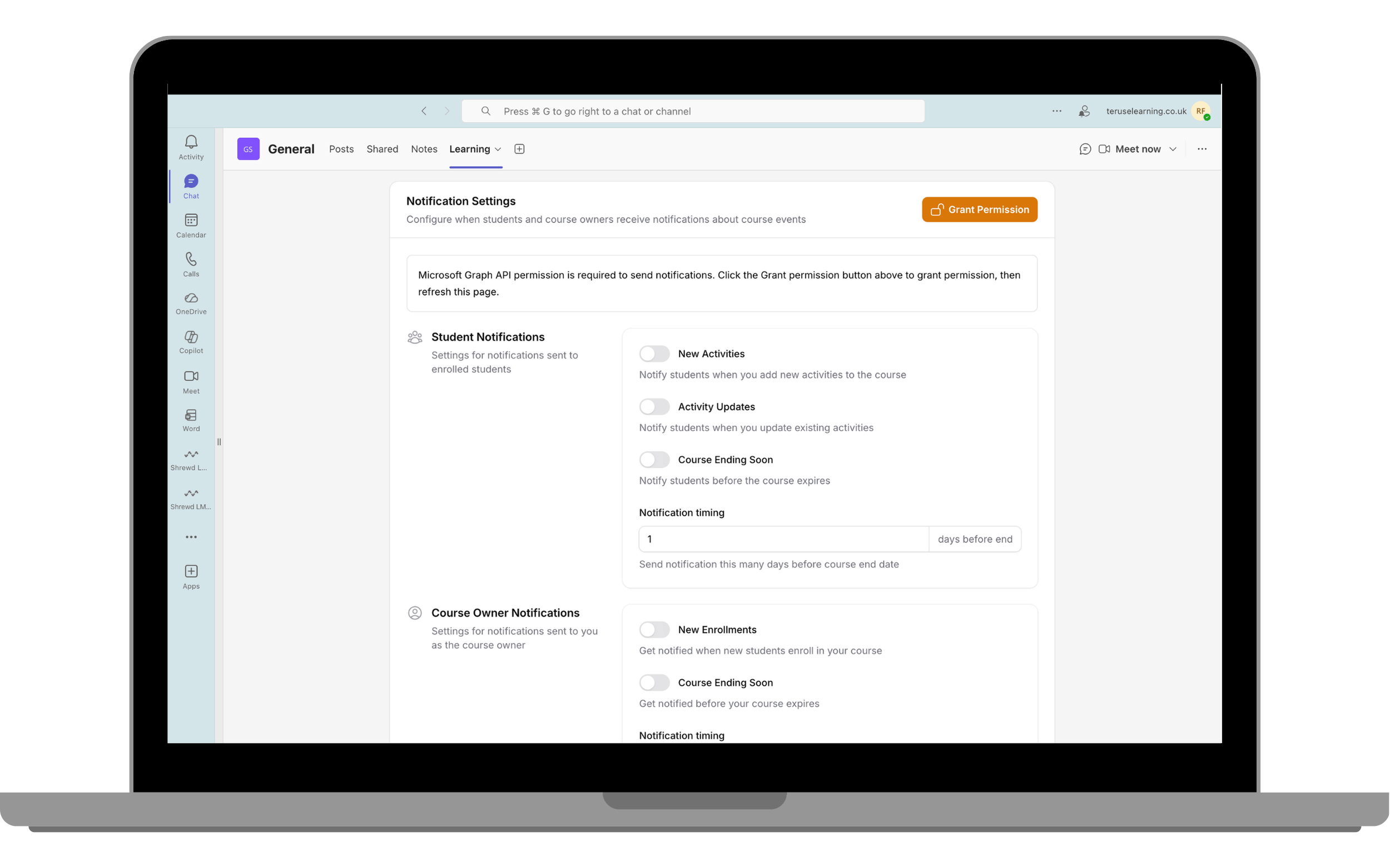
After Setup

  • Enable notifications for course updates.
  • Enable notifications for activity completion.
  • Enable notifications for learning progress.
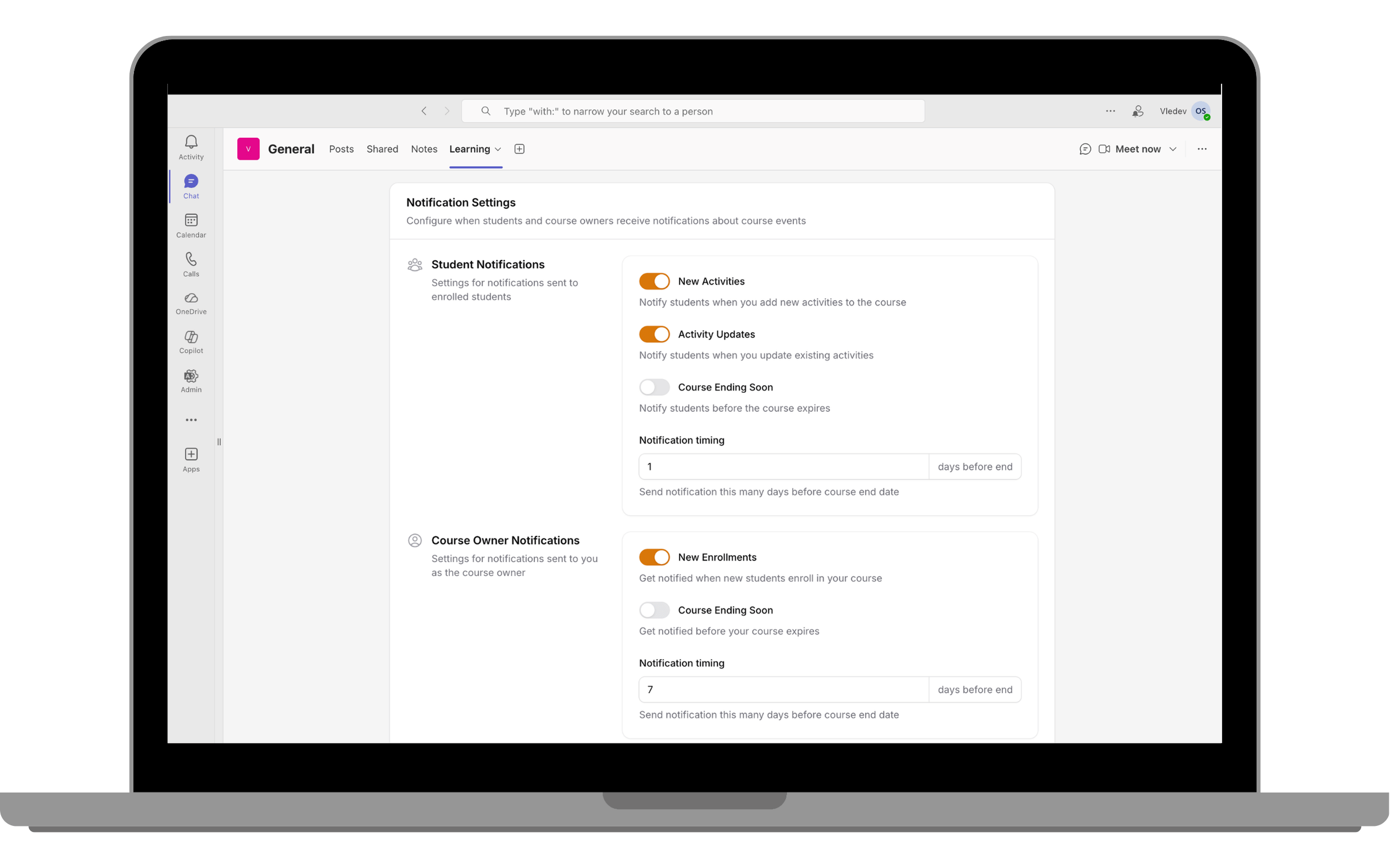
Enable notifications after permission is granted
6

Summary of Admin Workflow

High-level admin journey
  1. Install Shrewd LMS in Microsoft Teams.
  2. Access the Global Report Dashboard.
  3. Create courses via Learning Tabs.
  4. Monitor learner progress.
  5. (Optional) Integrate reports via API.
  6. Configure notifications.