On your Learning page, click on “Edit Course”.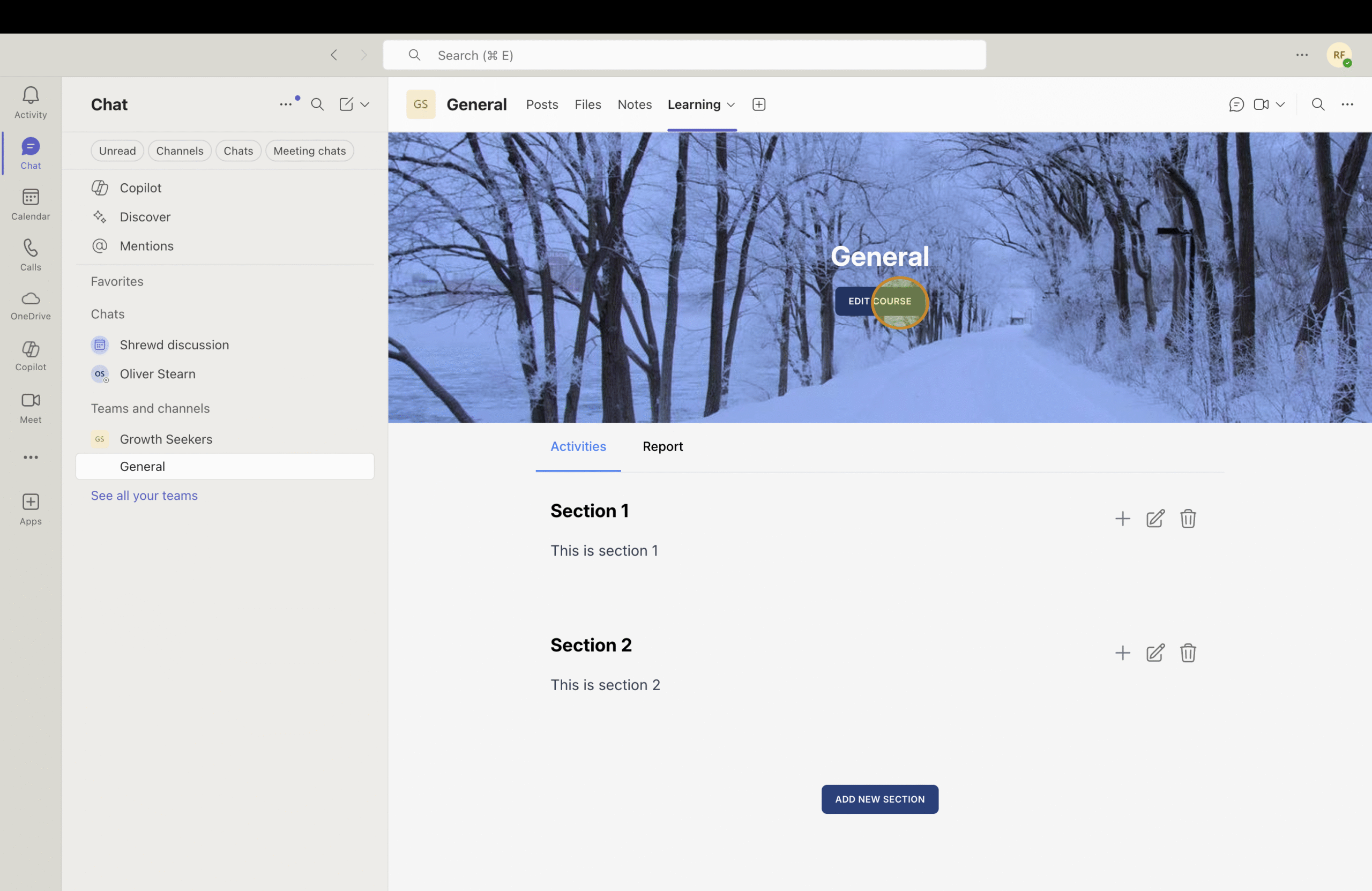
You can customize the course title and cover image to better reflect your course content and provide a more engaging learning experience.
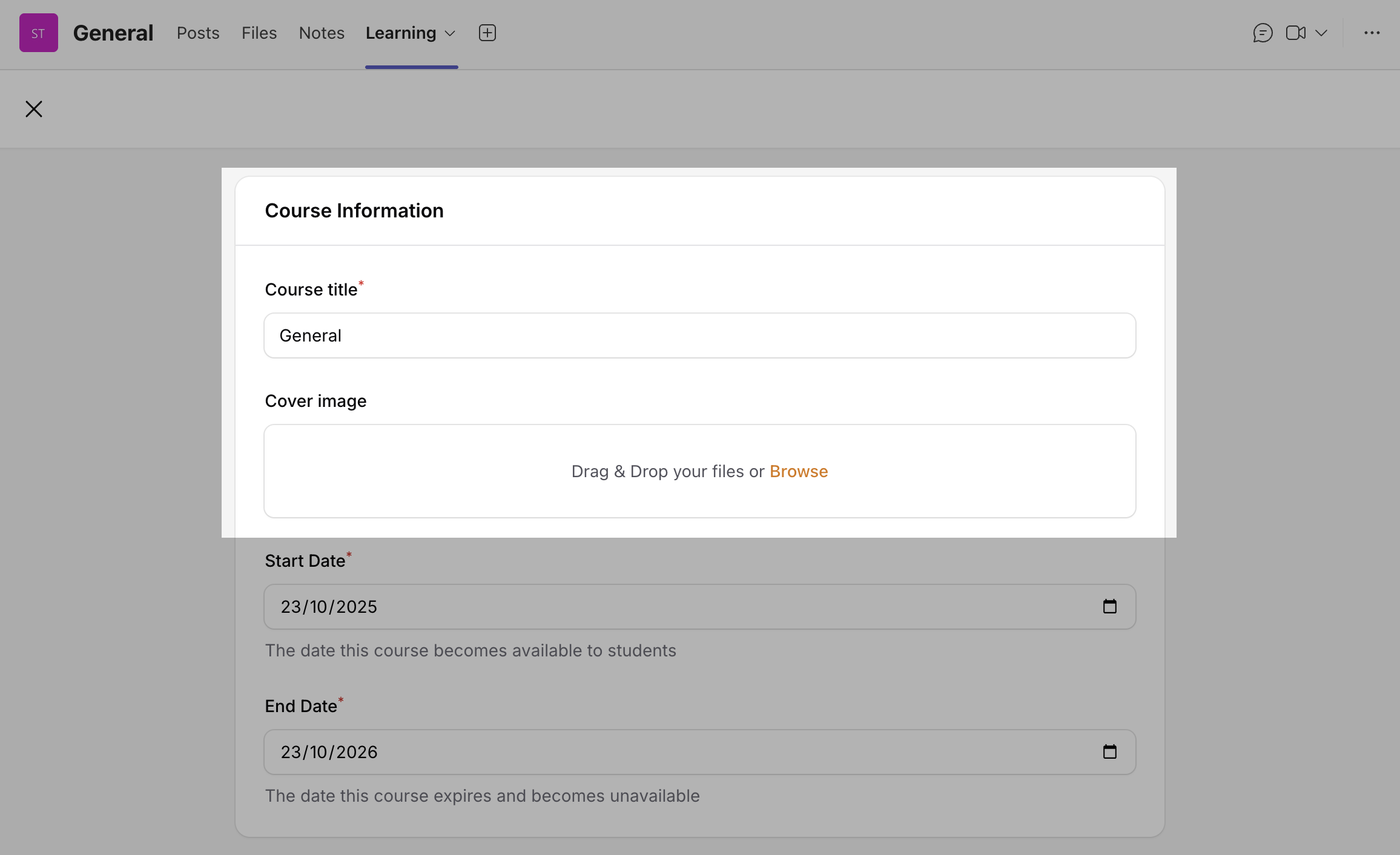
This setting is used to define when a course becomes available to students and when it expires. If the course owner does not set these dates, the course duration will default to 1 year.
Under the Cover Image field, there are two date fields:
Start Date – The date when the course becomes available to students.
End Date – The date when the course expires and becomes unavailable.
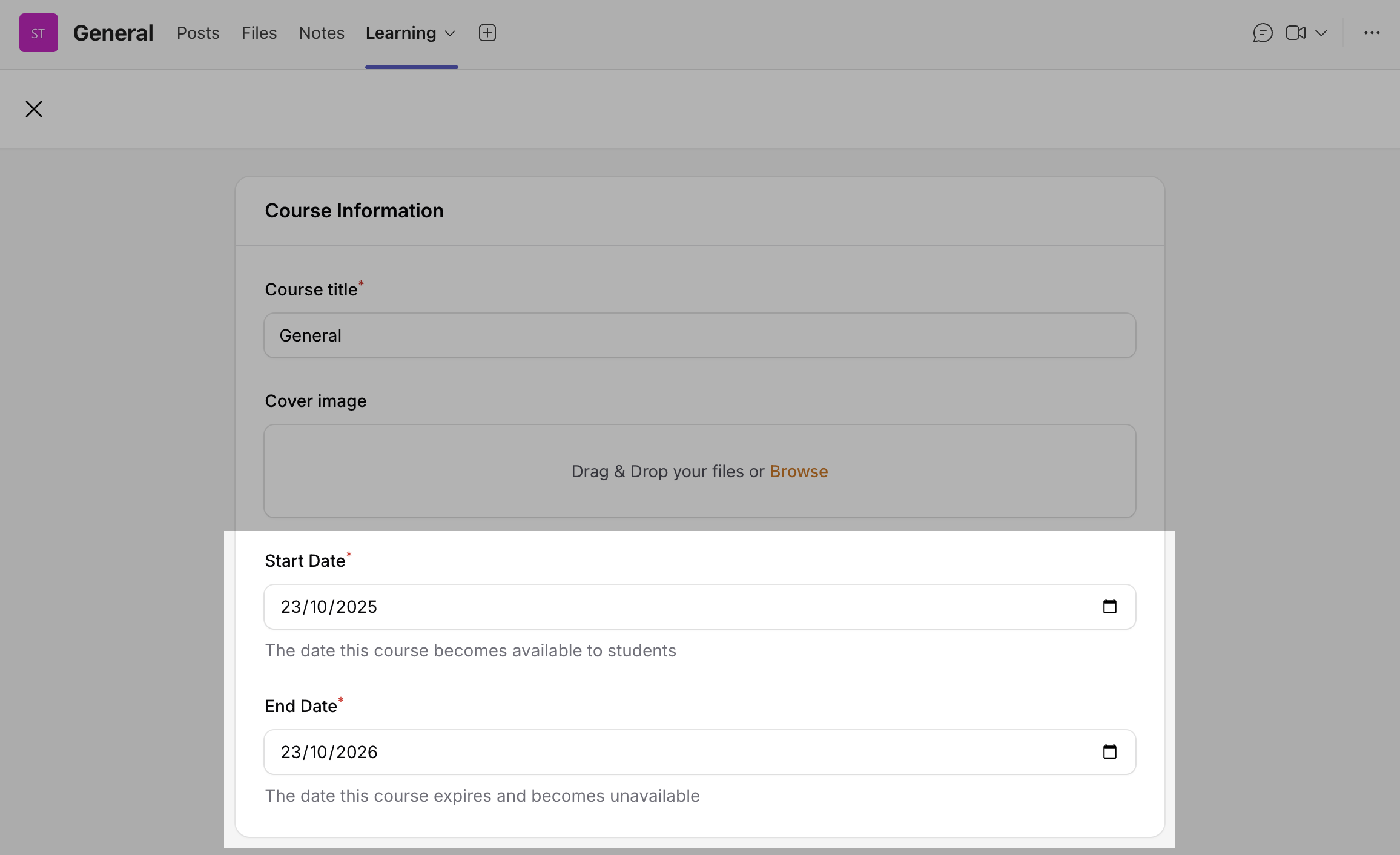
This feature enables Course Owners to copy all content from an existing course into a new one.
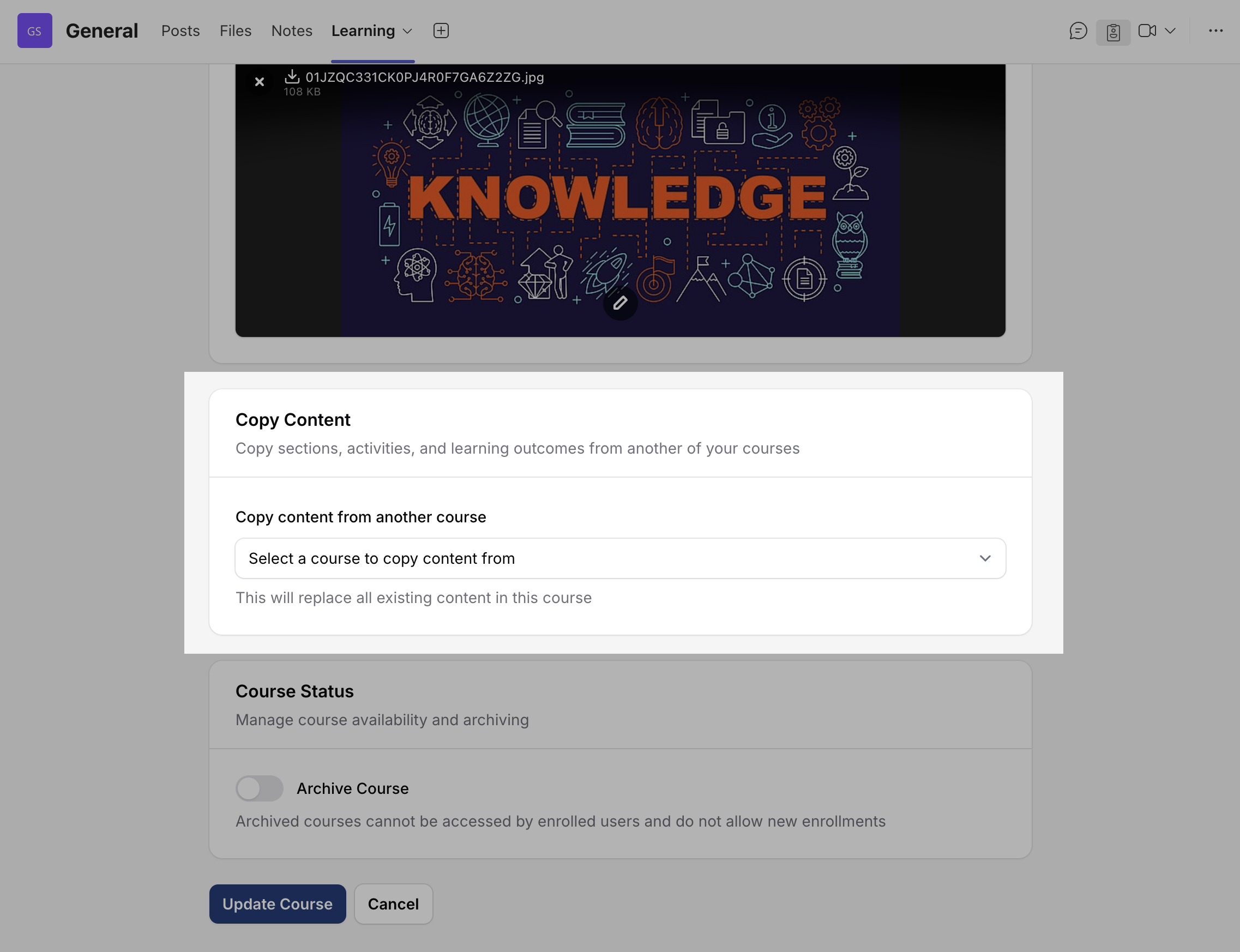
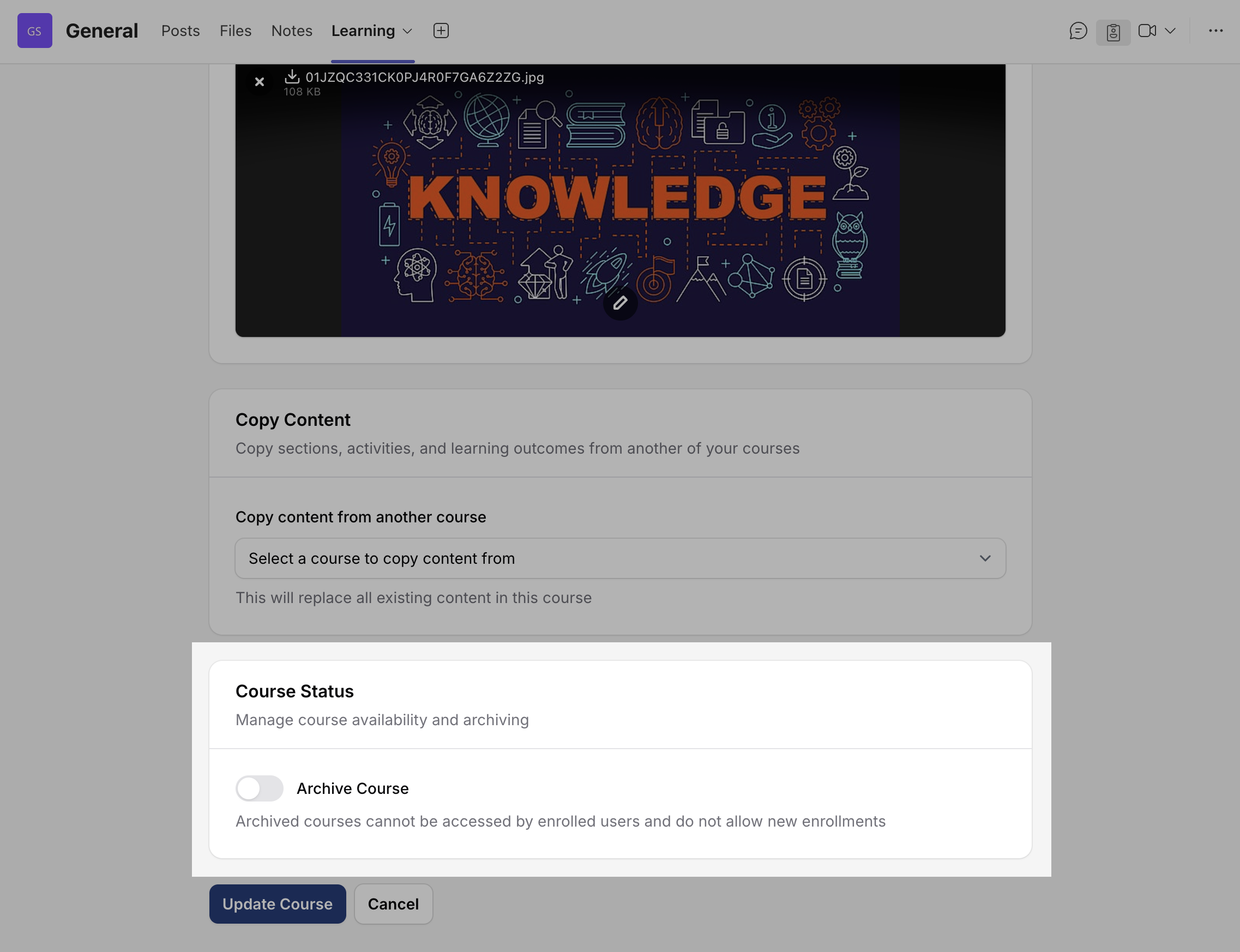
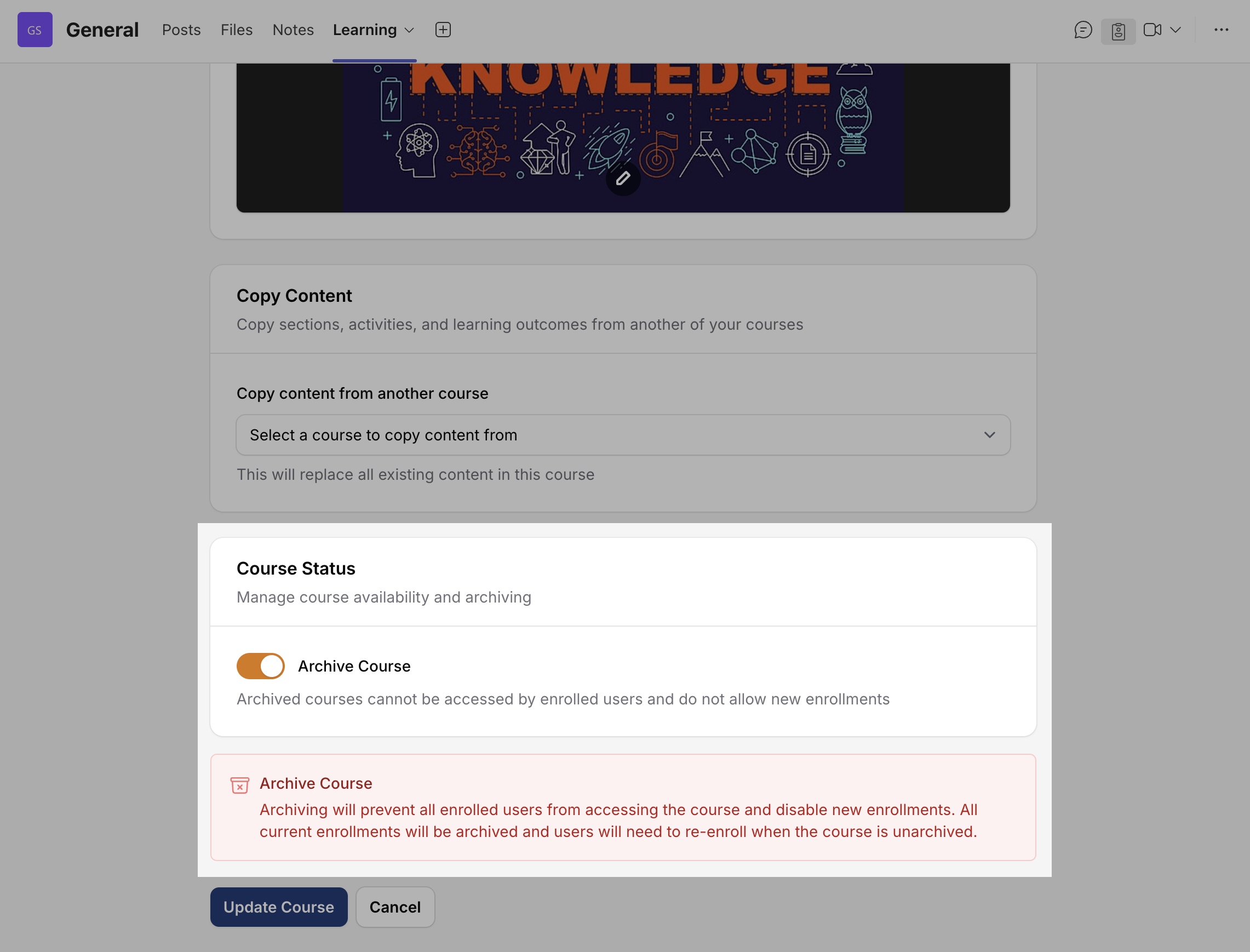
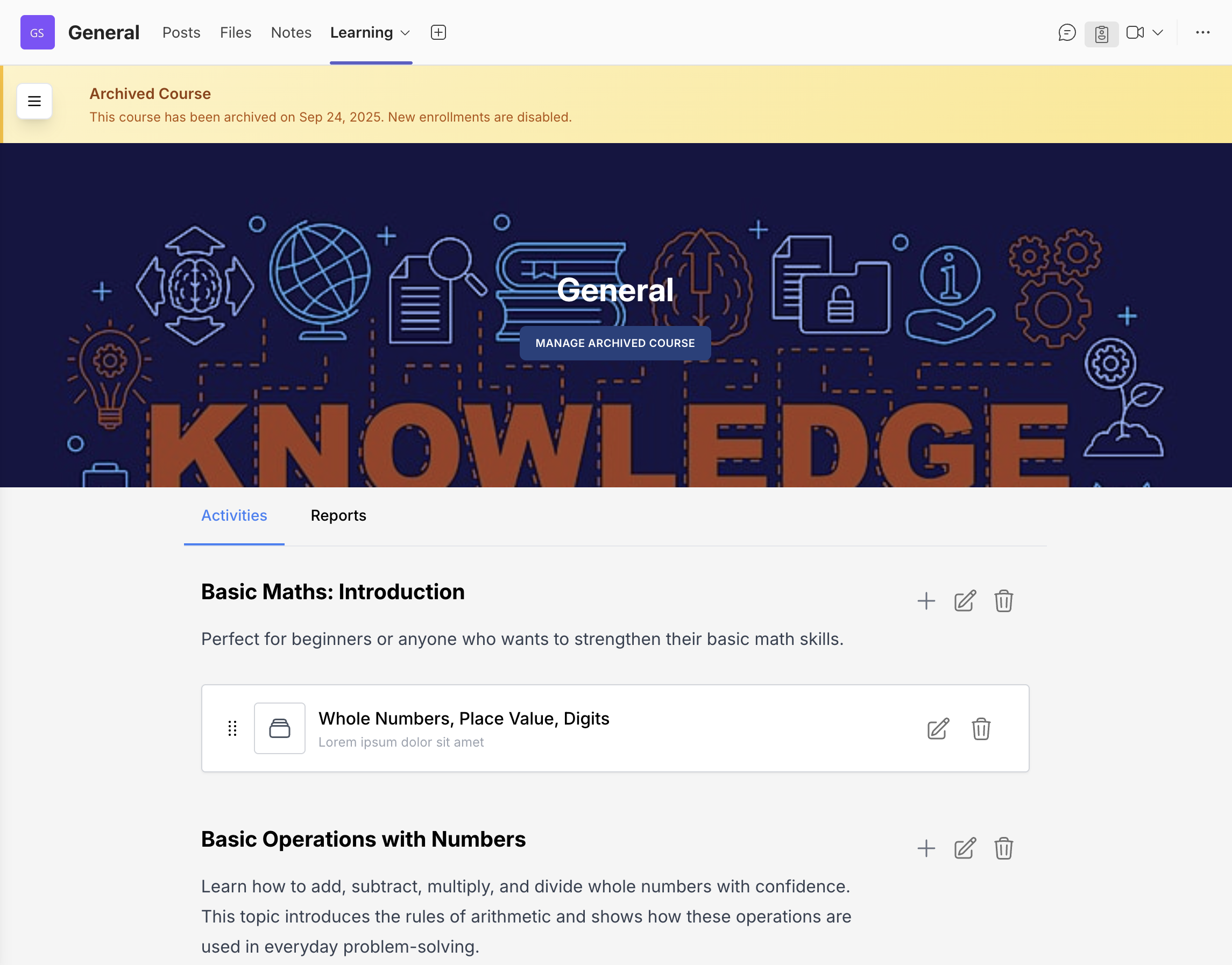
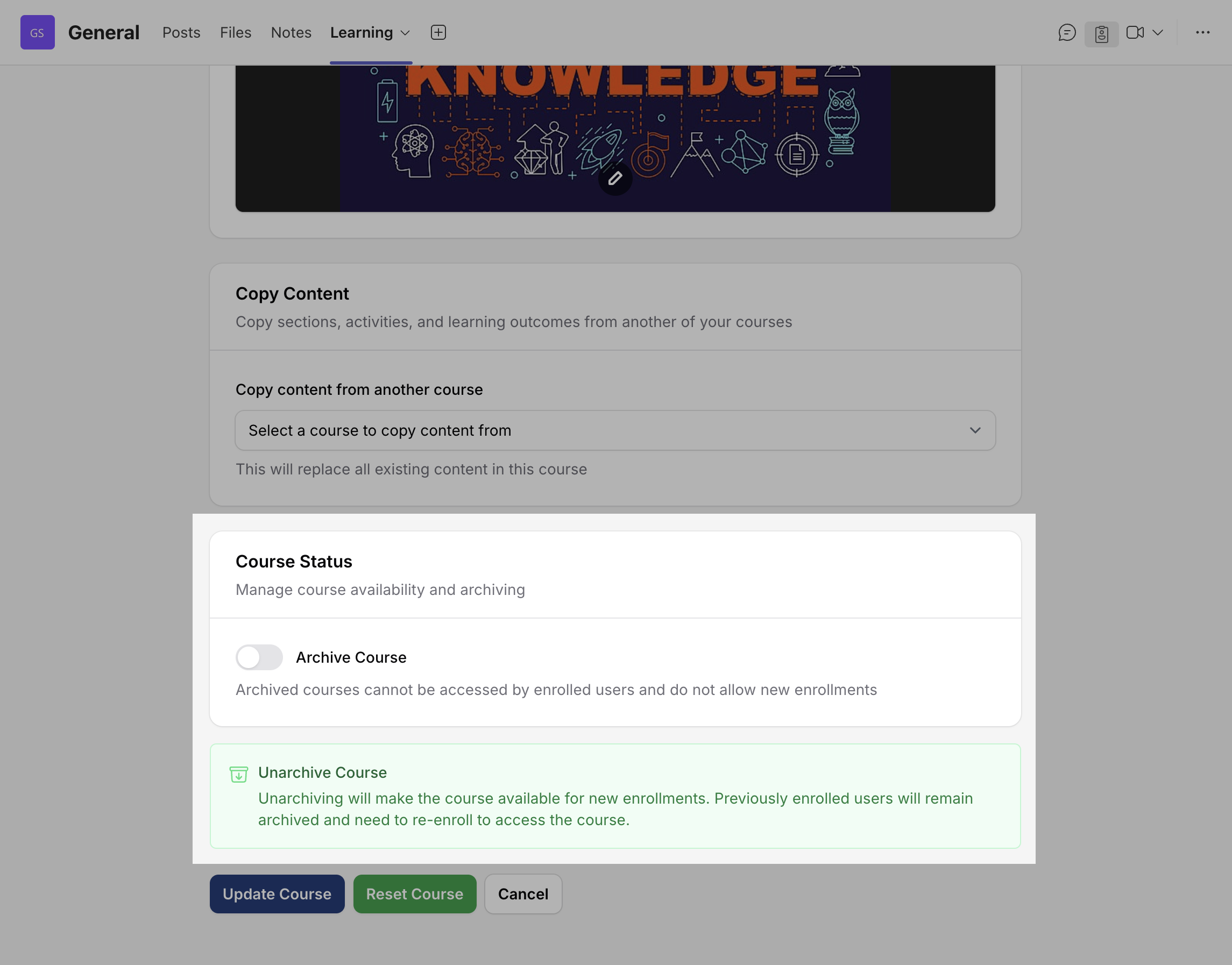
The Course Archiving feature allows owners to manually archive courses that are no longer in use or that they want to temporarily store, while ensuring all content, records, and enrolments are fully preserved for future reference or reuse. Archived courses remain visible in the system and are clearly marked as “Archived.” However, participants cannot access any activities or materials within them.
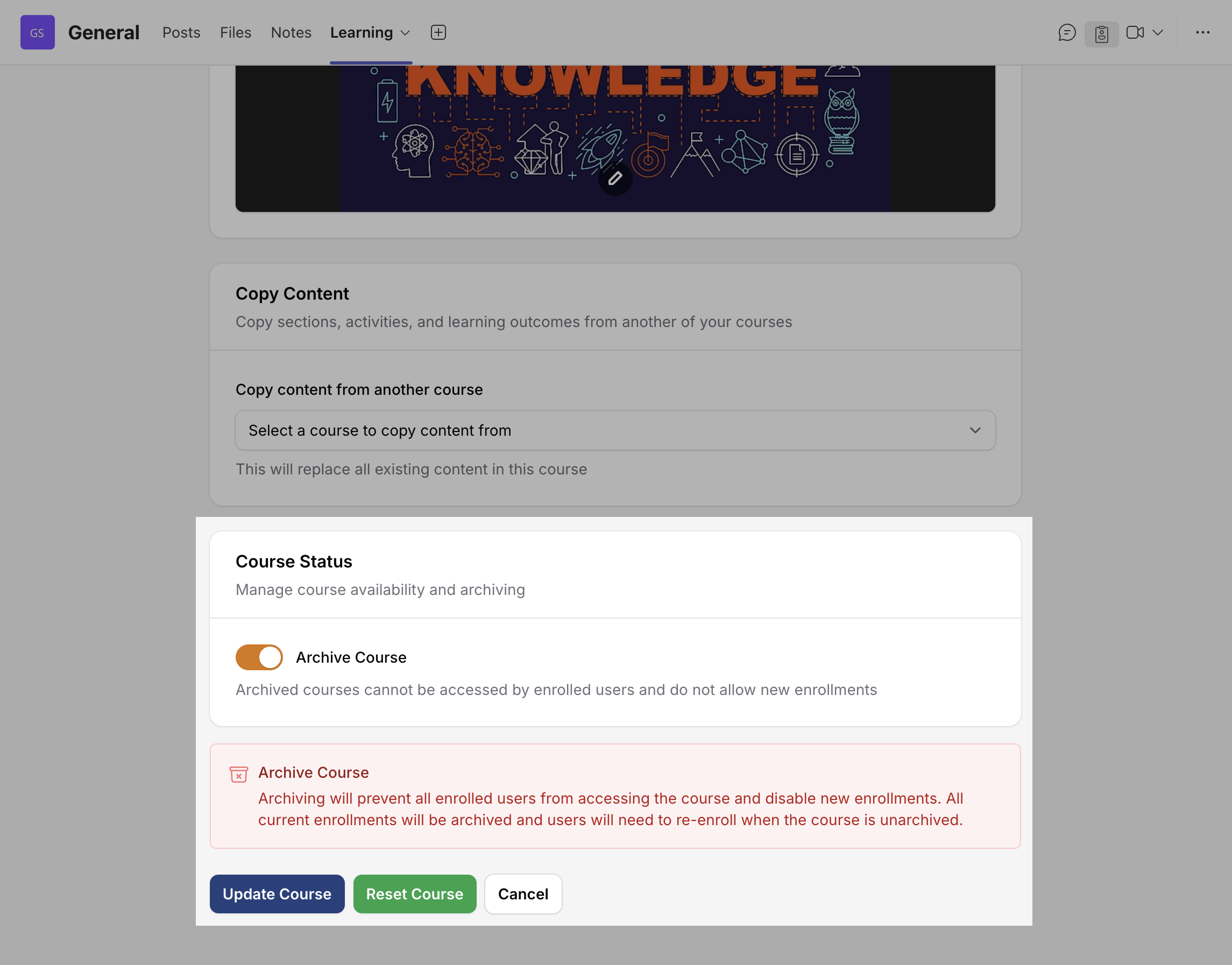
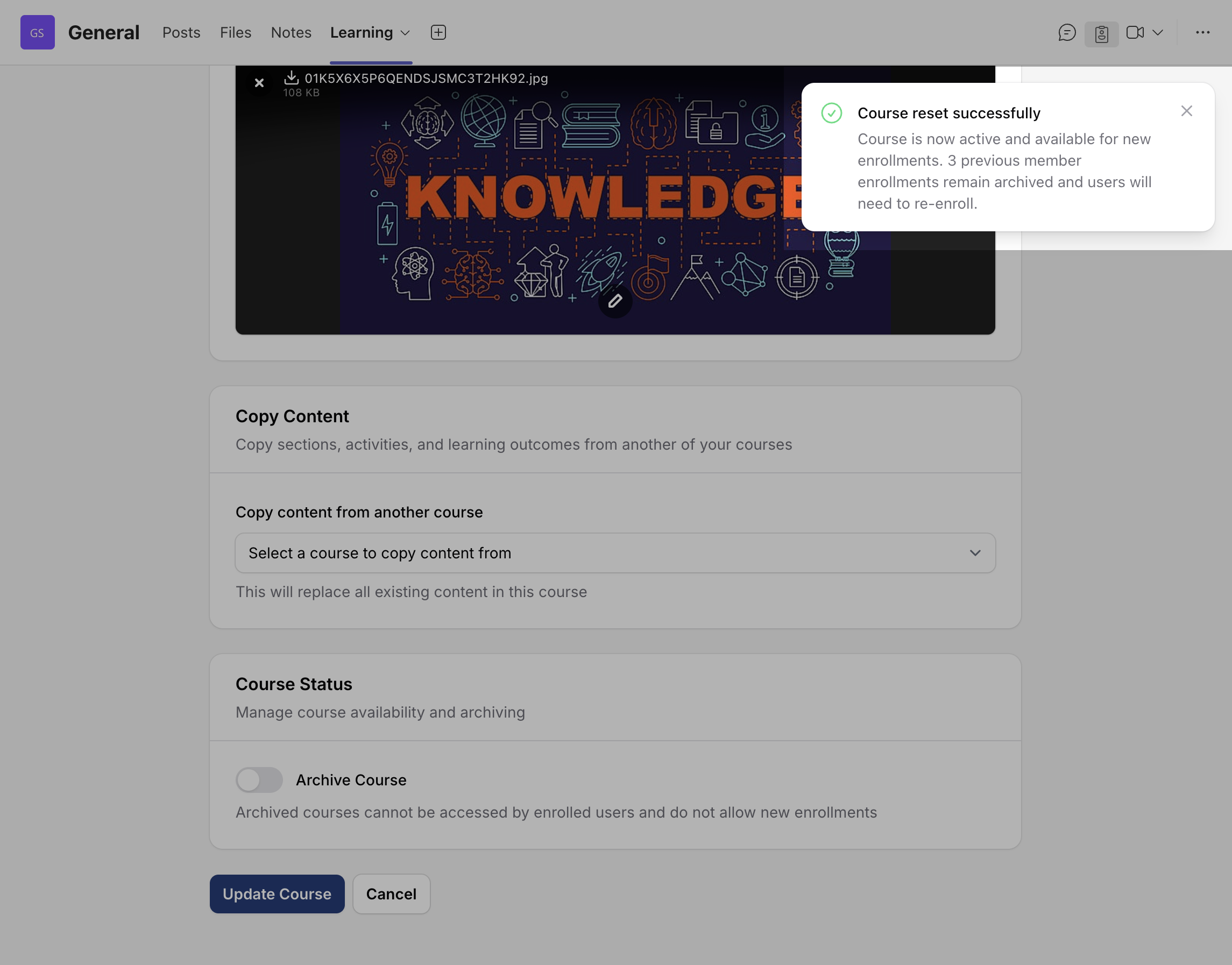
Owners can unarchive a course at any time to make it available again. Please note that previously enrolled learners will remain archived and must be re-enrolled before regaining access.
To Archive a course, you can follow these steps:
To unarchive/reset a course, use the following steps:
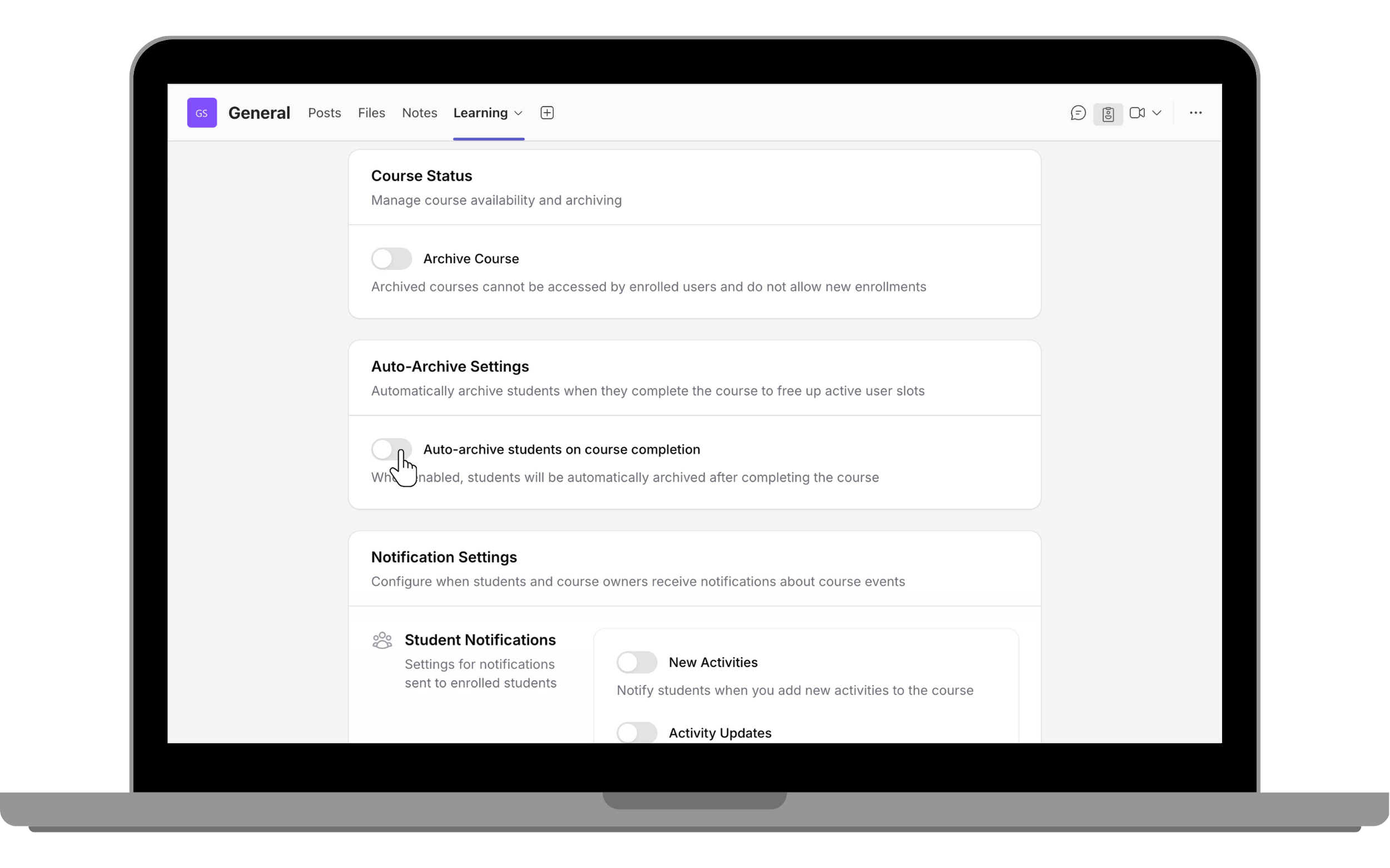
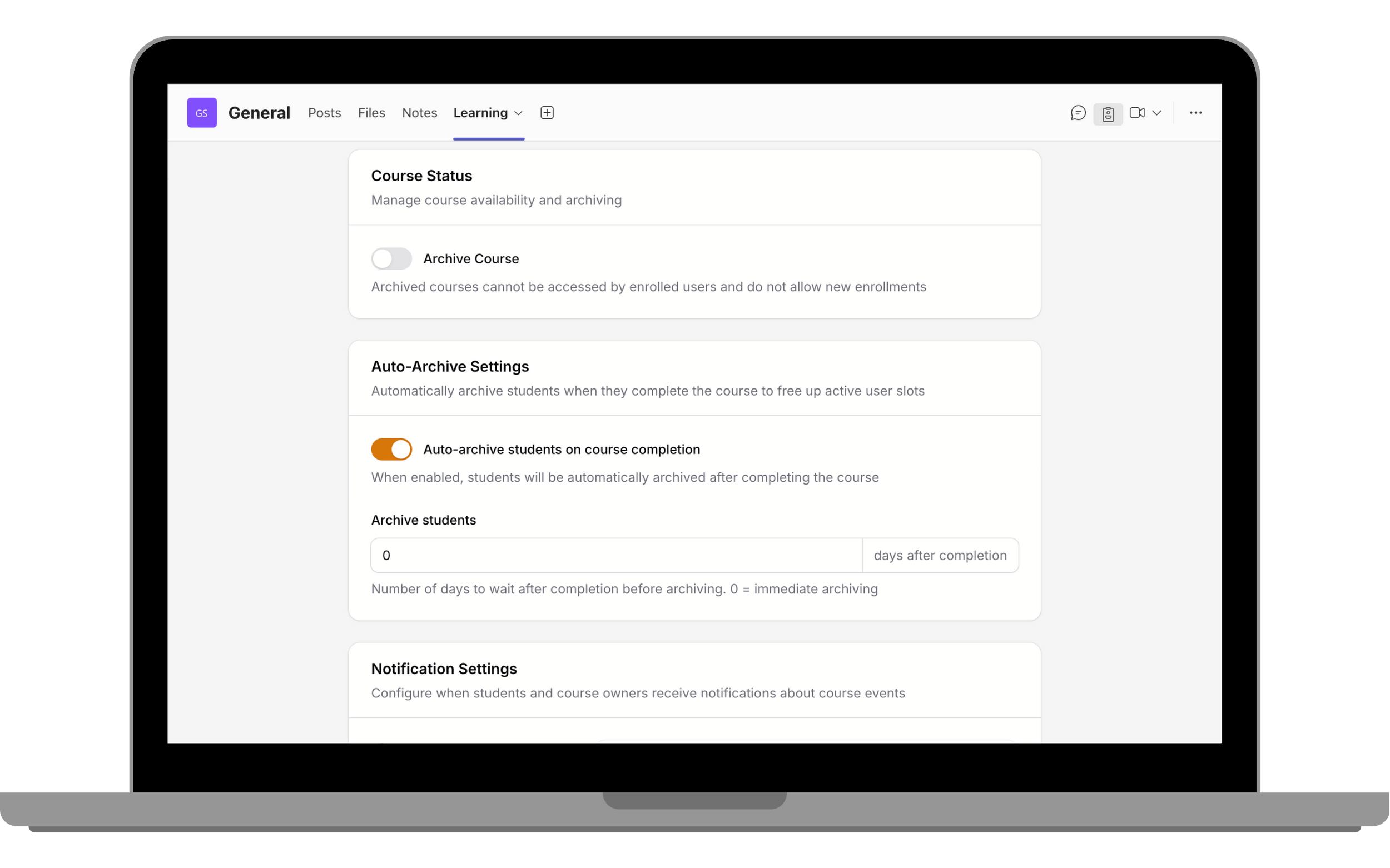
When enabled, the Auto-Archive setting automatically archives students after they complete a course. This helps organisations manage licence usage by freeing up active user slots.
To automatically archive students, follow these steps:
The Notification Settings section allows users to manage alerts related to course activities.
These settings help both course owners and students stay informed and up to date with course progress and activities.
Here are a few steps to enable notifications for both course owners and students:
In the Course Settings, go to Notification Settings.
In Student Notifications section, turn on:
New Activities – Notify students when new activities are added to the course.
Activity Updates – Notify students when existing activities are updated.
Course Ending Soon – Notify students before the course expires.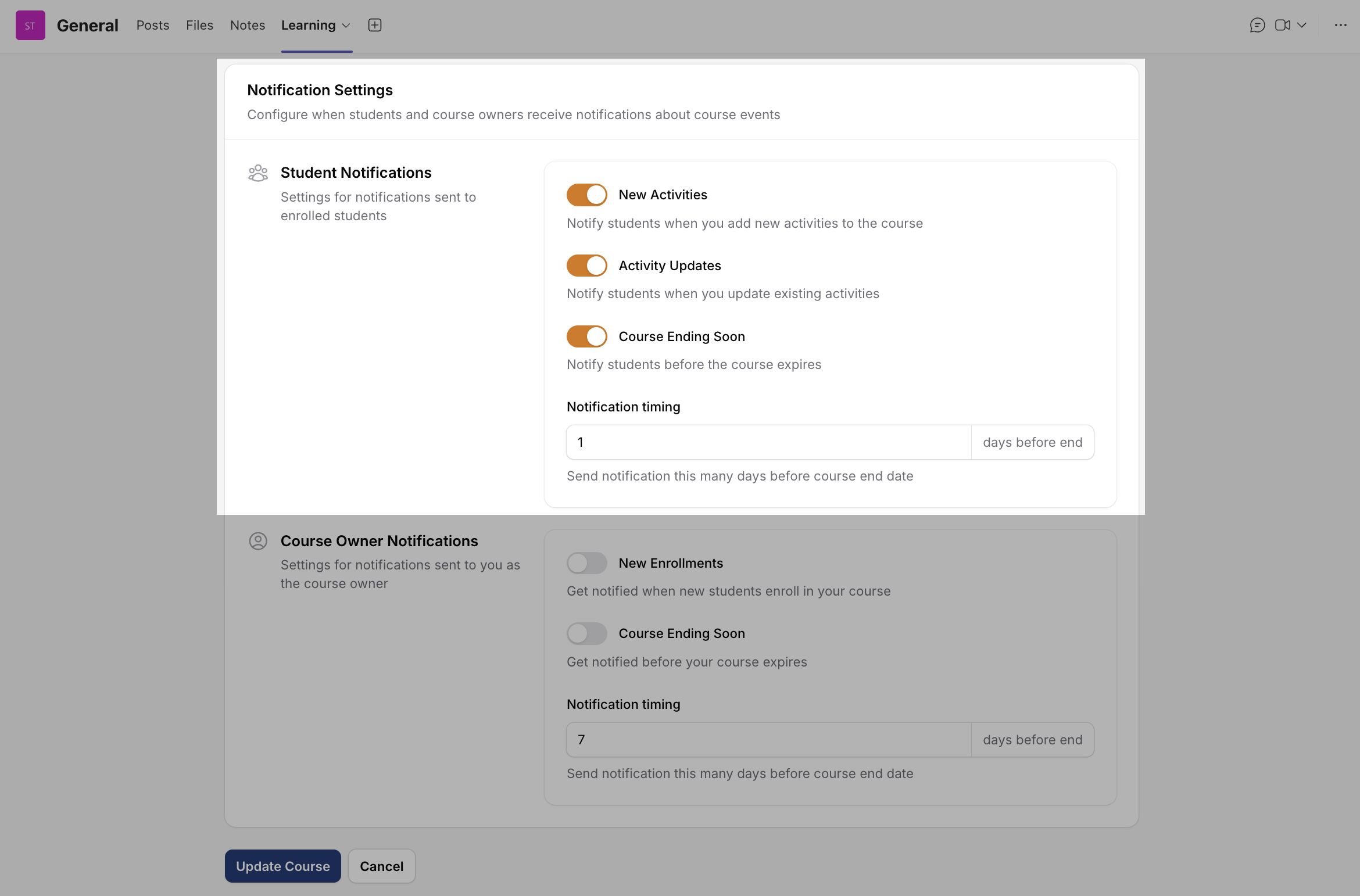
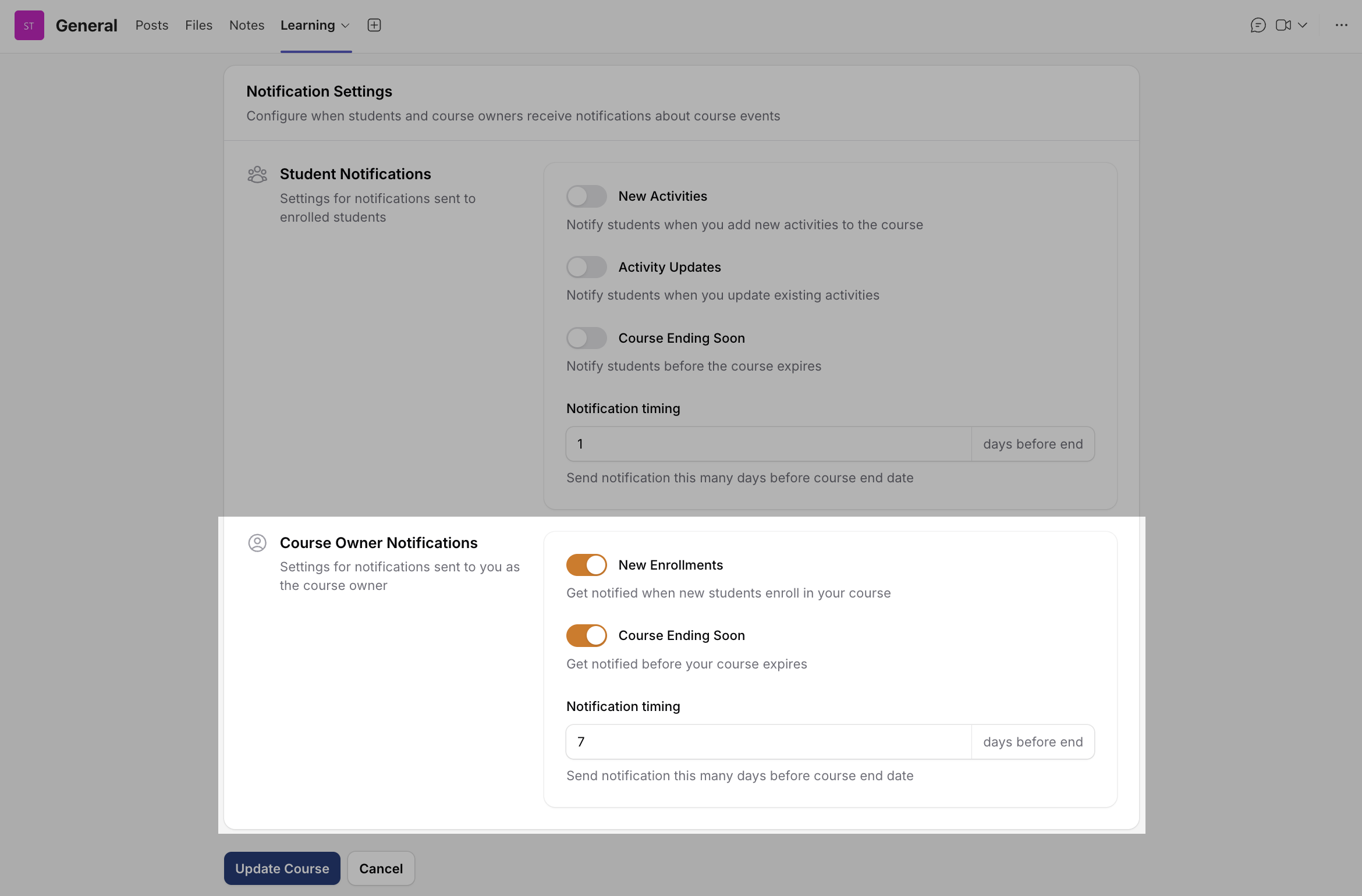
In Course Owner Notifications section, turn on:
New Enrolments – Get notified when new students enrol in your course.
Course Ending Soon – Get notified before your course expires.
Set the Notification Timing — choose how many days before the course end date notifications should be sent.
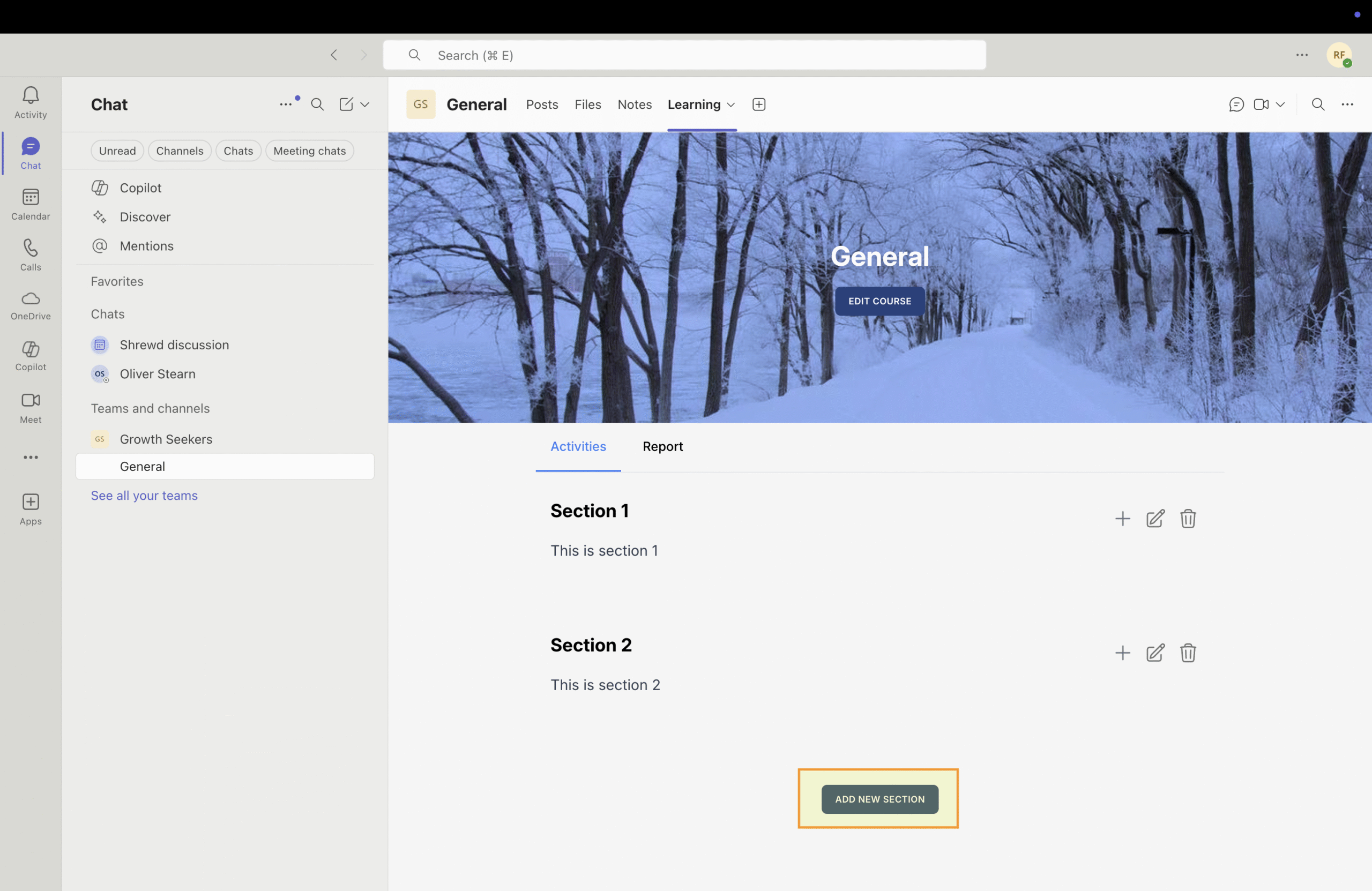
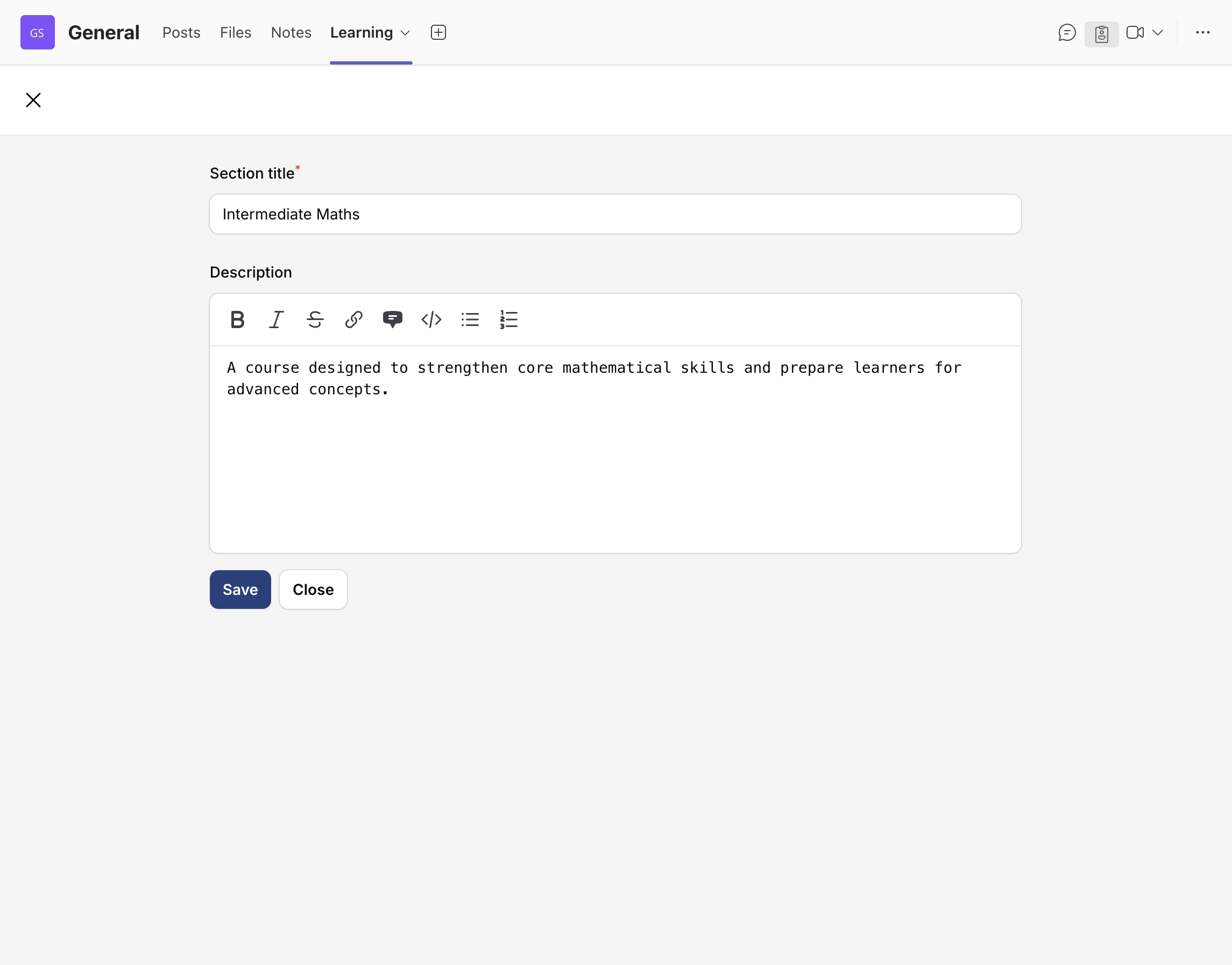
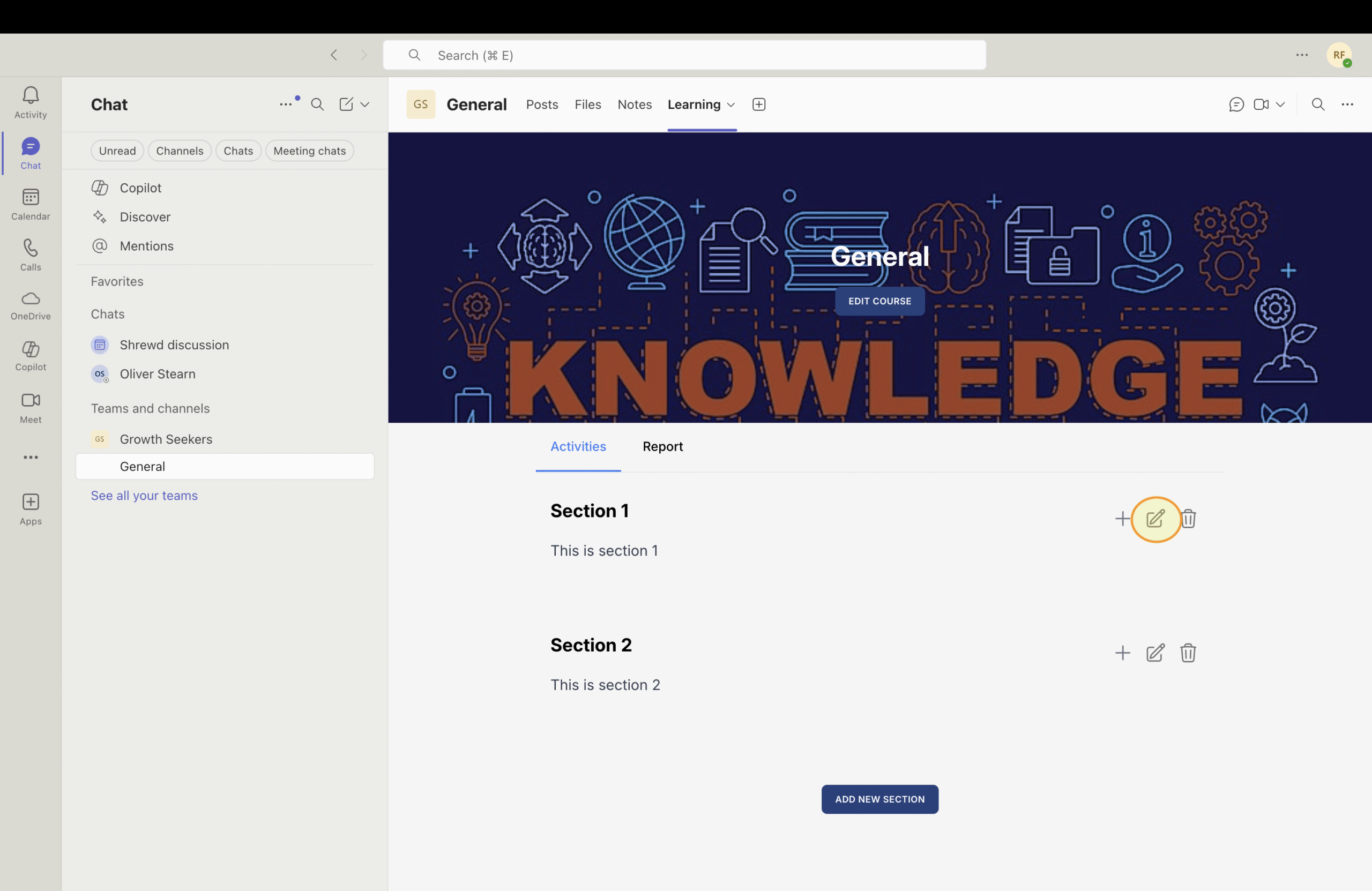
This section guides users on how to add an activity to a course.
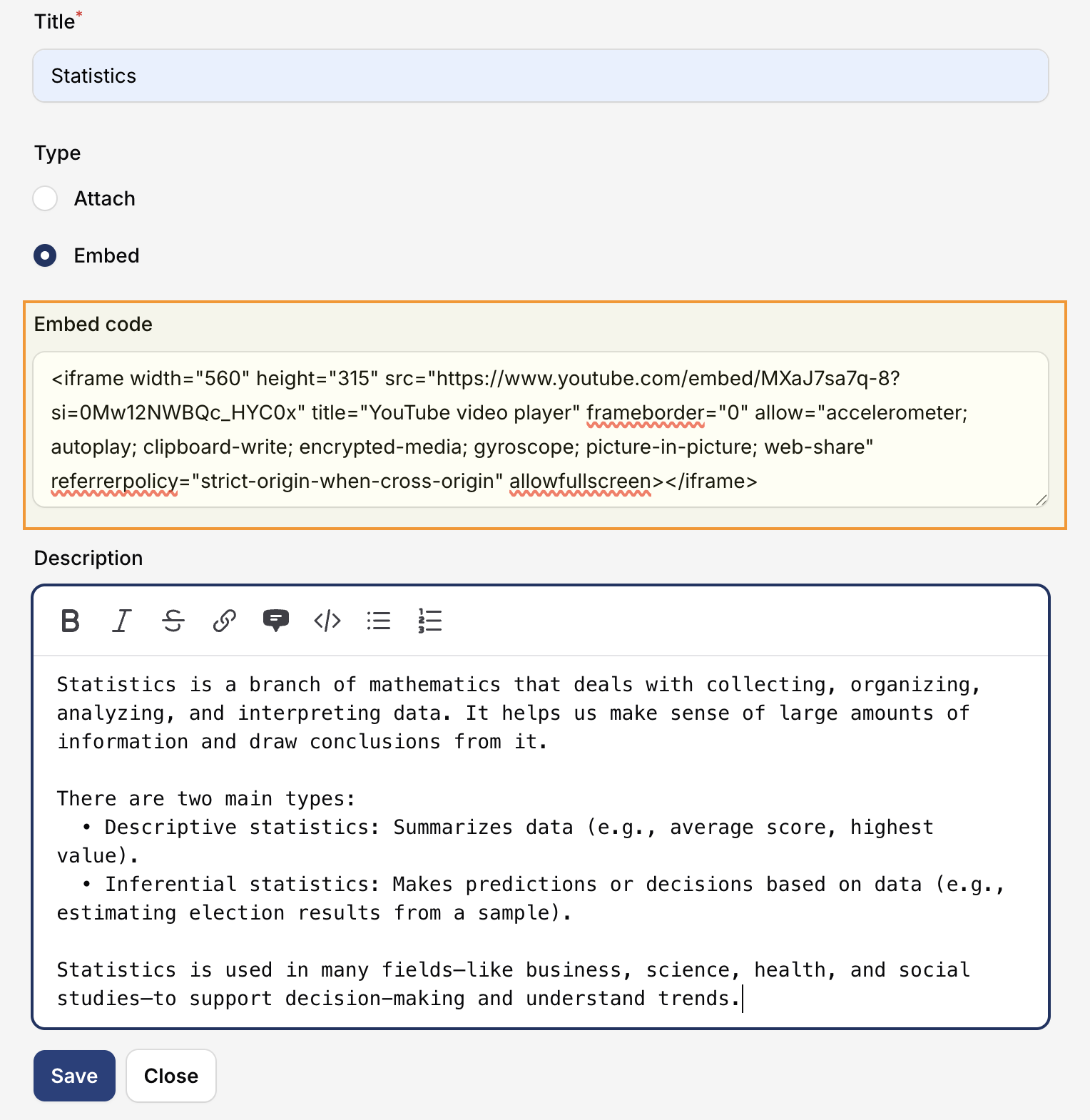
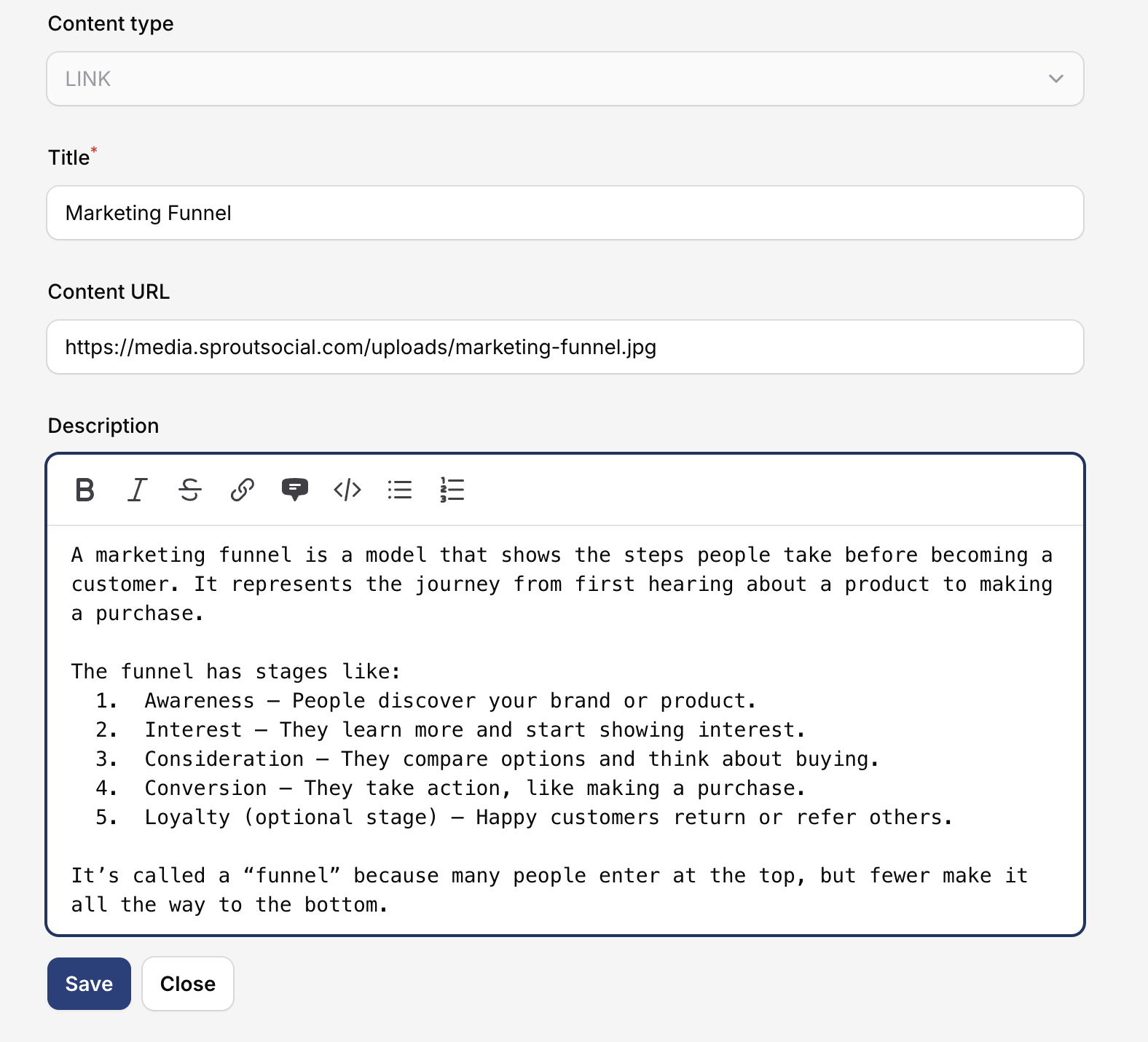
To add an activity, click the “+” button and select the desired activity. You will be redirected to the activity page.
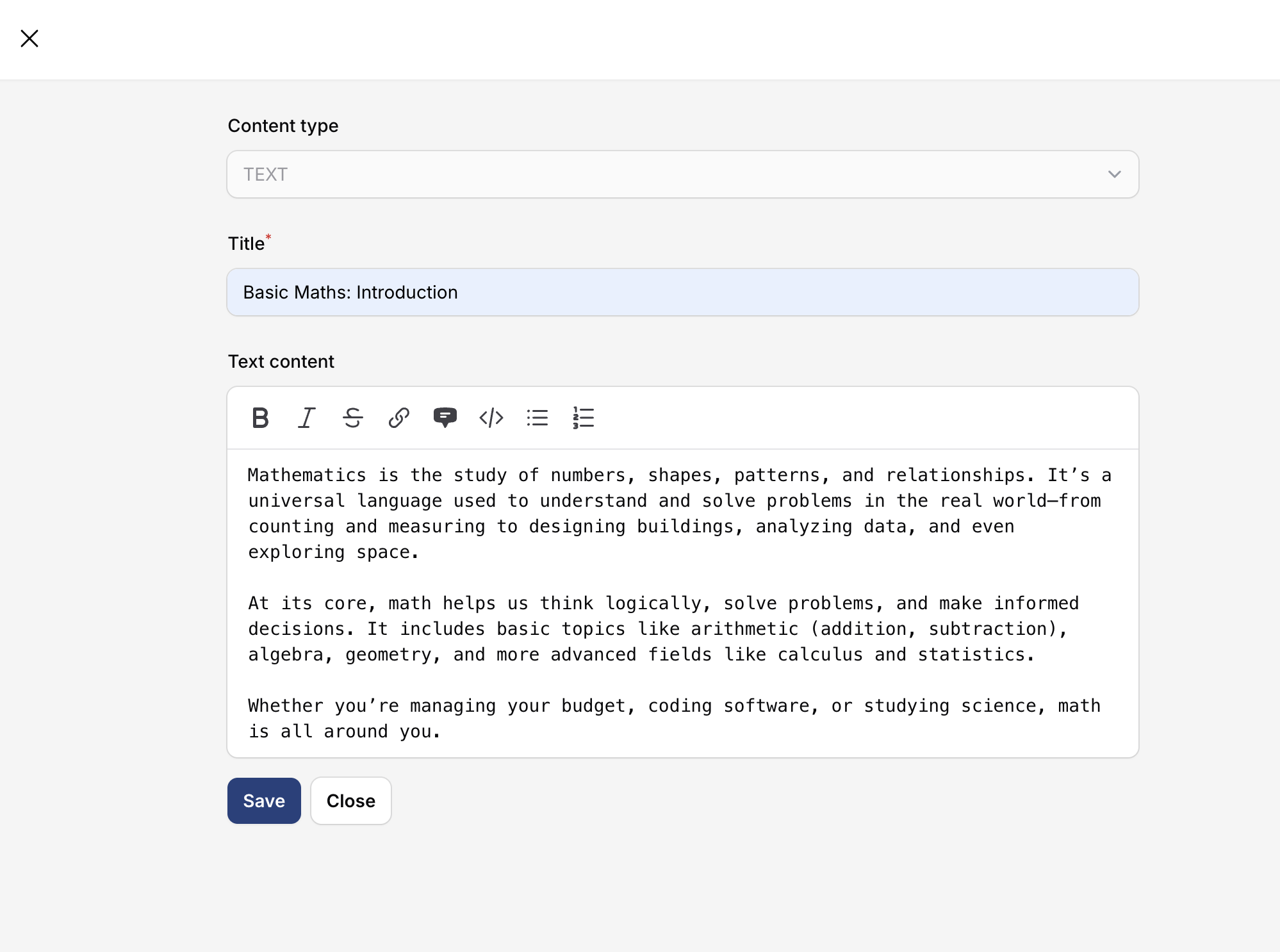
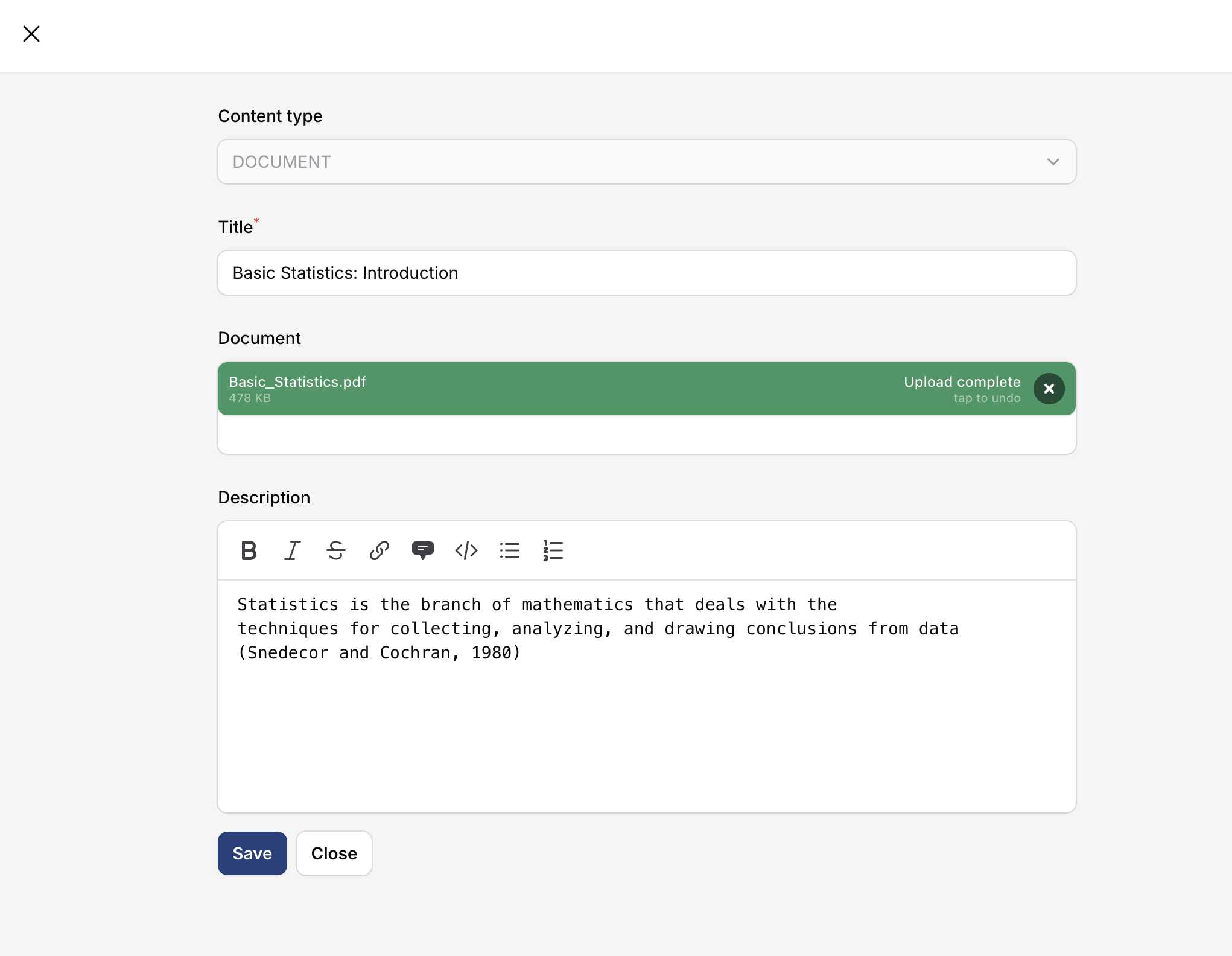
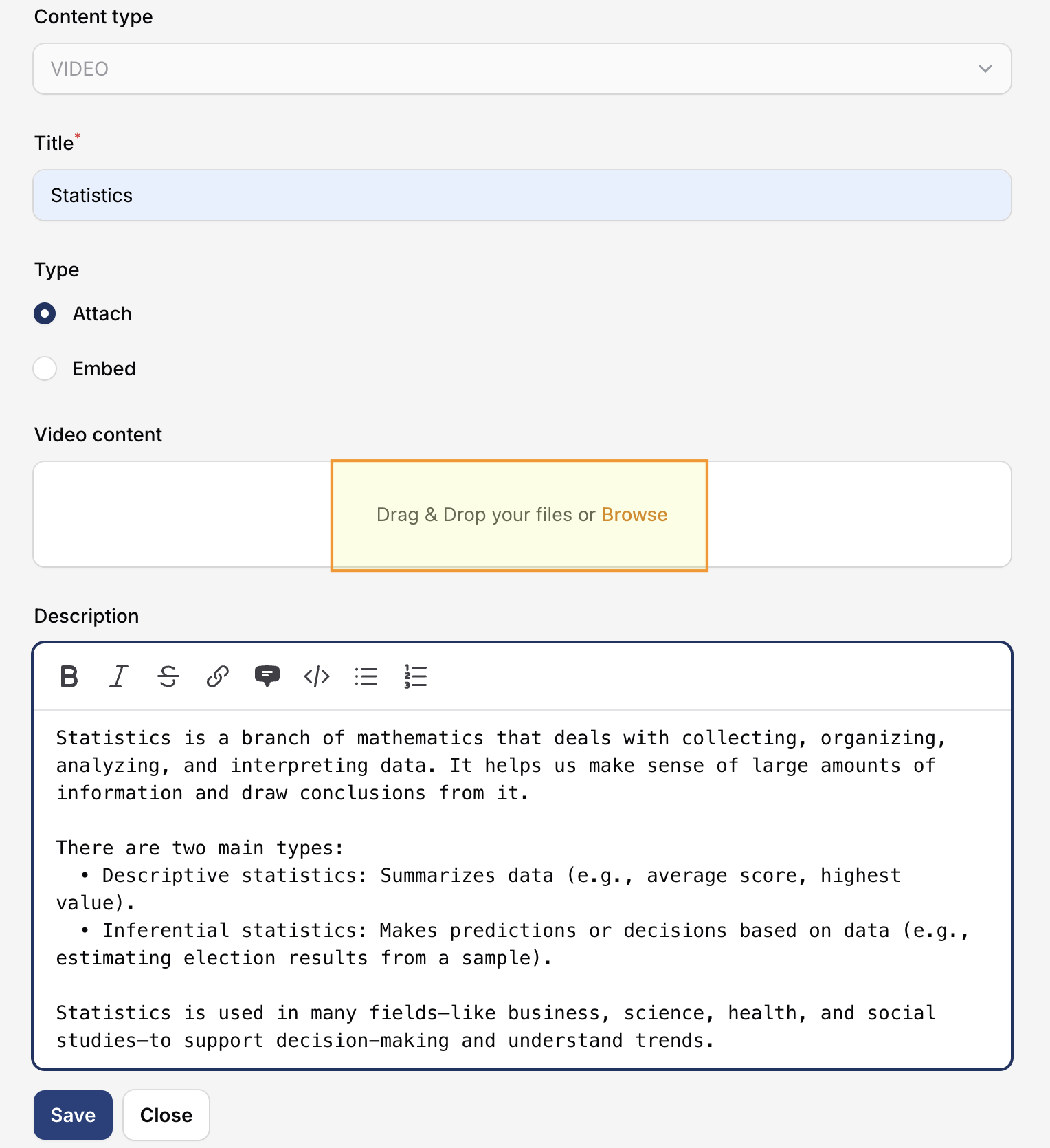
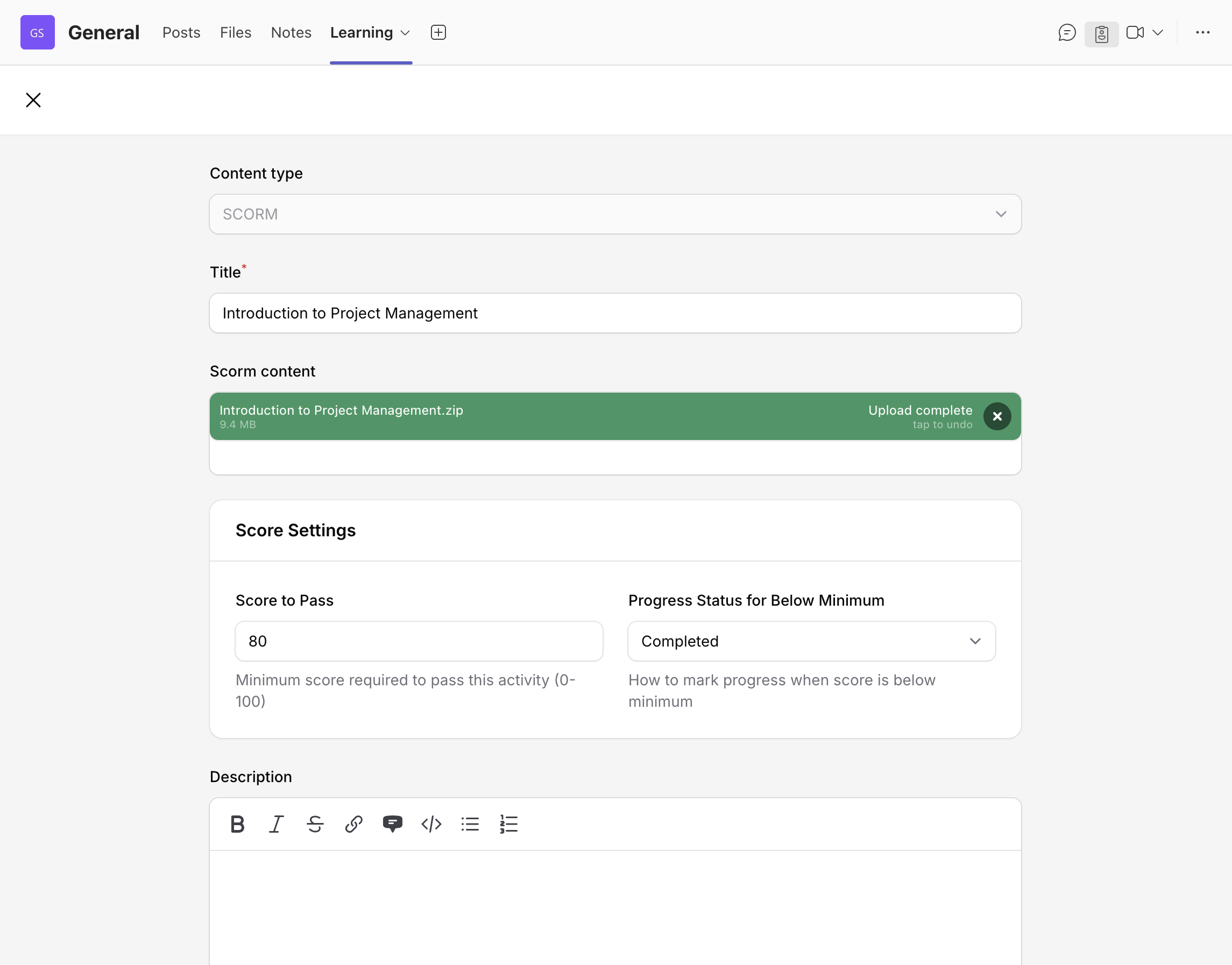
Important Note: Microsoft Teams loads apps (including Shrewd LMS) as embedded tab content in an iframe. Because of this, SCORM packages that are configured to open content in a new browser window will not work reliably inside Teams. Teams does not support forcing iframe content to open an external window as part of app/tab behaviour, and popups or new-window launches from within an embedded frame are generally restricted for security and platform reasons. To ensure SCORM content launches correctly in Shrewd LMS, please make sure the package is published to open in the same window.
Follow the steps below to create a SCORM activity:
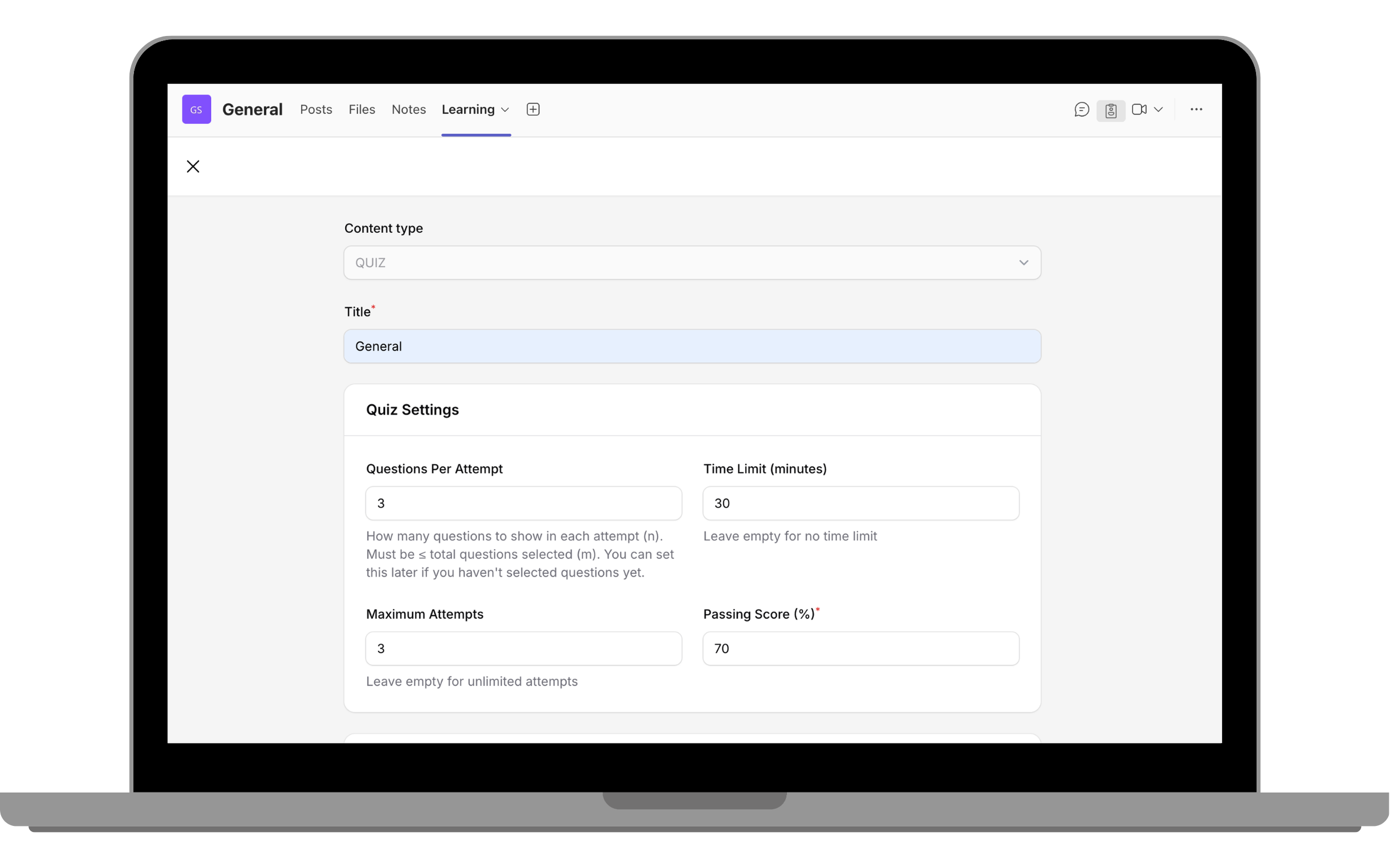
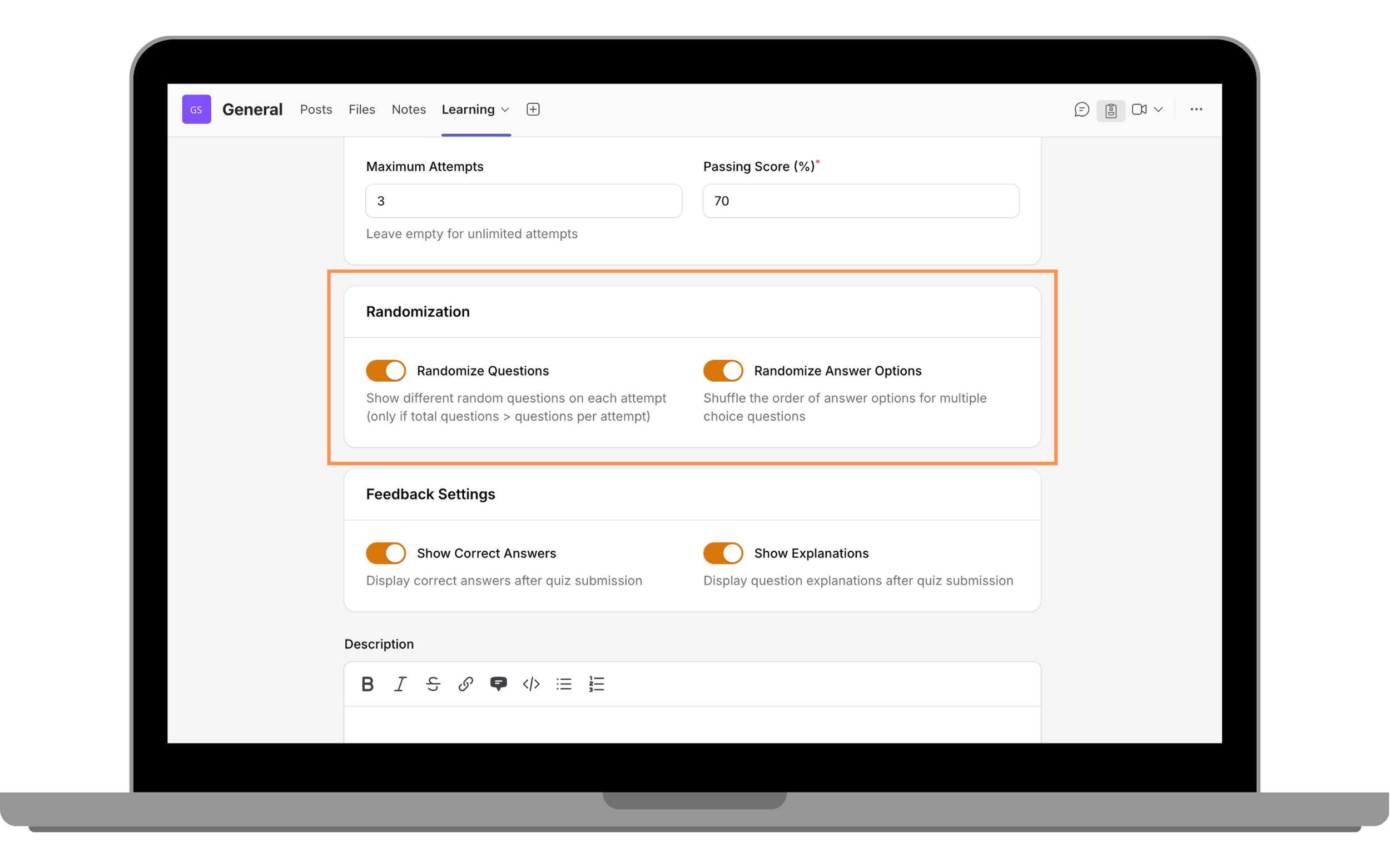
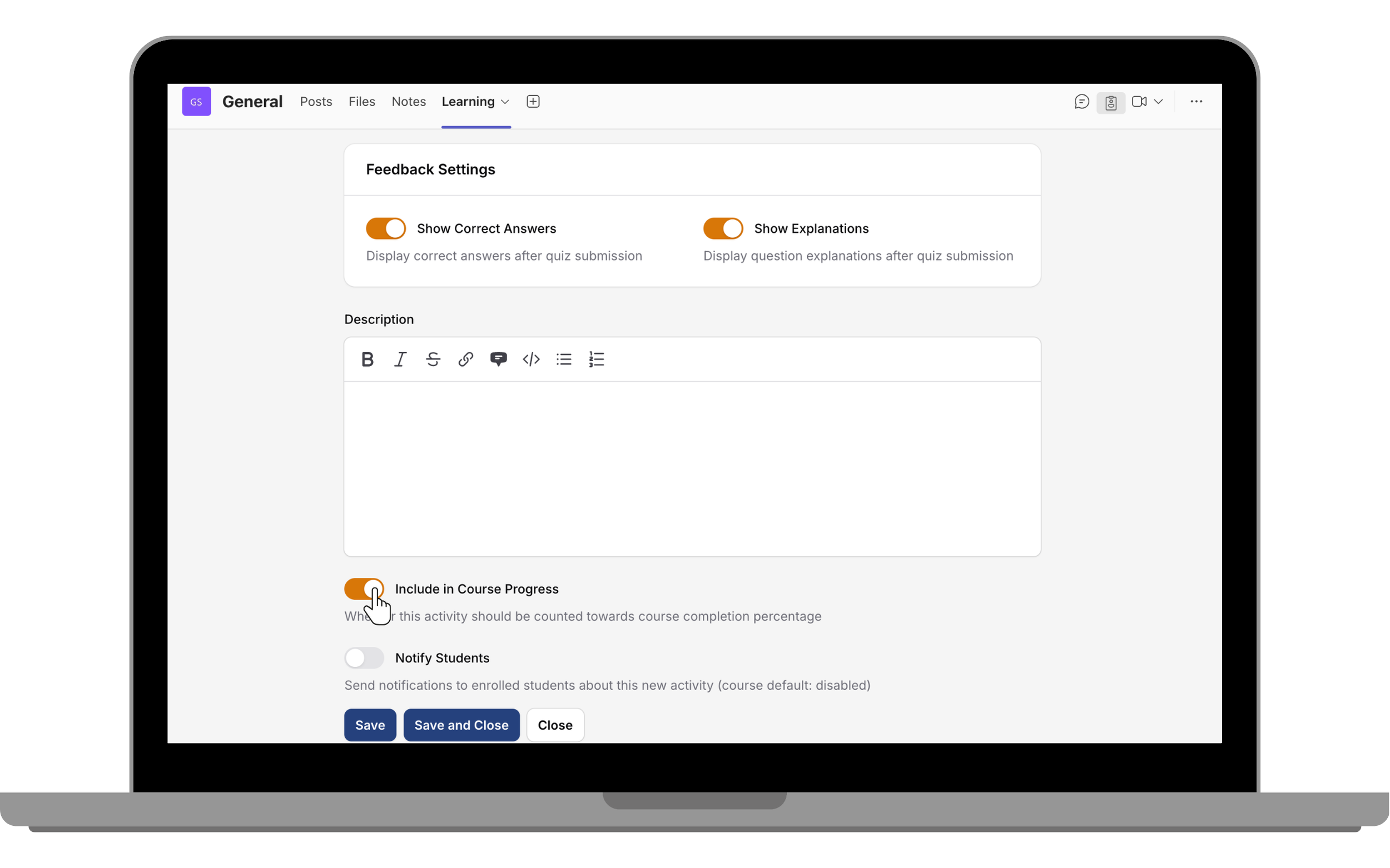
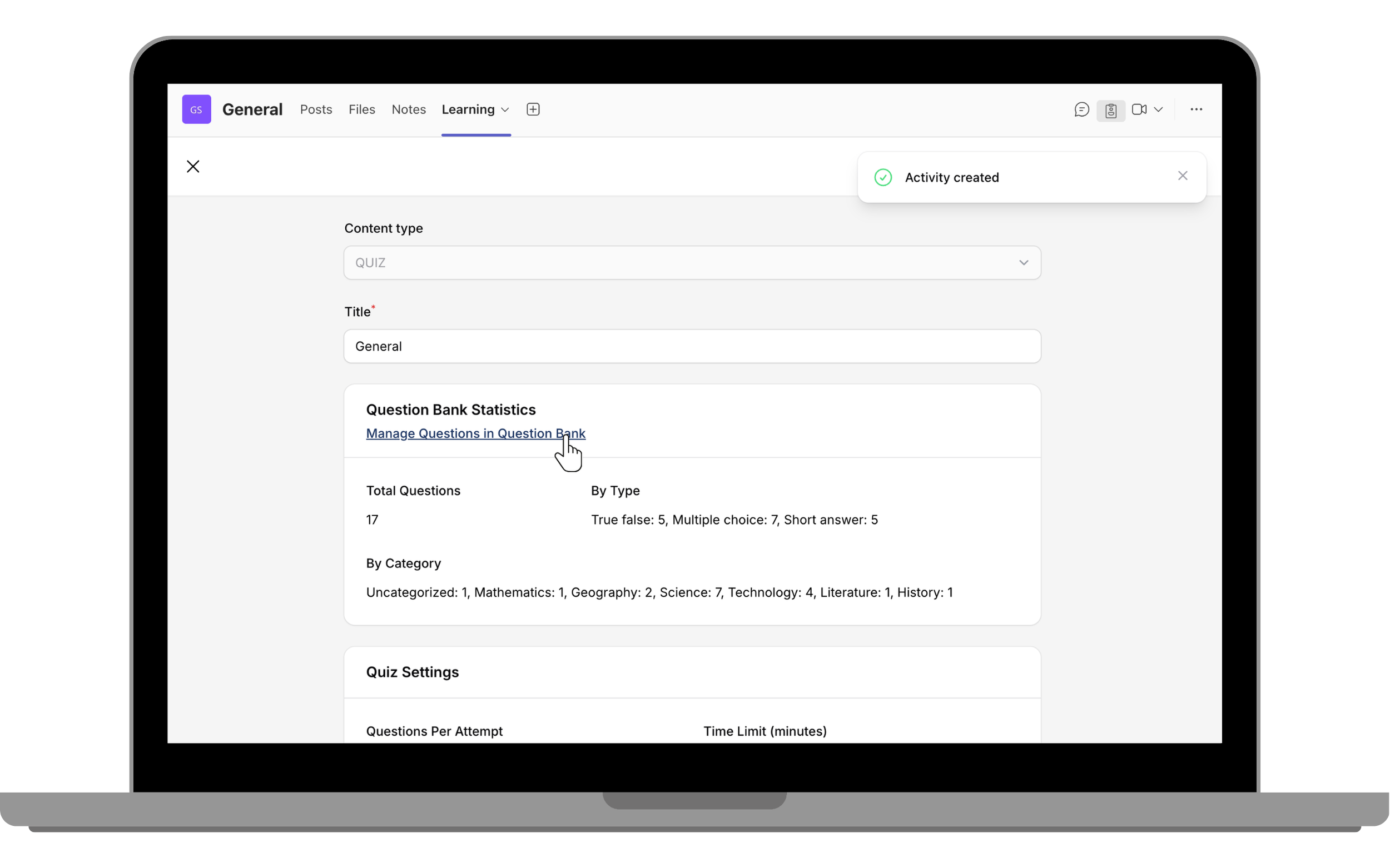
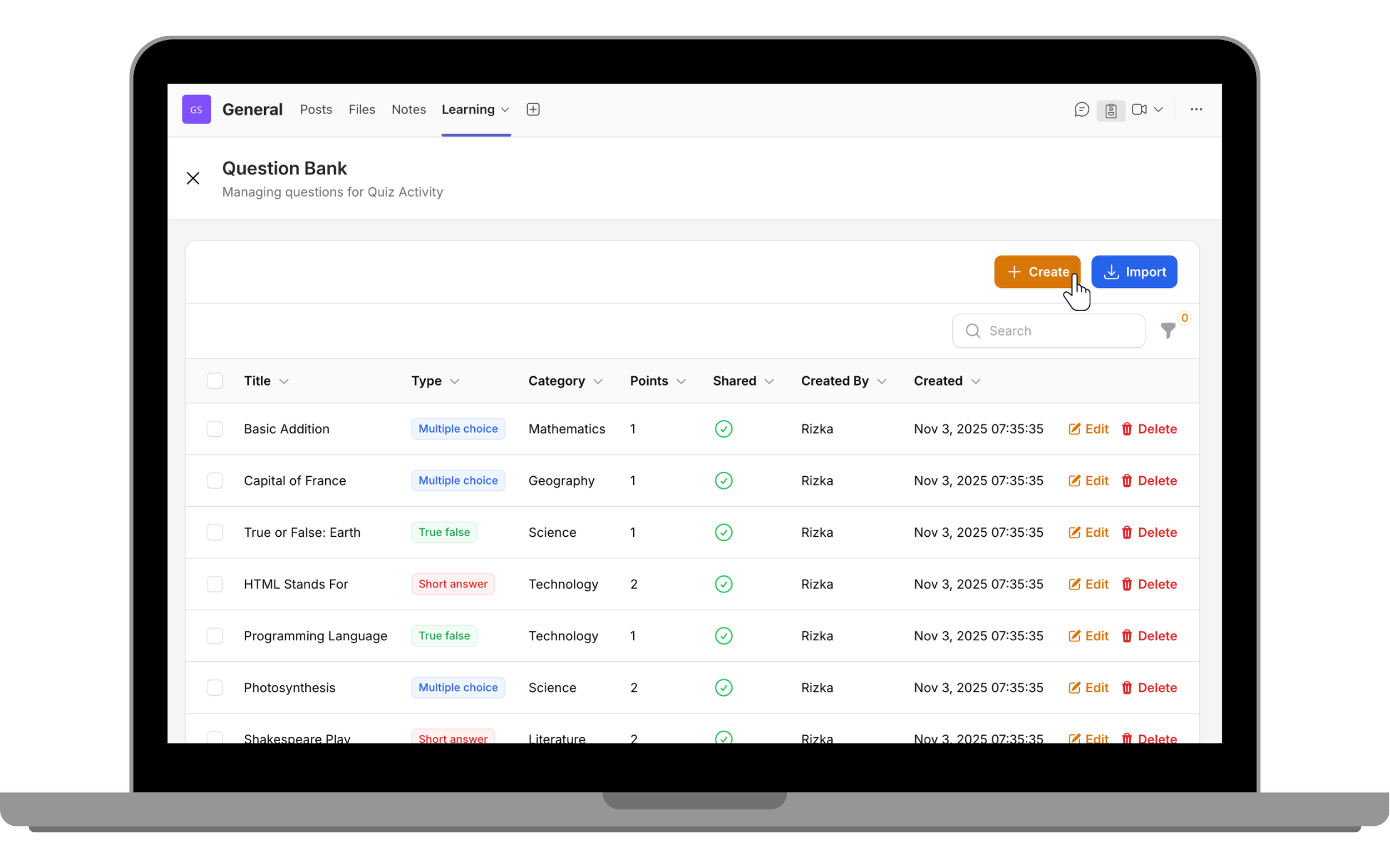
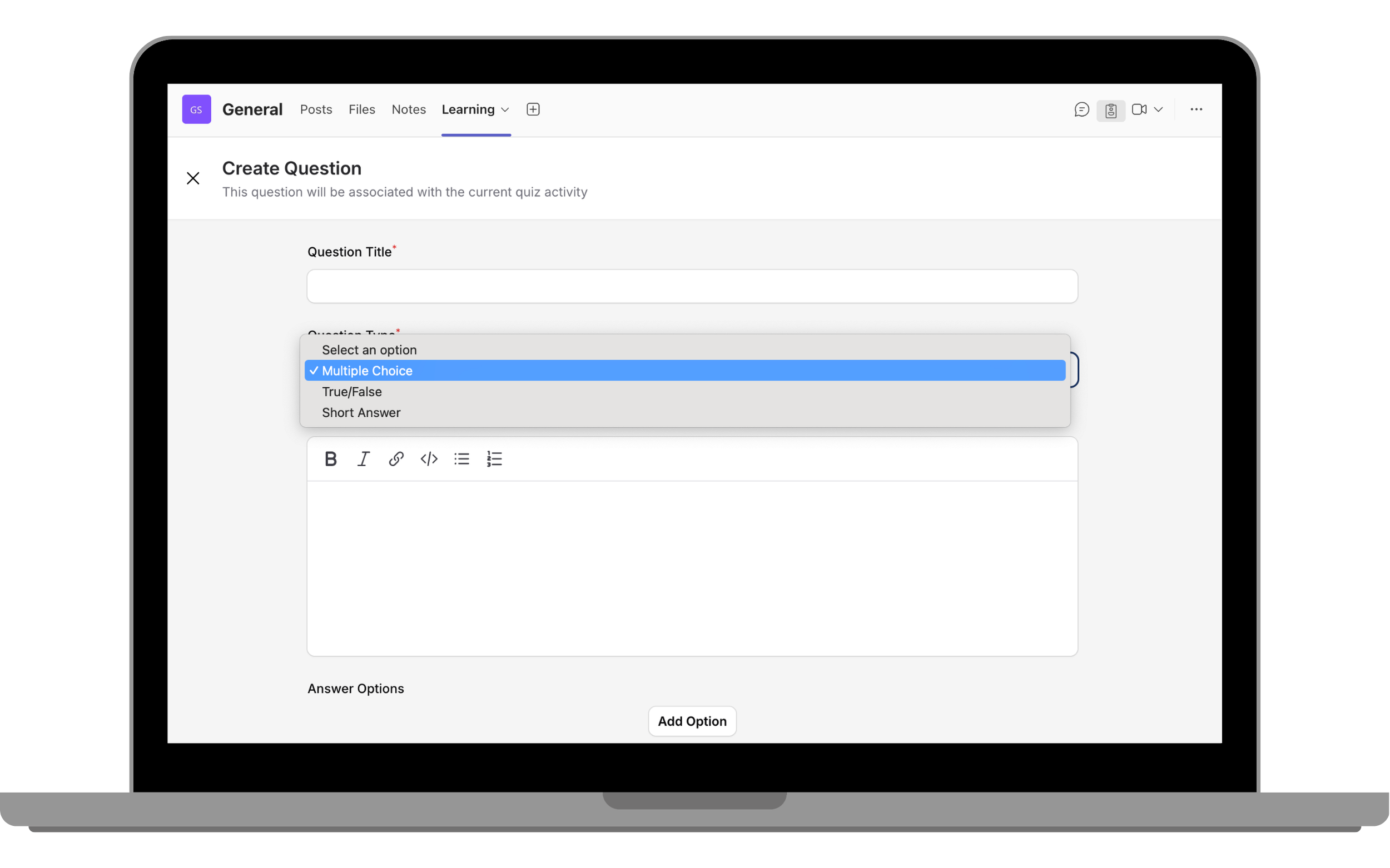
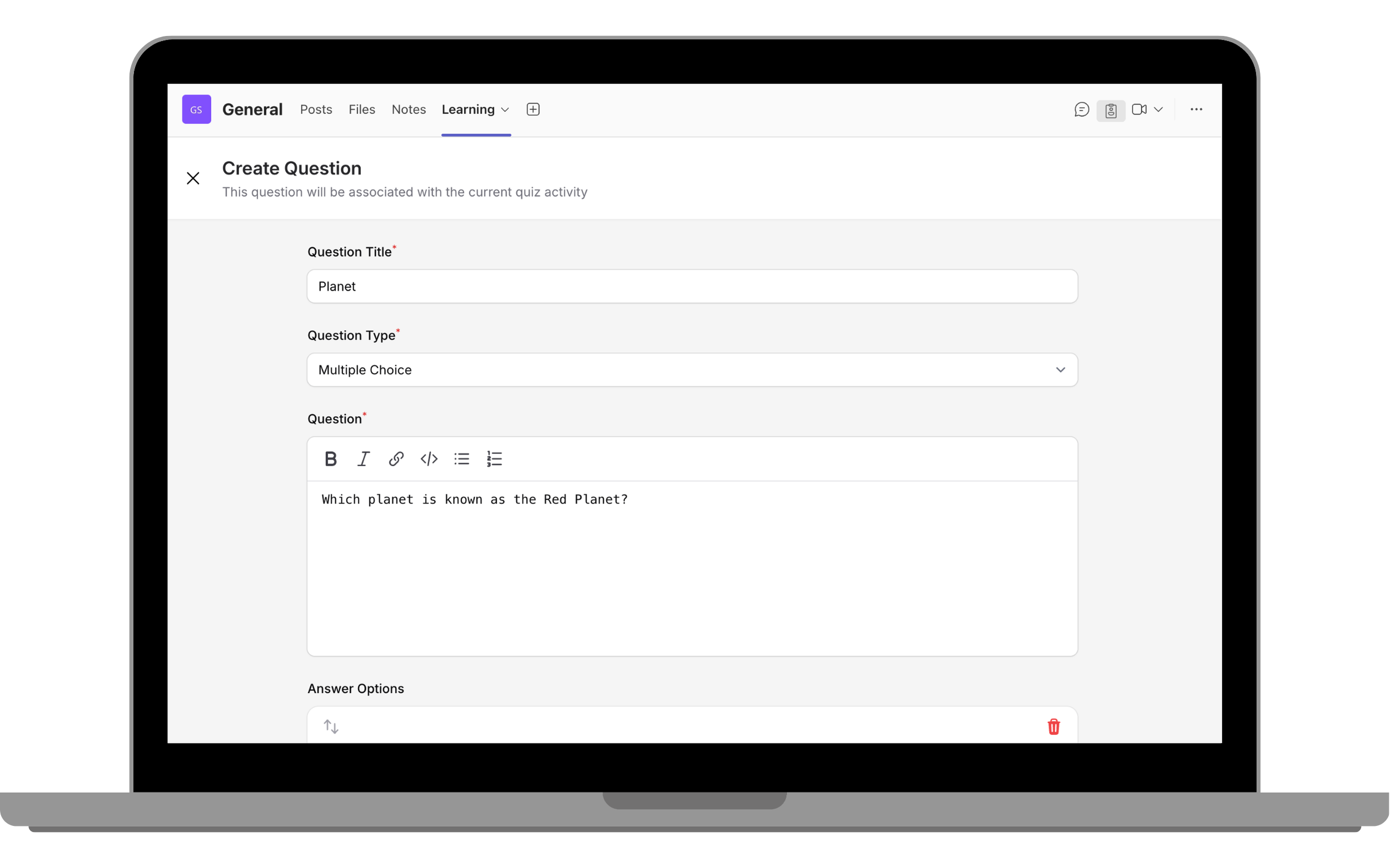
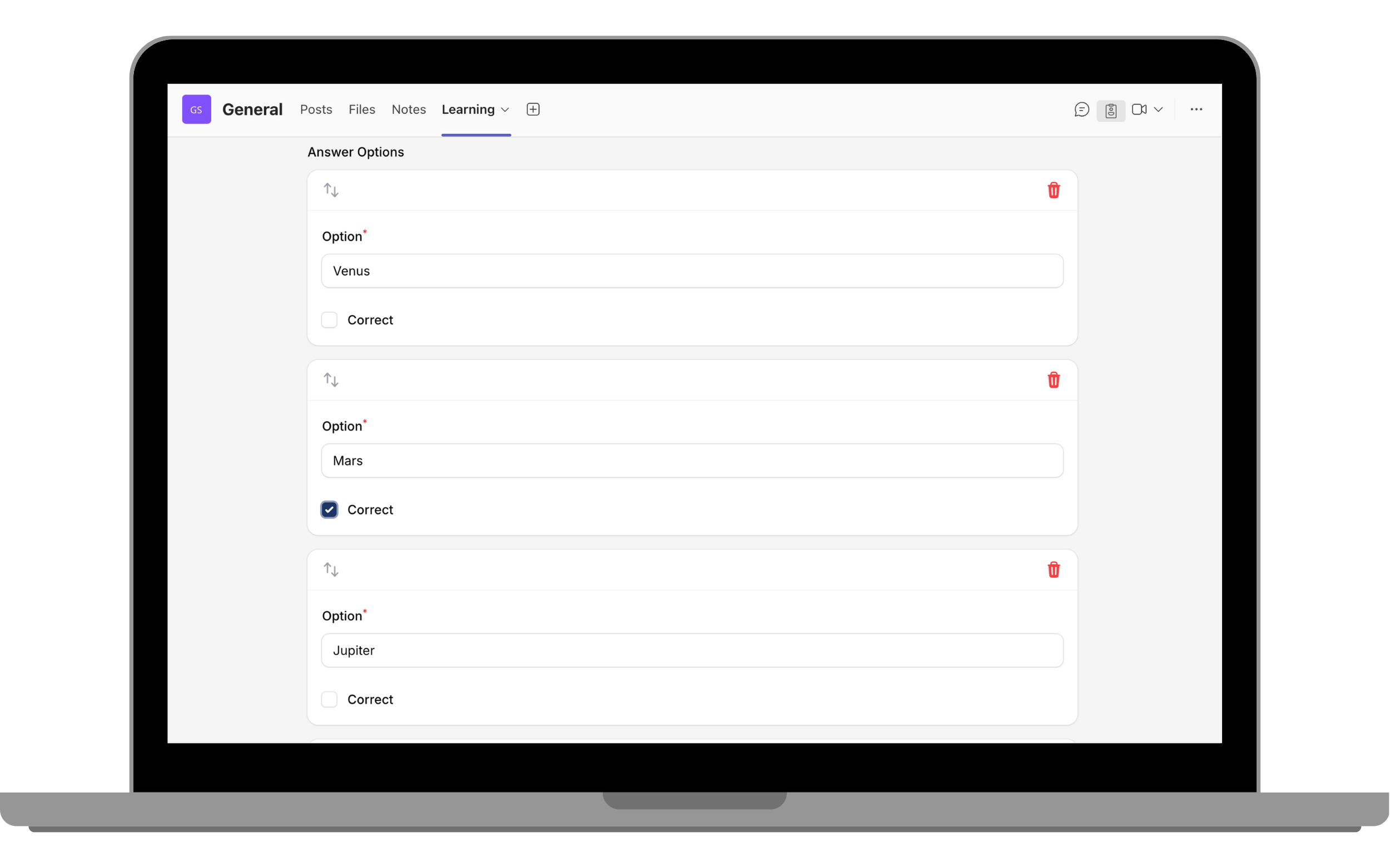
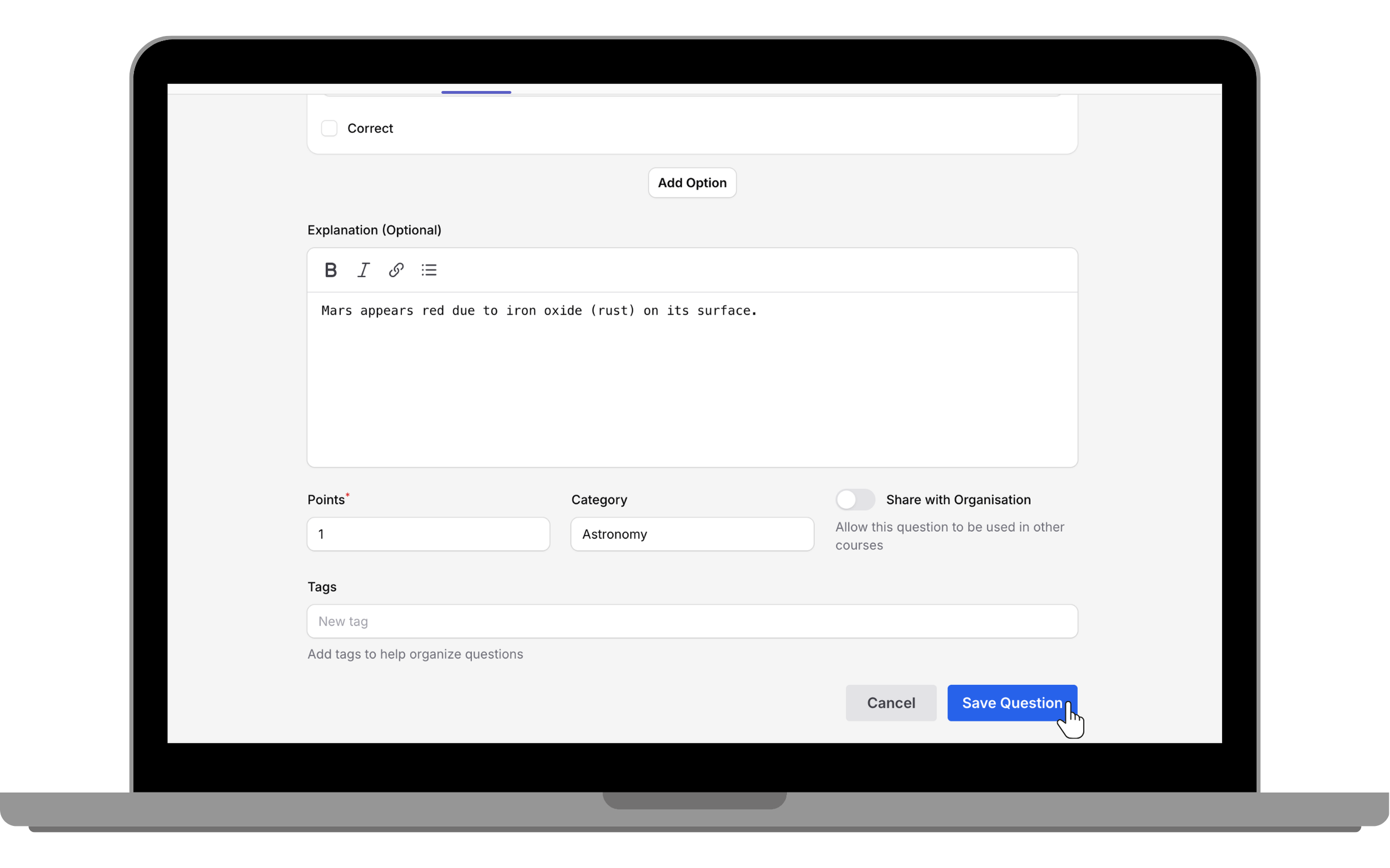
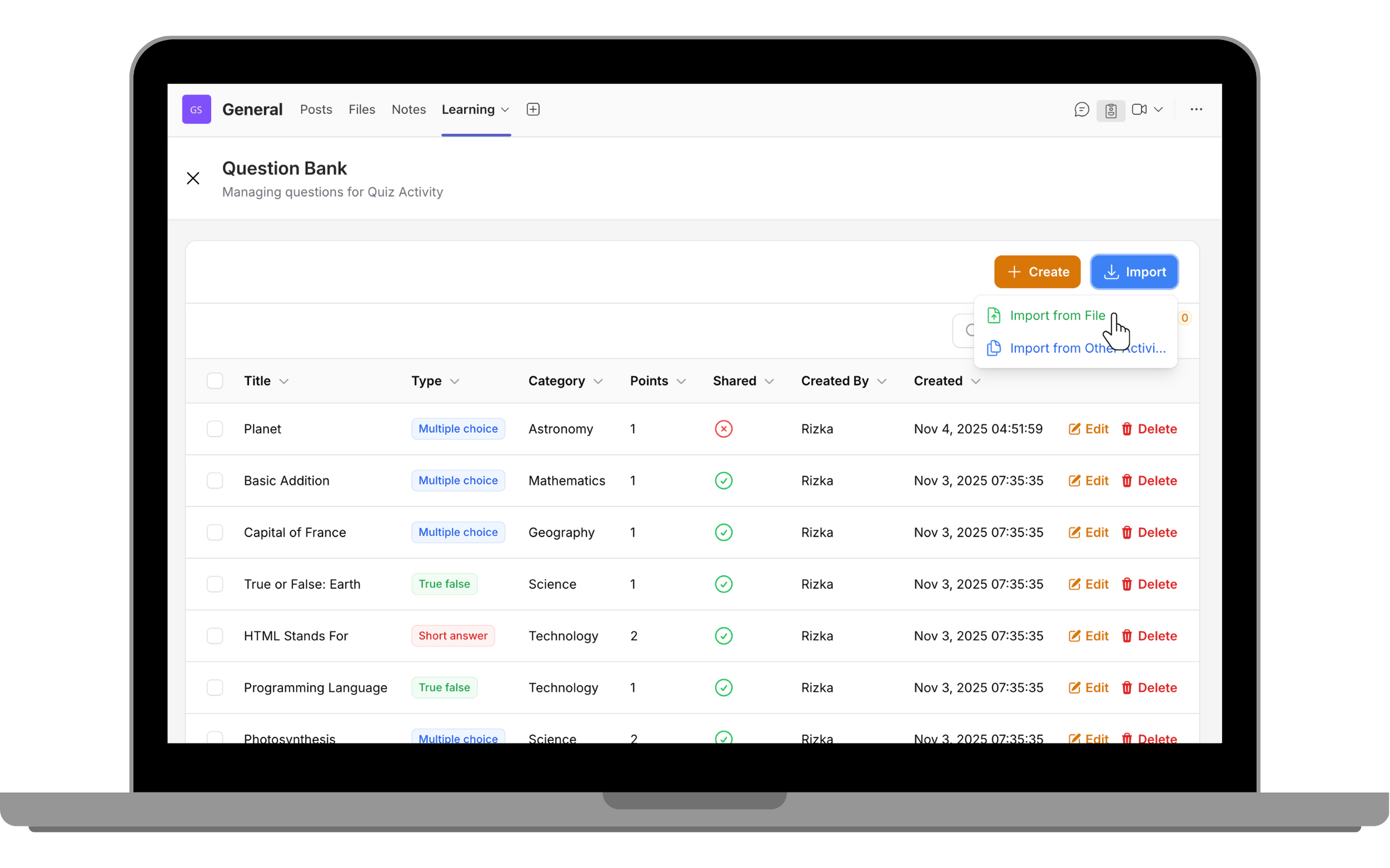
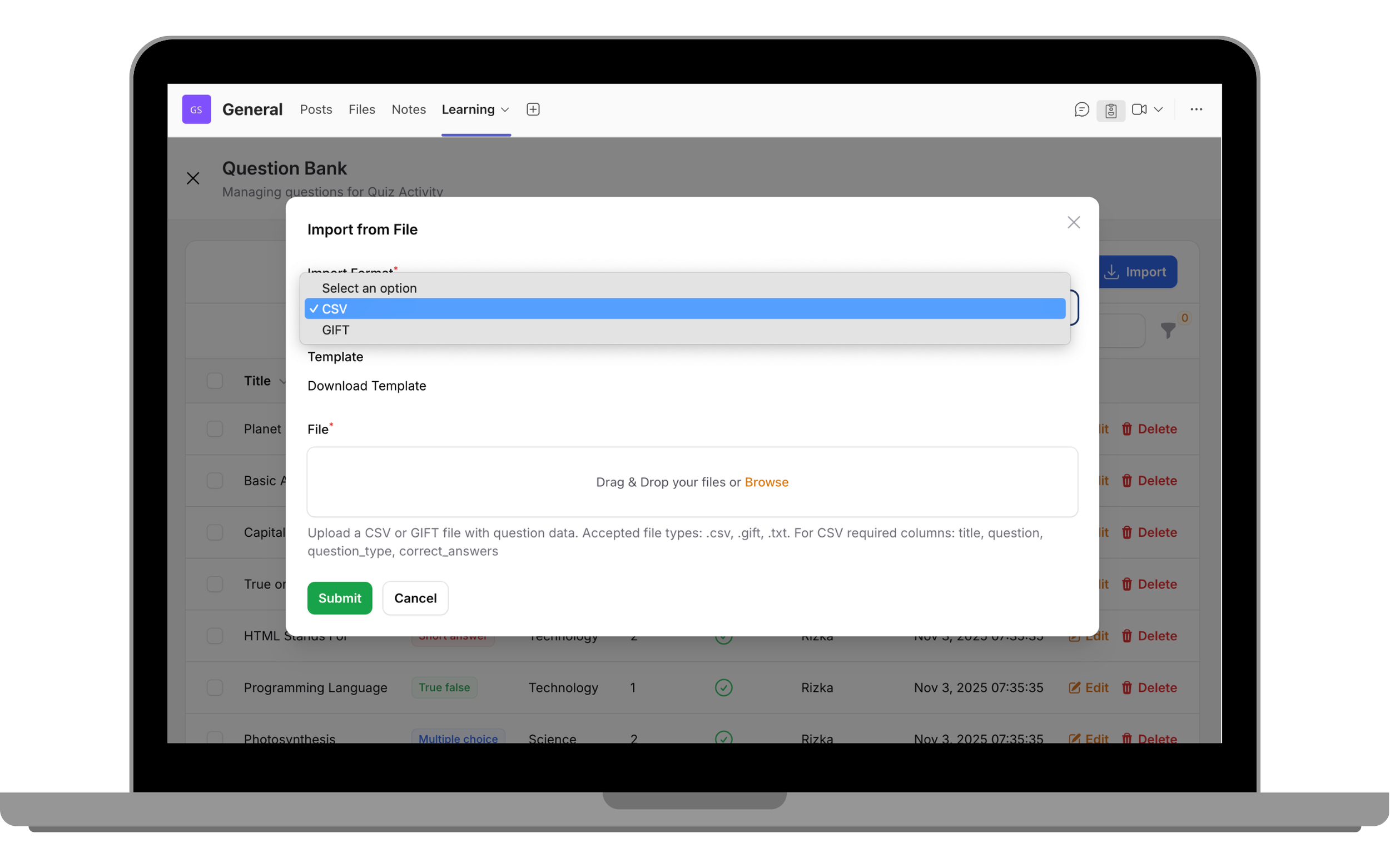
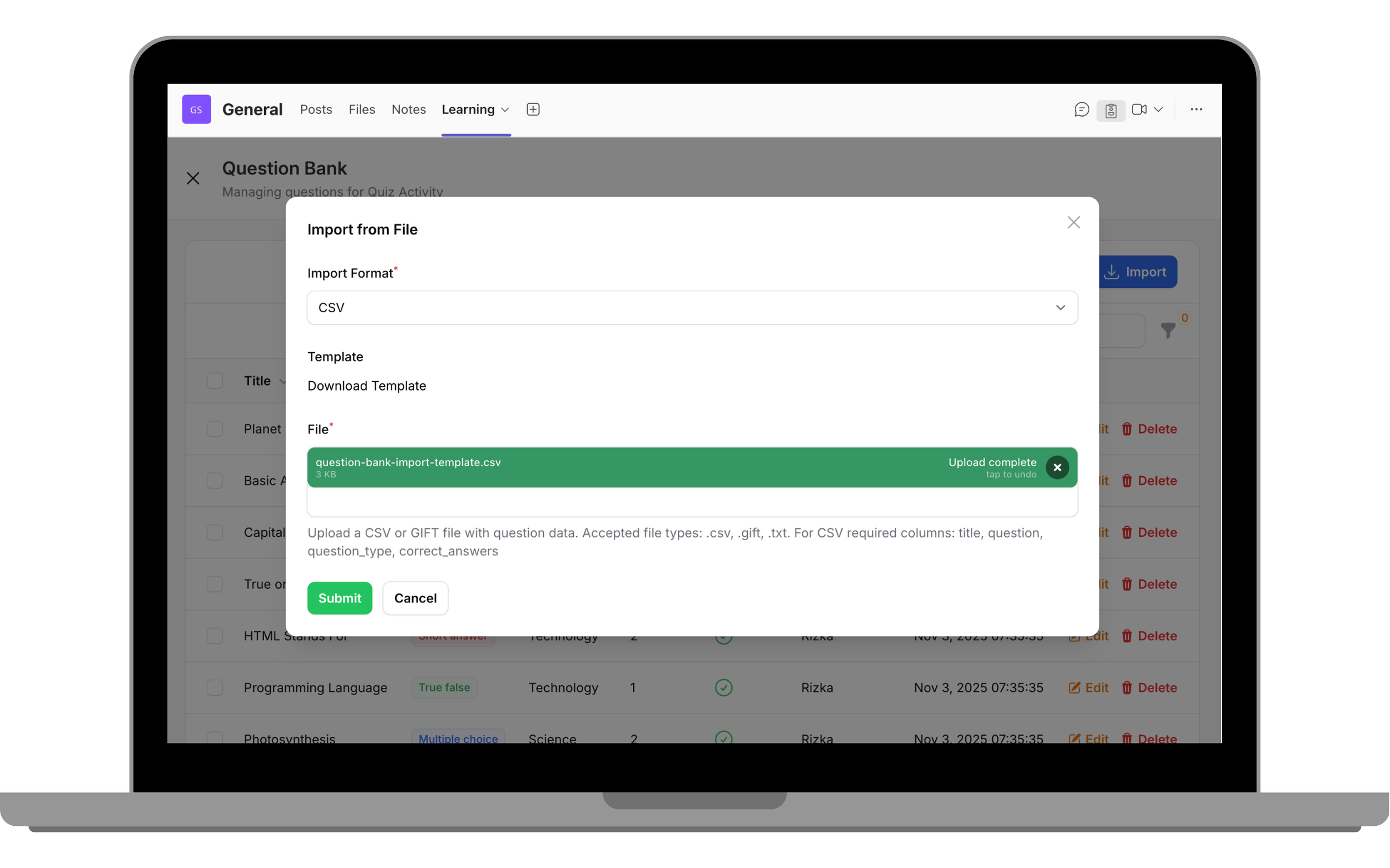
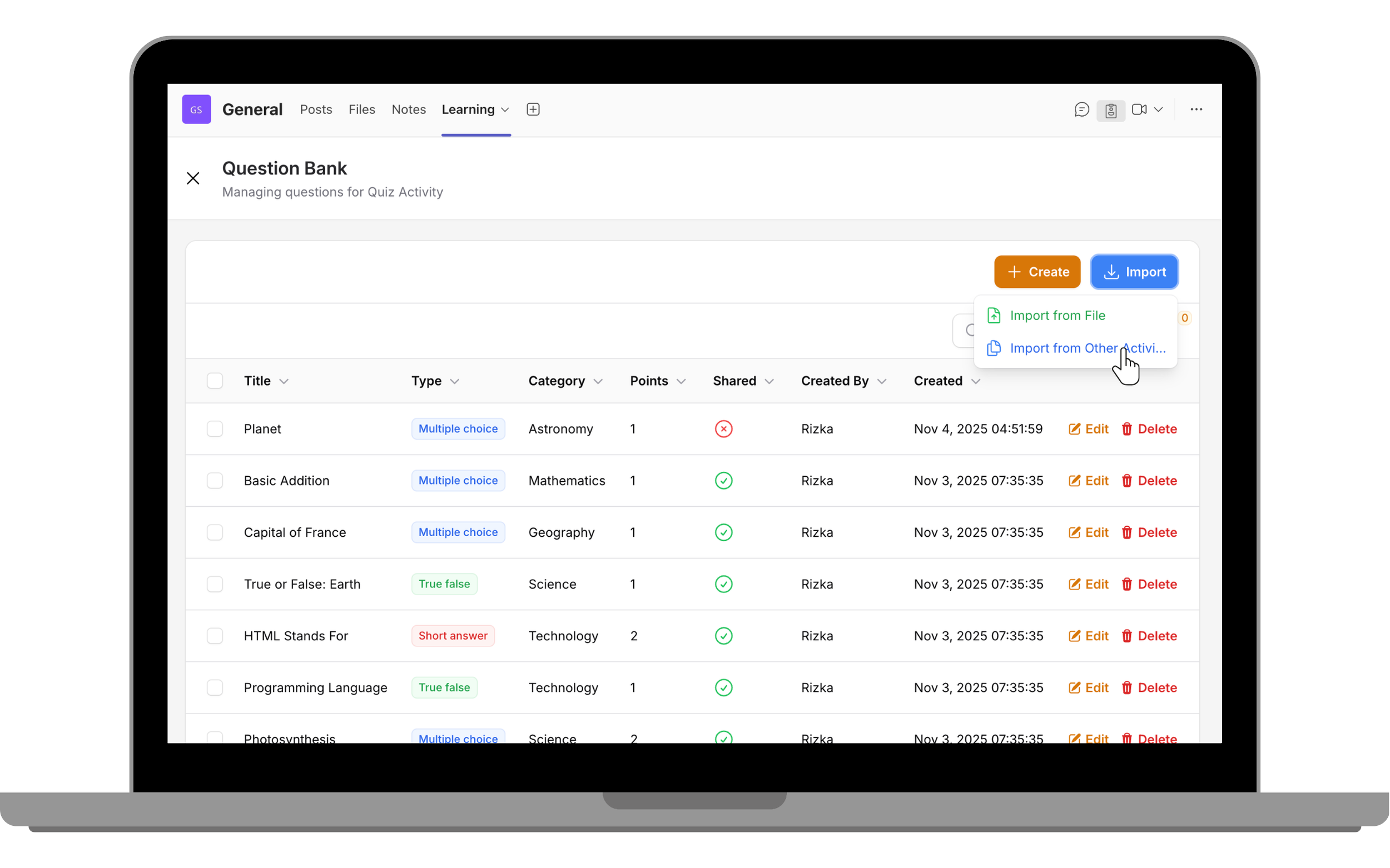
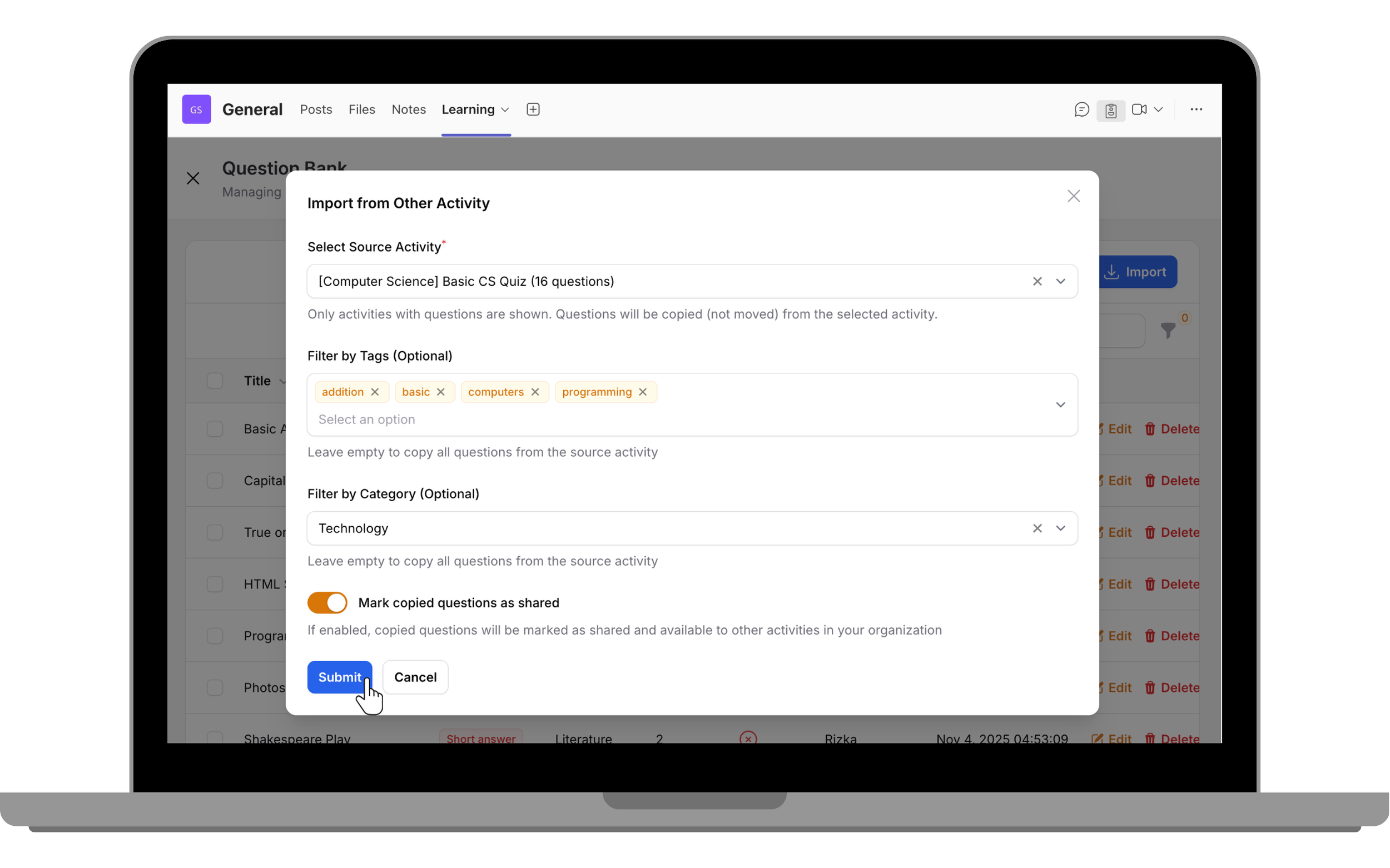
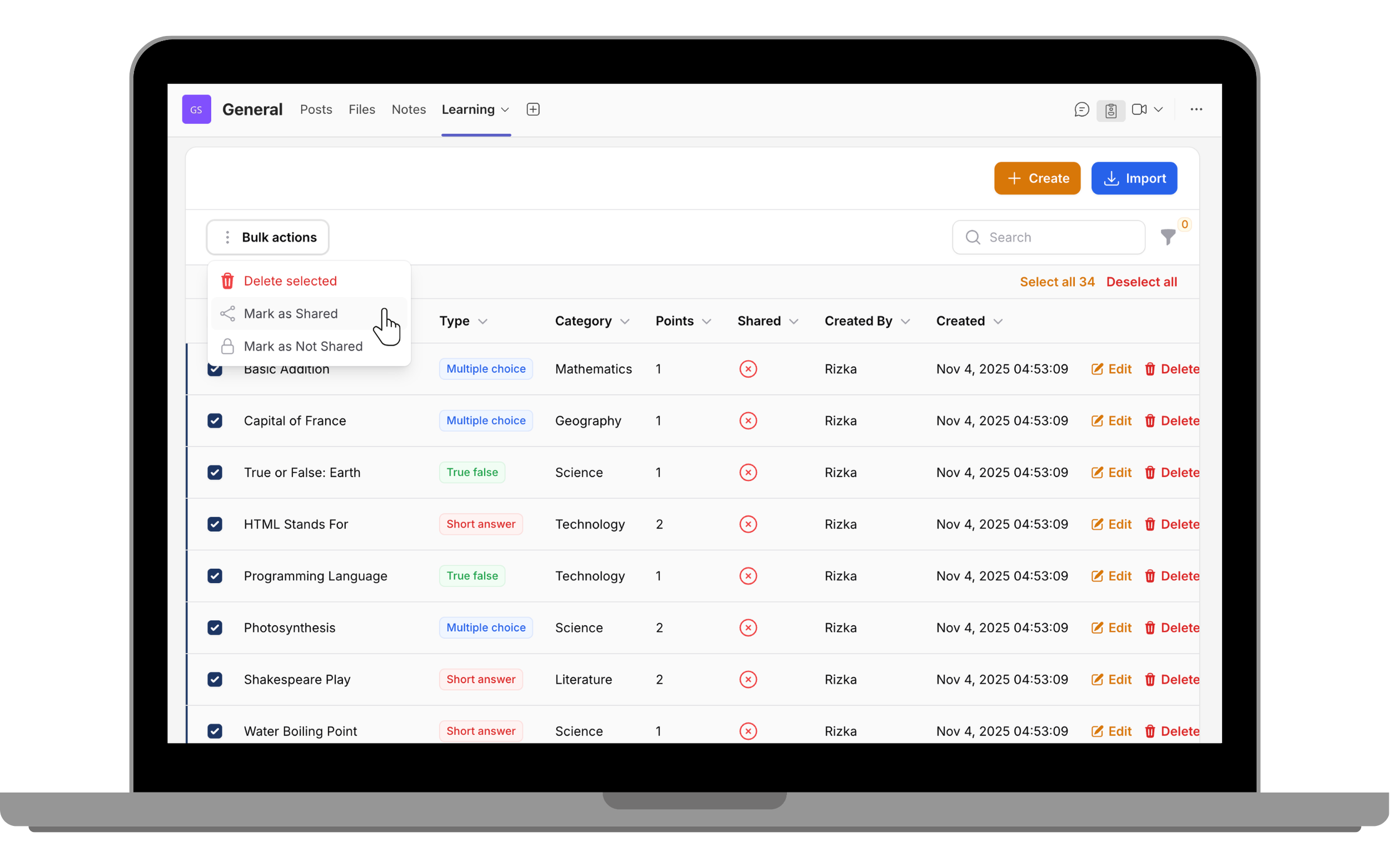
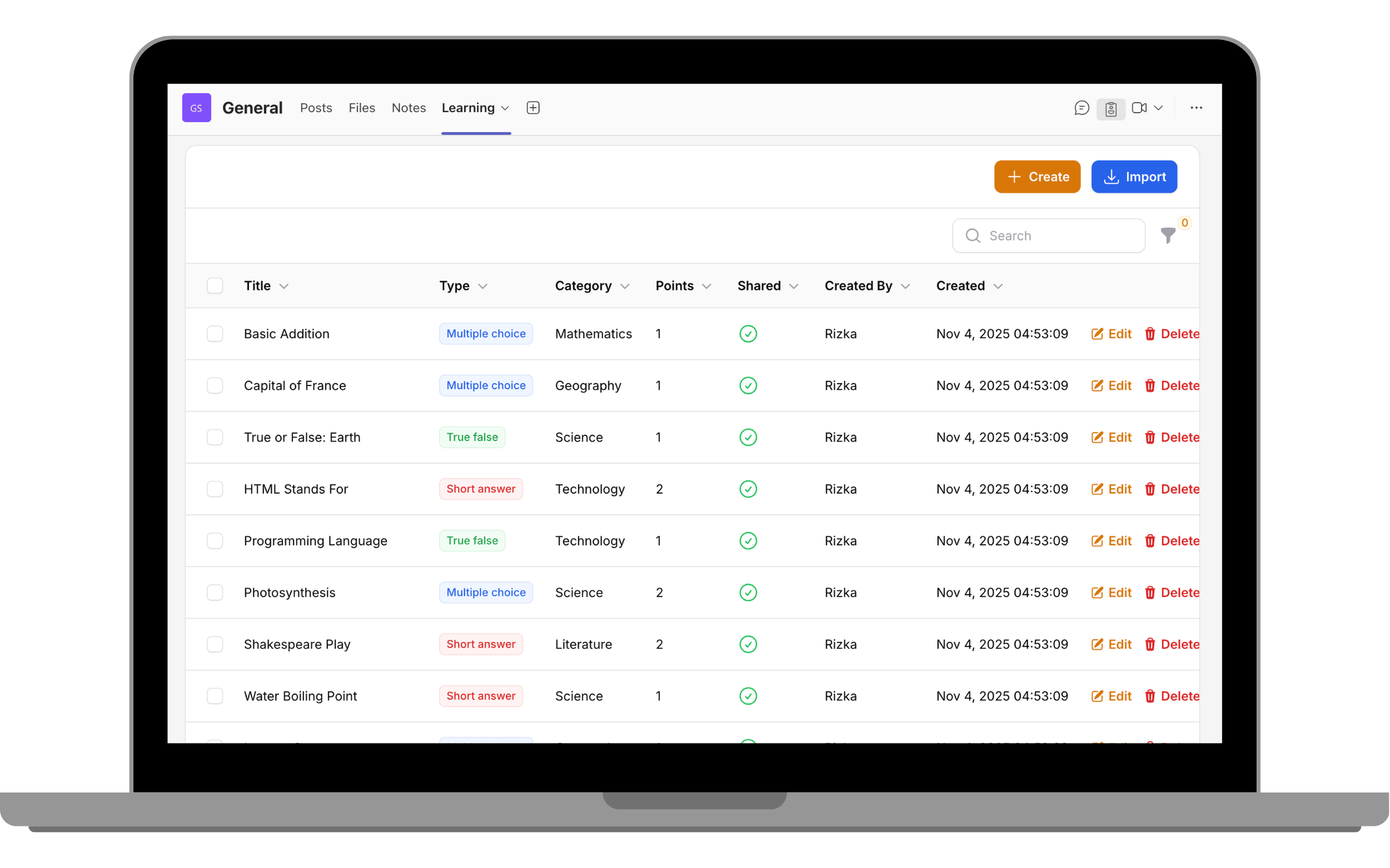
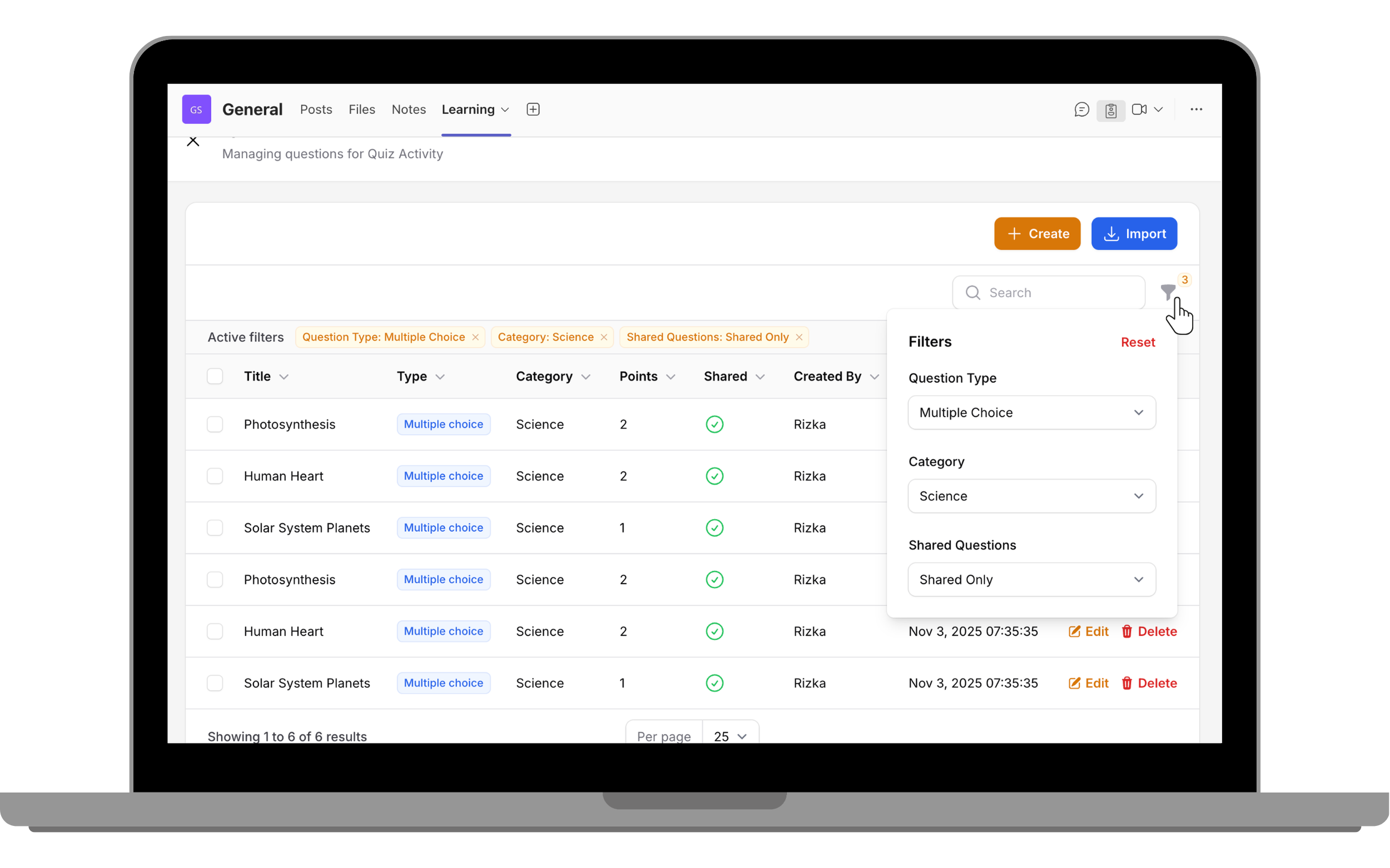
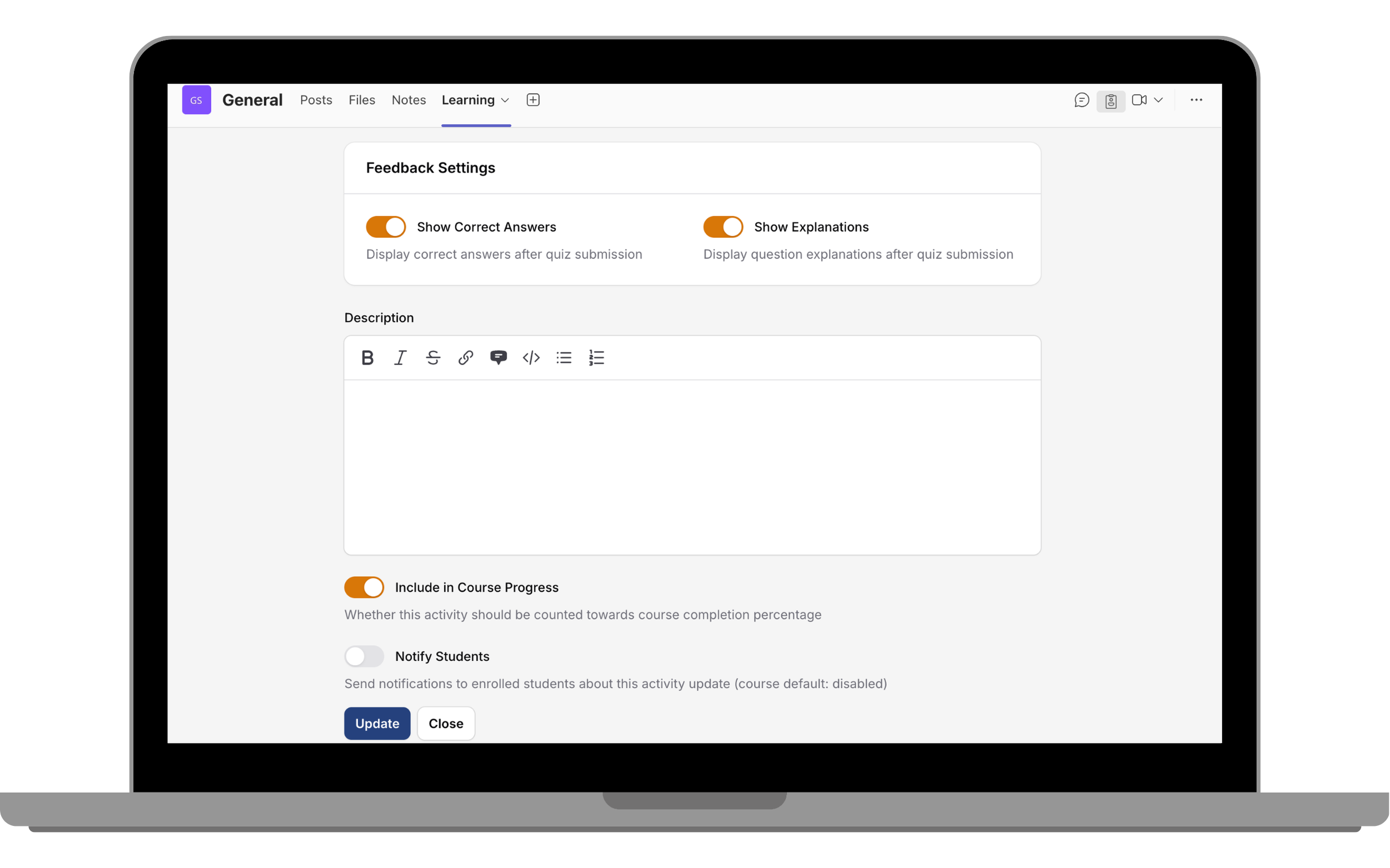
The Quiz Activity allows course owners to design assessments directly within Shrewd LMS. Whether you’re running employee training, online classes, or certification programs, you can now create quizzes that test comprehension and measure learning outcomes — without leaving Teams.
To get started, you can follow these steps:
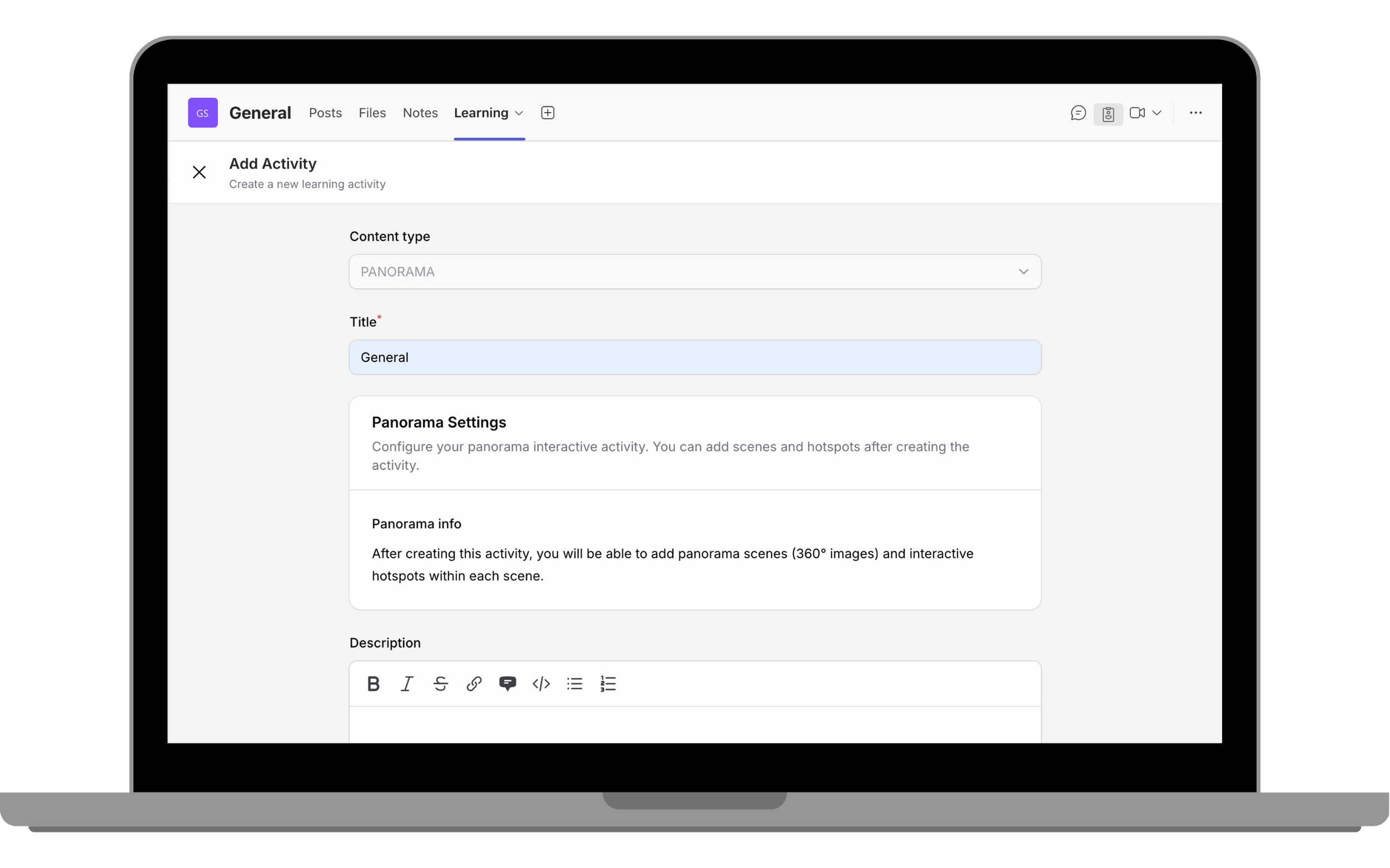
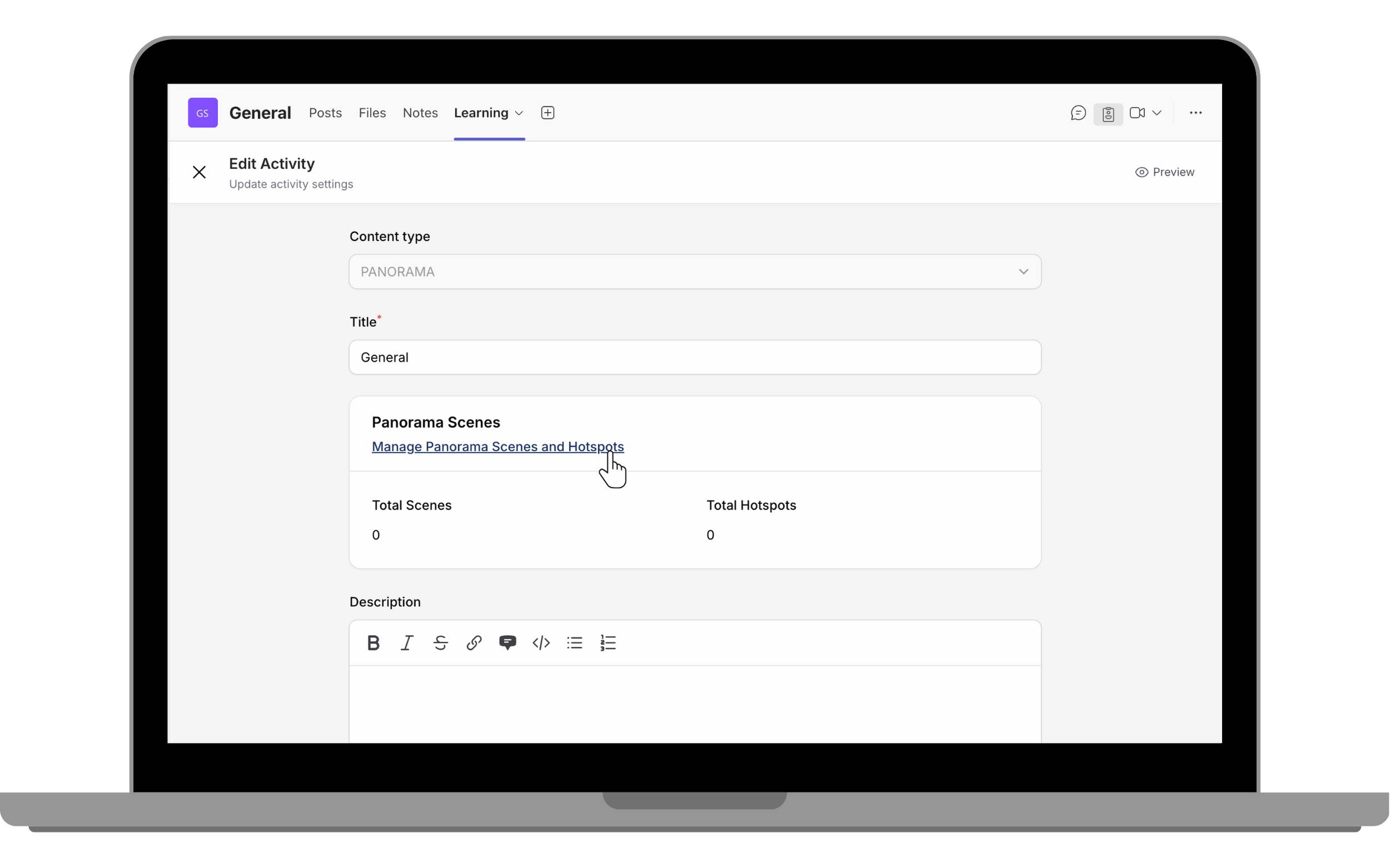
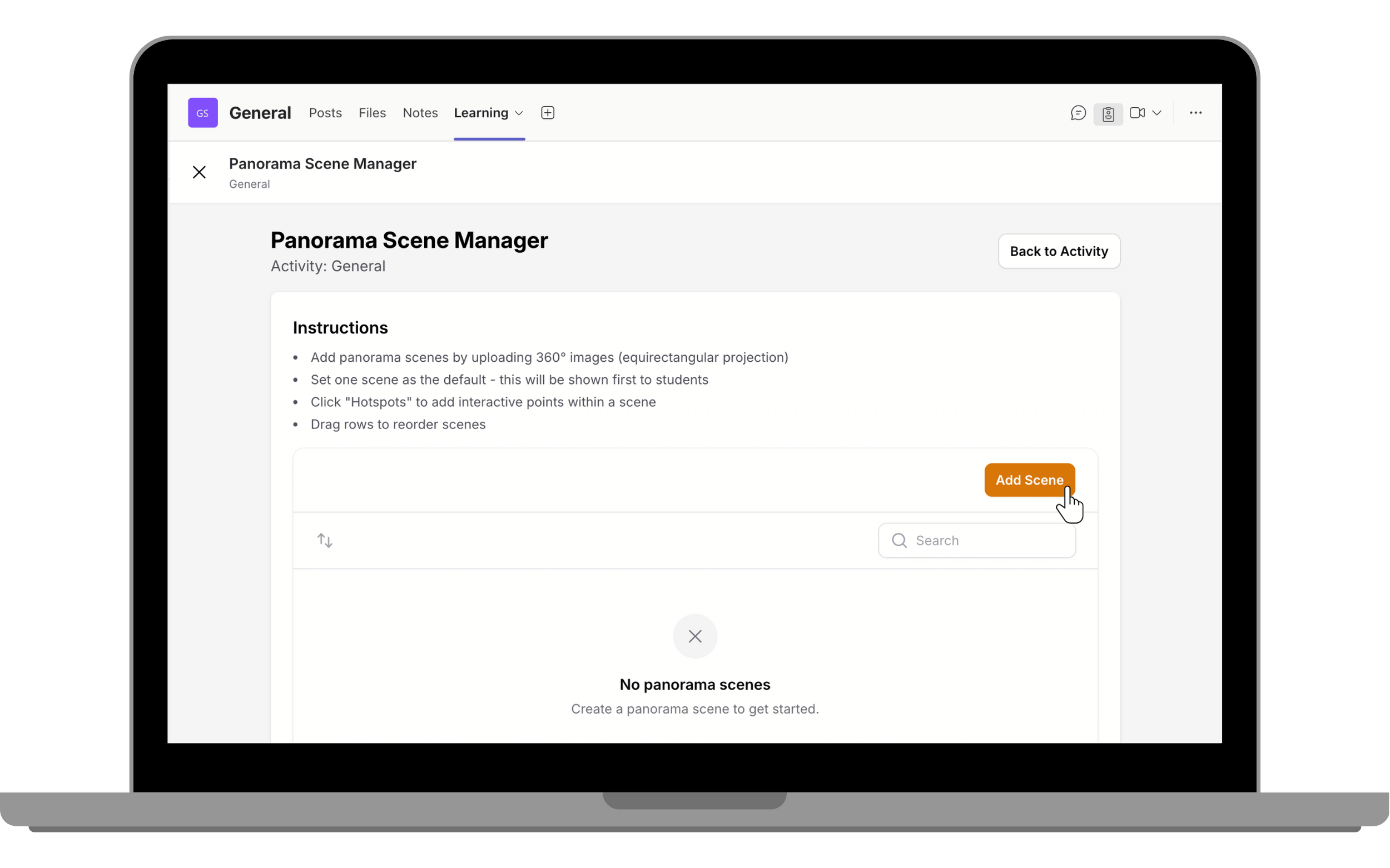
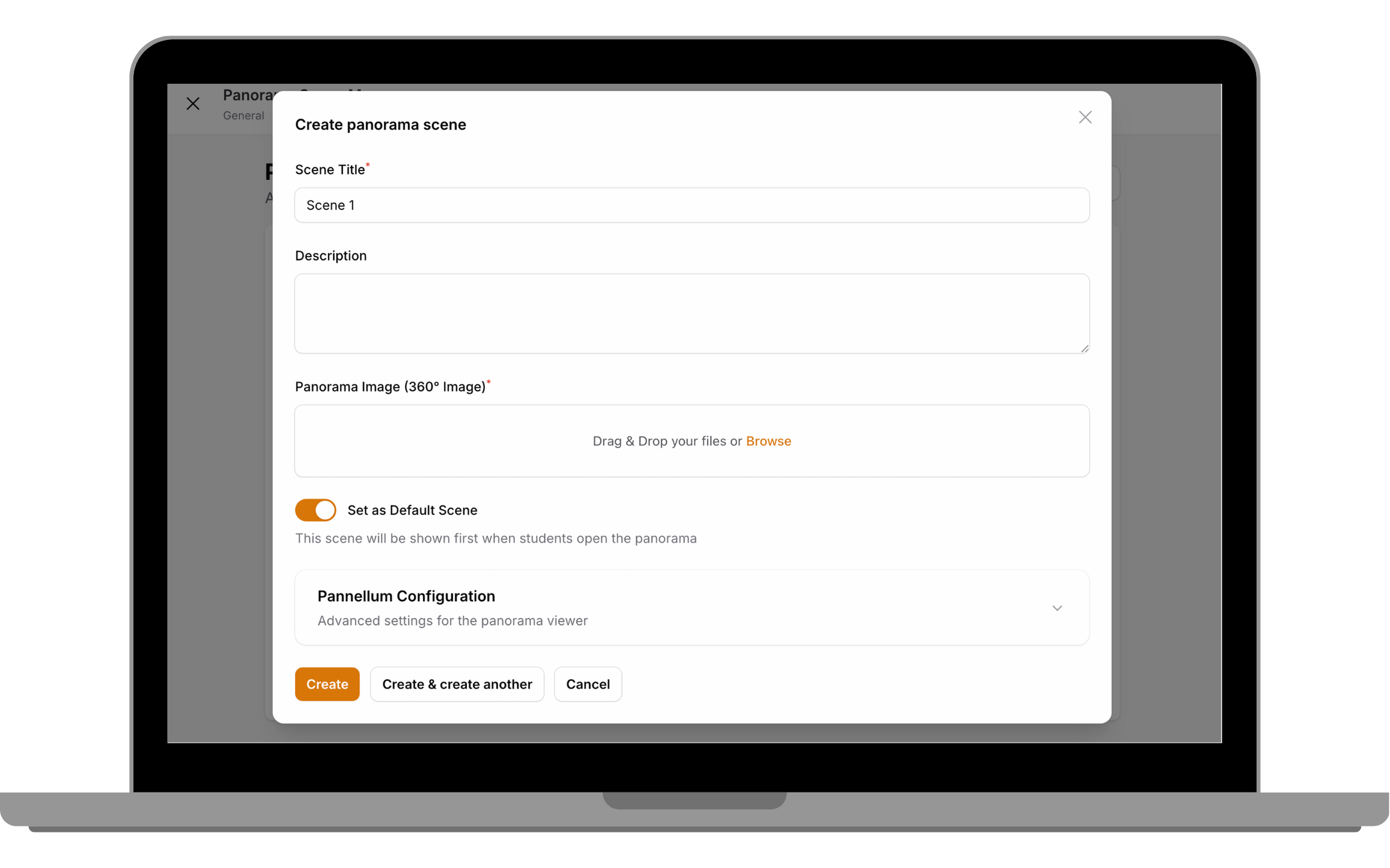
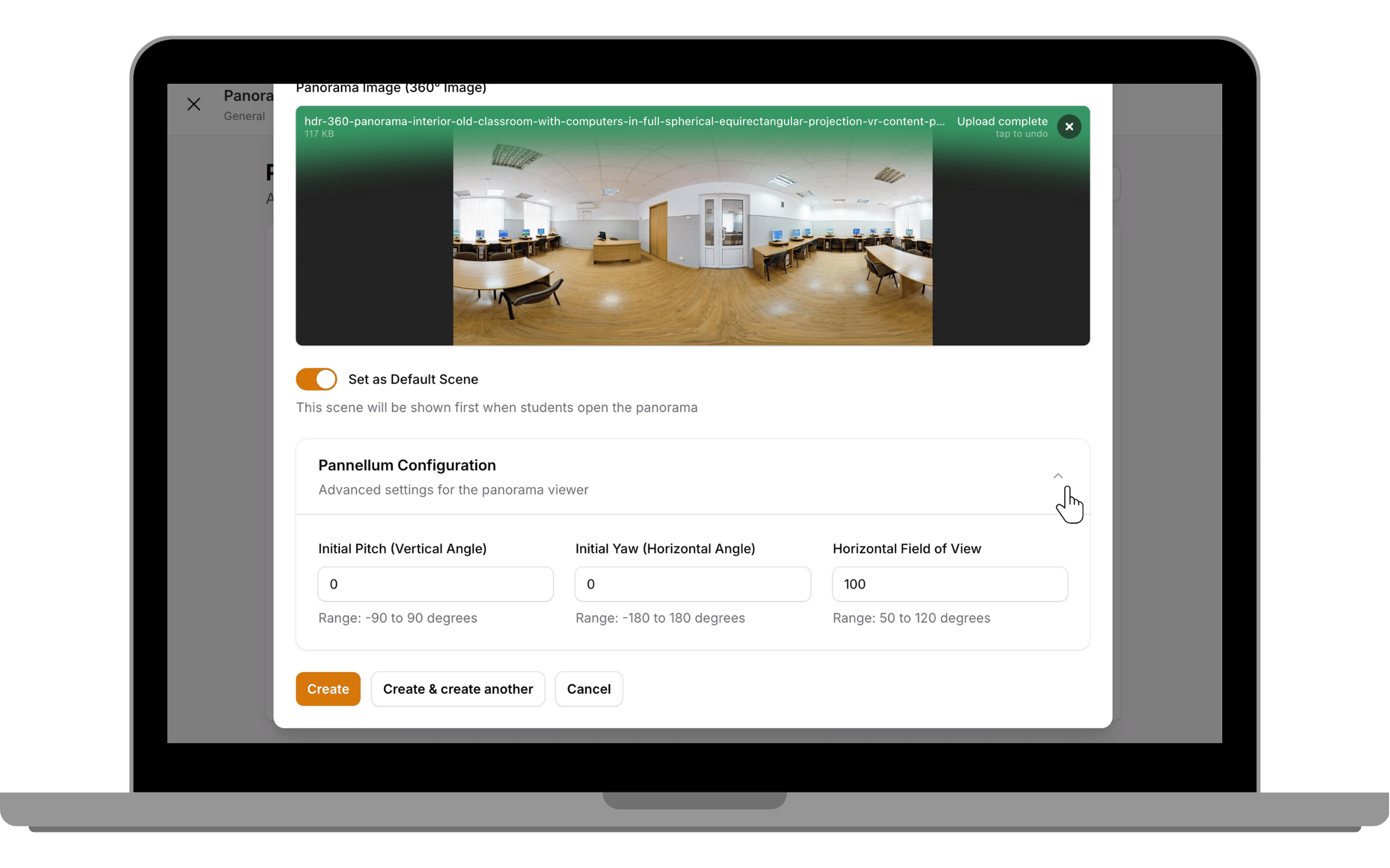
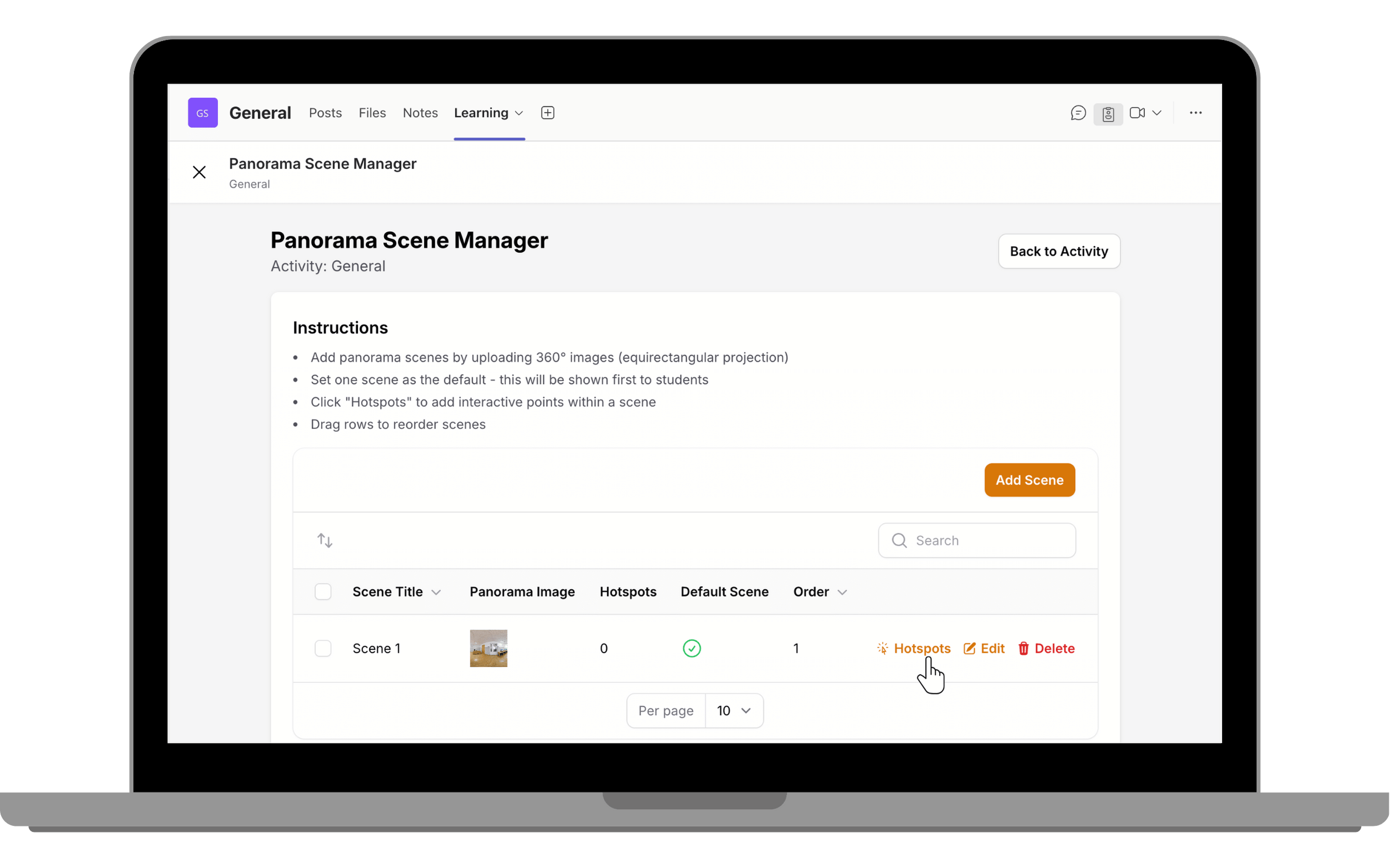
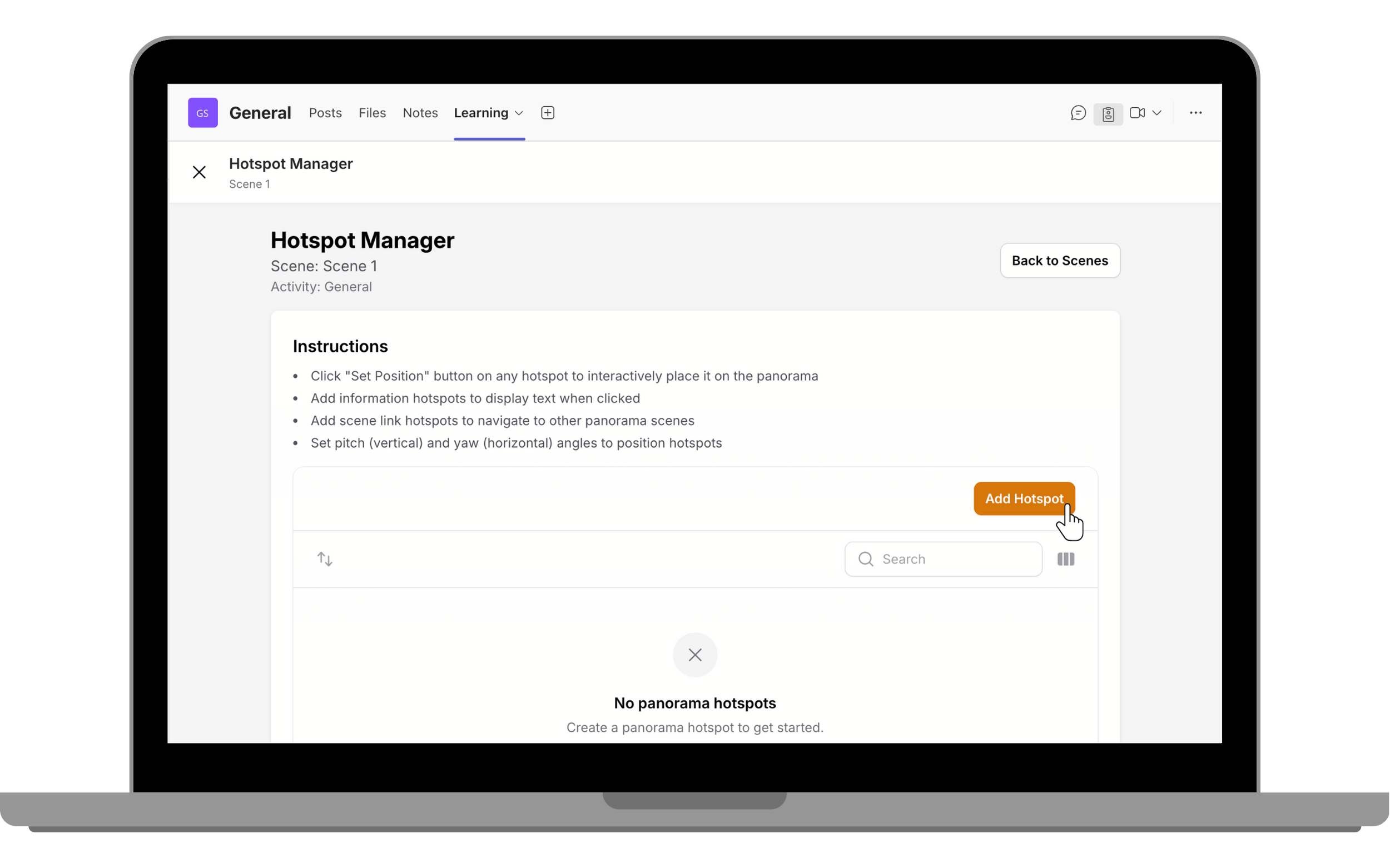
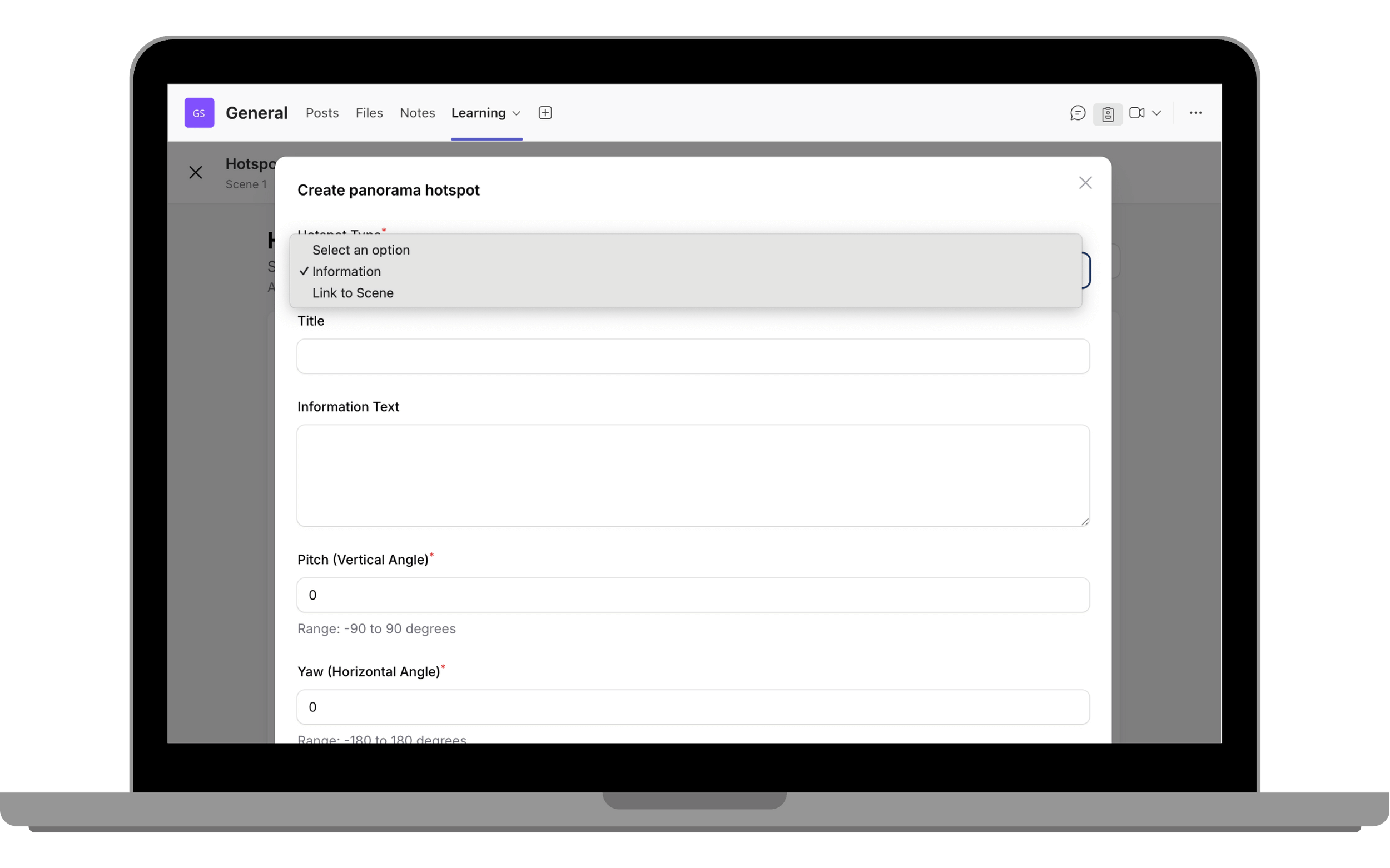
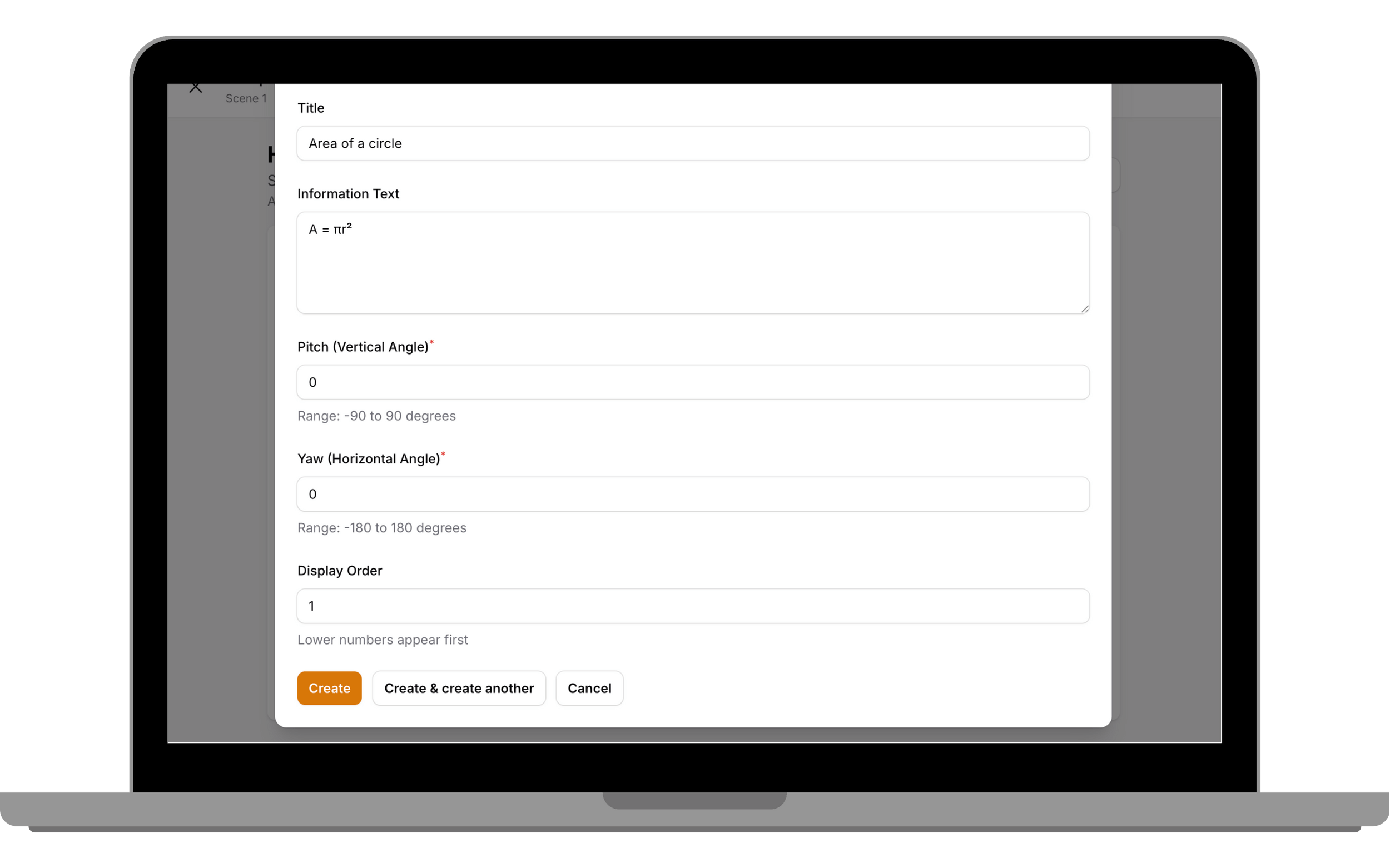
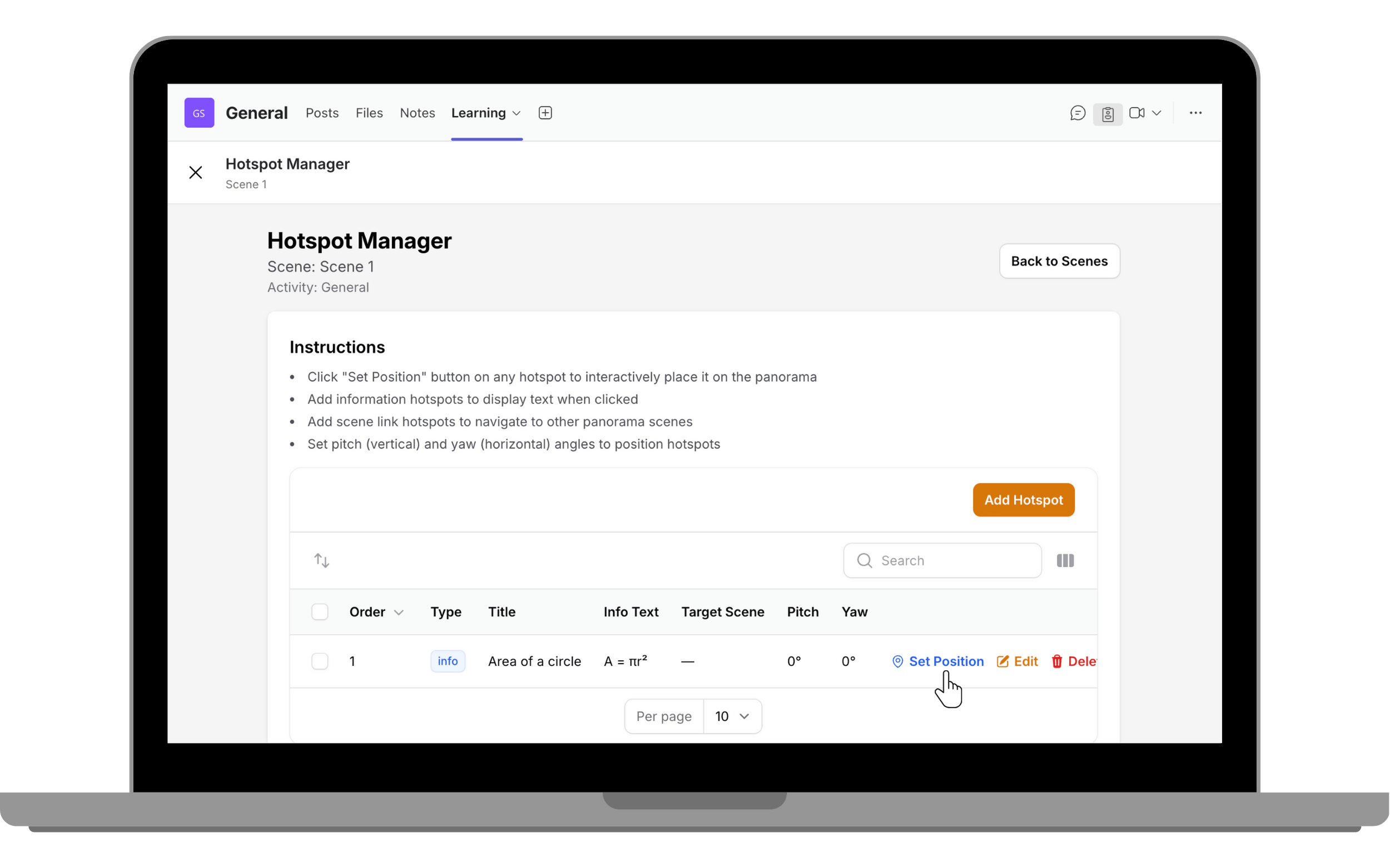
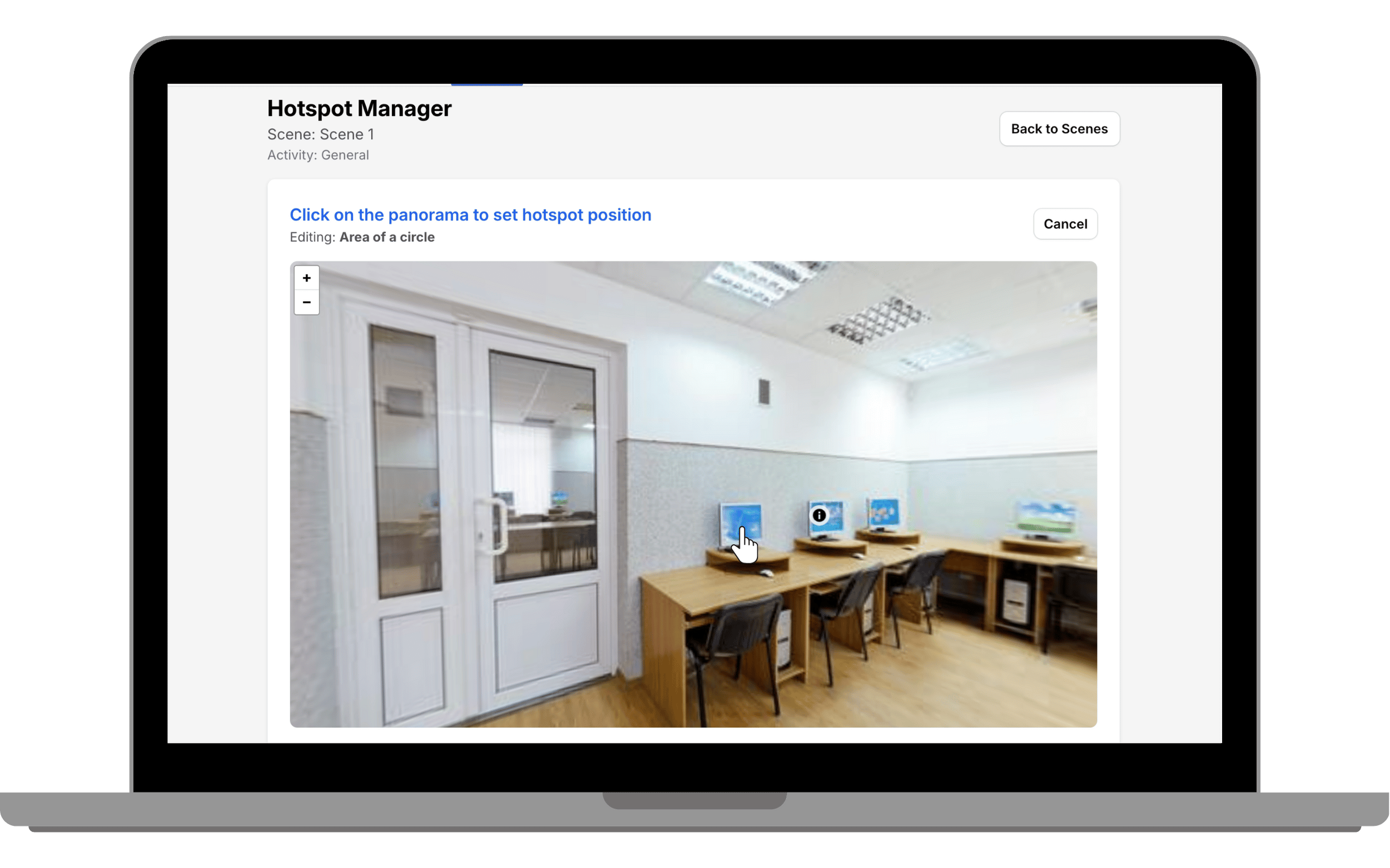
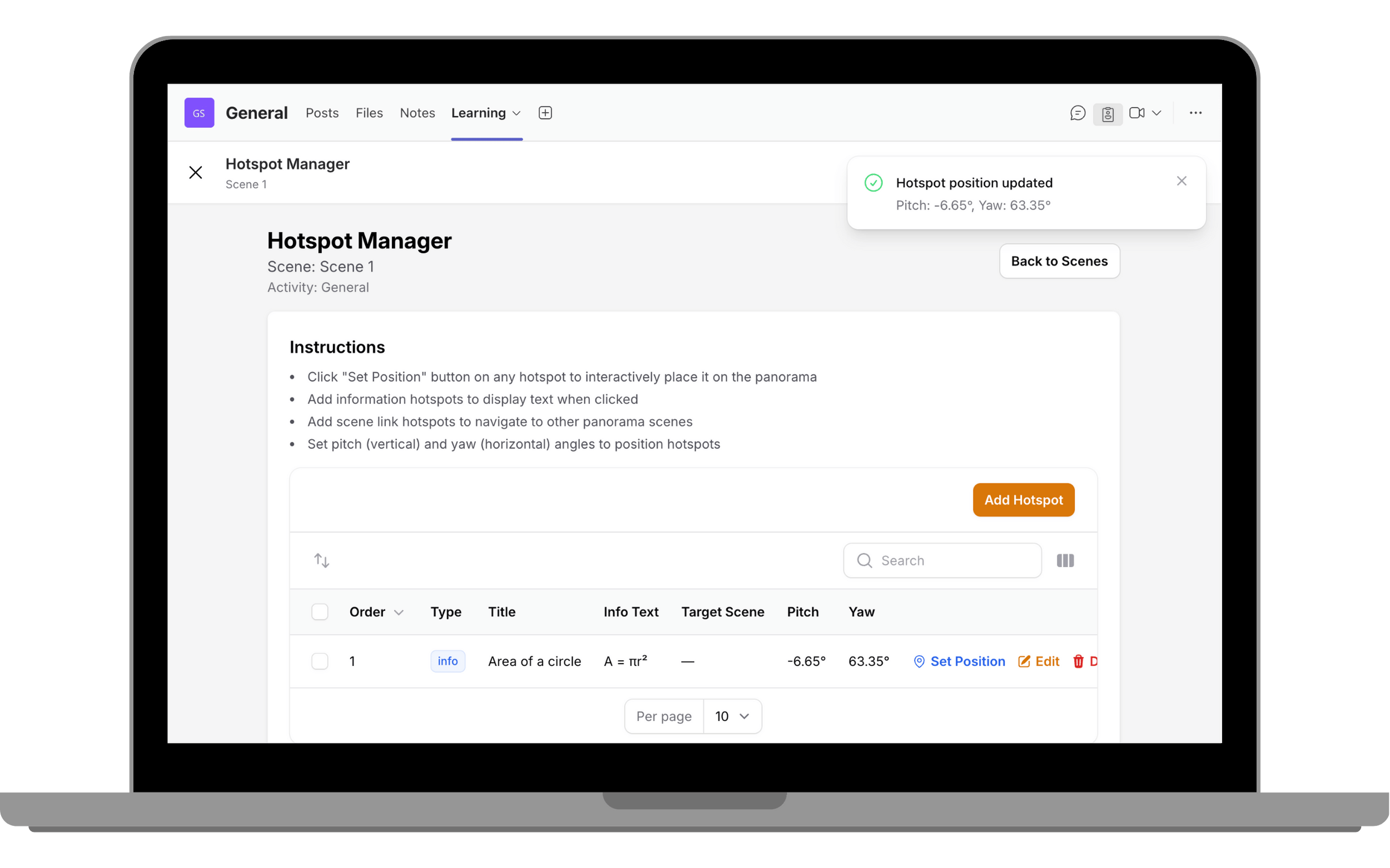
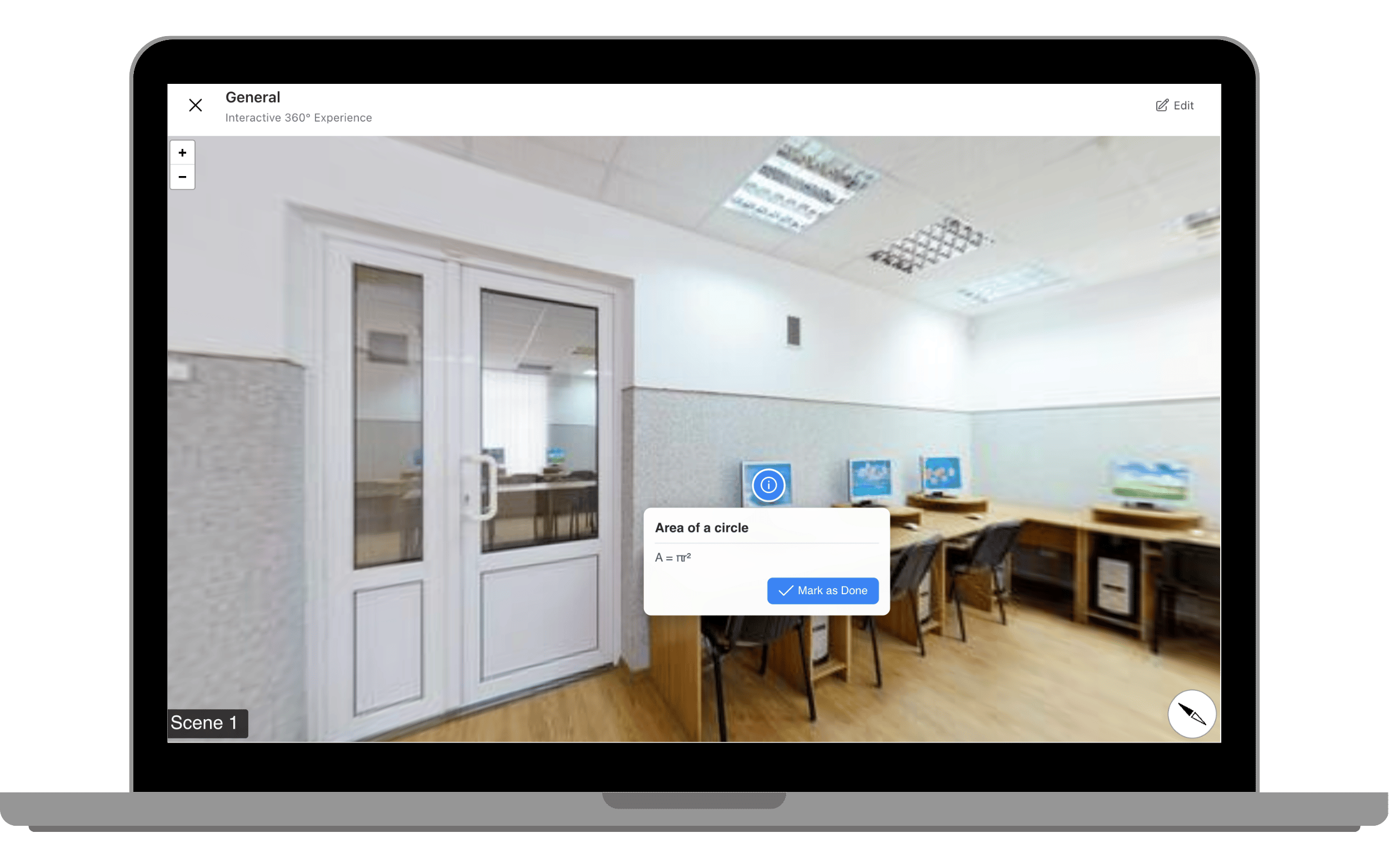
Create immersive 360° learning experiences with interactive hotspots.
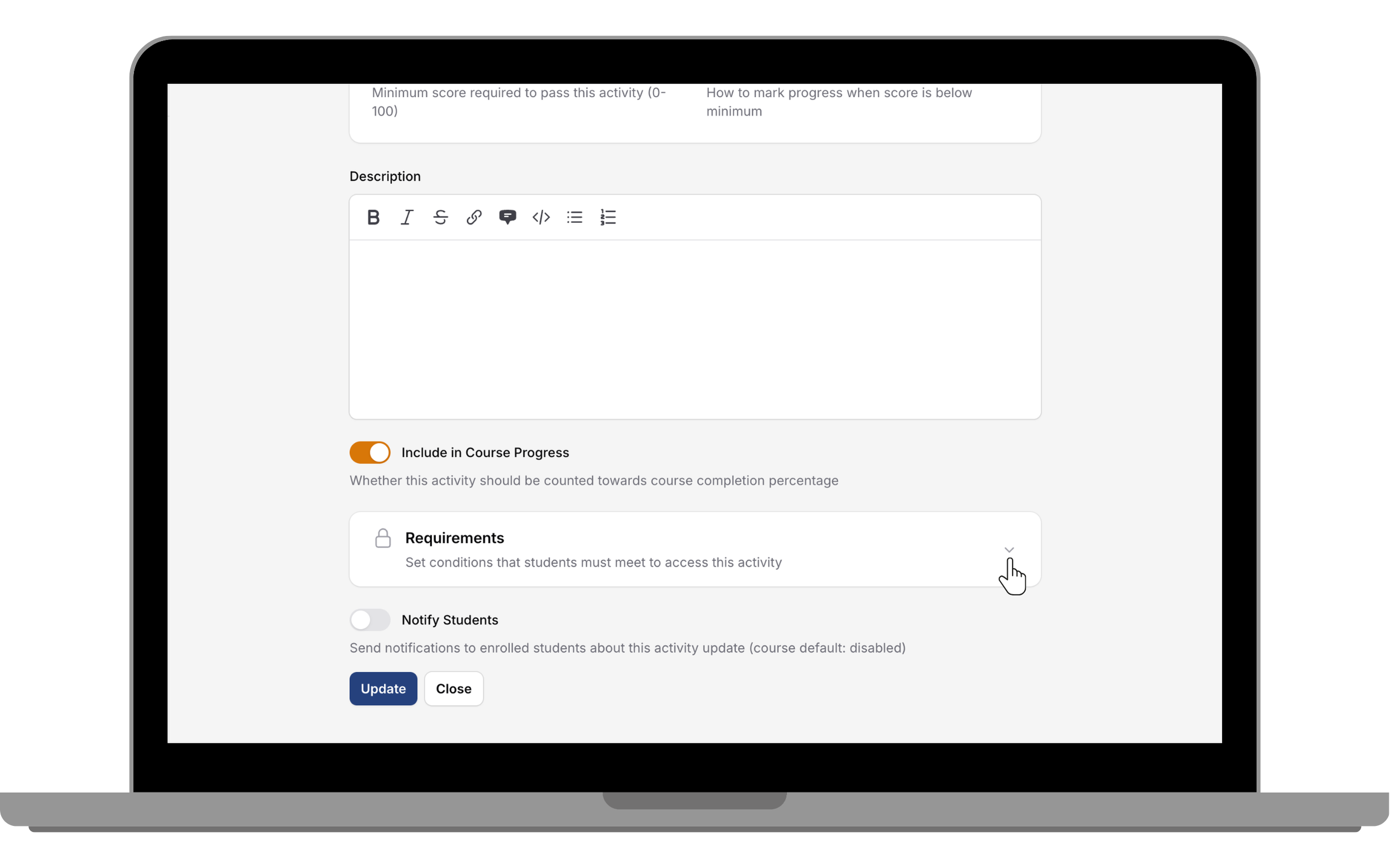
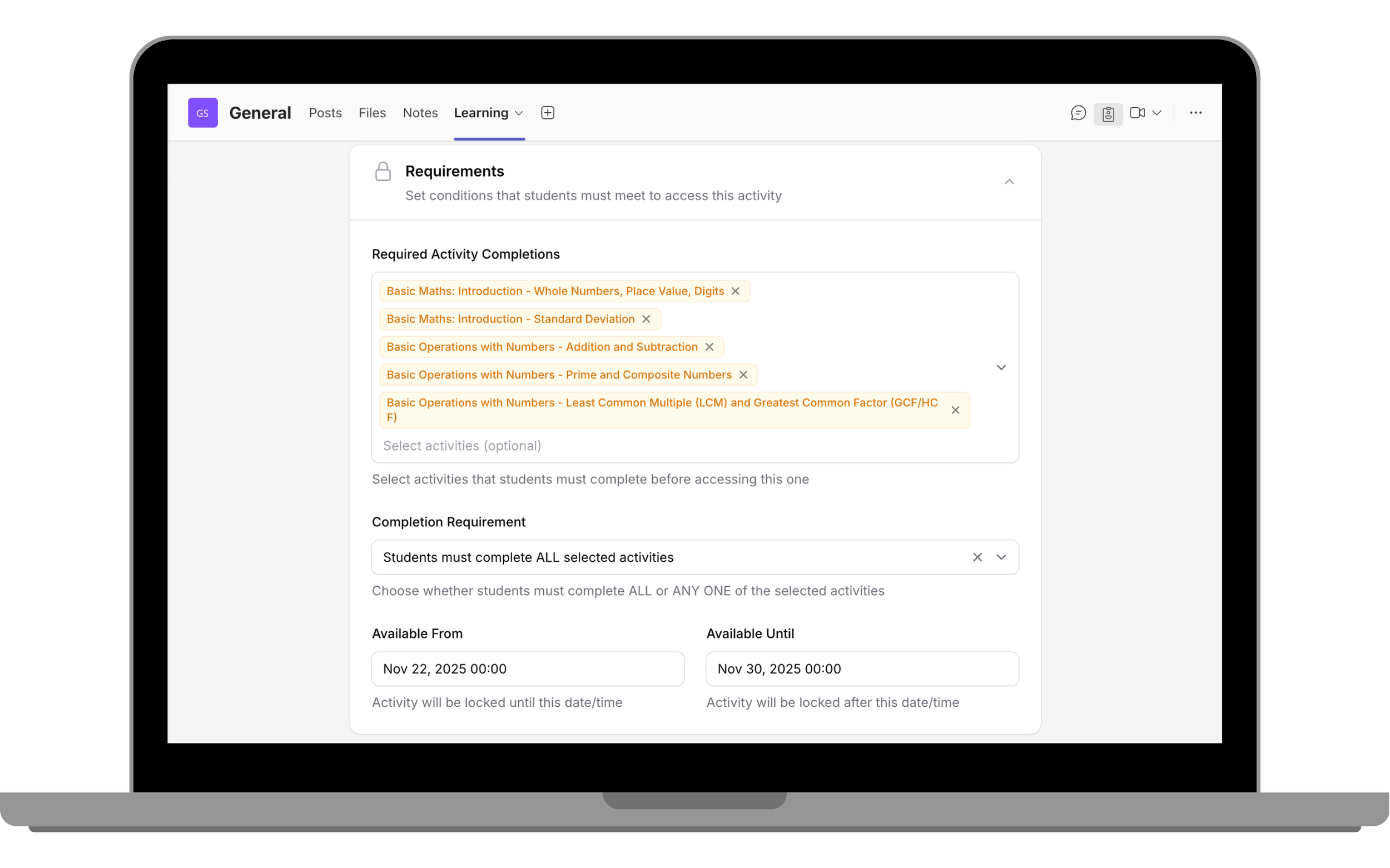
Activity Requirements allow Owners to control the order in which learners progress through a course. With this feature, Owners can set activity requirements that learners must complete before they can access a certain activity.
What This Feature Does:
How This Feature Works:
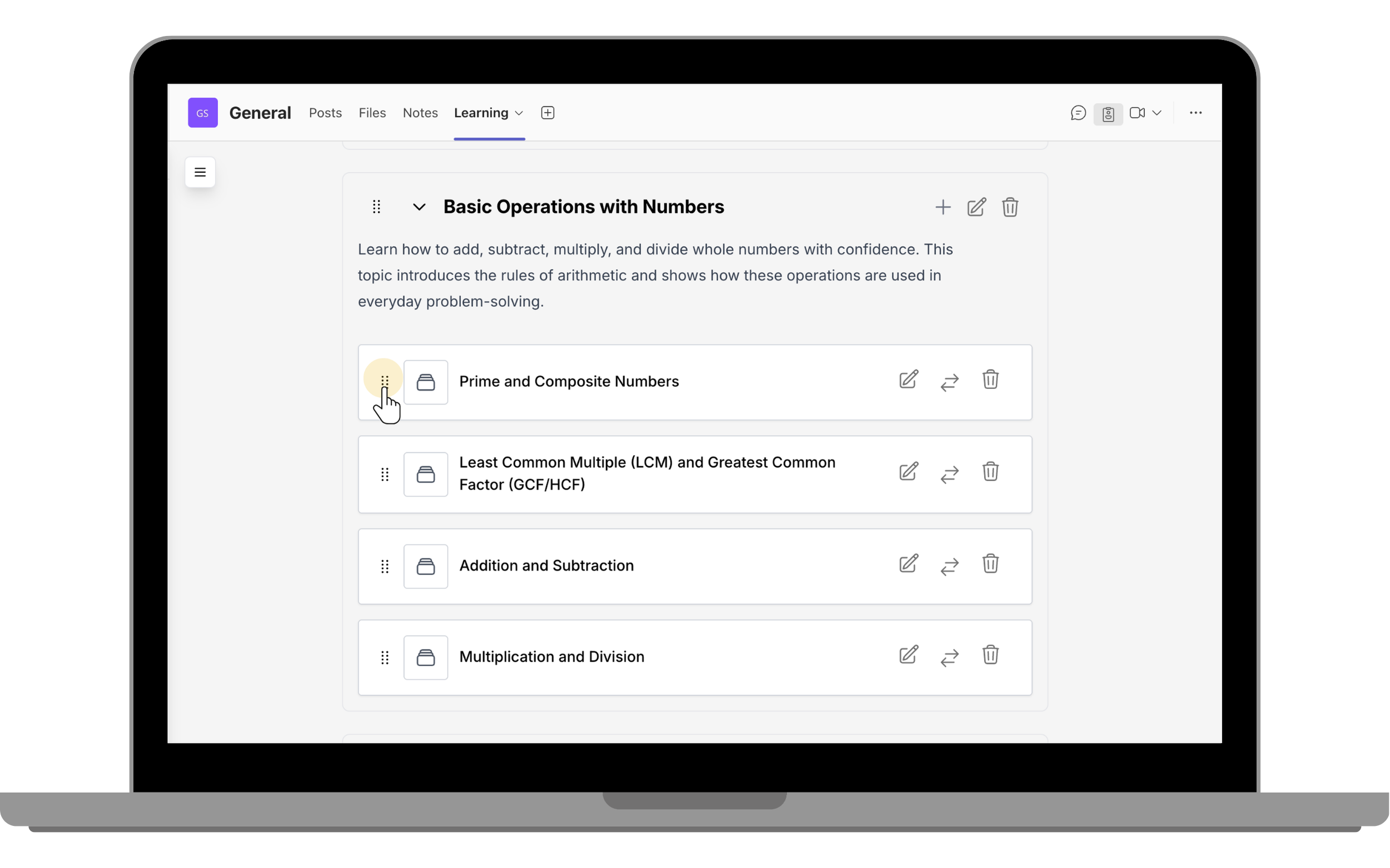
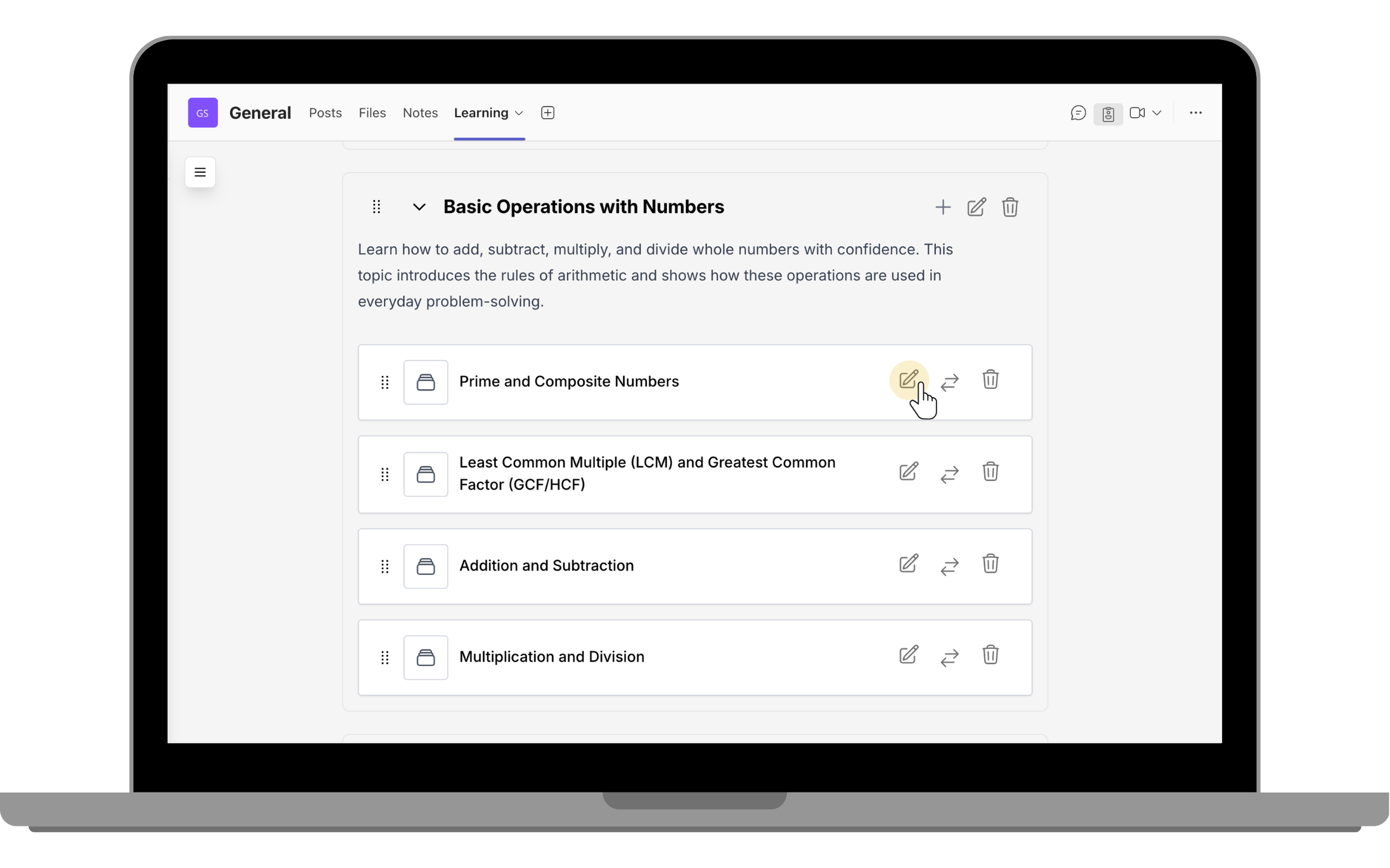
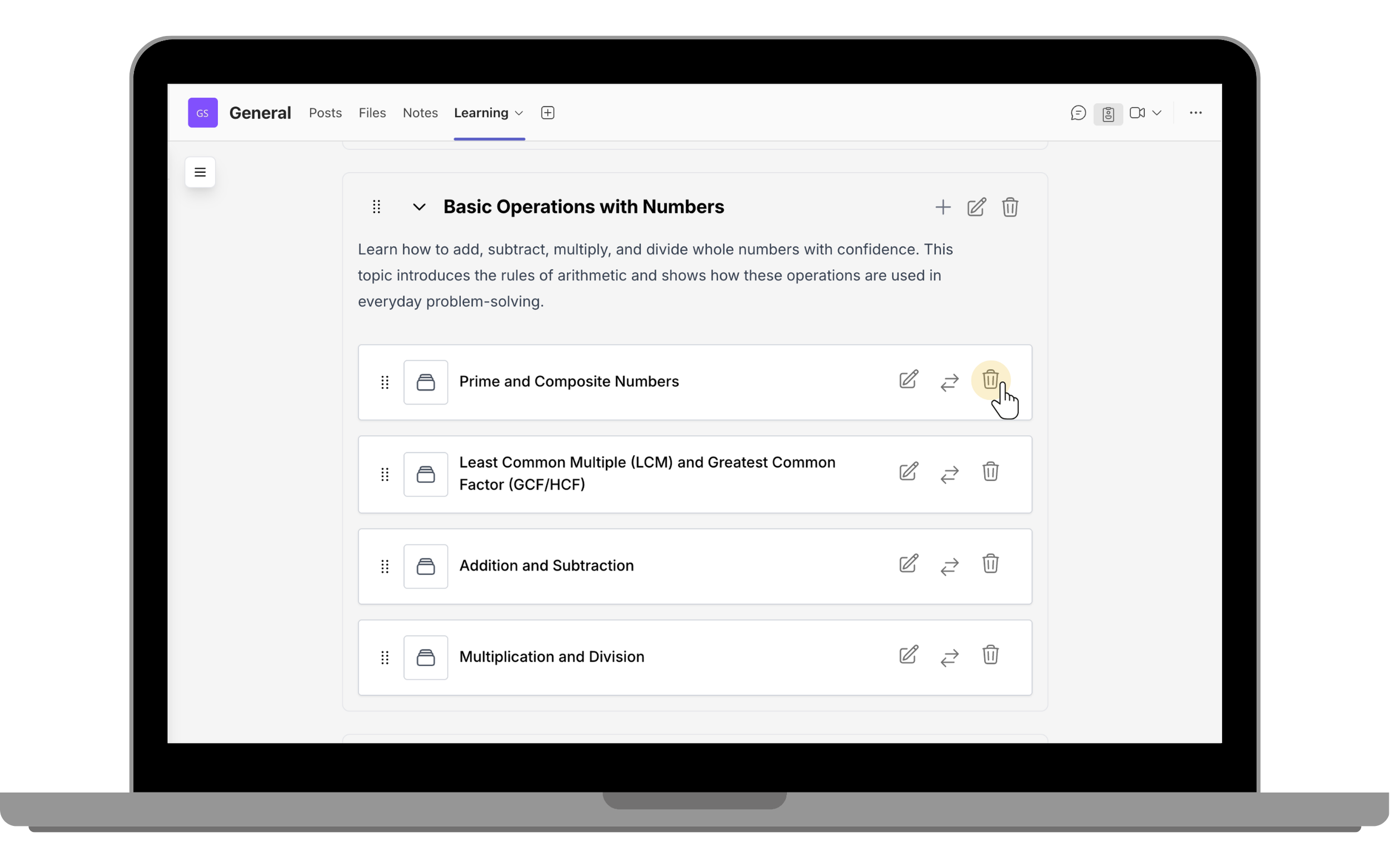
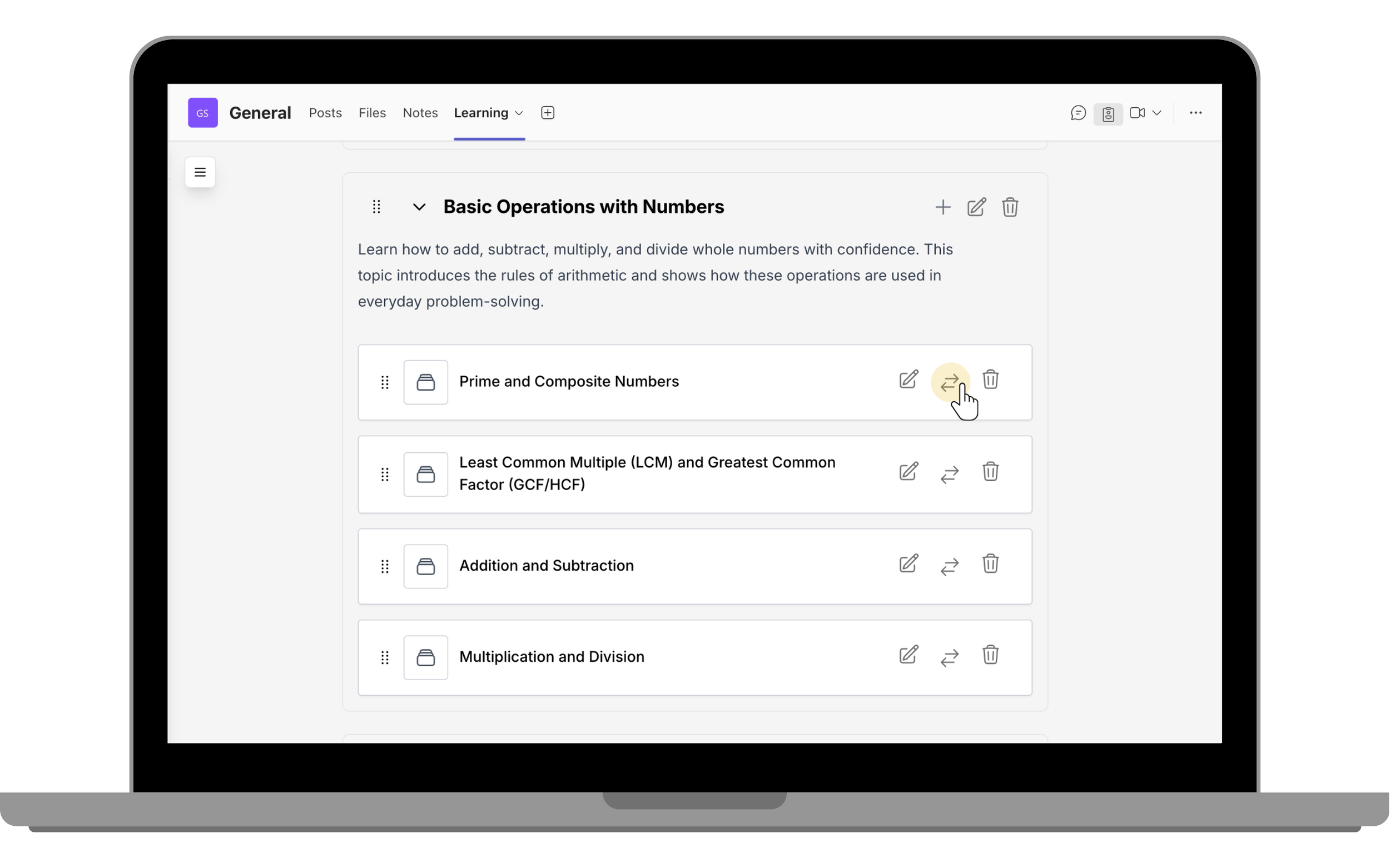
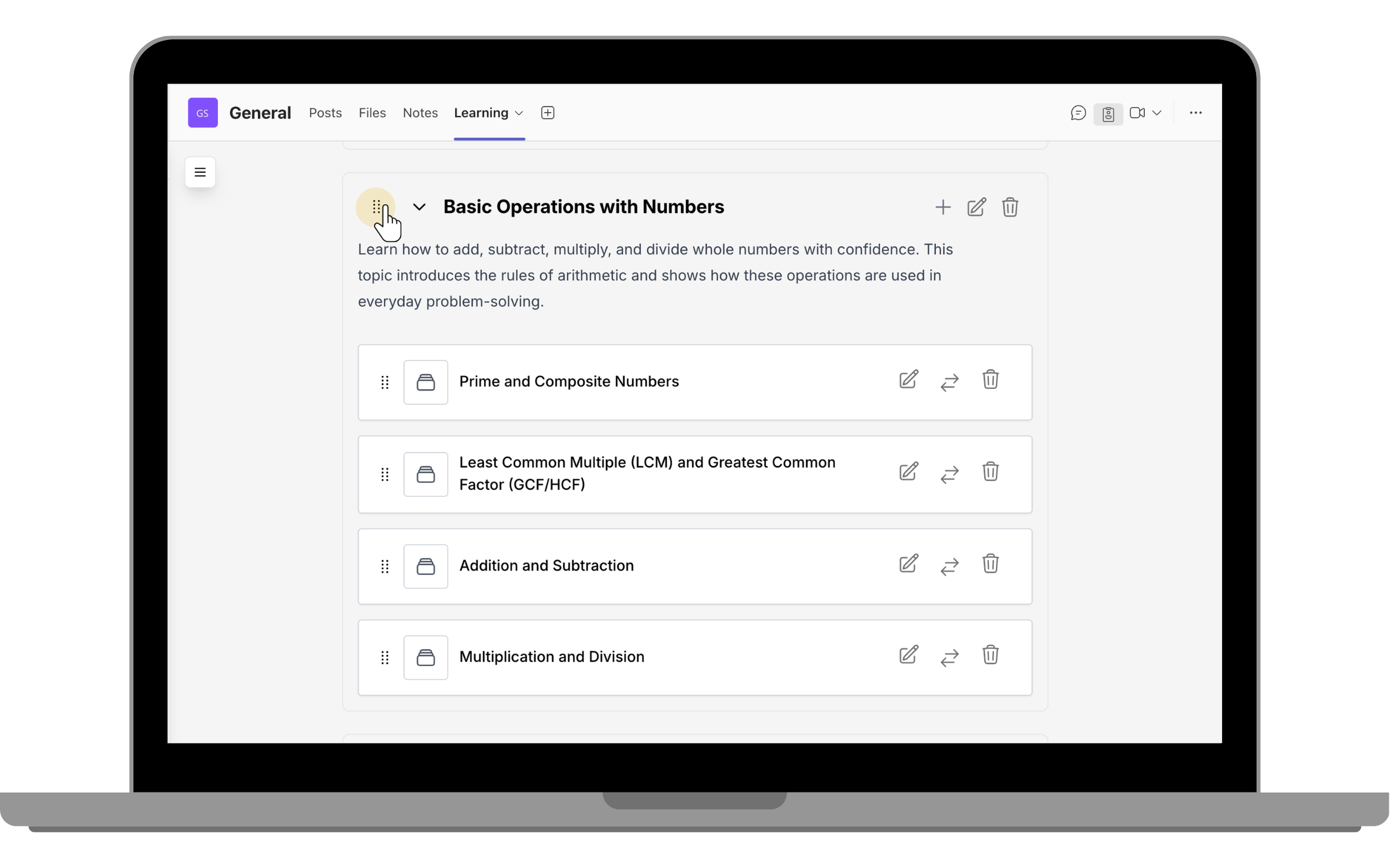
Course owners can reorder sections by dragging a section using the drag-and-drop icon and dropping it into the desired position.
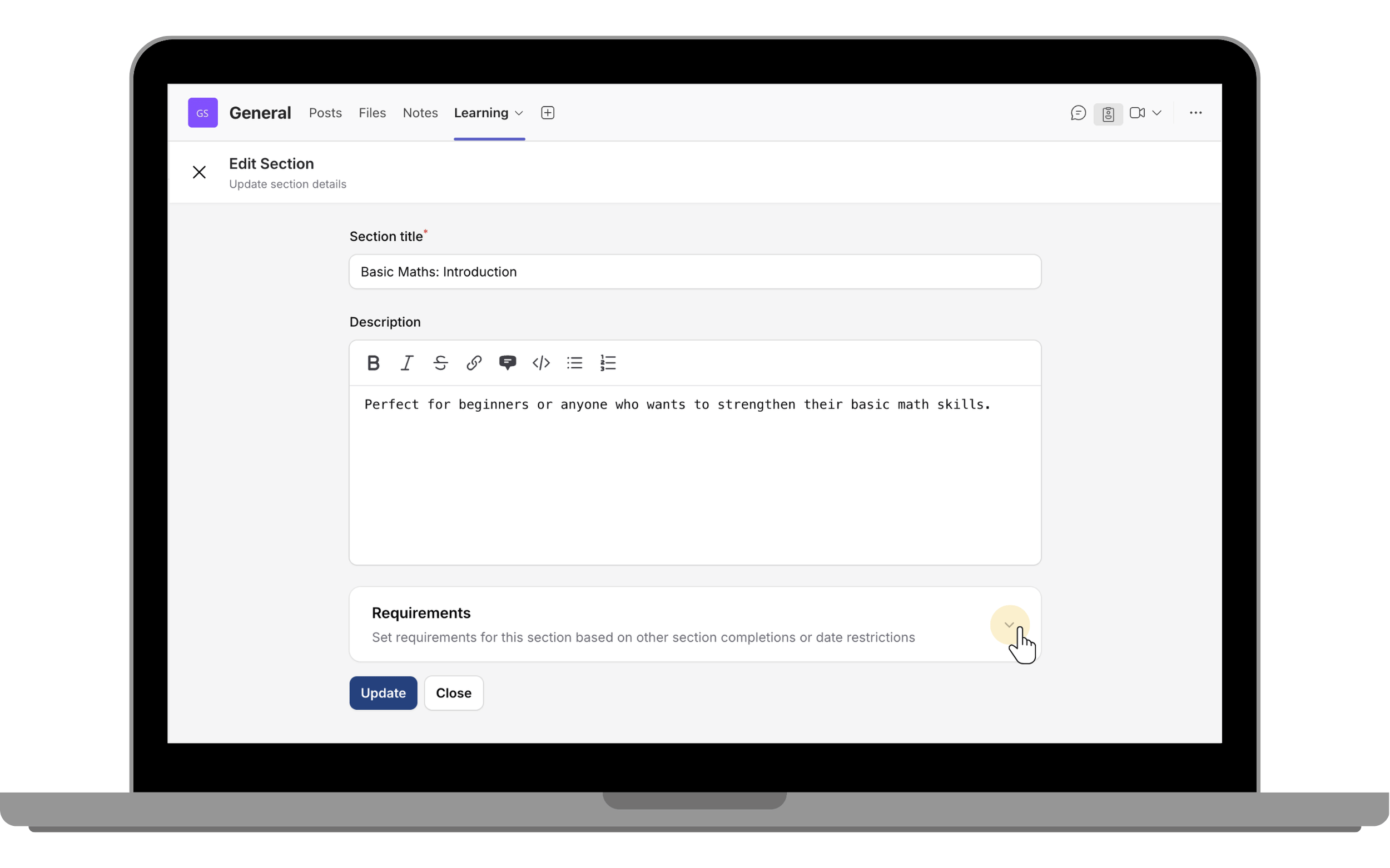
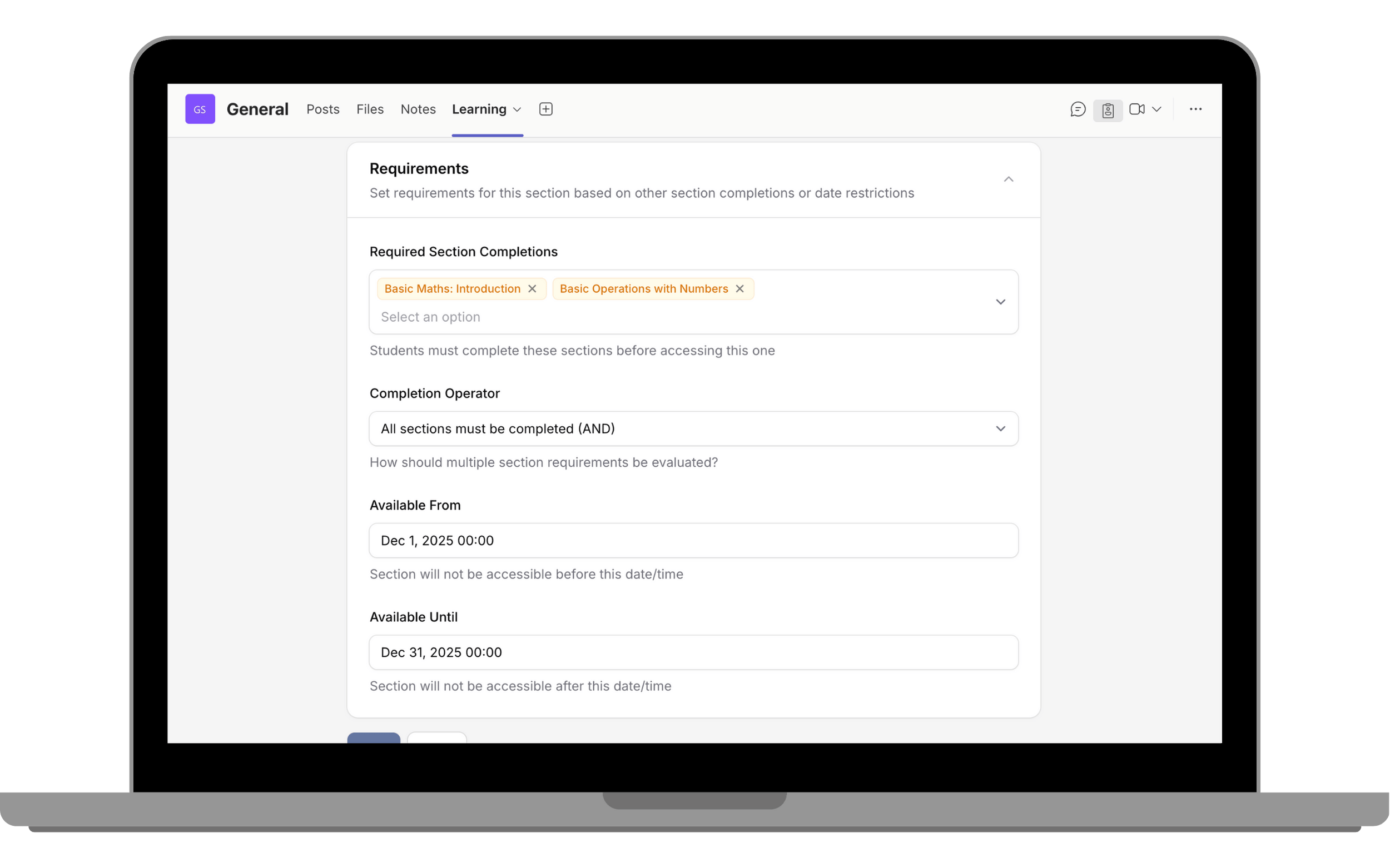
Section Requirements allow Owners to control the order of sections in which learners progress through a course. With this feature, Owners can set requirements that learners must complete before they can access a certain section.
To set section requirements, follow these steps:

The Participants report displays general information about course participants, including their completion progress and individual scores. Once a student is enrolled in your course, their details will automatically appear in the Participants table.
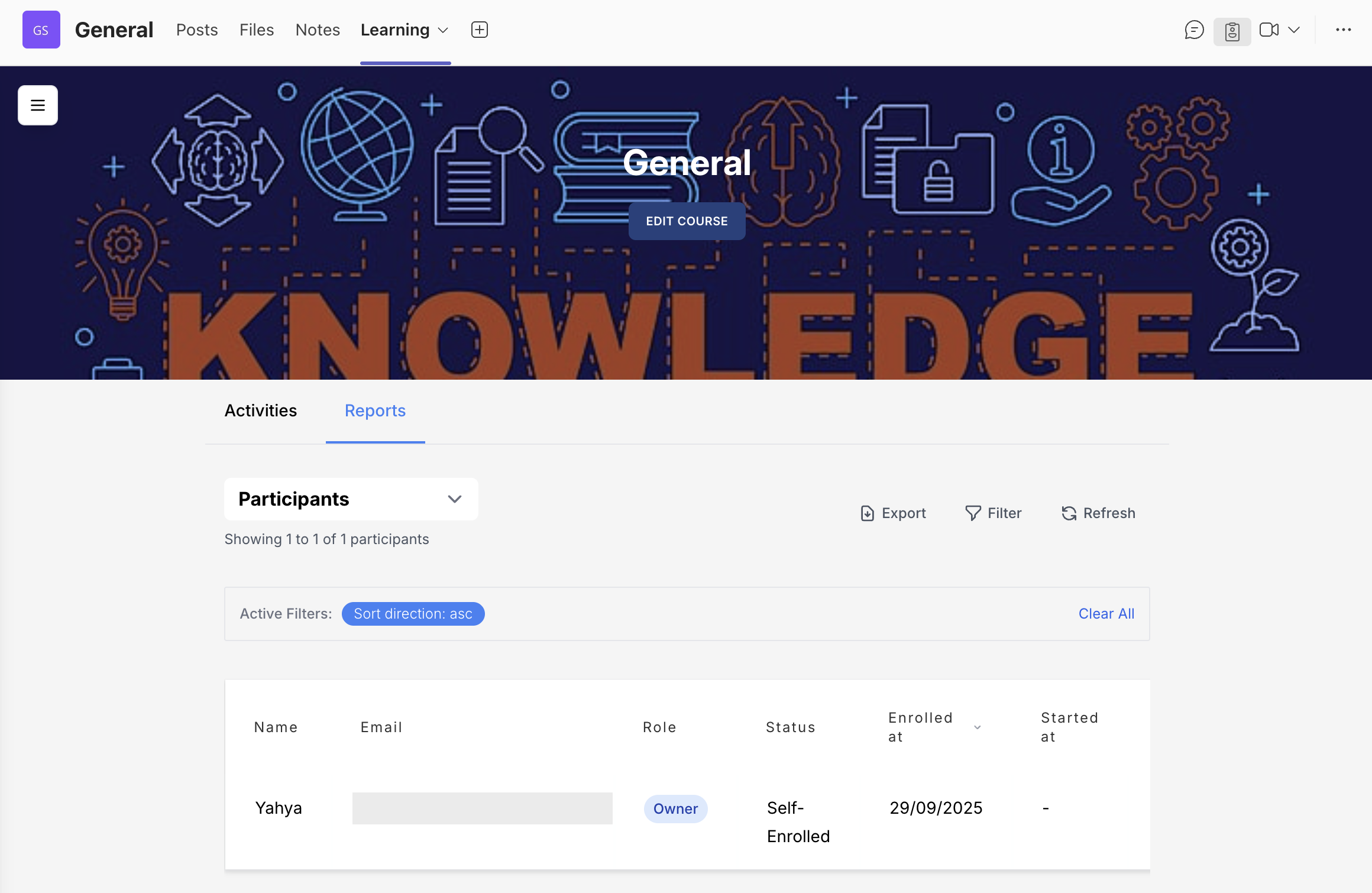
Course owners can filter participants using filtering tools. With options such as:
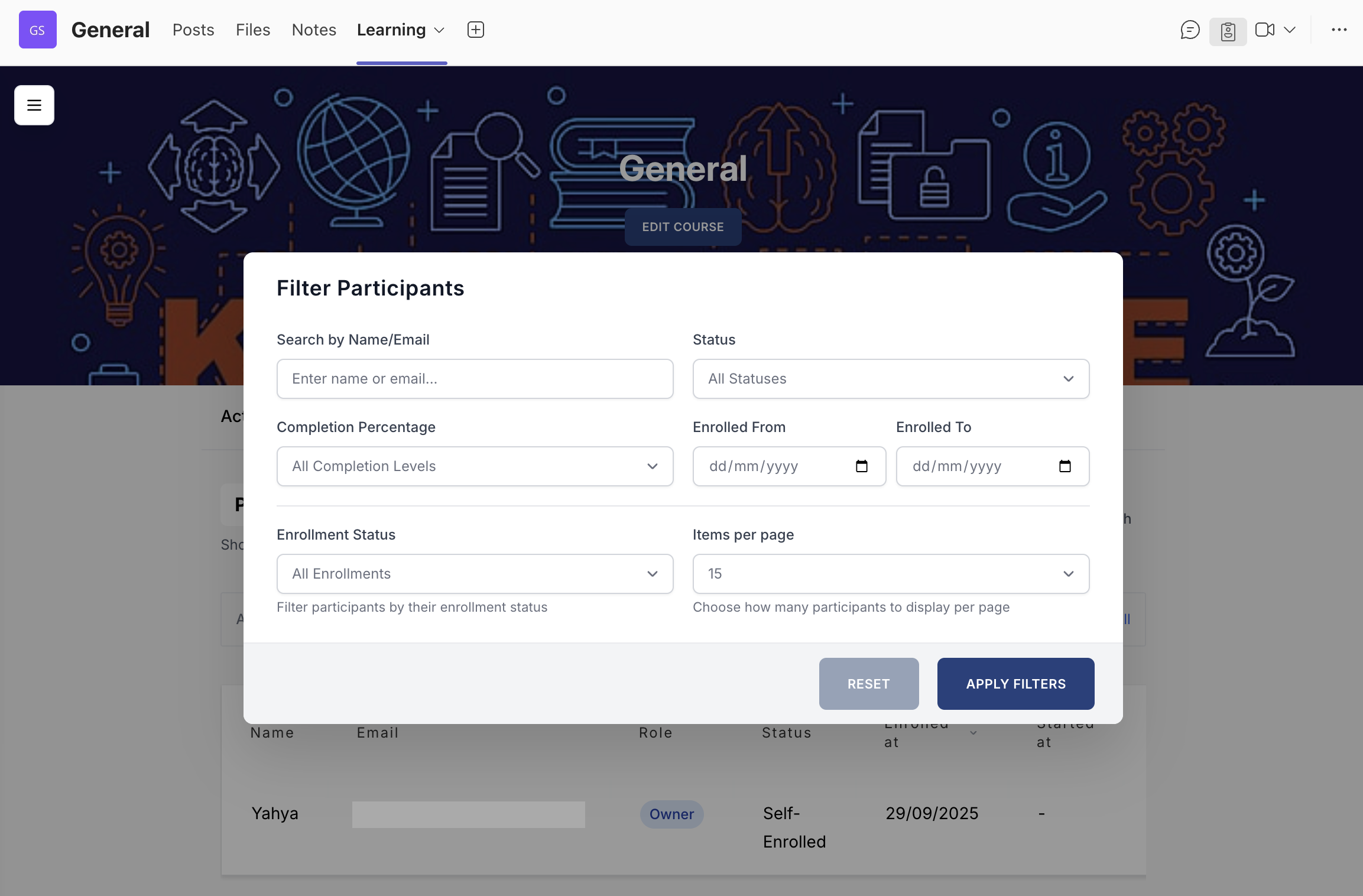
This report gives a detailed overview of each participant’s progress, displaying the completion status of all course activities. It enables course owners to quickly see which activities have been completed, are still in progress, or have not yet been started.
The legend at the bottom of the page shows what each icon represents.
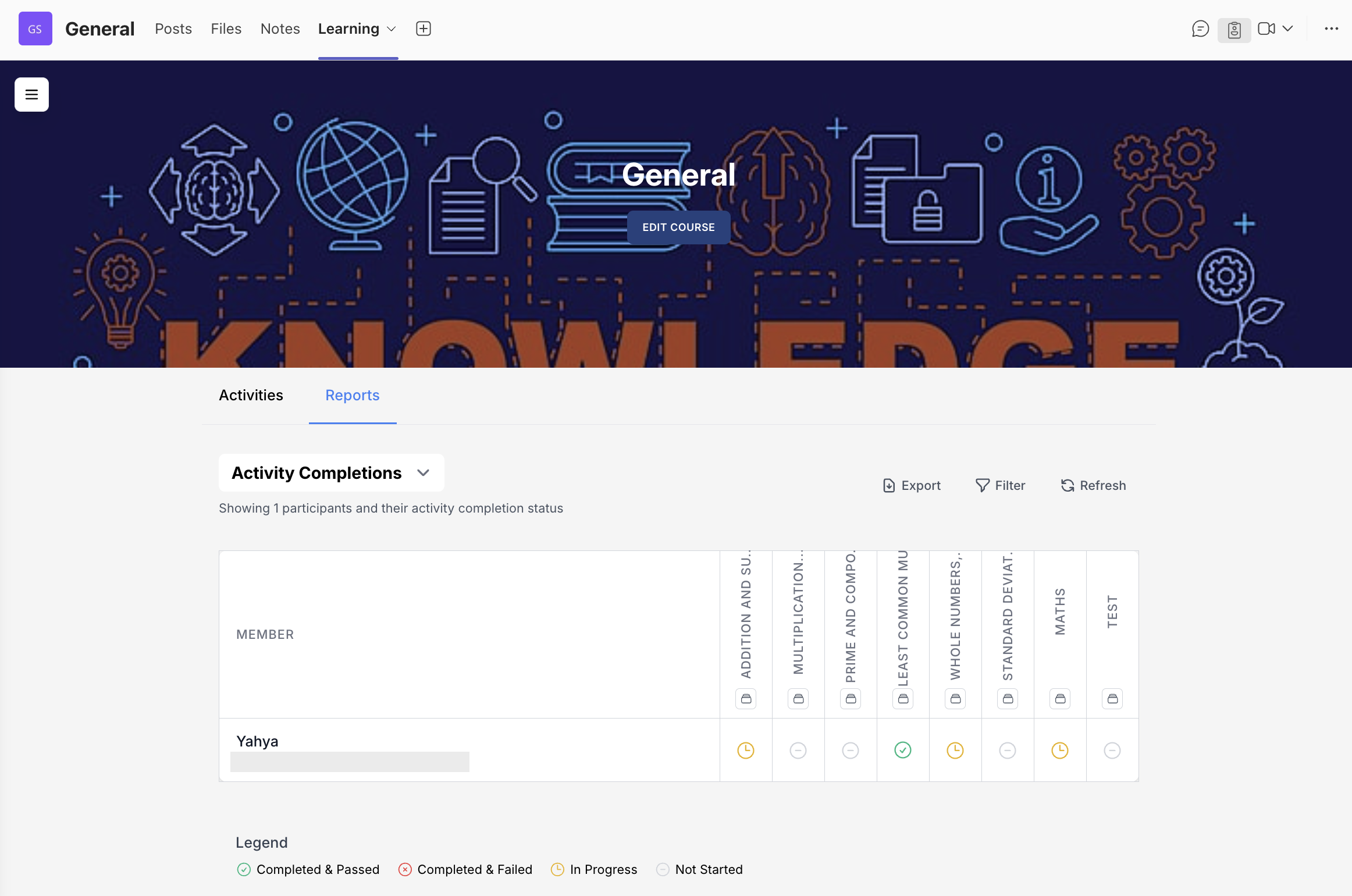
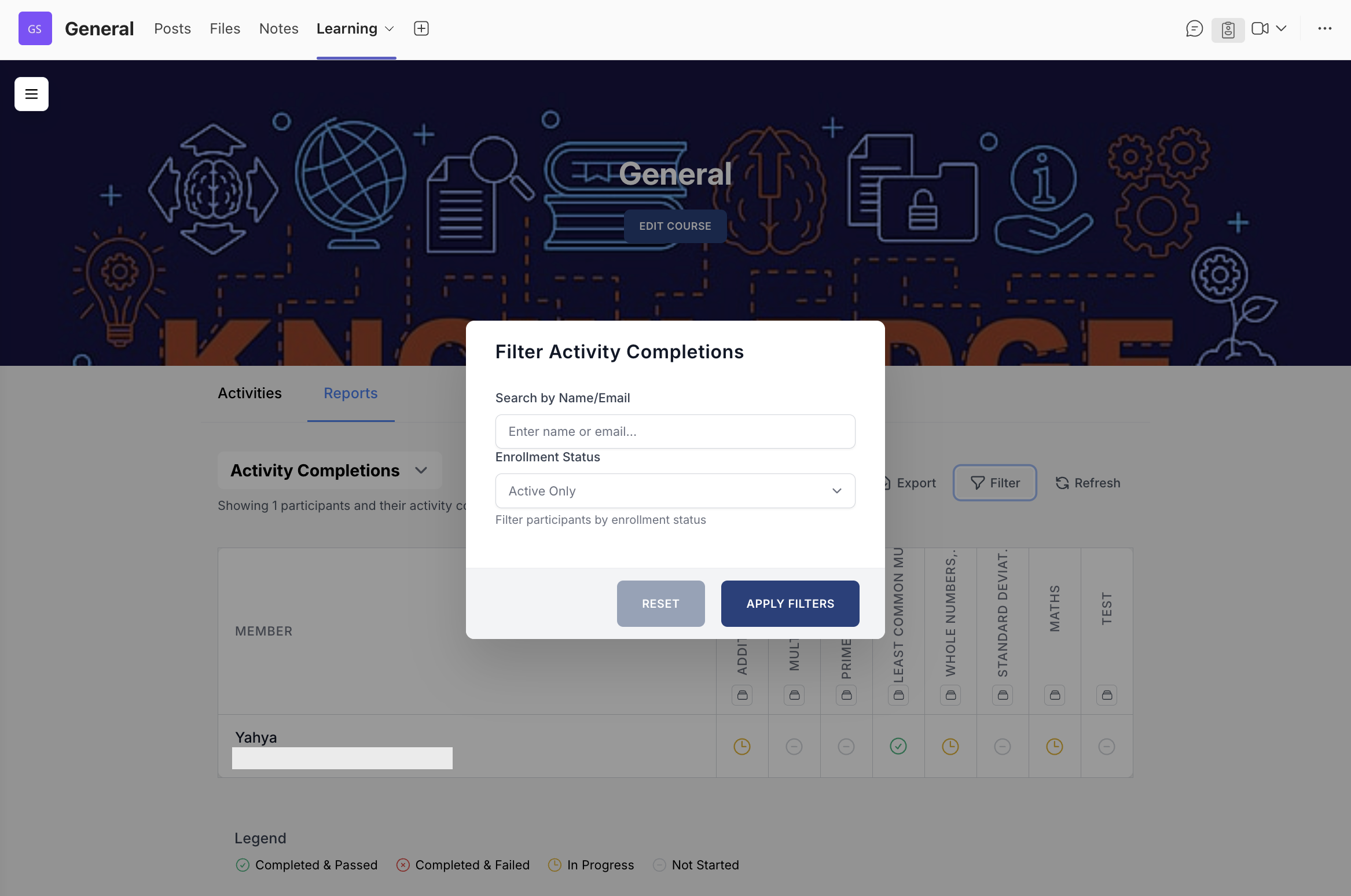
Course owners can filter Activity Completions data by participant name, email, or enrolment status (Active/Archived).
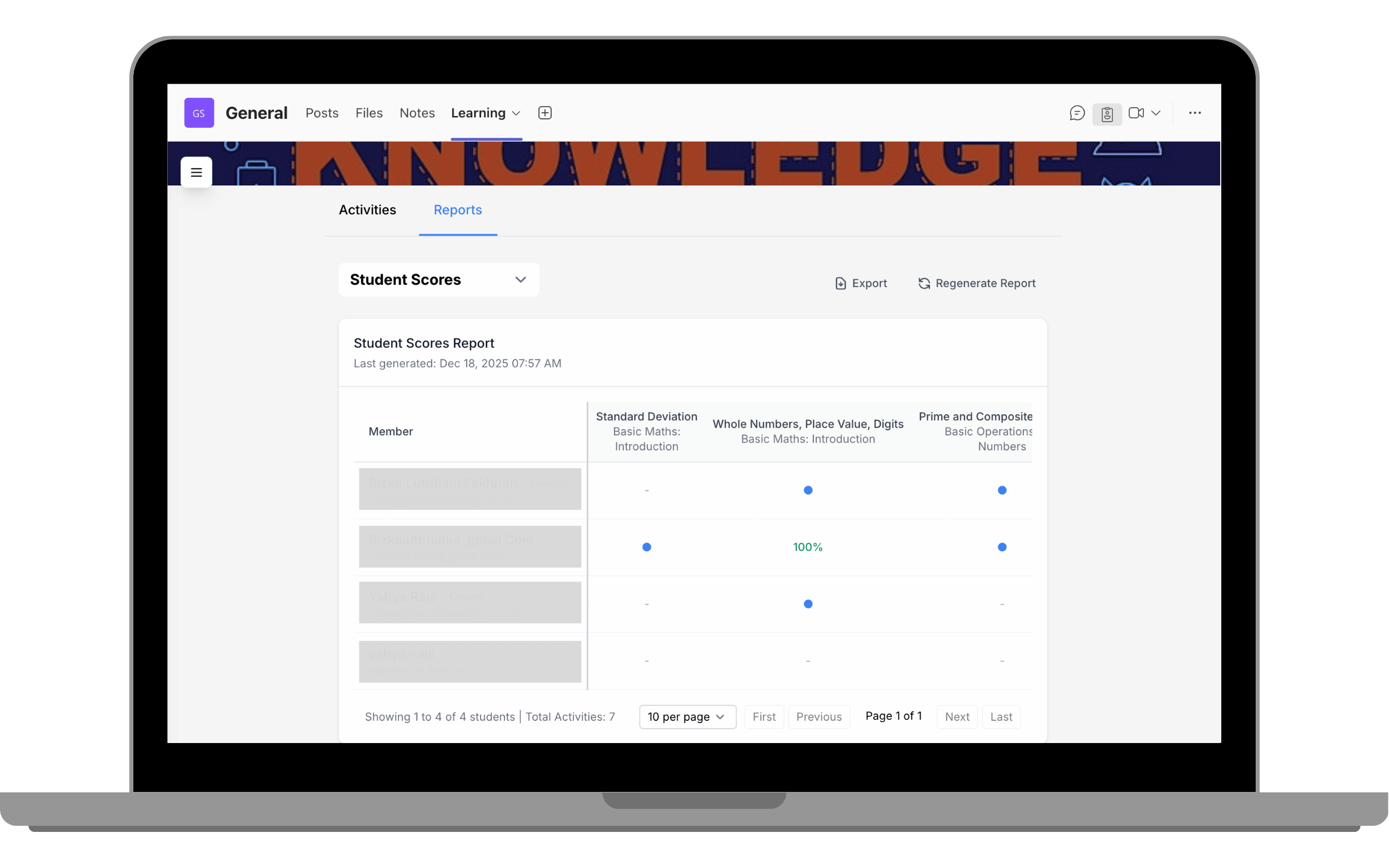
The Student Scores report allows course owners to view each student’s performance across individual activities within a course. The report displays activity-level scores per student, making it easy to monitor progress, identify learning gaps, and review completion outcomes. This report is useful for tracking individual performance, supporting assessments, and gaining insight into how students are engaging with course content.
In the Student Scores report, you can view a list of learners, with all course activities displayed across the columns and each learner’s progress or score shown accordingly. Activities that generate scores—such as BLC, SCORM, and Quiz activities—display a score ranging from 0–100%. While activities that do not generate a score are marked with a blue dot to indicate completion.
Editing mode is the default mode used by course owners to create, edit, and manage course content within Shrewd LMS. In this mode, owners can configure settings, add or modify sections and activities, and manage course structure. To switch to Student View, click Switch to Student View.
Student View allows course owners to view the course exactly as a learner would. This mode is useful for reviewing course layout, content flow, and learning requirements from the student’s perspective before publishing or sharing the course. To go back to Editing mode, click Switch to Editing.