
A Simple and Affordable
LMS for Microsoft Teams
Effortlessly create and deliver online courses with our simple Learning Management System within Microsoft Teams — used by over 14,000 students and teachers worldwide.

14k+
Students & Teachers
100+
Courses Created
99.9%
Uptime
MS Teams Integration with Diverse Activity Types
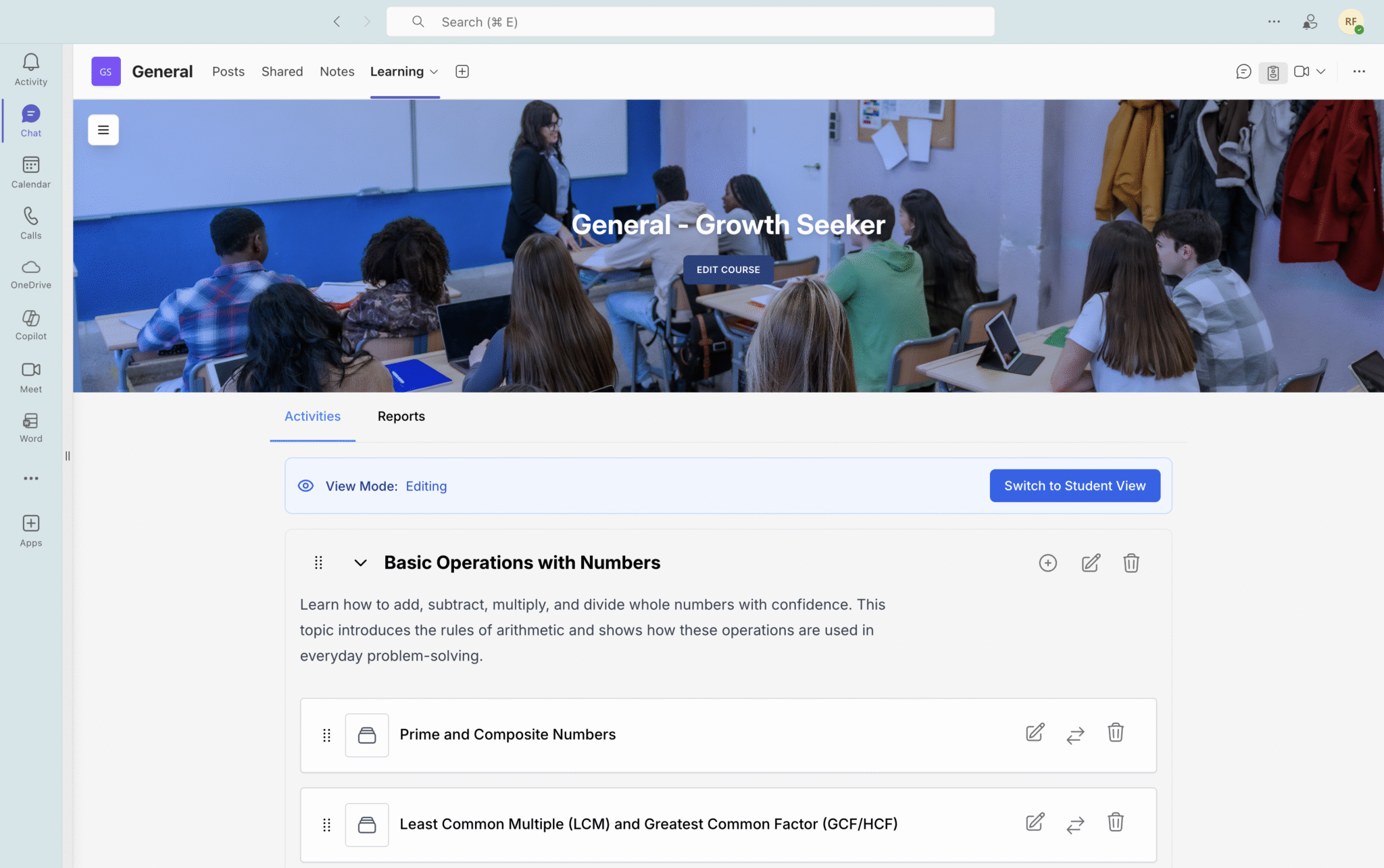
Shrewd enables managers and educators to set up and manage courses directly within Teams, streamlining training and enhancing collaboration. Create dynamic courses using a wide range of activity types, including quizzes, SCORM packages, panorama activities, and more — all delivered seamlessly within Microsoft Teams.
- Quizzes for learning assessment
- SCORM package support
- 360° Panorama interactive viewer
- Section & Activity Requirements
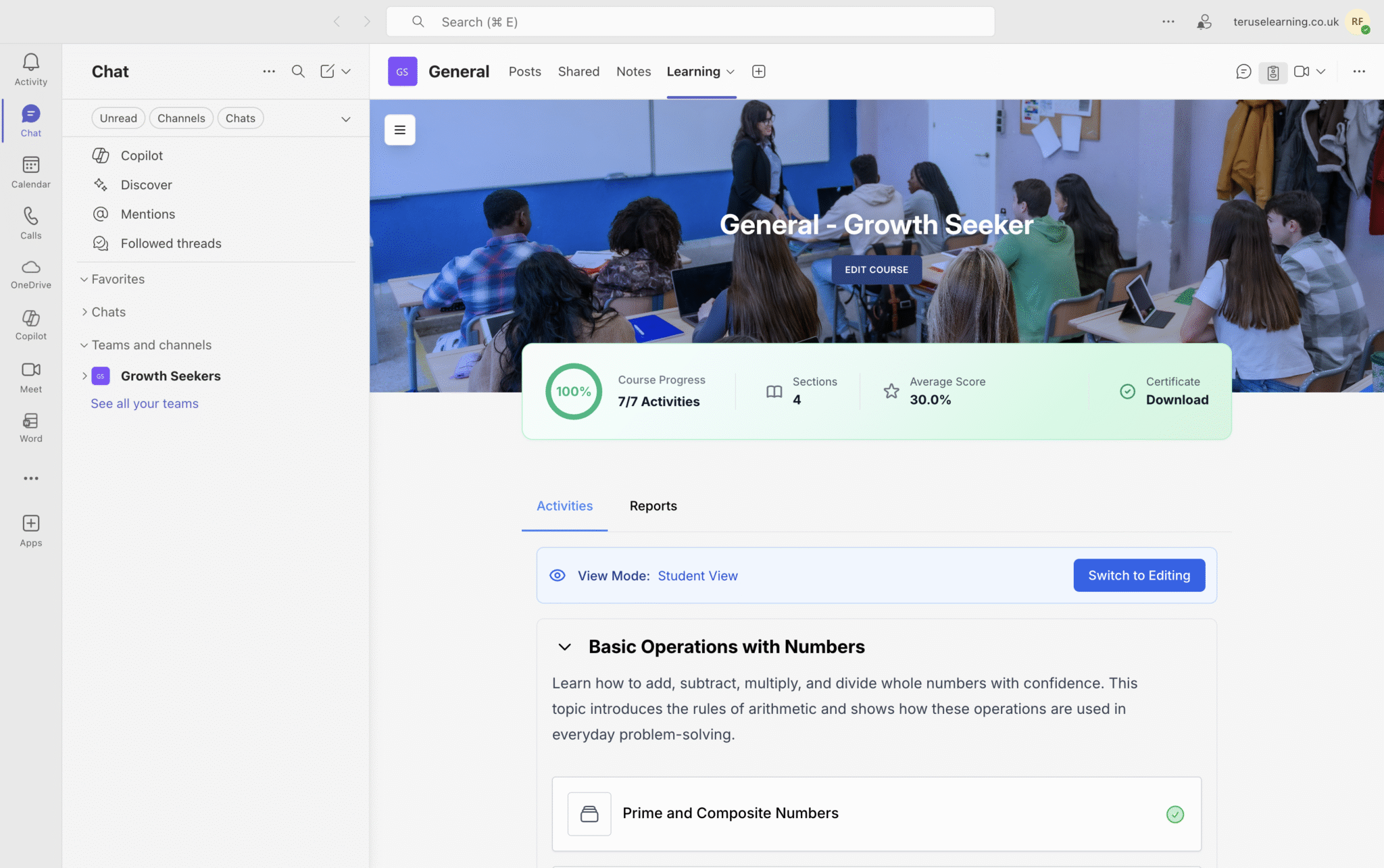
Progress Tracking & Certificates of Completion
Our app allows you to monitor learner development effortlessly, keeping courses on track and learners engaged. Gain clear completion insights and automatically issue certificates to recognize achievements and validate learning outcomes.
- Real-time progress monitoring
- Automatic PDF certificates
- Organisation-wide reports

Why Shrewd?
A quick look
Effortless Setup
Create classes within Microsoft Teams in minutes, add our ready-made modules, or customize your own.
Interactive Learning Spaces
Engage students with interactive content in a fun and collaborative environment.
Expertly Designed Modules
Access a variety of pre-built learning modules created by professionals.
Cost-Effective Solutions
Affordable options for institutions, with premium learning content at no extra cost.
About Us
Structured & Effective Learning on Microsoft Teams
With Shrewd, institutions and educators can deliver structured and interactive learning experiences directly within Microsoft Teams. Whether training employees, teaching students, or running professional courses, Shrewd ensures learning is organised, measurable, and effective.
Get Started Today!
Transform your educational programs with Shrewd on Microsoft Teams. Create classes, add learning modules, and start fostering an interactive and collaborative learning environment that will benefit both teachers and learners.
Discover More
How it works
Get started with Shrewd in three simple steps

Install the App
Add the Shrewd app in your organization’s Microsoft Teams to quickly set up classes for your students or staff.

Set up your courses
Choose from our wide range of pre-built modules or integrate your own custom content.
Engage & Track
Facilitate learning with interactive materials, discussions, and quizzes, while tracking student progress in real time.
Available in the Microsoft Teams App Store


